


Charlie Ngo
•
Last updated: 23 October, 2026
Shopify Smart Collections: Setup, Conditions & 8 Examples (2026 Updated)
Shopify smart collections add and remove products for you based on rules, such as a tag, a price, or...
Shopify Split Shipping: How It Works and How to Manage It in 2026

Marketing Manager
Summarize this post with AI
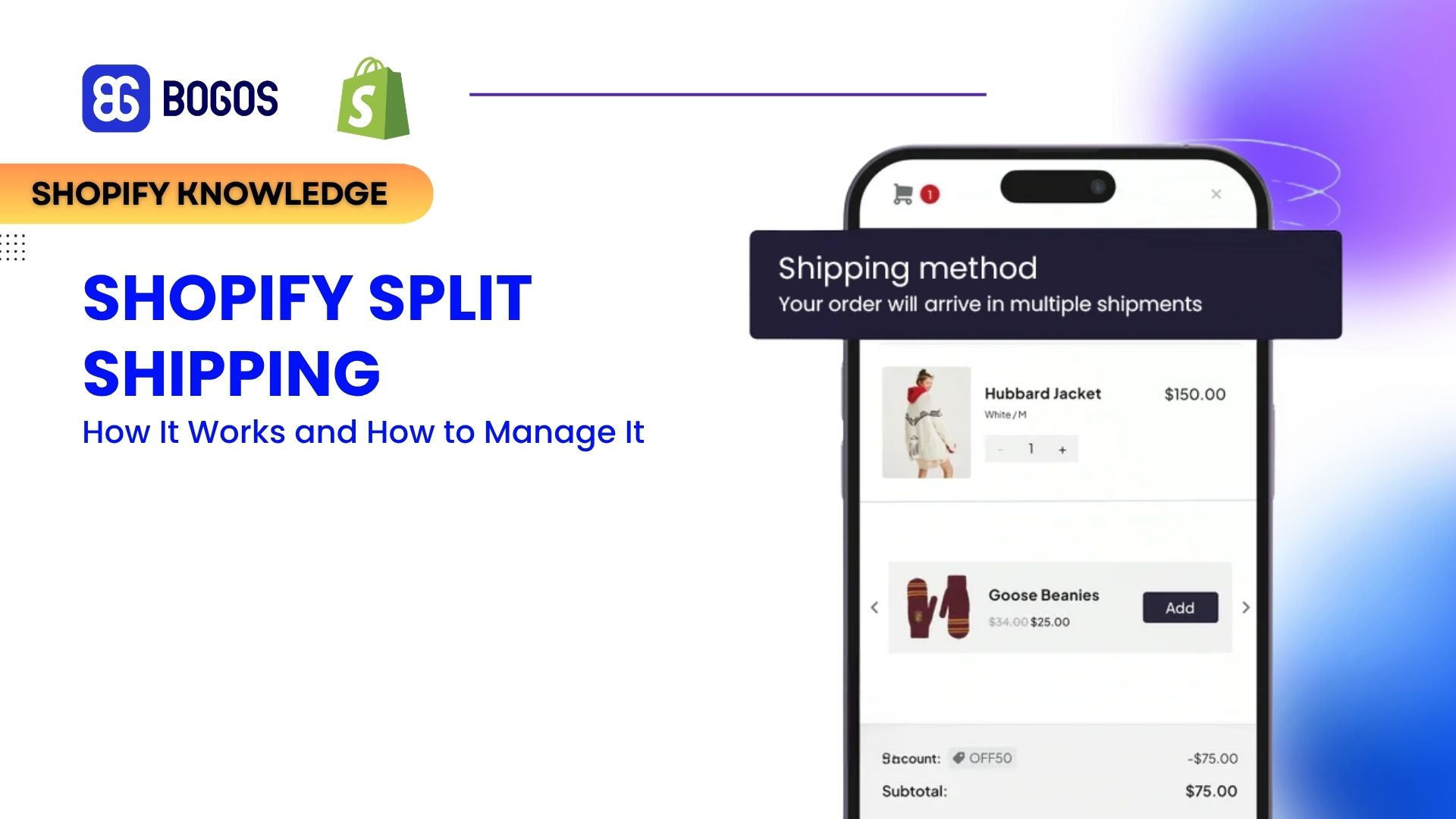
A customer buys a preorder with an in-stock item, or two products stored in different warehouses. Since the items can’t ship together, Shopify split shipping separates the order into multiple shipments and lets the shopper choose a delivery method for each one.
Here, you’ll learn why Shopify splits orders, how shipping charges are calculated, how to turn split shipping on or off, how to avoid unwanted splits, and how to merge a split order into one shipment.I’m Charlie Ngo, an eCommerce expert at BOGOS with 11 years of experience helping Shopify stores increase sales, lift average order value, and improve conversion rates.
An order splits into multiple shipments when its items can’t be fulfilled together. Shopify does this automatically when a cart contains any of these: a preorder, a subscription, items stocked in different locations, items in different shipping profiles, or a Buy with Prime product.
Here are 5 common Shopify split shipping triggers, with an example of each:
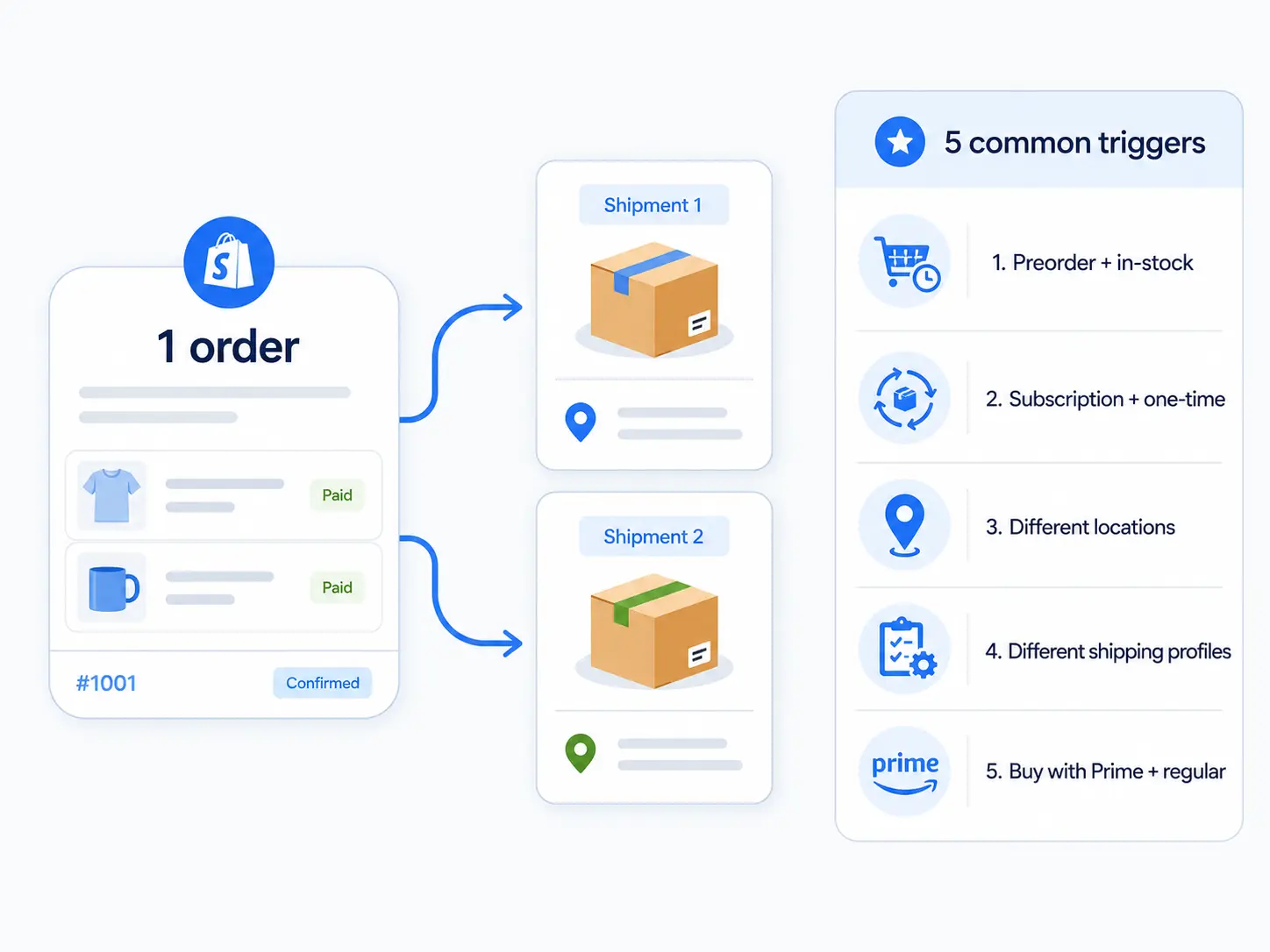
These triggers explain why Shopify split shipping happens, but there is one important distinction before you change any settings:
So, hiding split shipping at checkout does not merge the order into one fulfillment. Keep that in mind as we move into the setup and prevention options below.
👉 Learn how to set up shipping on Shopify from A to Z: How To Set Up Shipping On Shopify: A Step-By-Step Guide
Split shipping in checkout is a store-wide setting, and it only applies if you have more than one shipping profile or more than one location. Here is where to find it and how to change it.
On mobile, the path is the same through the Shopify app: Settings → Shipping and delivery → Split shipping.
One catch worth knowing before you go looking for the setting: the option only appears when you have at least two active locations or two shipping profiles that can fulfill online orders. A single-location store with everything in one profile will not see it at all.
Once split shipping is enabled, the next thing to understand is what customers actually see at checkout, where the feature has limitations, and which shipping scenarios fall outside it.
At checkout, Shopify groups shipping methods into Lowest price (the default) and Fastest. Each option shows the total shipping cost across all shipments, with a breakdown of the method, delivery estimate, rate, and item count for each package.
Customers can select More shipping options to choose a different method for each shipment, such as express for one package and standard for another. Keep in mind that Shopify preselects the cheapest combination by default, so plan your rates accordingly if you want another option to stand out.
That is how split shipping works when checkout supports it. However, there are several cases where customers will not see these per-shipment choices at all.
Even with split shipping enabled, some checkout and fulfillment scenarios will not work as expected:
| Shipping situation | Explanation |
|---|---|
| Same line item across locations | Shopify cannot split the quantity of one line item across multiple locations. All units must ship from one location. |
| Accelerated checkouts | Shop Pay, Apple Pay, and Google Pay may skip the per-shipment shipping selection. |
| Draft orders and B2B checkouts | Orders with a shipping line already set cannot use split shipping at checkout. |
| Third-party fulfillment apps | Support varies by app, so the customer’s split-shipping choices may not carry through correctly. |
| Shipping Scripts or local delivery | These setups can prevent split shipping from appearing or working at checkout. |
| Per-box or per-item shipping charges | Shopify treats items shipping from one location as one shipment, so it does not automatically charge per box or additional item. |
| Multiple delivery addresses | Split shipments still go to one address. Sending one order to several recipients requires a separate multi-address solution. |
Two questions land the moment an order splits: what did the customer pay, and can you put everything back into one box? Both come down to the cost of shipping a split order, so here are the two halves together.
What a customer pays on a split order depends mainly on how your fulfillment locations are grouped:
Assume a customer buys two shirts: the green shirt ships from Location A and the red shirt ships from Location B. There are two shipping options: standard shipping costs $10 and express shipping costs $20. The final shipping charge depends on whether those two locations belong to the same location group.
| Location setup | What the customer pays | Can they choose a different method for each shipment? |
|---|---|---|
| Same location group | $10 standard or $20 express for the whole order | No. One shipping method covers both shipments. |
| Different location groups or shipping profiles | $20 standard or $40 express if both shipments use the same method | Yes. For example, $20 express for one shipment + $10 standard for the other = $30 total. |
There are two more rules that matter:
That second rule becomes especially useful when you want to prevent split shipping from feeling like an extra cost to the customer. We’ll use it later in the free-shipping strategy. For more on how Shopify combines rates across multiple products, see our guide to flat and weight-based shipping rates.
When a split order charges a customer for two shipments, you are not stuck with it. Some shoppers would rather wait and get everything in one box anyway, which is common for collectibles, apparel, and other non-urgent goods.
You can hold the ready items, wait for the rest, ship them together, and refund the shipping they overpaid. Do it in this order.
Go to Orders, open the order, and in the Unfulfilled section click the ⋯ menu, then Hold fulfillment. Choose the items to hold, pick a reason, and click Hold fulfillment.
Once the backordered or preordered stock arrives at the same location, open the order again, and in the Unfulfilled section, click ⋯, then Merge fulfillment. Select the items and confirm.
There is one important limit: Shopify only merges fulfillments from the same location, and you can’t do it from the mobile app, so use a desktop. If the items genuinely live in different warehouses, you have to move stock to one location first or fulfill it manually.
The customer prepaid for two shipments, so issue a partial refund for the shipping they no longer owe. Our guides on how to issue a partial refund and how to refund the shipping charge walk through both.
The payoff is a better customer experience and one shipping label instead of two. If you handle these requests often, an order-editing app can make holding and merging orders easier at scale.
Make the option clear on product pages and in order-confirmation emails, and ask customers to request it soon after ordering so you can hold the first shipment before it goes out.
Combining shipments works for one-off requests, but preventing unnecessary splits saves more in the long run. Every extra shipment can mean another box, shipping label, and delivery charge, while customers have to track multiple packages.
The better approach is to keep products that customers often buy together stocked at the same location and under the same shipping profile. These four practices can help reduce split shipments and fulfillment costs:
If these steps still do not prevent splits, the issue is usually a multi-warehouse ERP or 3PL setup that cannot process one order across multiple locations. In that case, use a third-party order-routing app or manually combine affected orders with the hold-and-merge process above.
Split orders can feel more expensive when customers see multiple shipping charges. A free-shipping threshold fixes that: once the full cart qualifies, every shipment ships free.
It also helps conversion. Shipping and fees are the top reason for cart abandonment, cited by 39% of shoppers, while a threshold set 20% to 30% above AOV can nudge customers to spend more. Shopify supports free-shipping discounts natively, but the setup has limits: Product and collection targeting is restricted and there is no progress bar to show shoppers how close they are to the reward.
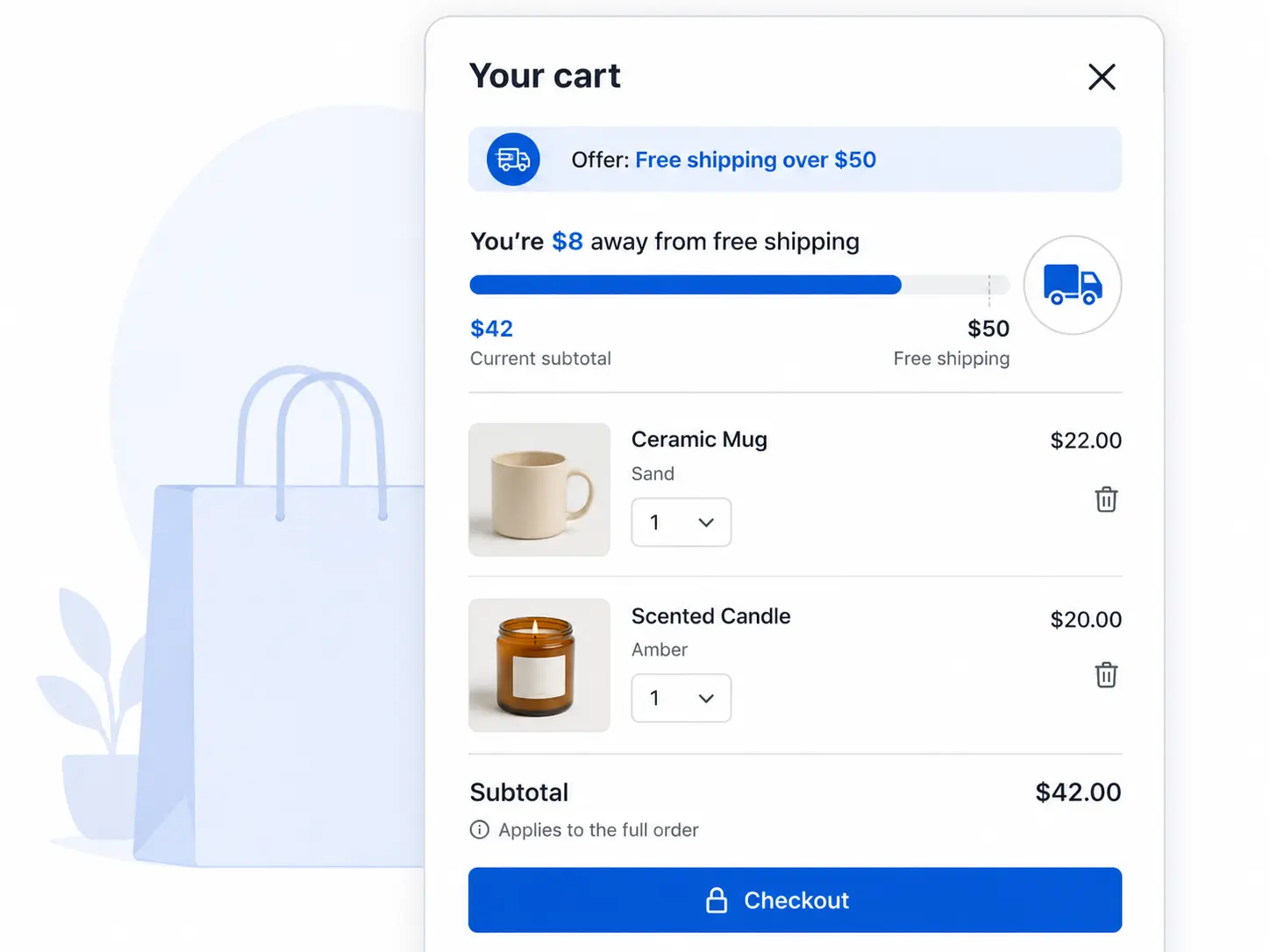
That gap is where the BOGOS: Free Gift Bundle Upsell app helps. It allows you to set up free shipping as a single gift offer, then target it by product, collection, cart condition, or customer segment. Also, you can display the reward through a cart progress bar, so shoppers see exactly how much more they need to spend to unlock free shipping.
You can then pair that free shipping threshold with product bundles, or volume discounts to push more carts over the line and help offset the shipping cost you absorb. For setup details, see our guides to free shipping over a set amount and free shipping on specific products
Split shipping can look alarming, but it is a fulfillment feature, not a billing error. Once you understand what triggers a split, how checkout differs from fulfillment, and how location groups affect charges, you can control the outcome.
Use order routing to reduce unnecessary splits, combine shipments when needed, and refund any extra shipping customers paid. Then go further with free shipping. Because Shopify checks the threshold on the full cart before splitting it, every shipment can ship free once the order qualifies.
Set your threshold around 20% to 30% above AOV and show shoppers exactly how close they are to unlocking it. That turns split shipping from a checkout concern into a reason to spend more.
Because its items can’t ship together. Shopify splits an order automatically when the cart mixes a preorder or subscription with an in-stock item, contains a Buy with Prime product, or holds items stocked in different locations or placed in different shipping profiles.
You can minimize splits, but you can’t fully switch them off. Turn on the “Minimize split fulfillments” order-routing rule, keep frequently bought items stocked at one location, and consolidate extra shipping profiles.
Be aware that turning off “Show split shipping in checkout” only hides the per-shipment choice from the customer. It does not merge the fulfillment, since Shopify still splits at the fulfillment level when stock sits in different locations.
It depends on your location groups. Items shipping from locations in the same group are combined into one flat charge, so the customer pays once. Items from different location groups or different shipping profiles are charged separately, one rate per shipment. Split shipping defaults to the cheapest total across all shipments.

Shopify smart collections add and remove products for you based on rules, such as a tag, a price, or...
Shopify collections decide how shoppers find your products, yet many guides still describe a setup Shopify is now replacing....
A Shopify announcement bar is the thin strip at the top of your store that tells shoppers about shipping,...