



Allan Vu
•
Last updated: 3 November, 2026
5 Best Shopify Virtual Try-on Apps in 2026 (compared)
Online shoppers can’t try anything on, so many guess and send items back. The NRF and Happy Returns estimate...
Shopify Sub-collections: How To Create & Show Them (2026 Guide)

Marketing Manager
Summarize this post with AI
Shopify sub collections let shoppers move from a broad group of products to a narrow one, and you can set them up without code in 2 parts: building the collections and showing them to shoppers. Many merchants nest a menu item, refresh their store, and see no change, because Shopify has no single “add sub collection” button. I’m Charlie Ngo, Marketing Manager at BOGOS, and I built this guide from the Shopify Help Center, Shopify’s developer docs, theme documentation, Baymard Institute research, and a review of the 7 top-ranking guides on this topic.
Shopify sub-collections are smaller collections placed under a broader parent collection. For example, a skincare store can place “Cleansers,” “Toners,” “Serums,” and “Moisturizers” under one “Skincare” collection.
People also call them subcollections, sub-collections, or collections within collections.
The term now has 2 meanings, and both matter when you build your store:
Each sub-collection is still a normal collection with its own page, title, and URL. The basics of creating and organizing Shopify collections apply to every one of them.
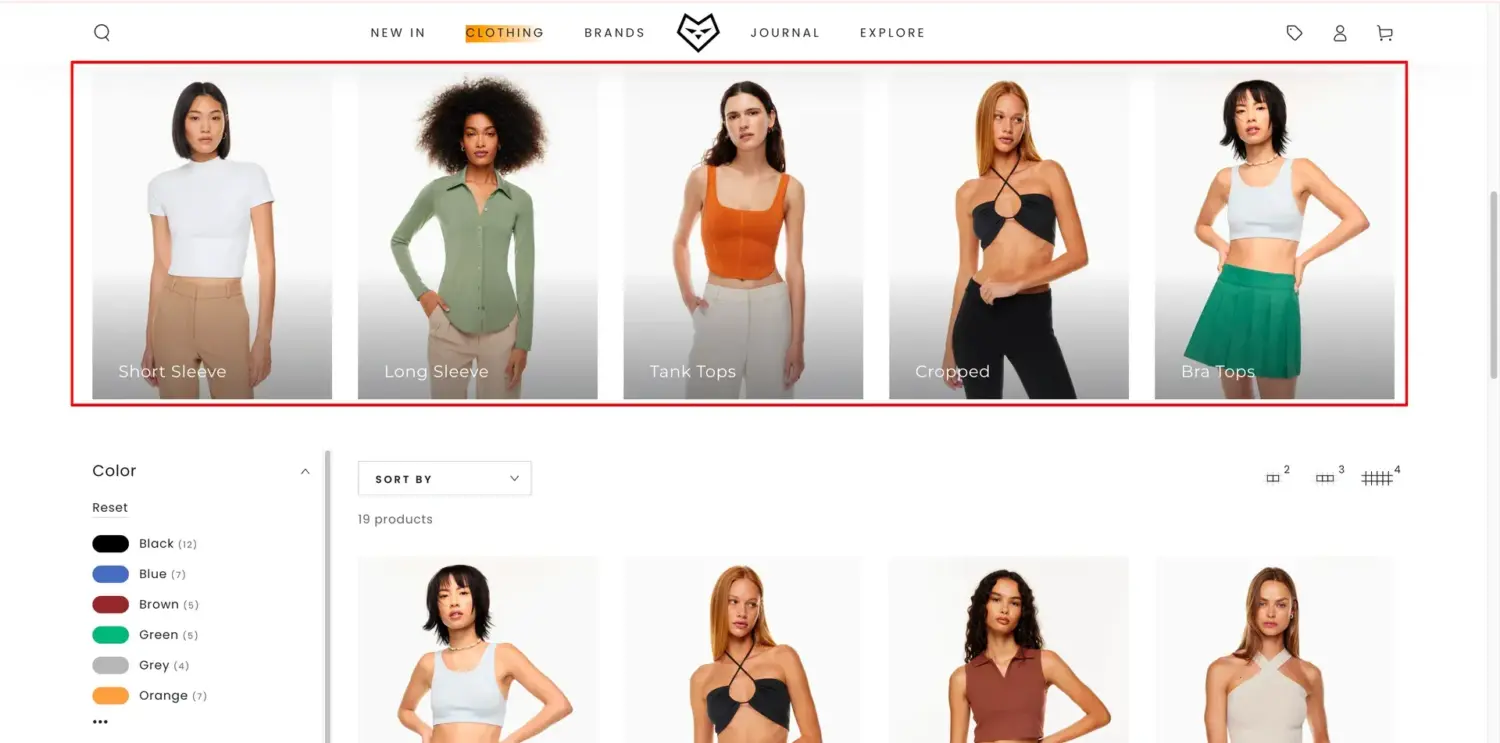
Sub-collections, nested collections, tags, and filters all help shoppers narrow down a large catalog, but each one changes something different.
| Tool | What it changes | What shoppers see | How you build it | Best for |
|---|---|---|---|---|
| Sub-collections (browsing) | How shoppers move between pages | Links or tiles to smaller collection pages | Menus, collection list sections, theme blocks | Clear product groups that shoppers browse by |
| Nested collections (native) | Which products a parent page shows | One product grid with every product from the child collections, and no links to them | A Collection source in the collection editor | Parent pages that should show every child product |
| Tags | Which products join a smart collection | Nothing directly | Product tags plus a smart collection condition | Filling collections automatically |
| Filters | Which products show on one page | Options such as size, color, or price | The Search & Discovery app | Attributes such as size, color, or material |
Shopify supports sub-collections natively, but the feature only changes which products appear on the parent collection page. Shoppers see the sub-collections themselves only when you add a menu, tiles, a theme block, or a filter.
Here is what a shopper sees when a “Skincare” collection uses the native feature to connect Cleansers, Toners, Serums, and Moisturizers:
In short, the native feature handles the products, and you handle the navigation. You show sub-collections to shoppers in 4 ways: a drop-down menu, collection list tiles, a theme subcollections block, or a filter on the parent page.
The native feature works only in Shopify’s new collections model. The legacy model is Shopify’s original system, where each collection is either manual or smart, and Shopify’s Collections page says the new model is replacing it. To check your store, start creating a collection: if Shopify asks you to choose manual or smart, your store is still on the legacy model.
Sub-collections help shoppers reach the right group of products in fewer clicks, and research shows many shoppers browse this way.
In a 2025 survey of 1,167 US online shoppers by Baymard Institute, 37% said they use a site’s navigation when browsing for products with specific features. Another 31% use navigation when browsing for products they choose by look.
Long, flat lists cause problems. Baymard’s 2026 navigation benchmark found most test participants felt overwhelmed when they saw more than about 10 subcategory options.
Most stores still have room to improve. The same benchmark rated navigation on 61% of desktop sites and 65% of mobile sites as mediocre or poor, across more than 180 leading US and European sites.
Large collections also lose their filters. Shopify’s Search & Discovery filters guide says collections with more than 5,000 products don’t display filters. Shopify suggests splitting a large “Women fashion” collection into smaller ones, such as Tops, Jeans, and Boots.
Plan your structure before you build anything, because moving collections later means changing menus, templates, and links. Use this checklist:
These sample structures show what a clear plan looks like:
| Store type | Parent collection | Sub collections |
|---|---|---|
| Fashion | Women | Dresses, Tops, Jeans, Shoes |
| Beauty | Skincare | Cleansers, Toners, Serums, Moisturizers |
| Home | Living room | Sofas, Coffee tables, Rugs, Lighting |
Setting up sub collections in Shopify takes 2 jobs: creating the collections and showing them to shoppers. Shopify’s native feature covers only the first job, so every store needs at least one method for the second job.
Creating sub collections takes 2 steps: create each sub collection as a normal collection, then connect them to the parent collection if you want the parent page to show every product.
Each sub collection is a normal Shopify collection, so you create them the same way as any other collection:
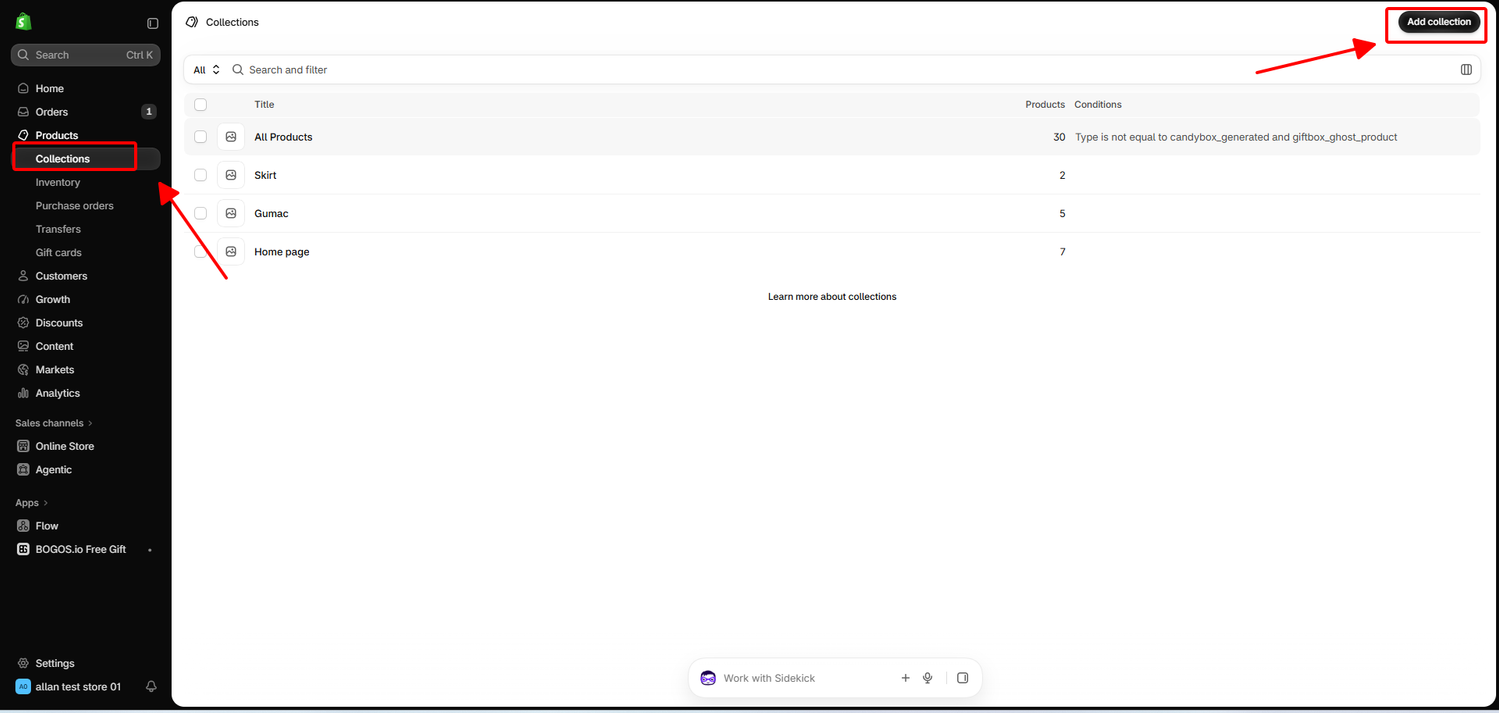
Shopify’s native sub-collection feature makes a parent collection show every product from the collections you connect to it. For example, an “All skincare” collection can pull in Cleansers, Toners, Serums, and Moisturizers, and new products in those collections appear on the parent page too.
This step builds the parent page only. Shoppers see no links to the sub-collections until you add at least one of the methods in the next part.
This feature solves a common gap. Some guides tell merchants to leave the parent collection empty, but shoppers often want to see everything in a category before they narrow down.
Follow these steps:
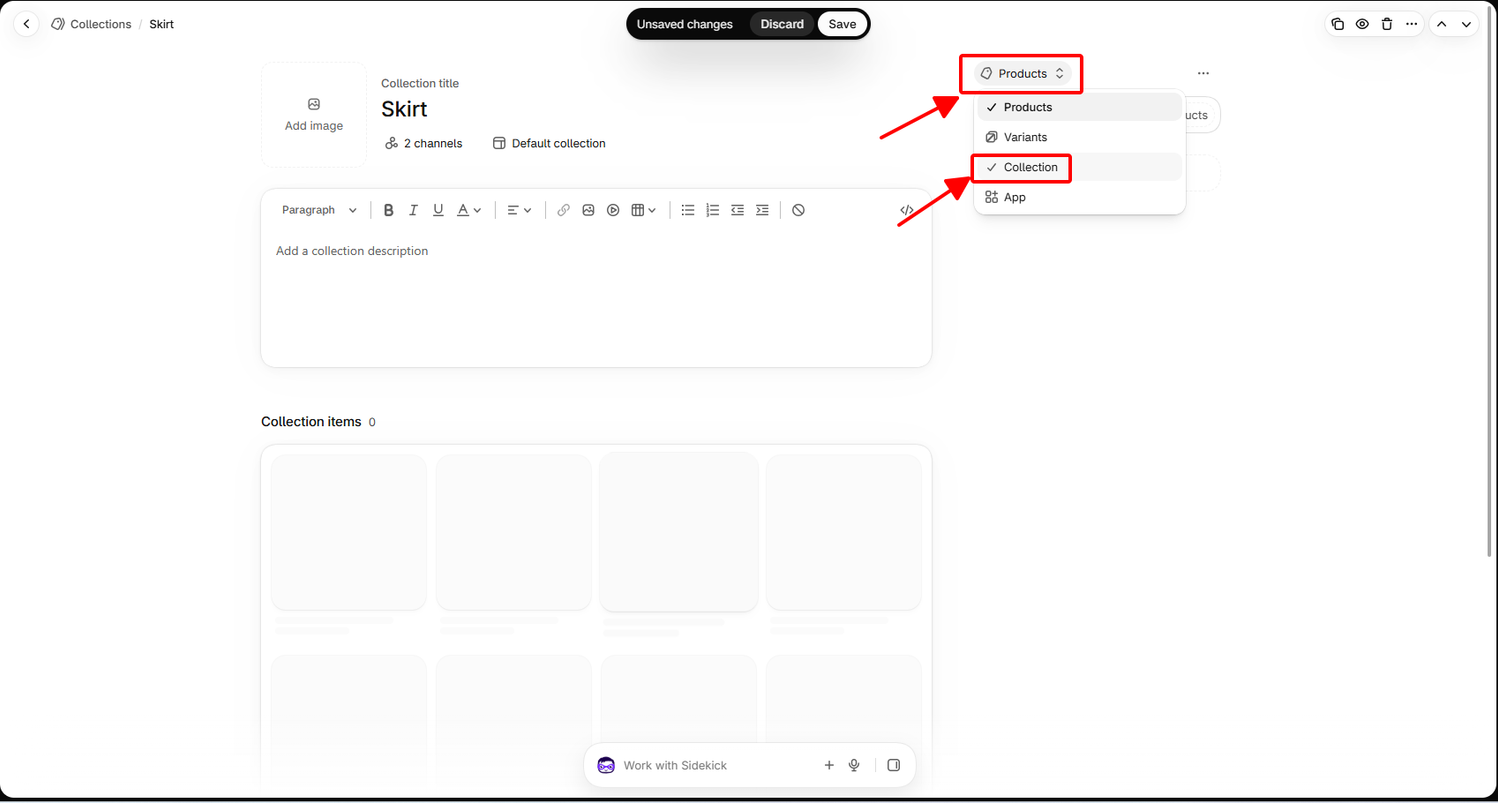
The feature has 4 limits:
Stores on the legacy model can get a similar result with a tag. Add one shared tag, such as “skincare,” to every product in the sub collections. Then make the parent a smart collection with the condition “Product tag is equal to skincare.”
You can show sub collections to shoppers in 4 no-code ways: a drop-down menu, collection list tiles, a theme subcollections block, or a filter on the parent page. A mega menu app or custom code covers needs beyond these 4.
A drop-down menu is the most common way to show sub-collections, and Shopify says every theme displays nested menu items as drop-downs from the main menu. Follow these steps:
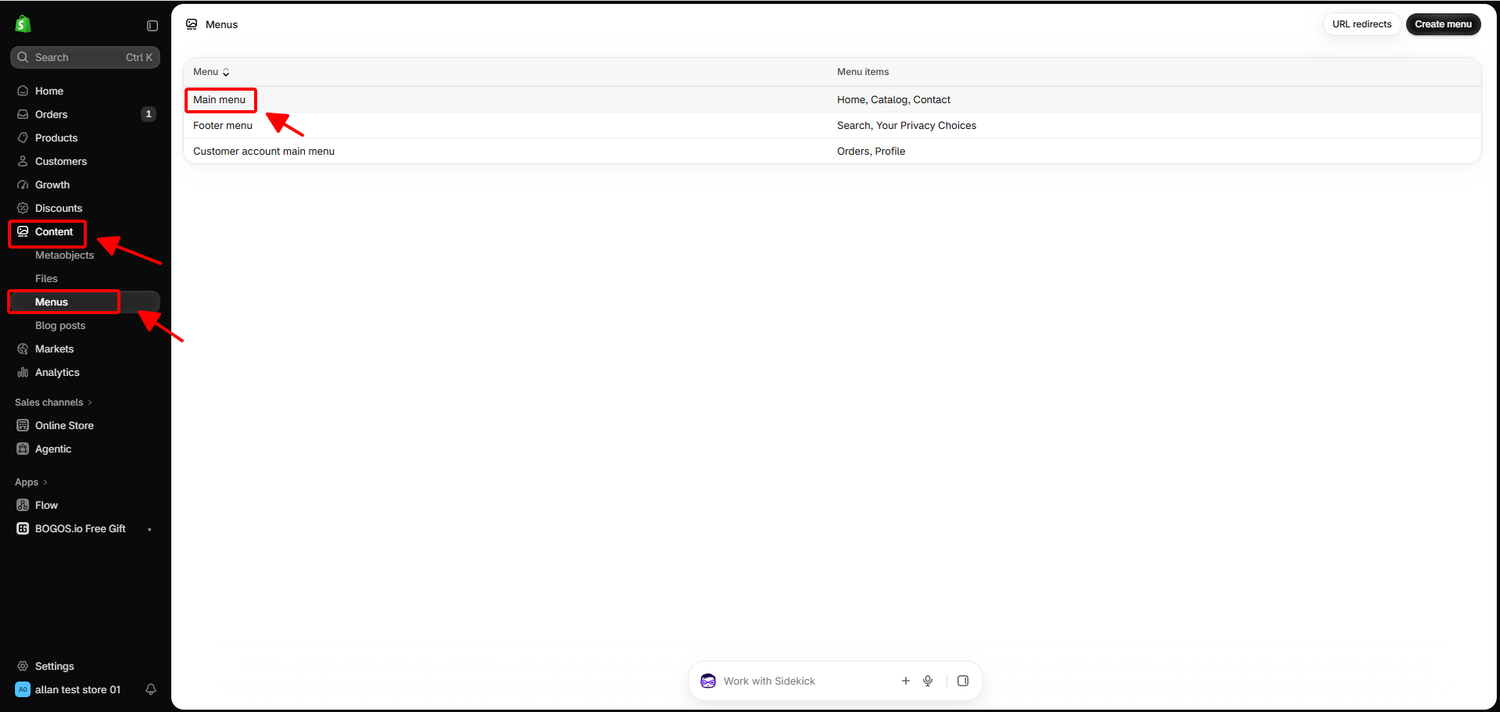
Shopify allows 2 levels of nested items under each top-level item, so a menu can have 3 levels in total, such as Women > Clothing > Dresses. Shopify notes that you may need to update your theme to show all 3 levels.
Add a “View all” link as the first item in each drop-down. Shopify explains that most themes turn a drop-down header into a button that opens the menu, not a link to the parent page. Baymard’s research found that a first-position “View all” item that names the category, such as “View all skincare,” works best for shoppers.
Stores created before 2018 might see the error “Menu cannot contain nested menus.” Shopify says these stores may need its support team to turn on nested navigation.
Collection list tiles show your sub-collections as clickable images at the top of the parent collection page. They help shoppers who land on the parent page from Google, an ad, or an email, because these shoppers see the options without opening the menu.
You add tiles with a custom collection template, so only the parent page shows them:
Put the tiles at the top and give each one a clear image. Baymard’s 2026 benchmark found 38% of sites don’t make subcategories the main content of these parent pages, and 39% have missing or hard-to-read subcategory thumbnails.
Some themes include a sub-collections block that builds tiles from your menu automatically. You set up the drop-down menu once, and the theme shows each parent’s sub-collections on that parent’s page.
Archetype Themes adds a Sub-collections block inside the Product grid section of its collection template. RoarTheme’s Be Yours theme uses a Sub-collections section where you choose which menu it reads.
These blocks have strict rules. Archetype lists 3 of them:
Be Yours adds that every menu item used for tiles must link to a collection, not a page or a product. Check your own theme’s documentation for its version of this feature.
A filter on the parent page lets shoppers narrow the merged product grid to one sub-collection’s products without leaving the page. This works only when your sub collections are built from an attribute that Shopify can filter, such as product type, product category, vendor, or tag.
For example, if Serums is a smart collection with the condition “Product type is equal to Serum,” a Product type filter on the Skincare page shows a “Serum” option with the same products.
Follow these steps:
Filters have 4 limits. Your theme must support filters; collections with more than 5,000 products don’t display filters, and a store can have up to 25 filters. The tag filter also shows only to shoppers browsing in your store’s default language.
Use a filter together with a menu or tiles. Shoppers can then open a sub collection’s own page or narrow the parent page, whichever suits them.
A complete setup combines 3 layers: smart sub-collections, a parent page that shows every product, and menus plus tiles that help shoppers narrow down. Here is how a sample skincare store with 140 products would build it:
With this setup, a shopper reaches any group in 2 clicks from the main menu. A shopper who lands on the Skincare page from Google sees the 4 tiles first, then every product below them.
Shopify sub collections help SEO because each one is a separate page that can rank for a narrower search, such as “vitamin C serum.” Every Shopify collection URL uses /collections/ plus the collection’s handle, so a sub collection lives at /collections/serums, not /collections/skincare/serums. This flat structure is standard on every Shopify store, so your sub collection pages compete on the same terms as every other store’s pages.
These 4 steps help sub collection pages rank:
These 4 mistakes hurt sub collection pages:
Sub-collections can raise sales in 5 ways: guiding undecided shoppers to best sellers, linking related groups, matching an offer to each group, building bundles from one group, and creating gift and seasonal groups. The first 2 mainly help shoppers find a product, which supports your Shopify conversion rate. The last 3 mainly encourage bigger carts.
A “Best sellers in skincare” sub-collection gives undecided shoppers a short list of proven choices. Place it right after “View all” in the menu, or as the first tile on the parent page.
The setup for a self-updating Shopify best sellers collection works the same way under each parent.
Each sub-collection page can point shoppers to the group that pairs with it, such as Cleansers to Toners, or Tents to Sleeping bags. Add a collection list section near the bottom of the sub-collection’s template and choose the related groups.
These links give shoppers a reason to add a matching product, which is the core idea behind cross-selling on Shopify.
A separate offer for each sub-collection often fits better than one sitewide deal, because each product group has its own prices, margins, and buying habits.
Face The Future, a UK beauty retailer that uses BOGOS, set one offer per product line. One offer was “spend £25 on Percy & Reed, get a Percy & Reed hair primer worth £23.” According to the Face The Future case study, its AOV rose from £70 to £151 in under 30 days.
The gift in that offer matches the group the shopper already chose, which is a key rule of any free gift with purchase campaign.
Asking shoppers to spend a little more within one group is a direct way to grow your Shopify AOV.
A sub-collection gives shoppers a clear set of products to choose from in a bundle or quantity offer. Examples include “pick any 3 serums for $60” or “buy 2 haircare products, get a hair mask.”
Face The Future used the second type for the FUL haircare brand: buy 2 or more FUL products and get a free hair mask worth £32. Repeat-purchase groups such as shampoo suit a buy X get Y offer, because shoppers already expect to buy more than one.
For a “pick any 3” offer, a mix and match bundle lets shoppers choose items from the whole sub collection.
Temporary sub collections such as “Gifts under $50” or “Mother’s Day picks” give campaign traffic one focused page to land on. Build them as smart collections with a price or tag condition, so new products join without extra work.
When the season ends, remove the collection from your menu but keep the collection itself. Its URL stays live for next year, and you avoid broken links.
Seasonal groups are a practical part of any plan to increase sales on Shopify around peak dates.
Sub collections usually fail to show because nothing links to them, or because of a menu, theme, or template setting. Check these 10 causes in order:
Shopify sub collections help shoppers move from a broad group to the exact products they want, and you can build them without code. Start with a short, clear plan that keeps about 10 or fewer groups under each parent.
Then combine the methods that fit your store. Use a drop-down menu in every store, add tiles to parent pages for shoppers who arrive from search or ads, and connect sub collections with Shopify’s native feature if you want the parent page to show every product. The native feature only fills the parent page with products, so always pair it with a menu, tiles, or a filter that shows shoppers the sub collections.
Once the structure is in place, use it to sell. Add a best sellers group, link related groups, and match an offer to each sub collection, so every group gives shoppers a reason to add one more item.
Product categories describe what a product is, while collections are pages that shoppers browse. Product categories help with tax rates, selling on channels such as Google and Facebook, and organizing products in the admin. You can also use a product category as a smart collection condition, which is a quick way to fill each sub-collection automatically.
You can create many sub-collections in Shopify, but menus and the native feature have limits. A menu can have 3 levels and up to 10,000 items, and a store can have up to 1,000 menus. With the native feature, up to 50 collections can contain other collections, and each source can pull in up to 10 collections.
Most stores can create sub collections without an app, because menus, collection list sections, and Shopify’s native feature cover the core setup. Apps help when you want image-heavy mega menus, breadcrumbs that your theme lacks, or more menu levels than your theme supports.

Online shoppers can’t try anything on, so many guess and send items back. The NRF and Happy Returns estimate...
A featured collection is often the first group of products a shopper sees on a Shopify store, yet the...
Most Shopify stores need a best sellers page, but Shopify can’t build one that updates by itself. In this...