



Charlie Ngo
•
Last updated: 7 October, 2026
Shopify Product Configurator: 2D vs 3D, Best Apps & Costs (2026)
Shoppers hesitate to buy a $1,200 sofa or a custom ring when they can’t see the exact version they’re...

How To Set Up Shopify Custom Shipping Rates (2026 Guide)

Marketing Manager
Summarize this post with AI
A flat shipping fee looks simple until it starts costing you money. Heavy orders eat your margin. Customers three states away pay the same as your neighbors. Sometimes checkout shows the wrong price, or no rate at all. Custom shipping rates fix this. They let you charge different prices based on cart value, weight, destination, or product, so every order is priced fairly, and your margin holds.
This guide shows you how to set them up in your Shopify admin, step by step. You will also learn how to charge for multiple items, and the exact point where native rates run out and an app takes over.
I’m Charlie Ngo, an eCommerce expert at BOGOS. For 11 years, I’ve helped Shopify stores increase sales, lift average order value, and tighten conversion. Shipping is one of the first levers I check, because it quietly decides whether a full cart becomes an order.
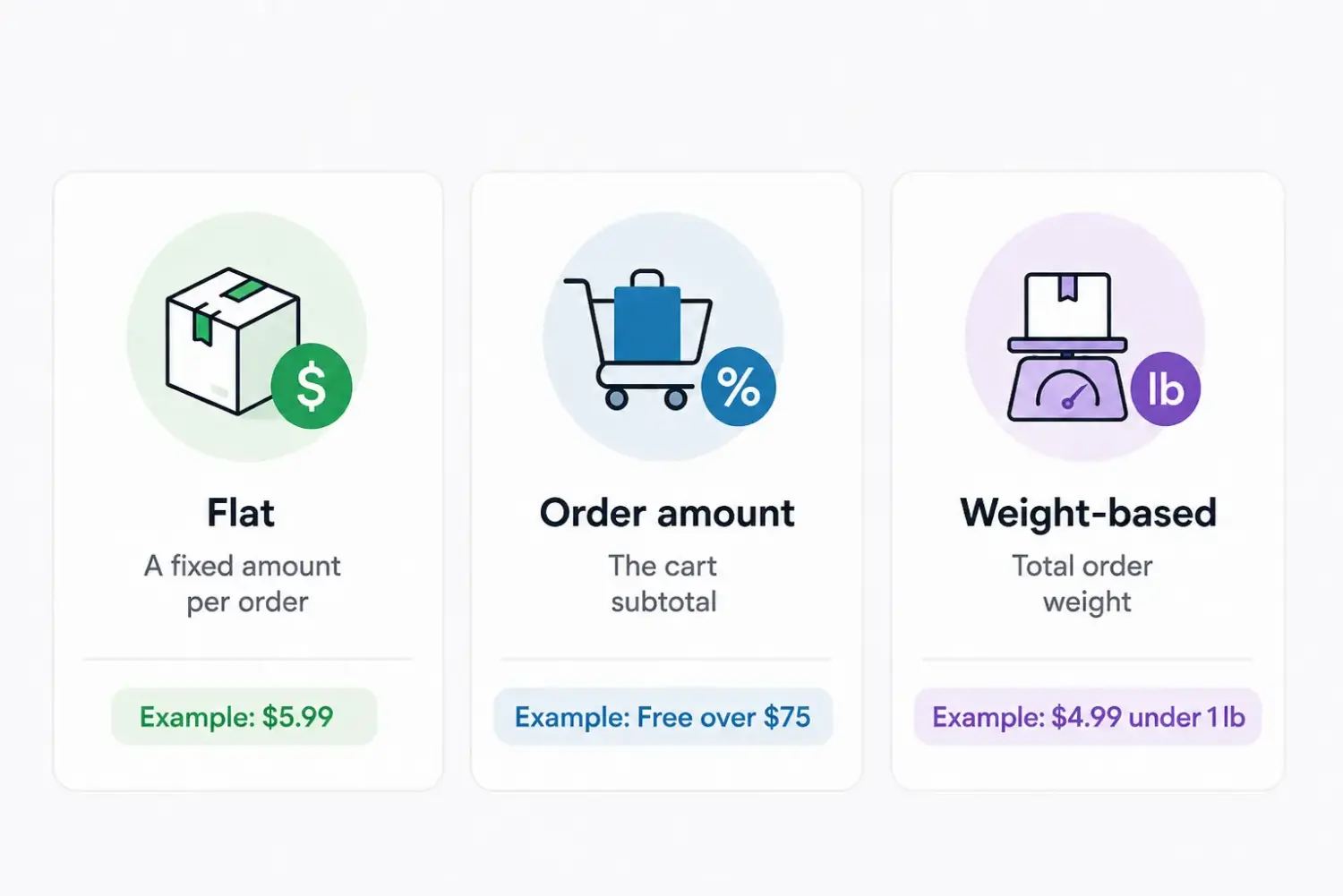
Before you build anything, know what Shopify gives you for free. Every custom rate starts from one of three native types.
| Rate type | Charges based on | Example |
|---|---|---|
| Flat | A fixed amount per order | $5.99 on any order |
| Order amount | The cart subtotal | Free over $75 |
| Weight-based | Total order weight | $4.99 under 1 lb |
These cover most stores. They also hit a ceiling fast. Native rates cannot price by specific product in the cart, by ZIP code, by distance, by item count, or by two conditions stacked together. When you need any of those, you either build a workaround or add an app. Both are covered below.
Here is the core setup every store needs first. It works on the current Shopify admin. Some stores still see the older “General Shipping Rates” layout with an “Add conditional pricing” button, but the logic is identical.
Go to Settings → Shipping and delivery and choose a shipping profile.
Click into the profile, select Add zone, name it, choose the countries or regions it covers, then click Done. A common setup is one United States domestic zone and one International zone; for pricing that international zone with duties and customs in mind, see our guide to international shipping.
Select Add shipping option and give it a clear name. “Standard Shipping (3 to 5 business days)” converts better than “Flat Rate,” because it answers the two questions every shopper has: how much, and how long.
Choose from the dropdown: Flat, Order amount, Weight, or Carrier or app calculated.
Use Flat for one price, Order amount to reward bigger carts, and Weight to protect margin on heavy orders.
Type the amount, or enter 0 for free. For tiered rates, use the + button to add ranges. Two worked examples:
Turn on Offer free shipping with a minimum order amount, or add a $0 price-based tier named “Free Shipping.”
A good starting point is to set the free-shipping bar about 20 to 30 percent above your current average order value, high enough to lift carts without scaring shoppers off.
Save the profile. Then check out as a customer in a different zone, once with a light cart and once with a heavy cart, before you go live.
That last step matters more than it looks. A two-item cart and a five-item cart should land in different tiers. Testing both is how you catch a gap before a real customer does.
Charging for multiple items is where Shopify’s flat shipping rate can fall short. A customer buys one item and pays $5 for shipping. They buy five items and still pay $5, leaving you to cover the extra shipping cost. Raise the flat rate to protect your margins, and you create the opposite problem. A customer buying one lightweight item may see an $8 shipping fee and abandon their cart.
Here is what merchants usually want instead:
You can build all of these natively. There are three methods.
As the cart subtotal rises, shipping drops. Use Order amount tiers from Step 5 above: $0 to $49.99 → $6.99, $50 to $74.99 → $4.99, $75 and up → free. This is the cleanest lever for a higher average order value, because it gives shoppers a clear reason to add one more item. It is a form of tiered pricing, where a bigger cart earns a better deal.
As the cart gets heavier, weight-based tiers automatically increase the shipping rate. This works especially well for mixed catalogs where products vary in size and weight. Just make sure every product has an accurate weight. Otherwise, customers may see the wrong shipping rate at checkout.
Shopify has no native per-item rate, but you can build one. Set every product to the same weight, such as 1 lb, so one item equals one unit of weight. Then create a custom profile for those products and add weight tiers where each range equals a quantity.
| Items | Weight range | Shipping |
|---|---|---|
| 1 | 0.1 to 1 lb | $2.00 |
| 2 | 1.1 to 2 lb | $3.00 |
| 3 | 2.1 to 3 lb | $4.00 |
| 4 | 3.1 to 4 lb | $5.00 |
The result is a working per-item price: $2 for the first item, $1 for each one after. Keep these products in their own shipping profile so the trick never touches your other rates.
So the choice is simple. Use cart-value tiers to lift order value, weight tiers for mixed catalogs, and the weight trick when you need a clean per-item fee. You can also give oversized or fragile items their own profile, or set up a discount on shipping for the items you want to move, the same way.
The three native methods work until you need a rule Shopify was not built for. The per-item weight trick also breaks the moment products carry real, different weights, or a cart mixes them with other items.
Here is where native rates stop, and what an app unlocks.
| Shipping rule | Native Shopify | Rate app |
|---|---|---|
| Per-item / quantity | Weight trick, breaks on mixed carts | True item counts |
| ZIP or postcode | Country and state zones only | Full ZIP rate tables |
| Distance or radius | Not supported | Yes |
| Customer tag (wholesale vs. retail) | Not supported | Yes |
| Multi-location, one flat fee | Rates stack, customer double-charged | One combined rate |
| Live USPS / UPS / FedEx rates | Advanced or Plus plan, or paid add-on | Any plan via app |
For every advanced rule in the table, I recommend ShipZip by Cirkle Studio. It lets you set shipping rates by ZIP code, product, weight, quantity, and distance. You can also charge one flat shipping fee across multiple warehouse locations and use it with Shopify POS. Stocking items across several locations is also what triggers split shipping, where Shopify sends one order in multiple deliveries and can charge for each.
That flexibility is reflected in its 5.0 rating from 400+ reviews. Recent reviews through May 2026 highlight its ability to handle complex, multi-region shipping rules that Shopify cannot manage natively. Many merchants also praise the support team for helping them set up those rules quickly.
ShipZip offers a free plan, with paid plans starting at $9.99 per month and a 30-day free trial. For more options, see our roundup of the best Shopify shipping rate apps.
Getting your shipping rates right keeps your fee competitive and cuts abandonment. Unexpected shipping costs are the leading fixable reason shoppers abandon checkout, cited by 39% of users in Baymard Institute research. Fixing it is one of the highest-value moves in cart and checkout optimization. But a competitive rate is only half the job. The other half is growing the order.
Tiered rewards do that. You give the shopper a reason to spend more at each step: spend $50, get 5% off; spend $100, get free shipping. Each tier pulls the cart toward the next. The trick is setting the thresholds where they actually move behavior.
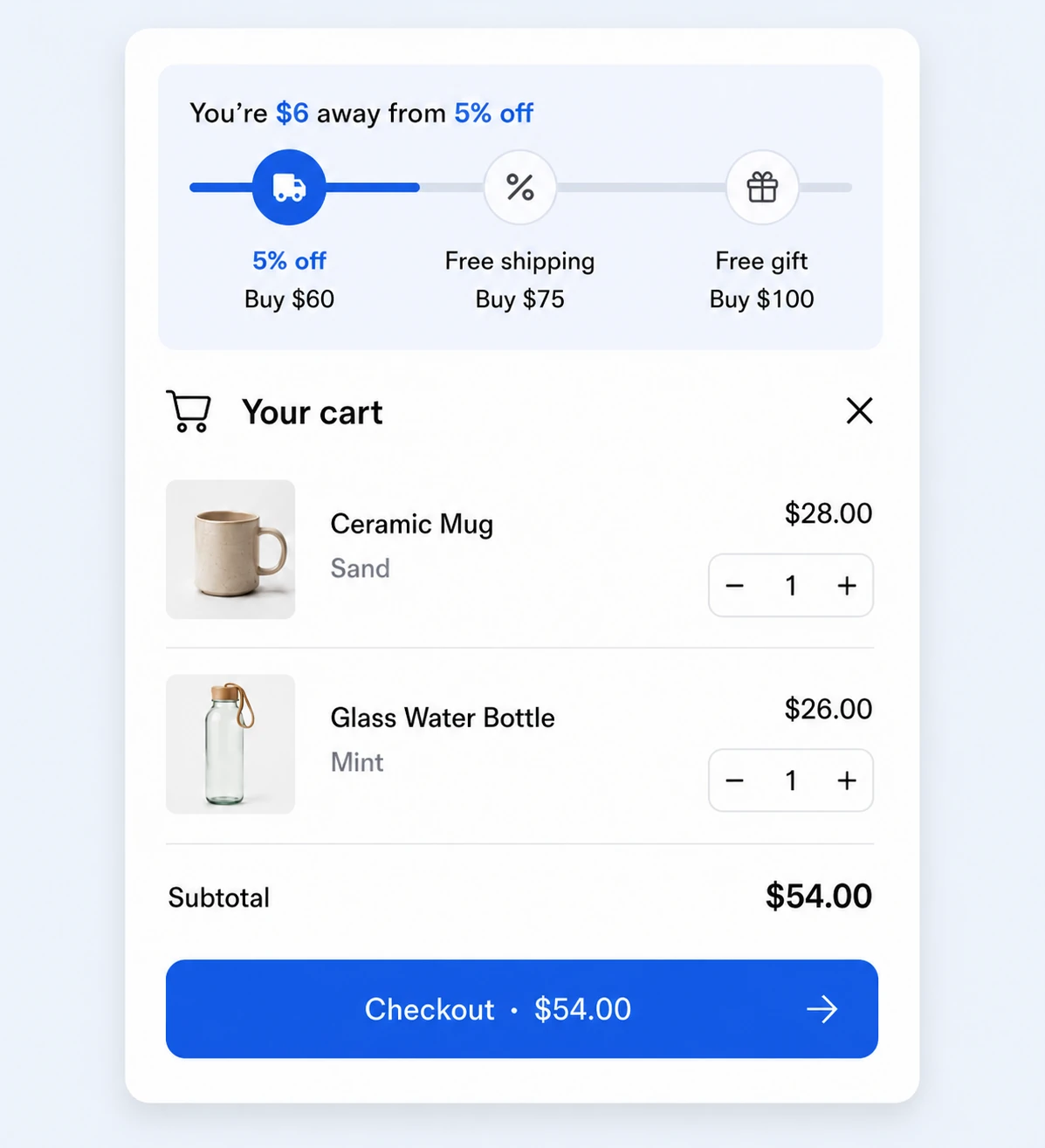
Our app, BOGOS: Free Gift Bundle Upsell, runs these tiers together on one cart. A volume discount and a free gift with purchase can stack with other automatic discounts at the same time, so a shopper adding items to reach your free-shipping tier also unlocks a reward. A live Progress Bar shows how close they are to the next one, which turns a vague goal into a clear one. Two nudges, one cart. That is how a competitive shipping rate turns into a bigger order.
Even a careful setup can quietly break checkout or push shoppers away. A few small mistakes cause almost all of it. Avoid these.
Custom shipping rates turn shipping from a margin leak into a tool you control. Start native: pick Flat, Order amount, or Weight, build your tiers, and test a light and heavy cart before going live. Use the weight trick when you need per-item pricing, and reach for an app when you need ZIP codes, distance, customer tags, or stacked conditions.
Then make your rates work twice. A competitive shipping fee gets the shopper to checkout. A volume discount stacked with a free-shipping tier gets them to add one more item before they leave. That is the difference between a store that ships orders and one that grows them.
Not natively, but you can build it with a weight workaround: set each product to a uniform weight, then create weight tiers where each range equals an item count. See the three methods in the multiple-items section above.
For a large or mixed catalog, an app with true per-item rules is cleaner.
No, not with native Shopify tiers. Native zones price by country and state, and weight tiers price by weight, but you cannot stack the two. To combine ZIP code and weight, use carrier-calculated shipping or a rate app like ShipZip.
Usually a gap in your rate tiers, an address outside your zones, or a missing product weight. Leave your top tier’s maximum empty, confirm the destination sits inside a zone, and check that every product has a weight. A backup rate keeps checkout working if a carrier connection fails.

Shoppers hesitate to buy a $1,200 sofa or a custom ring when they can’t see the exact version they’re...

Selling personalized products on Shopify gets hard the moment a shopper needs to type a name or choose a...

The UK is the largest eCommerce market in Europe and the third-largest in the world. For international Shopify stores,...