



Charlie Ngo
•
Last updated: 23 October, 2026
Shopify Smart Collections: Setup, Conditions & 8 Examples (2026 Updated)
Shopify smart collections add and remove products for you based on rules, such as a tag, a price, or...
![[2026] How to Refund Shipping on Shopify: A Step-by-Step Guide](https://bogos.io/wp-content/uploads/2026/07/How-to-Refund-Shipping-on-Shopify.jpg)
[2026] How to Refund Shipping on Shopify: A Step-by-Step Guide

Marketing Manager
Summarize this post with AI
Shipping refunds are common, but they’re rarely just about the money. Behind most of them sits an unhappy customer, and an unhappy customer is a quiet loss to your store’s sales. How fast and how flexibly you refund shipping often decides whether that person comes back.
This guide explains three ways to refund shipping on Shopify. It also covers what many guides leave out: how refunds affect your fees and payouts, what each refund really costs, how to recover that value, and a ready-to-send customer email you can use today.
I’m Charlie Ngo, BOGOS’s Marketing Manager & an e-commerce expert. For 11 years, I’ve helped Shopify merchants increase sales, improve average order value, and strengthen conversion rates
Refunding shipping on Shopify means sending back the shipping charge a customer paid, either on its own or alongside the items in their order. Every shipping refund starts in the same place: Orders in your Shopify admin. You open the order, click Refund, and choose how much shipping to return. The steps below cover the three situations you’ll actually run into.
Use this method when you are refunding the entire order and want to include the original shipping charge.
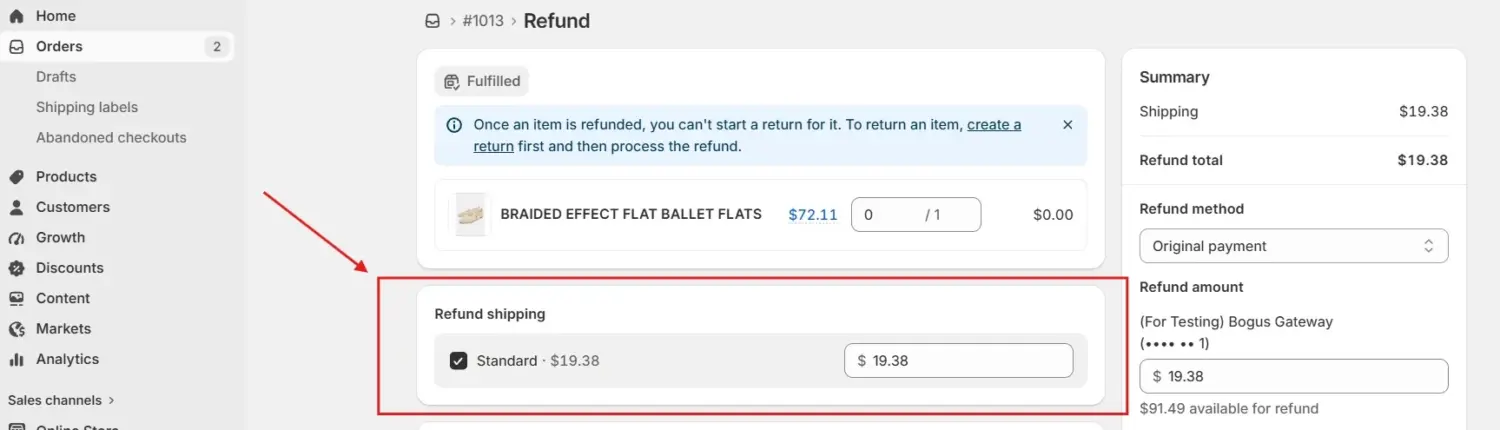
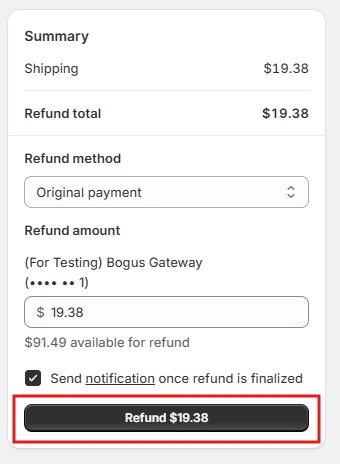
Use this when the customer keeps the order, but you want to return the shipping charge. This is common after a delivery delay or an incorrect shipping method. It also applies when you merge a split shipping order into one parcel and refund the extra shipping the customer paid. Every step looks the same as the previous option; the only difference is to set the item quantity to 0.
Use the Shopify partial refund method when you are refunding some items and part or all of the shipping charge in the same action.
Enter the quantity of the items being returned and leave all other quantities at 0. Then select Shipping under Refund shipping and enter the amount you want to return.
After you submit the refund, the order status changes to Partially refunded. You can issue additional partial refunds later, as long as the total does not exceed the order’s available refundable amount.
In some use cases, if the customer paid with a gift card and another payment method, Shopify usually refunds the gift card first and sends the remaining amount to the other method. You can adjust the amount assigned to each method, up to the available balance.
For a shipping refund, the real question is whether you return the original shipping charge, and who covers return shipping. Start by asking who caused the problem.
If the carrier caused the problem, you don’t have to eat the cost. When a carrier misses a guaranteed delivery date or loses a package, refund your customer first, then file a claim to recover the shipping fee. I cover how refunding shipping really costs you and how to recover it.
In Shopify, “refund shipping” can refer to two different costs. Confusing them can leave you paying for shipping you never used.
The first is the shipping charge paid by the customer at checkout. When you refund this amount, the money goes back to the customer. This is the type of refund covered in the previous section.
The second is the cost of a Shopify shipping label. You paid this amount from your own account. If the label is never used, you may be able to void it and recover the cost. That credit goes back to your account, not to the customer.
You can void a Shopify Shipping label when both conditions are met:
To request the refund:
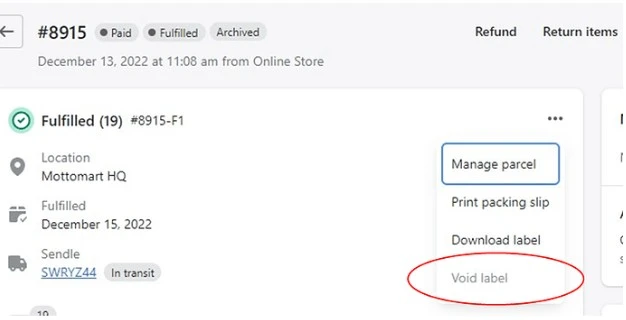
The credit is returned to your Shopify account after the carrier processes the request, which may take a couple of weeks.
If an order is cancelled before shipment, remember to complete both steps: refund the customer’s shipping charge and void the unused label. This prevents you from paying for postage that was never used.
Once you click Refund, Shopify handles the rest automatically. Here’s what changes so you know it worked.
Issuing a shipping refund takes only a few clicks in your Shopify admin. However, understanding the limits, non-refundable fees, and payout effects beforehand will prevent surprises on your balance sheet. Review these points before processing the refund.
Refunding a customer does not recover all the fees paid on the original sale. How fees are handled depends on your payment gateway:
Note: You must process the refund through the Shopify admin, not directly in the third-party gateway portal, to receive this credit.
To process refunds, staff members need specific Orders permissions enabled by the store owner:
Sometimes, the shipping issue is caused by the carrier, not your store. In these cases, you may refund the customer first to protect their experience, then recover the cost from the carrier separately.
There are two main types of claims to know:
Two simple habits can help you recover more money:
A customer you just refunded is one of your warmest leads. They hit a problem, you fixed it, and the moment can go one of two ways. Handled well, a shipping refund becomes the start of the next order instead of the end of the first.
This is where our own app, BOGOS, fits in. BOGOS lets you set a shipping discount as a standalone free gift offer, not bundled into another offer, and target it to the exact customers you want. That combination turns a refund into a reason to return.
Here’s the play for customers you’ve refunded shipping:
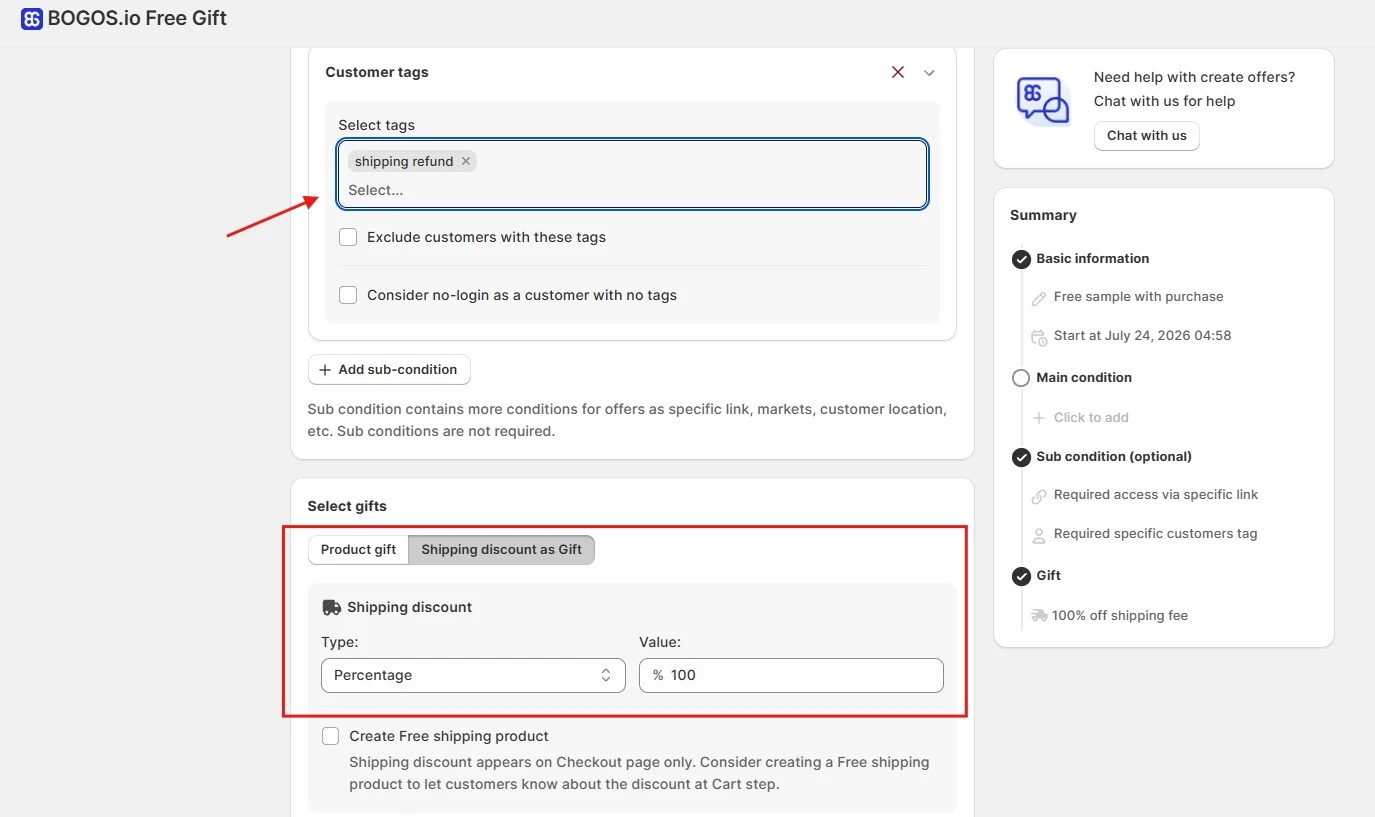
The refund no longer has to be a sunk cost. Instead of simply returning the shipping fee, you can give the customer a clear reason to place another order. This helps protect your average order value and turns a one-time service recovery into an opportunity to increase your store sales.
Refunding shipping on Shopify is quick: open the order, click Refund, select Shipping, done. What protects your margin is knowing the rest. Remember the fees you won’t get back, void unused labels, and claim from the carrier when the delay was theirs.
The bigger win comes after the refund. Extra costs like shipping are the top reason shoppers abandon checkout, with Baymard Institute putting it at 40%. How you handle shipping shapes your conversion rate and your repeat sales.
So treat every shipping refund as a warm lead, not a loss. Fix it fast, then give the customer a reason to return, like a targeted shipping discount through our own app, BOGOS. Handle it well, and today’s refund becomes tomorrow’s order.
Yes. Open the order, click Refund, leave every product quantity at 0, then select Shipping and enter the amount. The customer keeps their items and gets the shipping charge back.
The order most likely has an order-level free shipping discount applied. When shipping was free, there is no charge to return, so Shopify disables the option. It is working as intended.
No. Once you start a refund in your Shopify admin, you cannot cancel or undo it. If you refund by mistake, the only fix is to create a new draft order and collect payment again, so confirm the amount first.
Usually yes. With Shopify Payments, the credit card fee on the refunded amount is not returned, even on a full refund. You get transaction fees back only with a third-party gateway in countries where Shopify Payments is not available.

Shopify smart collections add and remove products for you based on rules, such as a tag, a price, or...

Shopify collections decide how shoppers find your products, yet many guides still describe a setup Shopify is now replacing....

A Shopify announcement bar is the thin strip at the top of your store that tells shoppers about shipping,...