

Charlie Ngo
•
Last updated: 30 October, 2026
Shopify Featured Collections: How To Add & Customize (2026 Guide)
A featured collection is often the first group of products a shopper sees on a Shopify store, yet the...
How To Add a Shopify Announcement Bar (Free Themes & Apps)

Marketing Manager
Summarize this post with AI
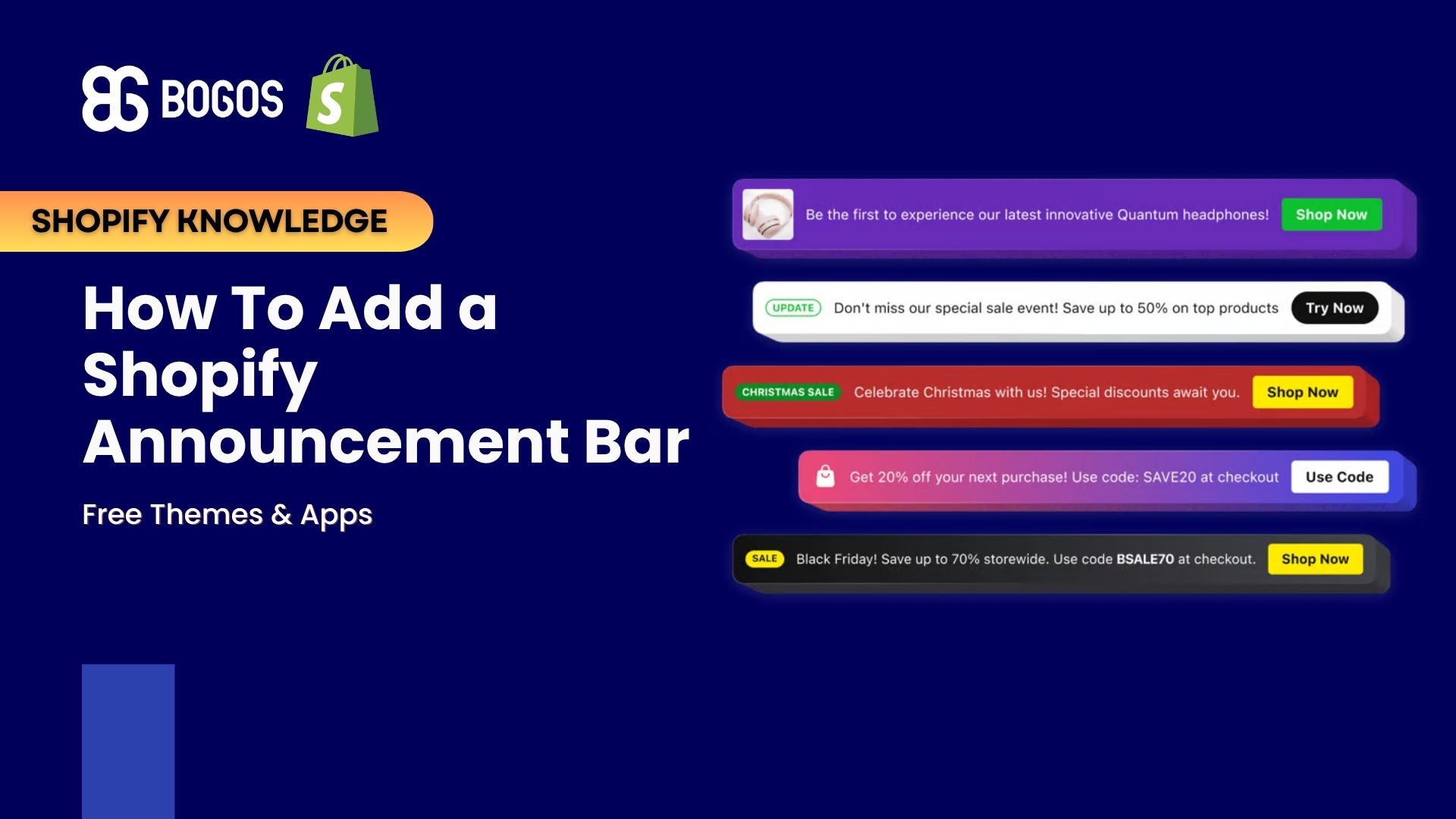
A Shopify announcement bar is the thin strip at the top of your store that tells shoppers about shipping, offers, and policies before they go looking for that information. This guide shows you how to set one up, what to write on it, and when an app is worth paying for. I’m Charlie Ngo, Marketing Manager at BOGOS, where our team has built Shopify promotion tools for 11 years. For this guide, I checked Shopify’s official help docs, read the top-ranking guides on this topic, and verified every app’s pricing on the Shopify App Store on October 14, 2026.
A Shopify announcement bar is a short line of text that sits above your store’s header and shows a message on every page. People also call it an announcement banner, top bar, hello bar, promo bar, or sticky bar.
The bar usually holds 1 sentence and an optional link. Shoppers see it as soon as a page loads, so it works best for information that affects the decision to buy.
Shopify’s Help Center suggests 3 main uses for the bar:
Each theme allows 1 announcement bar section. Inside that section, you can add up to 12 announcement blocks, and each block holds 1 message.
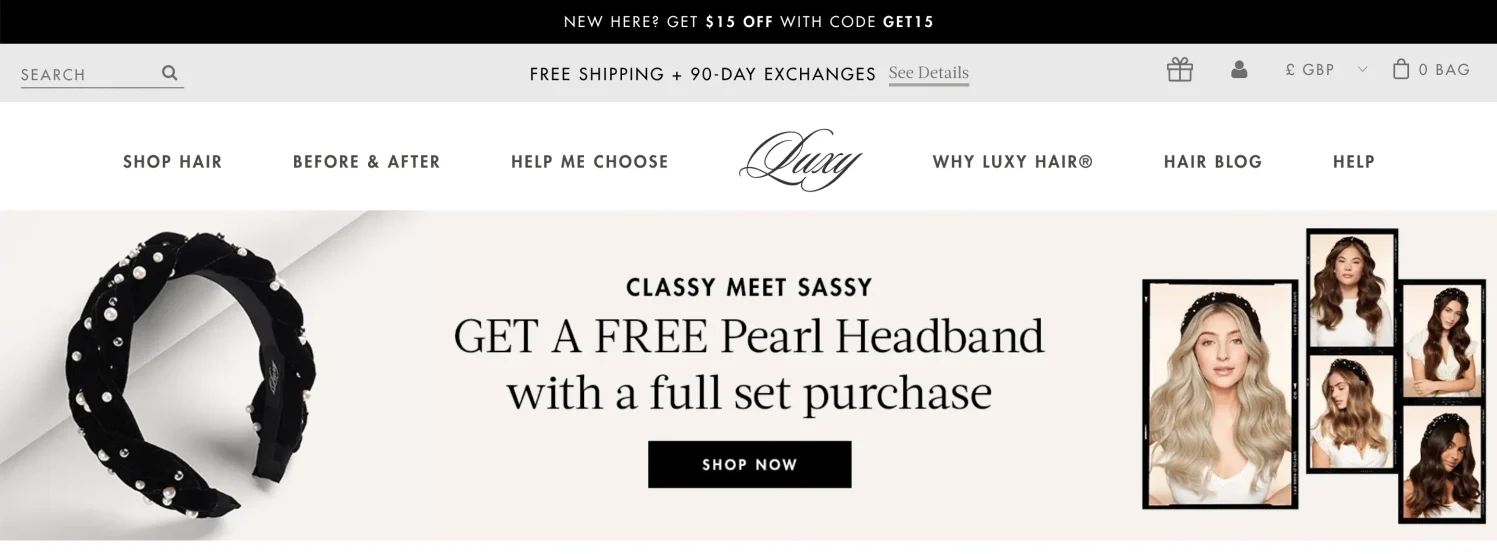
An announcement bar helps because it answers the questions that make shoppers leave before they ask them. Most of those questions are about cost, speed, and risk.
Baymard Institute puts the average cart abandonment rate at 70.22%, based on 50 studies. After removing shoppers who were only browsing, Baymard’s survey of US online shoppers found these reasons for leaving:
| Why shoppers left (Baymard) | Share of shoppers | What the bar can say |
|---|---|---|
| Extra costs were too high (shipping, tax, fees) | 40% | “Free shipping on orders over $60” |
| Delivery was too slow | 20% | “Orders ship within 1 business day” |
| The returns policy wasn’t good enough | 13% | “Free returns within 30 days” |
| They couldn’t see the total cost up front | 12% | “Prices include all taxes and duties” |
Each of these worries takes 1 short sentence to answer. The bar puts that sentence in front of every visitor on every page.
The bar matters more on phones because a phone screen shows very little before the shopper scrolls. Adobe’s 2025 holiday report found that 56.4% of US online holiday sales happened on smartphones, and the share reached 66.5% on Christmas Day.
An announcement bar takes up a small part of the screen, which matches Google’s own advice. Google Search Central recommends using banners that take up only a small fraction of the screen instead of full-page popups that cover the content.
The bar has one real weakness: people learn to skip things that look like ads. Nielsen Norman Group’s eye-tracking research found that top-of-page placement and animation are 2 signals that make shoppers treat content as an ad and ignore it.
This means a bar that repeats “Welcome to our store” for months gets ignored. A bar that answers a real question earns attention, and that is one of the simplest ways to lift your Shopify conversion rate without redesigning a single page.
Shopify announcement bars come in 6 common types, and each one fits a different job. The table shows what each type does and whether you need an app for it.
| Type | What it does | Best for | Built into most themes? |
|---|---|---|---|
| Static | Shows 1 message that stays still | 1 key message, such as a shipping rule | Yes |
| Rotating (carousel or slider) | Shows several messages, one at a time | 2–4 messages of equal importance | Yes, through auto-rotate |
| Scrolling (marquee) | Moves text across the bar without stopping | Short lines, such as product benefits | Some themes only |
| Sticky | Stays at the top or bottom while the shopper scrolls | Messages shoppers need on long pages | Depends on the theme |
| Countdown | Shows the time left on an offer | Sales with a real end date | Needs an app |
| Free shipping | States the order amount that unlocks free shipping | Stores with a shipping threshold | Static text, yes; live cart updates need an app |
A countdown bar is a small version of the timers covered in our guide to the Shopify countdown timer. Free shipping messages work best when the threshold itself is set well, which our article on free shipping over a set amount explains step by step.
An announcement bar, a popup, and a progress bar all show offers, but each one does a different job. The bar informs, the popup asks for an action, and the progress bar tracks a goal inside the cart.
| Tool | Where it appears | Does it interrupt the shopper? | Best job |
|---|---|---|---|
| Announcement bar | Top or bottom edge of every page | No | Store-wide facts: shipping, offers, policies |
| Popup | Over the page content | Yes | Collecting emails or offering a one-time discount |
| Progress bar | Cart or product page | No | Showing how close the cart is to a reward |
A common setup uses the bar for general facts and a popup for email signups. If you want to collect emails or show a one-time code, read our guide to the Shopify pop up.
A progress bar goes one step further than the bar because it reacts to each cart. For example, a cart at $45 can show “Add $15 more to get free shipping.” Our Shopify progress bar guide covers how to set one up.
The easiest way to add an announcement bar in Shopify is to use a free theme that includes one, then ask Shopify Sidekick to set it up for you. Sidekick is the AI assistant built into your Shopify admin, so you describe the change in plain words instead of clicking through settings.
Dawn and Horizon, 2 free themes built by Shopify, both include a built-in announcement bar. These are not niche picks either. Dawn and Horizon are the two most-used themes on Shopify, running on 15.1% and 8.2% of the 3.5 million stores tracked by ShopThemeDetector.
Shopify’s Theme Store lists both themes as free, and I checked each theme’s settings to confirm what its bar can do.
| Setting | Dawn | Horizon |
|---|---|---|
| Number of messages | Up to 12 | Multiple, one at a time |
| Rotation | Auto-rotate, with a slider to set the time per message | Rotation, with a setting for the time to the next message, plus arrow buttons |
| Colors | Theme color schemes | Background color, plus text font, size, and weight for each message |
| Extra options | Separator line, social media icons, country selector, and language selector | Page or full width, divider line, and top and bottom spacing |
| Link per message | Yes | Yes |
Dawn suits stores that sell in several countries or languages, because the selectors sit right in the bar. Horizon suits stores that want more control over how each message looks.
If you use a different theme, open Online Store, click Edit theme, and look for Announcement bar or Announcement banner in the list of sections or inside the Header settings.
You can add or change your announcement bar by typing a request to Sidekick inside the theme editor. Shopify’s Help Center confirms that Sidekick can change themes only when you’re in the theme editor or in Canvas.
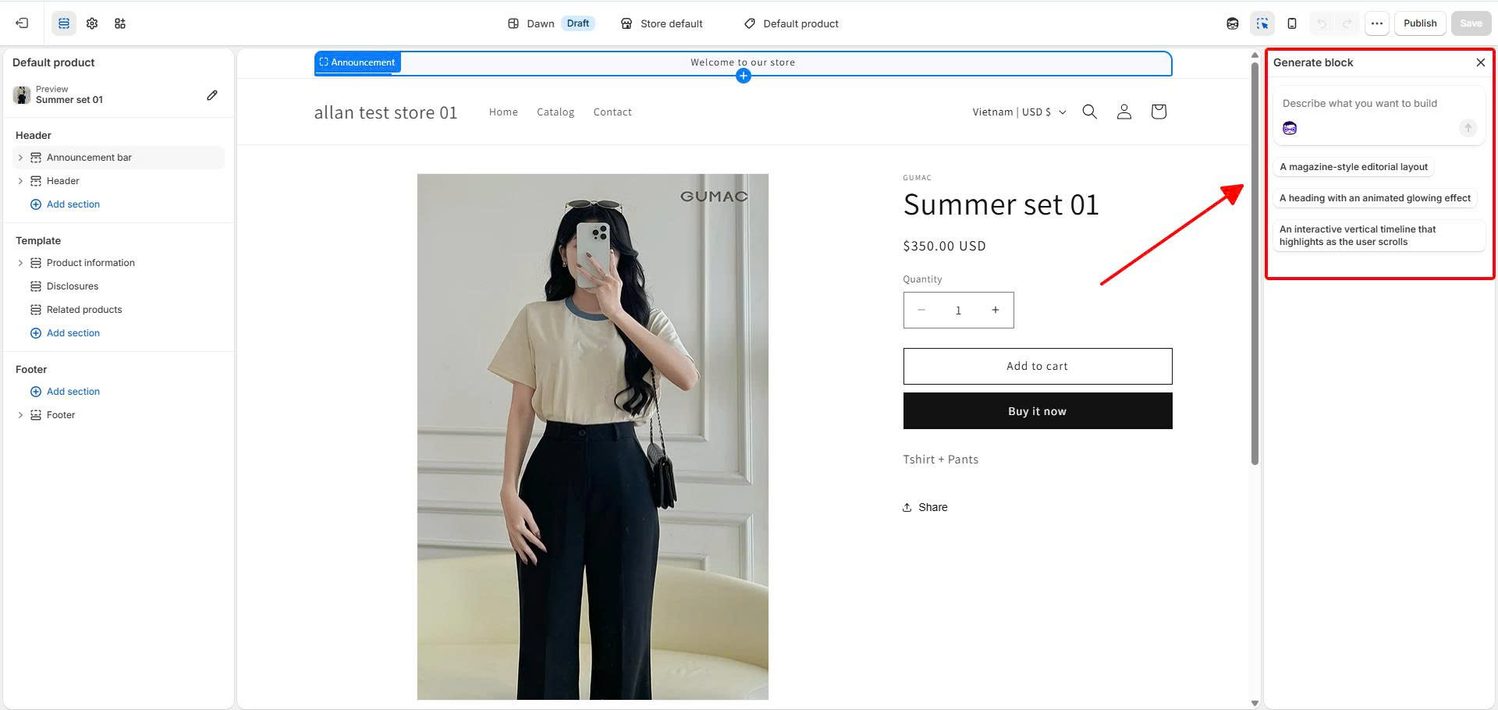
Here are example requests you can copy and adjust:
Sidekick can also work on a theme you haven’t published yet. This lets you prepare a holiday message on a copy of your theme and publish it when the sale starts.
Sidekick can change every announcement bar setting that your theme includes. Based on Shopify’s list of Sidekick theme tasks, that covers 5 kinds of changes:
Sidekick has 1 clear limit: it can only add sections and blocks that your theme already includes. If your theme has no scrolling bar or no announcement bar at all, Sidekick can’t create one for you, so you need a different theme or an app.
You can still make every change by hand in the Announcement bar section of the theme editor if you prefer.
The built-in bar is free and simple, but it has 4 limits that matter for stores running frequent campaigns.
Custom code can add some of these features, but it needs a developer and can break when the theme updates.
The free theme bar is enough if your store meets all of these conditions:
An app is worth it if your store needs any of these:
Three dedicated announcement bar apps cover most stores’ needs, and BOGOS is an alternative for stores that already run promotions. I checked every price and feature below on the Shopify App Store on October 14, 2026.
| Essential Announcement Bar | Attrac Popup, Announcement Bar | Super Announcement Bar Banners | |
|---|---|---|---|
| Rating | 5.0 (1,310 reviews) | 5.0 (1,179 reviews) | 5.0 (30 reviews) |
| Free plan | Yes, up to 2,000 views/month | Yes, 1,500 impressions/month | No, 7-day free trial |
| Paid plans | $6.99, $9.99, or $29.99/month | $8.99, $14.99, or $29.99/month | $0.99, $2.99, or $7.99/month |
| Scheduling | From $9.99/month | Only on $29.99/month | From $2.99/month |
| Targeting | Geolocation from $9.99/month | Page, device, and audience targeting from $14.99/month | Geolocation from $7.99/month |
| Built for Shopify badge | Yes | Yes | Yes |
Older “best app” lists still recommend Hextom’s Quick Announcement Bar. Its App Store page now says the app is not currently available, so it isn’t included here.
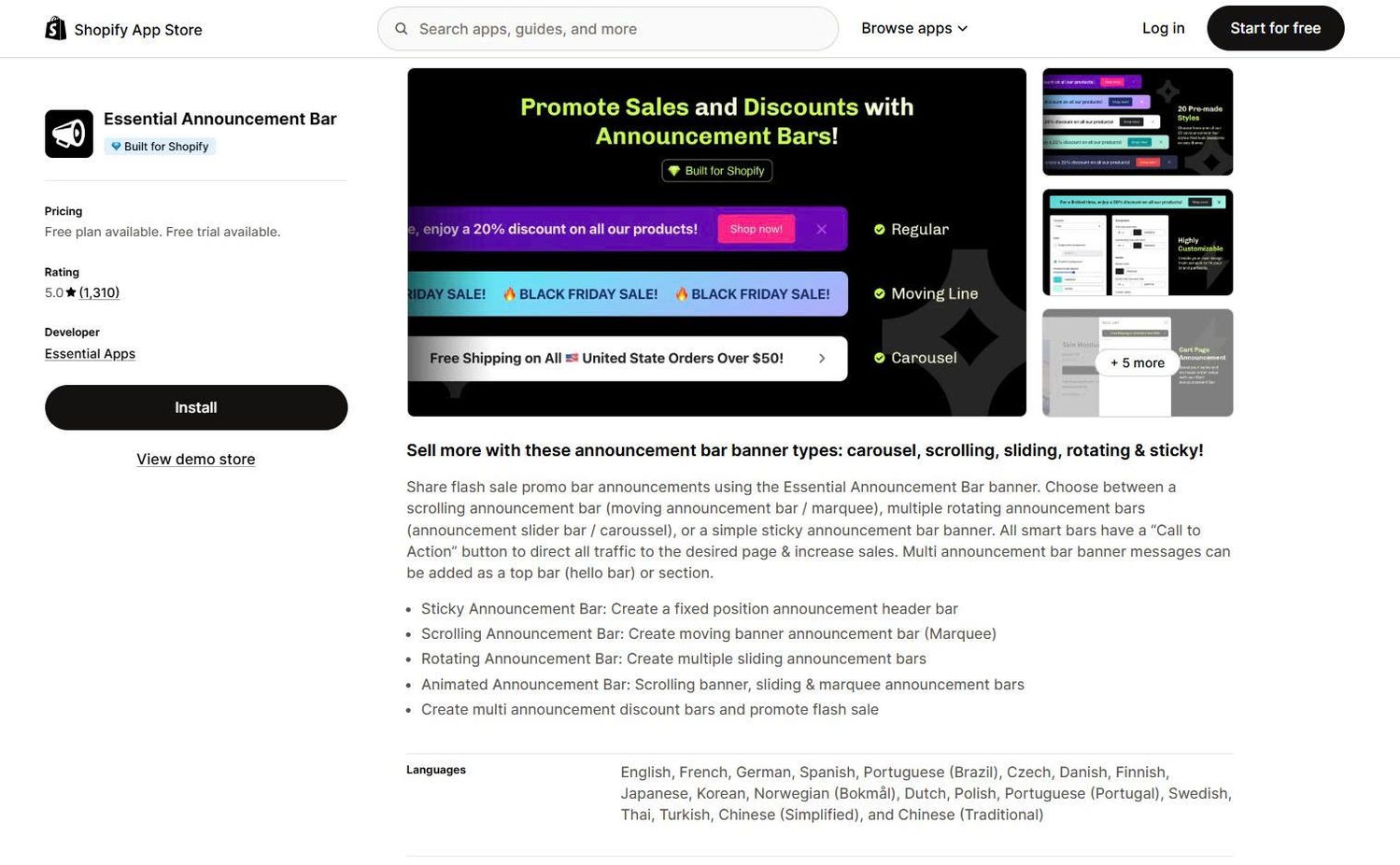
Essential Announcement Bar is the best pick for the widest range of bar styles on a free plan. The Free plan covers unlimited simple and rotating bars with links or buttons, up to 2,000 views per month.
Scrolling (running line) bars start on the $6.99 Starter plan. Scheduling, geolocation targeting, cart page bars, and translations start on the $9.99 Essential plan.
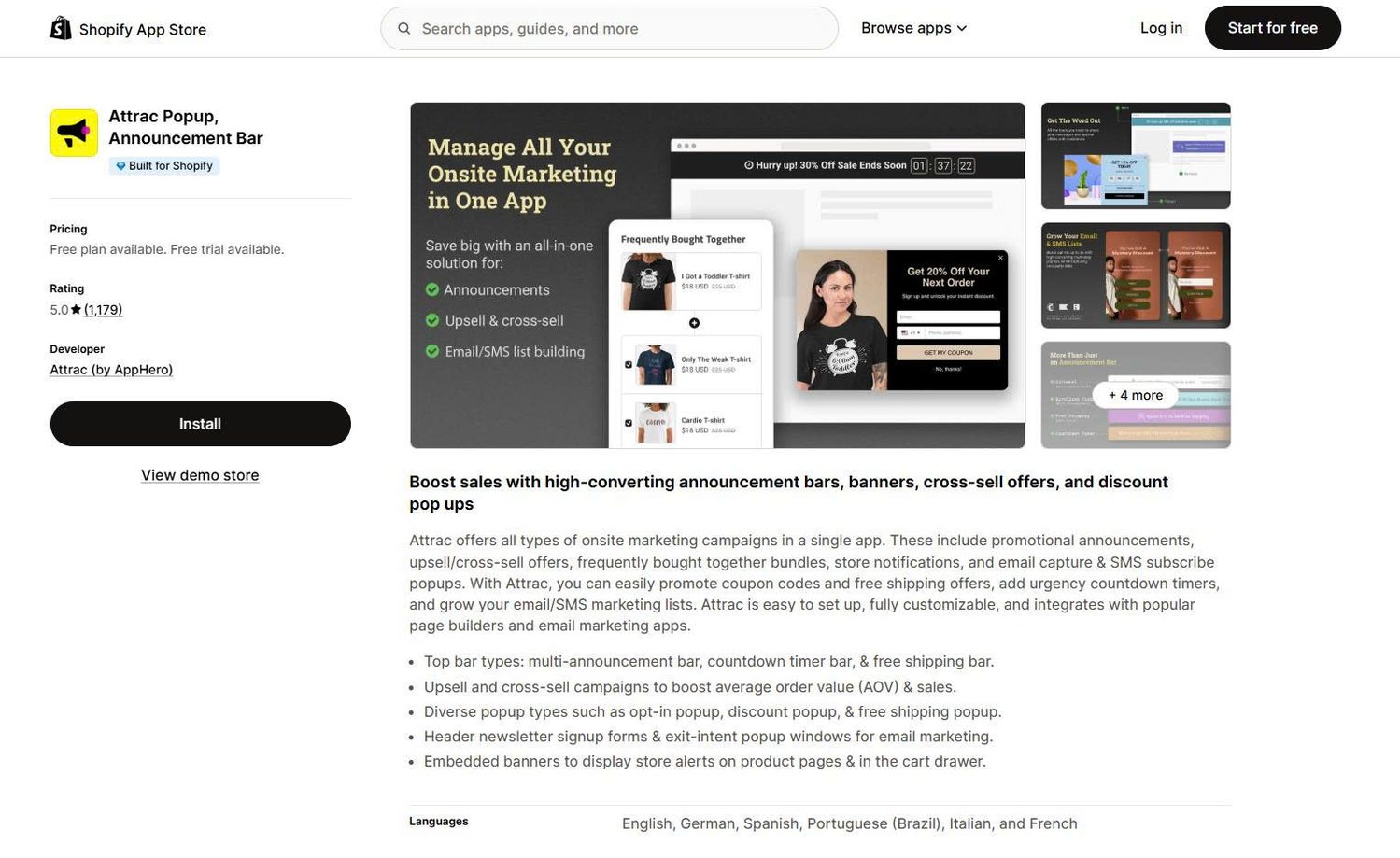
Attrac is the best pick for stores that want bars, popups, and email signup forms in 1 app. Its Free plan includes all campaign types, such as announcement bars, countdown bars, free shipping offers, and email popups, up to 1,500 impressions per month.
Messages that rotate in 1 campaign start on the $8.99 Plus plan. Page, device, and audience targeting start at $14.99, and scheduling is only on the $29.99 Max plan.
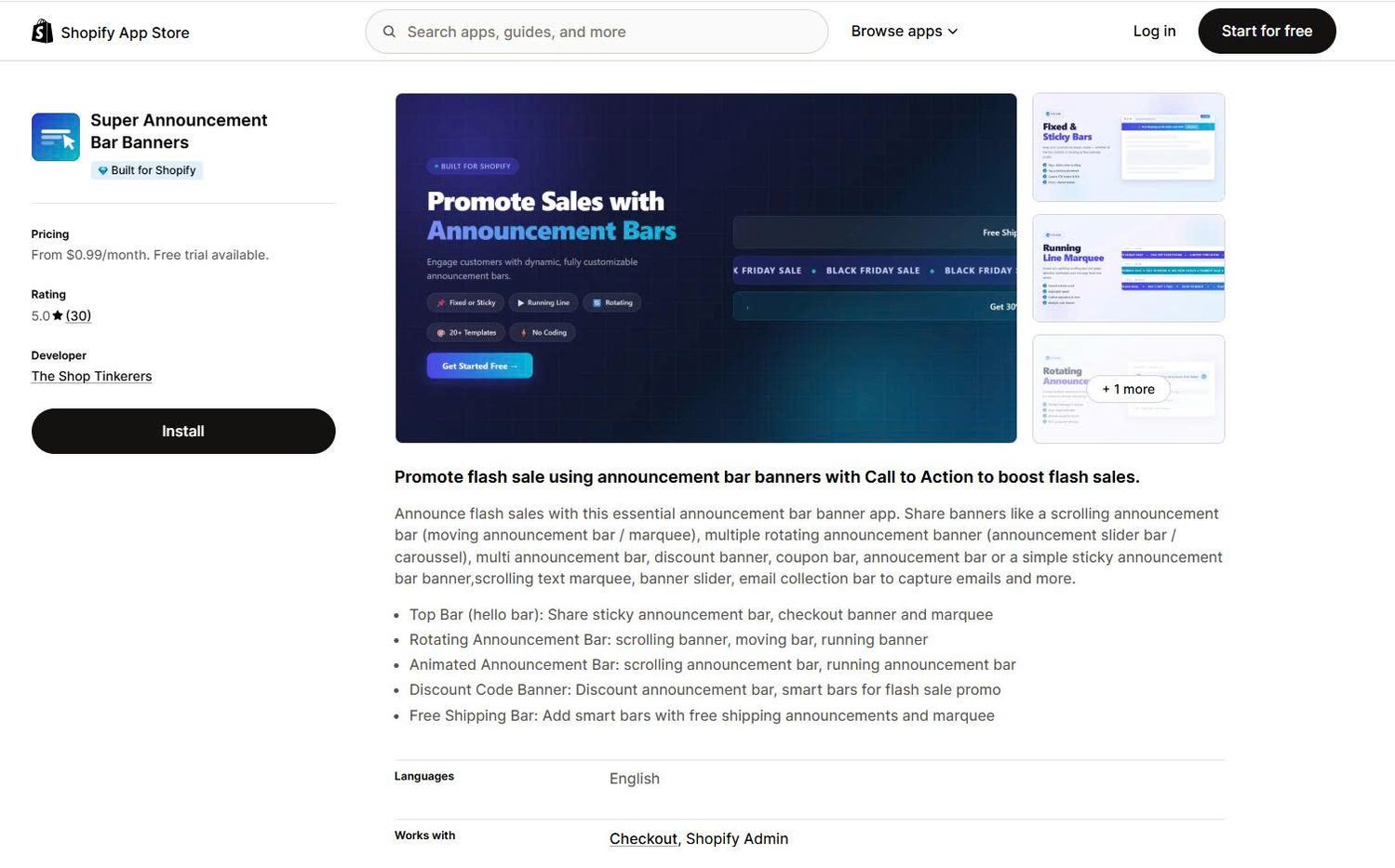
Super Announcement Bar Banners is the best pick for the lowest monthly price. The $0.99 Basic plan includes 2 bars, simple and scrolling bar types, and 15,000 views per month.
The $2.99 Starter plan adds scheduling and email collection. The $7.99 Grow plan adds unlimited bars and views, translations, and geolocation targeting.
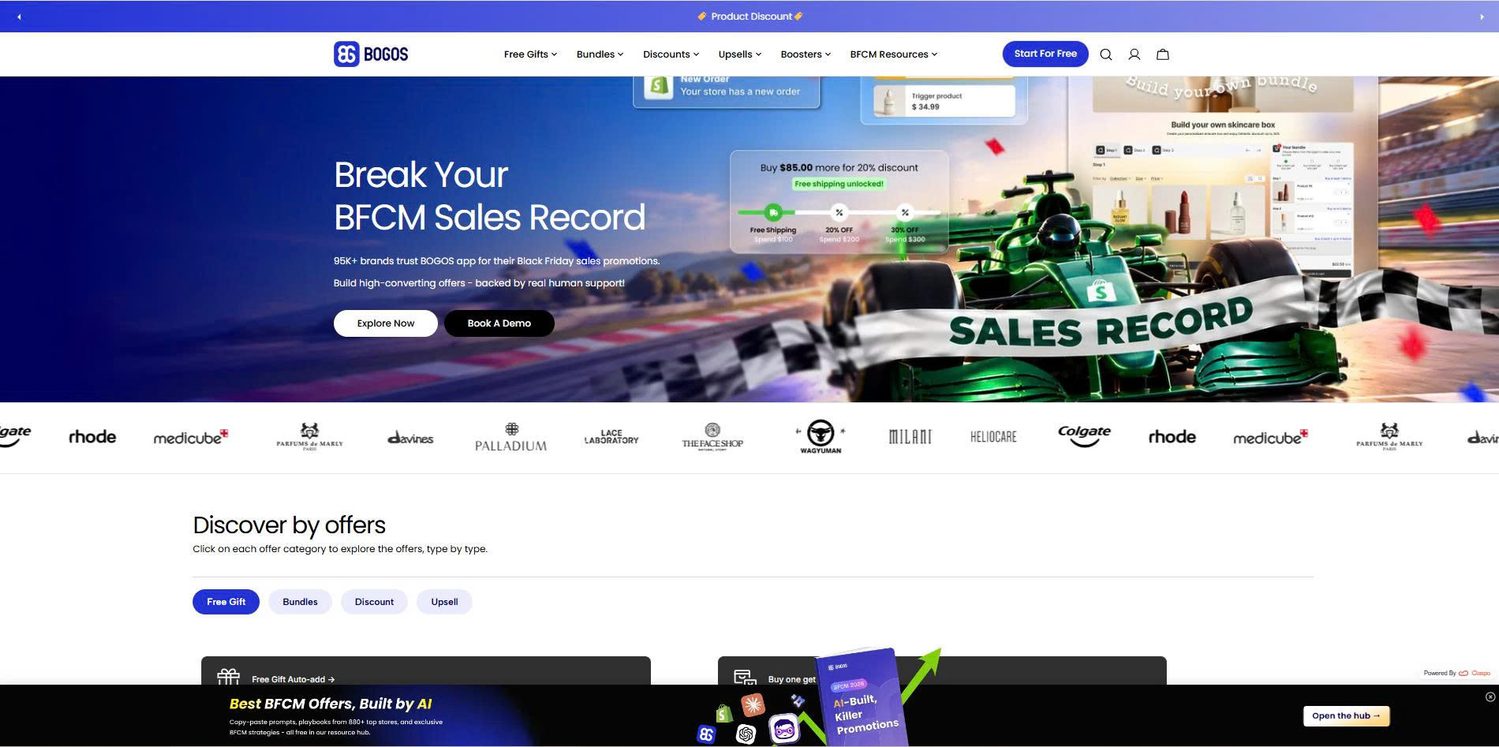
BOGOS is not a dedicated announcement bar app. It is a promotion app for free gifts, bundles, discounts, and upsells, and the Announcement Bar is one feature inside it, available on every BOGOS plan, including the Free plan.
The BOGOS bar is built to promote offers you create in BOGOS. If you plan to run a promotion on Shopify, such as a free gift with purchase, a bundle, or a volume discount, and you want a bar to announce it, BOGOS lets you create the offer and the bar in the same app.
The BOGOS Announcement Bar has 4 standout features:
The BOGOS bar also has clear trade-offs. It is optimized for promotions created in BOGOS only, so it is a weaker fit if your offers run through Shopify’s own discounts or another app. Its documentation also lists no scheduling, countdown timer, email capture, or audience targeting for the bar, so a store that only needs a general-purpose bar, or needs those features, is better served by a dedicated app.
The best announcement bar messages answer 1 question a shopper has right now: what it costs, when it arrives, or what’s on offer. The sections below group sample copy by goal. All lines are examples I wrote for this guide, so replace the numbers with your store’s real terms.
A free shipping message works best when the threshold sits a little above your typical order. For context, Shopify’s BFCM 2025 report put the average cart price at $114.70 across Shopify stores that weekend.
Sample copy:
Setting the threshold just above your current average order nudges shoppers to add 1 more item, which raises your Shopify AOV.
A sale message should state the deal and where it applies in 1 line. If you use a code, put the exact code in the bar so shoppers don’t have to search for it.
Sample copy:
Before the bar goes live, test the code at checkout. Our guide on how to create a discount code in Shopify covers the settings that decide which products and customers the code covers.
A free gift message works best when it names the gift and the condition in the same line. A named item tells shoppers exactly what they get.
Sample copy:
If you run these offers in BOGOS, the bar can pull the offer title straight from the offer, so the message stays correct when you change the offer. Our full guide to Shopify free gift with purchase explains how to choose the gift and the spending threshold.
A delivery message tells shoppers when an order will arrive, which answers the “too slow” worry directly. Shoppers care most about delivery dates in the days before a holiday.
Adobe’s 2025 holiday data shows how late many shoppers buy: curbside pickup reached 39% of online orders on December 23, at stores that offer it.
Sample copy:
Put the cutoff date on the bar at least 2 weeks before the holiday, then update it as the date gets closer. Our list of Black Friday marketing ideas includes more ways to plan messages around the holiday calendar.
A returns message removes the risk of buying, especially for clothing and shoes, where fit is uncertain. Shopify’s own guide lists policy changes as one of the main uses for the bar.
Sample copy:
Make sure the bar matches your actual policy page word for word. Our guide to Shopify returns covers how to set up the policy itself.
A country-specific message helps international shoppers understand costs before they reach checkout. Shopify’s BFCM 2025 data shows that 16% of orders that weekend crossed borders.
Sample copy:
The built-in bar shows the same message to every country, so country-specific messages need an app with location targeting. Our guide to Shopify international shipping explains how to set the rates behind those messages.
A launch message sends returning visitors straight to what’s new. The bar shows on every page, so shoppers see the news even when they land on a product page.
Sample copy:
Six practices make the difference between a bar that shoppers read and a bar they skip.
Each message should carry 1 idea and point to 1 page. A slide that mixes free shipping, a discount code, and a new launch forces shoppers to read 3 things at once, which makes the main point harder to see.
If you have 3 messages, use 3 rotating slides instead of 1 long line.
Your message should fit on 1 line on a phone screen without being cut off. Test it by opening your store on your own phone after every change.
Some themes, such as Concept, let you write a separate mobile message. If yours doesn’t, write the short version for every screen. Phones drive most holiday sales, so a clear phone message also supports your mobile order value.
The text color and background color need strong contrast so every shopper can read the message. The WCAG 2.2 accessibility standard sets the minimum contrast ratio at 4.5:1 for normal text and 3:1 for large text.
Free online contrast checkers show the ratio when you enter your 2 colors. Dark text on a light background, or white text on a dark background, usually passes.
Scrolling and sliding bars should let shoppers stop the movement. The same WCAG 2.2 standard requires a way to pause, stop, or hide any content that starts moving on its own, moves for more than 5 seconds, and sits next to other content.
Moving text can distract shoppers who read slowly or who have attention or vision difficulties. A pause-on-hover setting or manual arrow buttons solve this.
The bar should look like part of your store, not like an outside ad. Nielsen Norman Group advises against making real content look like ads, because shoppers skip anything that does.
Use your brand’s fonts and colors, avoid flashing effects, and change the message whenever the offer changes. A message that stays the same for months becomes invisible to returning visitors.
The link should go to the page that delivers what the message promises. A “20% off dresses” message should open the dresses sale collection, not the homepage.
When the link skips the extra click, shoppers reach the offer faster.
The best way to start with a Shopify announcement bar is to use your theme’s free bar and put your strongest shopper reassurance in it, such as your free shipping rule or your returns window. Add an app only when you need scheduling, targeting, scrolling text, or a bar that stays in sync with your promotions.
Keep the message short, readable on a phone, and up to date. A bar that answers a real question on every page is one of the simplest tools you can add to increase sales on Shopify, and it costs nothing to try with your theme’s built-in settings.
Shopify themes allow 1 announcement bar section with up to 12 messages, which rotate inside the same bar. Apps can add more bars, but showing 2 bars at once pushes your store content down and splits shoppers’ attention. A single bar with rotating messages is usually the cleaner choice.
An announcement bar is not bad for SEO when it takes up a small part of the screen. Google’s guidance recommends small banners over full-page popups that cover the main content.
You can make a scrolling announcement bar in Shopify in 2 ways: use your theme’s marquee or scrolling option if it has one, or install an app that offers a scrolling bar. Merchants on free themes such as Dawn have asked in the Shopify Community how to add scrolling text, so check your theme settings first and use an app if the option is missing. Whichever method you choose, turn on a pause option so shoppers can stop the movement.

A featured collection is often the first group of products a shopper sees on a Shopify store, yet the...
Most Shopify stores need a best sellers page, but Shopify can’t build one that updates by itself. In this...
Shopify smart collections add and remove products for you based on rules, such as a tag, a price, or...