



Charlie Ngo
•
Last updated: 23 October, 2026
Shopify Smart Collections: Setup, Conditions & 8 Examples (2026 Updated)
Shopify smart collections add and remove products for you based on rules, such as a tag, a price, or...
Shopify Countdown Timer: How to Add One (3 Ways)

Marketing Manager
Summarize this post with AI
A countdown timer on Shopify shows shoppers how much time is left before an offer ends, which moves undecided buyers to act instead of leaving the page. This guide covers what a countdown timer is, the types available, the three ways to add one, where to place it, and how to use it without misleading customers. I’m Charlie Ngo, Marketing Manager at BOGOS, and I have spent 5 years helping Shopify brands grow and optimize their store’s sales.
A Shopify countdown timer is a live clock that counts down to a set deadline and displays on your storefront or inside your marketing emails. It tells shoppers how much time remains before a sale, a launch, or a shipping cutoff ends or begins.
You see countdown timers most often during big sales. Common examples include a Black Friday sale ending at midnight, a 3-hour flash sale, a same-day shipping cutoff at 1pm, and a product drop scheduled for 2 days away.
Most shoppers who add an item to their cart never buy it. The Baymard Institute puts the average cart abandonment rate at 70.22%, based on a meta-analysis of about 50 studies. Roughly 7 in 10 shoppers who add a product leave without paying.
A large share of that group simply has not decided yet. Baymard found that 42% of US shoppers abandon a cart because they were just browsing or not ready to buy. A countdown timer speaks directly to that hesitation by giving an undecided shopper a reason to act now.
Shopify has no universal built-in countdown timer. Some Shopify themes include a countdown block you can add in the theme editor, but many themes do not include one. When your theme lacks a countdown block, you add a timer with custom code or a dedicated app.
Countdown timers work for 3 clear reasons: scarcity, loss aversion, and faster decisions. Each one changes how a shopper feels about waiting.
Scarcity raises perceived value. The Nielsen Norman Group explains that people value things more when those things are limited by quantity, time, or access. A countdown makes a time limit visible.
Loss aversion makes a deadline feel important. Research by Kahneman and Tversky, summarized by the Nielsen Norman Group, shows people feel a loss about twice as strongly as an equal gain. A ticking deadline frames the choice as “buy now or lose the deal.”
Faster decisions are the practical result. Many shoppers intend to buy later and then forget. A countdown gives them a specific reason to decide today. This makes a countdown timer one useful lever inside a wider plan to improve your Shopify conversion rate, alongside clearer pricing and a simpler checkout.
A countdown timer helps most on considered, higher-priced purchases with a real deadline, and it does not fix a broken checkout. Knowing the difference saves you from adding timers that do nothing.
Time pressure works better on some products than others. A 2022 meta-analysis in the Journal of Retailing, which pooled 416 effect sizes from 131 studies, found that time-based scarcity performs best for high-involvement products. These are researched or higher-priced items where the shopper deliberates before buying. A timer earns its place on a $200 jacket far more than on a $4 phone cable.
A timer also cannot solve the top reasons people abandon carts. Baymard’s data shows the leading fixable reasons are extra costs shown late and forced account creation. A countdown does nothing about either one. Treat a timer as a nudge for undecided shoppers, not a replacement for checkout fixes.
The offer behind the timer matters more than the timer itself. A clock only moves people when the deal it counts down to is worth acting on. The urgency lives on the countdown, but the value lives in the offer, such as a free gift at a spend threshold or a bundle discount. That offer layer is where an engine like BOGOS operates, through free-gift-with-purchase automation and a cart progress bar that tracks toward the reward, which is separate from any timer. Pairing a timer with a strong offer is a direct way to lift your average order value, and a well-built free gift with purchase gives the deadline something the shopper genuinely wants.
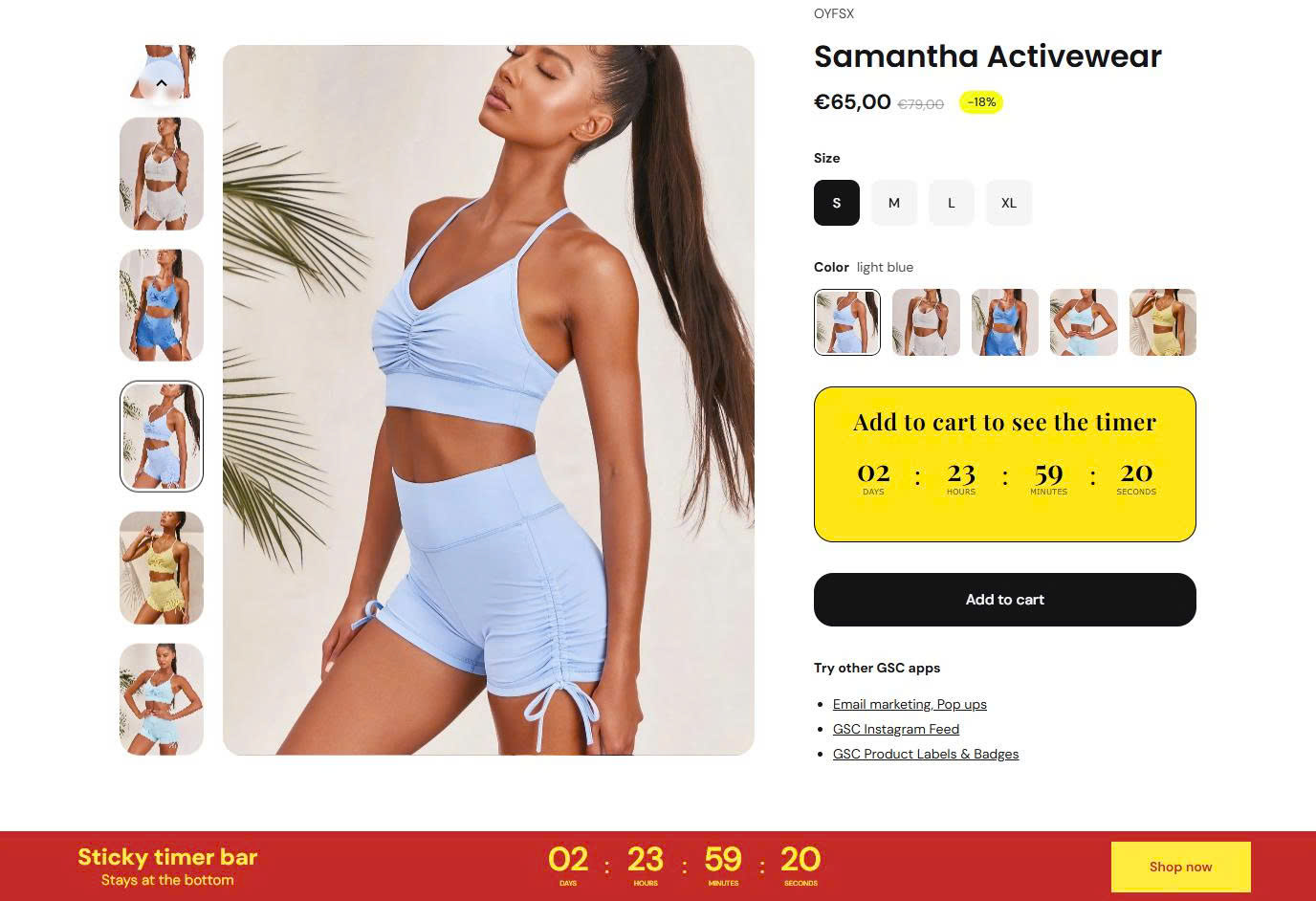
Every countdown timer is defined by 2 choices: where it appears and how it counts down. Placement is the first choice. Mode is the second.
Placement decides who sees the timer and when. Each spot suits a different goal.
Mode decides what the timer counts down to. There are 3 common modes.
The delivery timer is a daily-recurring mode. A message like “order within 4 hours for delivery by Friday” is a shipping cutoff that resets every day. This estimated delivery date (EDD) timer works well on stores where fast dispatch is a selling point.
Choose the placement and the mode together, based on your campaign and the shoppers you want to move. The table below matches common campaigns to a mode and a placement, including the audience each one targets.
| Campaign | Who you’re targeting | Mode | Placement |
|---|---|---|---|
| Sitewide flash sale | All visitors | Fixed-date | Promo bar, sitewide |
| Seasonal collection sale | Collection browsers | Fixed-date | Bar on collection pages plus badges on sale items |
| Product launch or store opening | Waitlist and new visitors | Fixed-date | Full-width banner on homepage or password page |
| Reduce cart abandonment | Shoppers who added to cart | Evergreen | Inline timer in cart or cart drawer |
| Welcome offer | New, first-time visitors | Evergreen | Small inline timer on landing or product pages |
| Gift-with-purchase or bundle offer | Shoppers on a product page | Evergreen or fixed-date | Inline timer above add-to-cart |
| Same-day shipping cutoff | Time-sensitive shoppers | Daily recurring | Small timer on the product page |
| Daily deal or recurring promo | Returning deal-seekers | Daily recurring | Promo bar, homepage or sitewide |
| Pre-order or limited-run deadline | Pre-order collection browsers | Fixed-date | Product-card badge plus product page |
Pair one broad timer with one focused timer for the strongest effect. A sitewide promo bar builds awareness for every visitor. An inline timer on the product page or in the cart then converts high-intent shoppers at the point of decision. Many high-performing stores run both together during a sale.
Avoid stacking several unrelated timers on one page. Multiple competing countdowns clutter the layout and confuse shoppers about which offer matters. One clear objective per timer works better.
You add a countdown timer to Shopify in 3 ways: a theme block, custom code, or an app. Pick the one that fits your skills and your budget.
Use your theme’s countdown block first if your theme includes one, because it needs no code and no extra cost. Not every theme has this feature, so the first job is to check whether yours does.
Theme support for a built-in countdown varies, so check your theme before relying on it. The table below shows common themes and their countdown support.
| Pricing | Built-in countdown | |
|---|---|---|
| Eurus (BSS Commerce) | Premium, one-time | Pop-ups, banners, announcement bars |
| Be Yours (Roar Theme) | Premium, one-time | Countdown section on any page |
| Prestige (Maestrooo) | Premium, one-time | Collection pages and header |
| Impulse (Archetype) | Premium, one-time | Product pages and landing pages |
| Motion (Archetype) | Premium, one-time | Urgency blocks |
Shopify’s free themes, including Dawn, do not include a built-in countdown block, so a built-in timer means buying a premium theme. Premium themes are a one-time purchase, usually around $350 to $500. You can preview any paid theme free in your store before you buy.
To check your theme and add a timer:
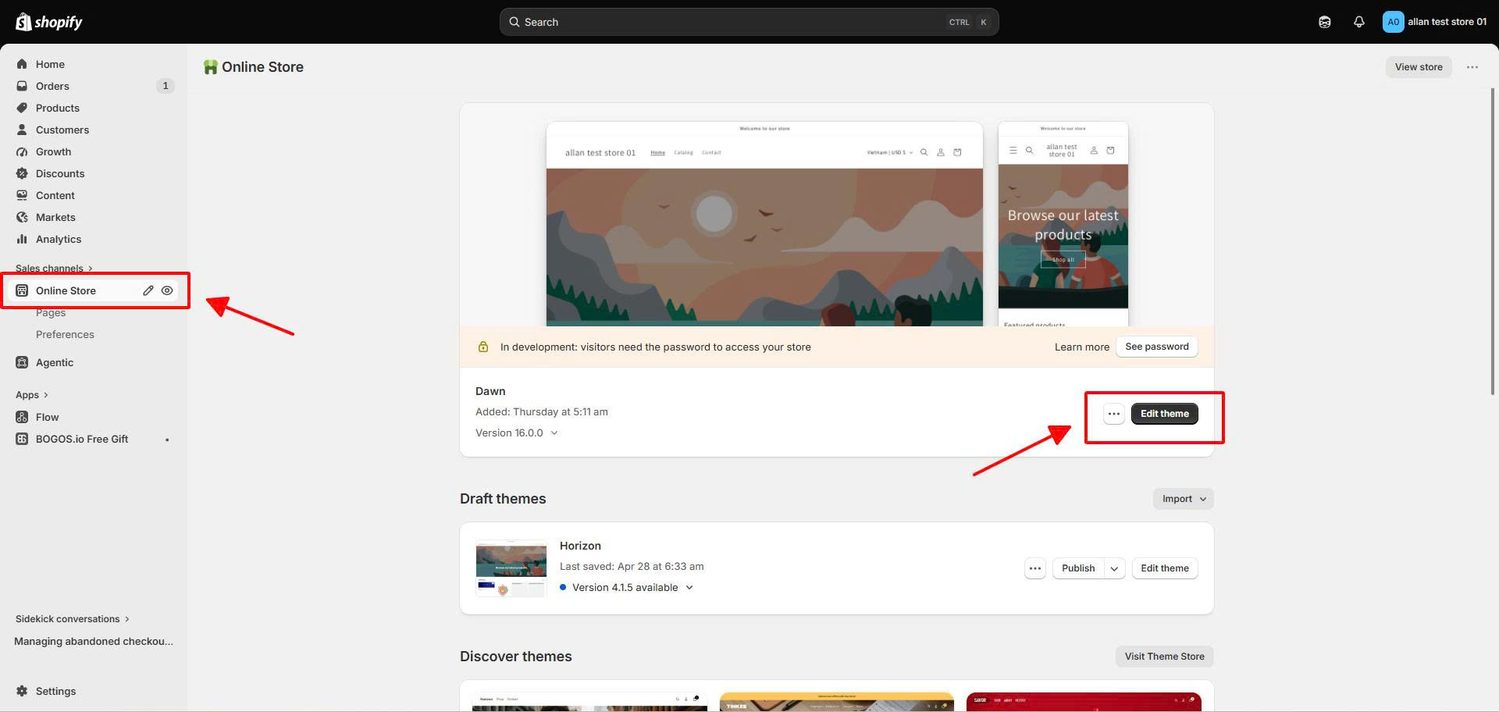
If no countdown option appears, your theme does not include one. Move to custom code or an app instead.
Add a countdown timer with custom code if you can edit your theme and want full control. This route uses Liquid and JavaScript. It is flexible, but it breaks during some theme updates, needs manual date edits, and requires developer skill.
The steps are:
<div id="countdown"></div>

<script>

  const deadline = new Date("2026-12-25T00:00:00").getTime();

  const timer = setInterval(function () {

    const left = deadline - new Date().getTime();

    const days = Math.floor(left / (1000 * 60 * 60 * 24));

    const hours = Math.floor((left % (1000 * 60 * 60 * 24)) / (1000 * 60 * 60));

    const mins = Math.floor((left % (1000 * 60 * 60)) / (1000 * 60));

    const secs = Math.floor((left % (1000 * 60)) / 1000);

    document.getElementById("countdown").innerHTML =

      days + "d " + hours + "h " + mins + "m " + secs + "s";

    if (left < 0) {

      clearInterval(timer);

      document.getElementById("countdown").innerHTML = "This offer has ended.";

    }

  }, 1000);

</script>Use an app if you want the easiest setup and the most flexibility, which is the right choice for most merchants. An app is worth it for a few clear reasons:
Apps also have real downsides, so weigh them before you install one:
Check your page speed and mobile display after installing any timer app, and remove it cleanly if you stop using it.
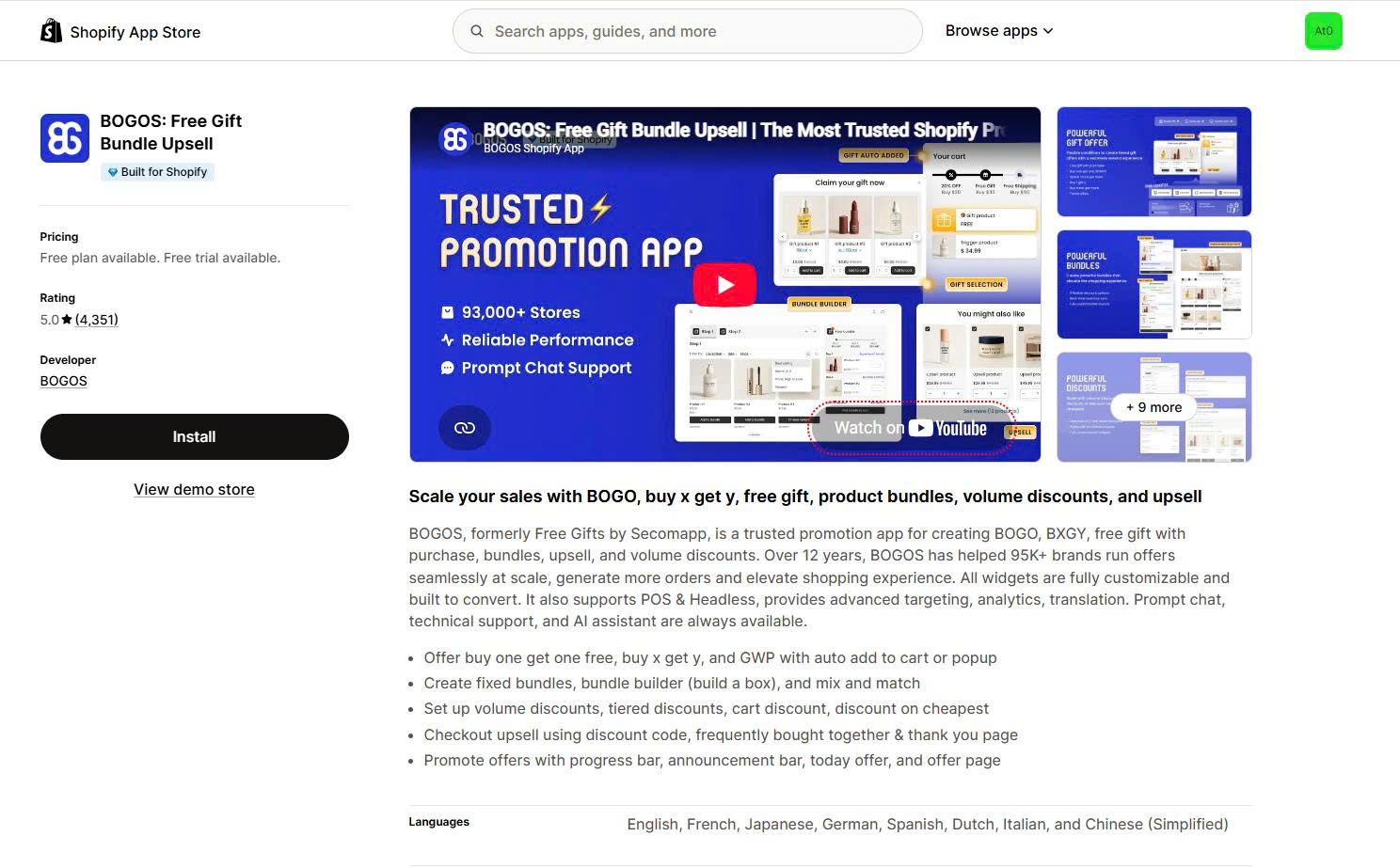
A few countdown timer apps are popular and well-reviewed on the Shopify App Store:
Pricing changes often, so check each listing before you commit. Several of these apps offer a free plan, with paid tiers commonly ranging from about $5 to $30 per month. Test the free plan first, and upgrade only when you need advanced targeting or scheduling.
Keep every deadline real, because fake or resetting timers are deceptive and damage trust. This is both a brand issue and a legal one.
The Federal Trade Commission has named the problem directly. Its 2022 staff report, described in the Federal Trade Commission announcement, listed baseless countdown timers as a deceptive “urgency” practice. A fake timer that resets on reload or an offer that stays live after the clock hits zero can be treated as deceptive under Section 5 of the FTC Act.
The problem is common, not rare. In a crawl of about 11,000 shopping websites, researchers documented 393 instances of the countdown-timer dark pattern, including timers that reset when the page reloaded and offers that remained available after the deadline passed. Shoppers increasingly notice these tricks.
Follow a few rules to keep your timers honest and effective:
The most reliable way to keep a countdown honest is to make the promotion itself start and end with the clock. When a time-boxed free gift or threshold deal truly turns on and off with the timer, the deadline is real by design. An offer engine such as BOGOS can switch a gift-with-purchase or spend-threshold promotion on and off on a schedule, which keeps the urgency truthful instead of staged.
A countdown timer is a simple, effective way to move undecided shoppers, but only when you use it well. Add one with a theme block, custom code, or an app, depending on your skills. Match the placement and the mode to your campaign and audience. Keep every deadline real, and put a worthwhile offer behind the clock. Do those things, and a timer becomes a genuine part of how you increase sales on Shopify rather than a gimmick shoppers learn to ignore.
Shopify has no universal built-in countdown timer. Some themes include a countdown block in the theme editor, but many do not. When your theme lacks one, you add a timer with custom code or an app.
Countdown timers can increase sales when the deadline is real and the product is a considered purchase. The effect comes from scarcity and loss aversion, and research shows time-based urgency works best on higher-involvement items. Be careful with vendor claims of a fixed lift, such as “up to 40%,” because these are usually single case studies and are not verified across stores.
Fake countdown timers are treated as a deceptive practice. The FTC named baseless timers as a dark pattern in 2022, and deceptive practices fall under Section 5 of the FTC Act. Keep deadlines genuine to stay clear of trust and compliance problems.
Shopify has no universal built-in countdown timer. Some themes include a countdown block in the theme editor, but many do not. When your theme lacks one, you add a timer with custom code or an app.
Do countdown timers really increase sales?
Countdown timers can increase sales when the deadline is real and the product is a considered purchase. The effect comes from scarcity and loss aversion, and research shows time-based urgency works best on higher-involvement items. Be careful with vendor claims of a fixed lift, such as “up to 40%,” because these are usually single case studies and are not verified across stores.
Are fake countdown timers against the rules?
Fake countdown timers are treated as a deceptive practice. The FTC named baseless timers as a dark pattern in 2022, and deceptive practices fall under Section 5 of the FTC Act. Keep deadlines genuine to stay clear of trust and compliance problems.

Shopify smart collections add and remove products for you based on rules, such as a tag, a price, or...

Shopify collections decide how shoppers find your products, yet many guides still describe a setup Shopify is now replacing....
A Shopify announcement bar is the thin strip at the top of your store that tells shoppers about shipping,...