



Allan Vu
•
Last updated: 3 November, 2026
5 Best Shopify Virtual Try-on Apps in 2026 (compared)
Online shoppers can’t try anything on, so many guess and send items back. The NRF and Happy Returns estimate...
Shopify Refunds: How to Issue, Reverse & Win Customers Back

Marketing Manager
Summarize this post with AI
Refunds are part of running any Shopify store. A customer changes their mind, an item shows up damaged, or someone gets charged twice. A fast, correct refund settles the issue and often keeps the customer. A slow or messy one loses the sale and risks a bad review. This guide walks through the full process: the refund types, the exact steps, how long the money takes, the scenarios that trip merchants up, and how refunds look from the shopper’s side.
I’m Charlie Ngo, an eCommerce expert at BOGOS, and I work with Shopify orders, refunds, and promotions every day.
A Shopify refund sends a customer’s payment back for all or part of an order. Before you click anything, it helps to know what kind of refund you’re issuing and where the money goes. In 2025, shoppers returned an estimated 15.8% of all retail purchases and 19.3% of online orders, according to the NRF and Happy Returns 2025 Retail Returns Landscape, so this comes up often.
Understanding the different types of refunds helps you handle these situations more effectively and set clear expectations for your customers.
Where the money goes also sets the timeline:
Speed shapes what shoppers choose. In the NRF survey, 76% said they prefer a return option that pays out instantly. Store credit and gift cards do exactly that, so they’re worth offering when a customer is open to them.
Refunding a customer in Shopify takes just a few steps, from selecting the order to sending the confirmation email. Here’s how to process one:
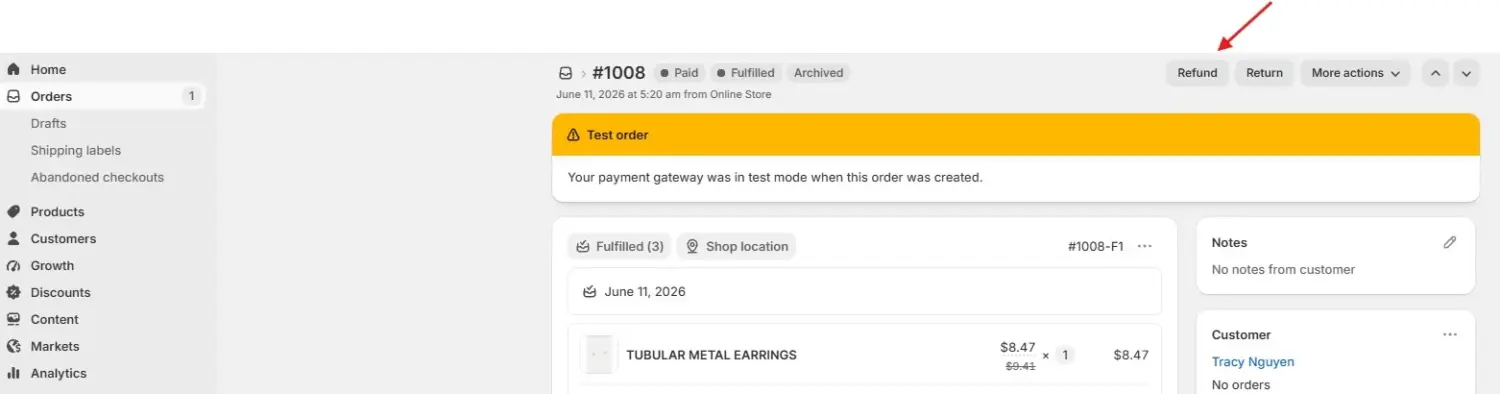
Go to Orders, click the order you want to refund, then click Refund at the top.
Optional: to apply a discount to an item before refunding, click the item price, select a Discount type, and enter the value. Any note you add in the Reason for discount field is shown to your customer. Click Save.
Here, enter the quantity of items you want to refund. Shopify automatically calculates refunds based on what the customer actually paid.
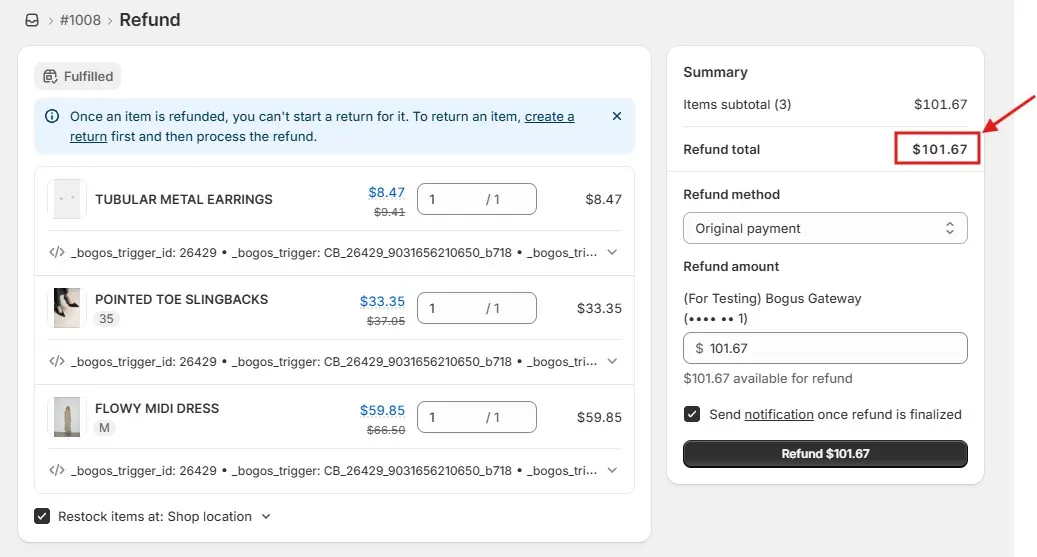
Three things to set before you finish:
In the Summary section, choose a Refund method: original payment, store credit, or both. Edit the Refund amount if you need to, for example, to deduct a restocking fee.
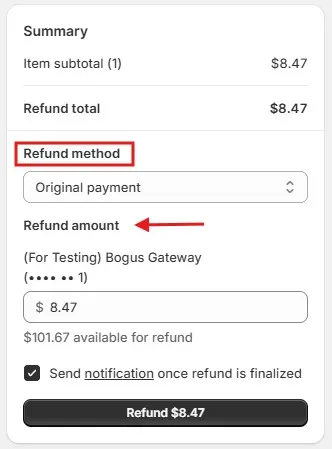
Leave the Send a notification to the customer box checked so they get a confirmation email. Then finally, click Refund to finish the setup process.
The same steps work on the Shopify mobile app under the Orders icon. Once done, the order status updates to Refunded.
Most refunds take a few clicks to issue, but the wrong action can leave an order open, trigger another subscription charge, or send money you can’t recover. Before you process any refund, review these six situations and the safest way to handle each one.
Once a refund has been issued, Shopify cannot reverse it. If you refund an order by mistake, you will need to create a new draft order and ask the customer to complete the payment again.
Before issuing a refund, double-check the order details, refund amount, and payment method to ensure everything is correct, as errors can be difficult to fix afterward.
Refunds involve real money, so carefully control who on your team can issue them. In Shopify, staff members can only process refunds if they have the Refund orders permission. You can also control whether each person can refund to the original payment method, store credit, or both.
Keep in mind that these permissions only apply to the Shopify admin and mobile app. They do not control refunds issued through third-party apps. If you use a returns or refund app, review its access settings separately.
This usually happens in one of two ways:
For example, if you have already issued part of the refund as store credit, Shopify may prevent you from refunding an additional amount to the customer’s card. A staff member will need the Over-refund orders permission to issue a refund beyond the available amount.
A subscription refund is rarely one click. You refund the payment and stop the renewal, and prepaid plans need one extra step. Miss a part and the customer gets charged again and frustrated. Here’s each one:
Refund the payment
How you do this depends on your setup:
Cancel or pause the renewal
Refunding a past order does not stop future charges, because the subscription contract stays active in your app. Open the customer’s subscription in Shopify Subscriptions or the app you use, then cancel or pause it before you confirm the resolution with the customer.
Otherwise, the next renewal still processes, causing another unexpected charge and a poor customer experience.
Handle prepaid subscriptions, if they apply
If the customer paid for several months and some orders haven’t shipped, issue full or partial refunds for the unfulfilled and scheduled orders. Then cancel the remaining unshipped orders in Shopify and cancel the contract in your app so nothing renews.
When a customer changes their mind before the order ships, reach for Cancel order, not Refund. The two sound alike but do different things.
When an order was paid by a manual method, such as cash on delivery or bank transfer, clicking Refund does less than it looks like. It records the refund in Shopify but moves no money, because that payment never ran through Shopify in the first place.
So the refund happens in two parts. First, return the money to the customer yourself, outside Shopify. Then mark the refund in Shopify so your orders and reports stay accurate.
The best refund is the one you never have to issue. Returns are expensive, and they are especially common in ecommerce. In 2025, shoppers returned an estimated 15.8% of all retail purchases and 19.3% of online orders.
You cannot eliminate refunds, but you can reduce how often they happen. Most refunds come from a gap between what customers expected and what they received. The following steps can help you identify and close that gap.
Many “not as described” refunds begin before checkout. When the product page does not accurately reflect what customers receive, disappointment is more likely.
Include clear details about sizing, materials, colors, dimensions, compatibility, and product limitations. Use realistic photos from multiple angles and add product videos where they can answer common questions more clearly than text.
The better customers understand the product before buying, the less likely they are to return it because it did not meet their expectations.
Damage is a bigger driver than many merchants realize. In packaging company Shorr’s 2025–2026 consumer return survey, 57% of shoppers said they’d hesitate to buy again from a retailer that shipped them a broken item.
Choose packaging based on the product’s size, weight, and risk of damage. Use strong boxes, sufficient cushioning, and right-sized inserts to stop items from moving in transit. Fragile products such as glassware, ceramics, and electronics may need additional reinforcement.
Better packaging may increase fulfillment costs slightly, but it is usually less expensive than a refund, return shipping, replacement order, and lost customer combined.
In the NRF survey, 76% of shoppers said they prefer a return option that provides an instant refund or exchange. So, when appropriate, give customers the option to exchange the product or receive store credit instead of requesting a refund:
Make the offer easy to find and easy to accept by placing it wherever customers may consider a return, such as the order confirmation email, a thank-you card inside the package, and the returns page.
The key is to keep the message short and friendly. For example: “Changed your mind? Exchange it for another size or color, or choose store credit. We’ll sort it in minutes.”
Fewer refunds start with a refund policy that’s clearly explained. When shoppers know what to expect, they buy with more confidence and return less. The data backs this up. Baymard found that around 13% of shoppers abandon a checkout over an unsatisfactory return policy.
If you’d rather not write one from scratch, Shopify’s free Refund Policy Generator gives you a solid starting point in minutes. It has limits, though, especially on customization. To take it further, our customer-friendly Shopify refund policy template shows how to shape those terms into something clear, welcoming, and built to earn trust.
A refund doesn’t have to mean lost money or a lost customer. With the right follow-up, you can turn a refund into a repeat sale and increase your store’s sales at the same time. You can win the customer back by offering a small incentive for their next purchase, such as a discount or free gift, so the refund becomes the start of a new order rather than the end of the relationship.
With BOGOS, you can turn this into a seamless win-back process.
First, set up an automated offer that triggers after a refund, adding a free gift directly to the customer’s cart or showing a gift slider so they can choose what they prefer. This step helps re-engage the customer immediately with a personalized incentive.
Next, refine the process with advanced targeting rules. You can limit the offer to specific customer groups, such as those with a dedicated tag, or restrict access through a private link. This ensures the win-back campaign reaches only refunded customers, making the entire flow more personalized and easier to manage.
A Shopify refund may take only a few clicks, but the details determine whether you resolve the issue smoothly or create another problem. Choose the right refund method, review the order carefully, and take extra care with situations such as subscriptions, manual payments, and duplicate charges.
The goal is not only to complete the refund but also to protect the customer relationship. Offer store credit when it suits the customer, pair the refund with a targeted win-back gift or discount, and create a clear policy that sets expectations before purchase. When handled well, a refund can resolve the problem, rebuild trust, and encourage the customer to order again.
A refund to the original payment method takes up to 10 business days to reach the customer, because their bank or payment provider controls the final processing time. Store credit and gift cards are usually available immediately.
You can’t. Once a refund is issued, Shopify can’t reverse or cancel it. If you refunded an order by mistake, the only way to recover the money is to create a new draft order and ask the customer to complete payment again.
Yes, you can. Navigate to the Orders section in your Shopify admin, select the specific order, and click Refund.
You can then edit the specific item quantities, adjust the refund amount manually, or refund shipping fees. After you issue it, the order status changes to Partially refunded.

Online shoppers can’t try anything on, so many guess and send items back. The NRF and Happy Returns estimate...

A featured collection is often the first group of products a shopper sees on a Shopify store, yet the...
Most Shopify stores need a best sellers page, but Shopify can’t build one that updates by itself. In this...