


Charlie Ngo
•
Last updated: 23 October, 2026
Shopify Smart Collections: Setup, Conditions & 8 Examples (2026 Updated)
Shopify smart collections add and remove products for you based on rules, such as a tag, a price, or...
How To Void a Shipping Label on Shopify? (2026 Guide)

Marketing Manager
Summarize this post with AI
Bought a shipping label with the wrong address, weight, or service, or for an order that changed after you fulfilled it? You can usually void that label in Shopify and get the cost back, as long as it still qualifies. This guide shows you how to void a shipping label on Shopify from both the order and the Shipping labels page, the exact rules that decide whether a label is eligible, what to do when the Void button is missing, and where your money goes afterward.
I’m Charlie Ngo, an eCommerce expert at BOGOS with 11 years spent helping Shopify merchants increase sales, lift average order value, and tighten conversion, so I’ll keep this practical and focused on getting your label cancelled fast.
You can void a Shopify shipping label as long as it still meets Shopify’s eligibility rules. Once voided, the label cost is returned to your account as a credit.
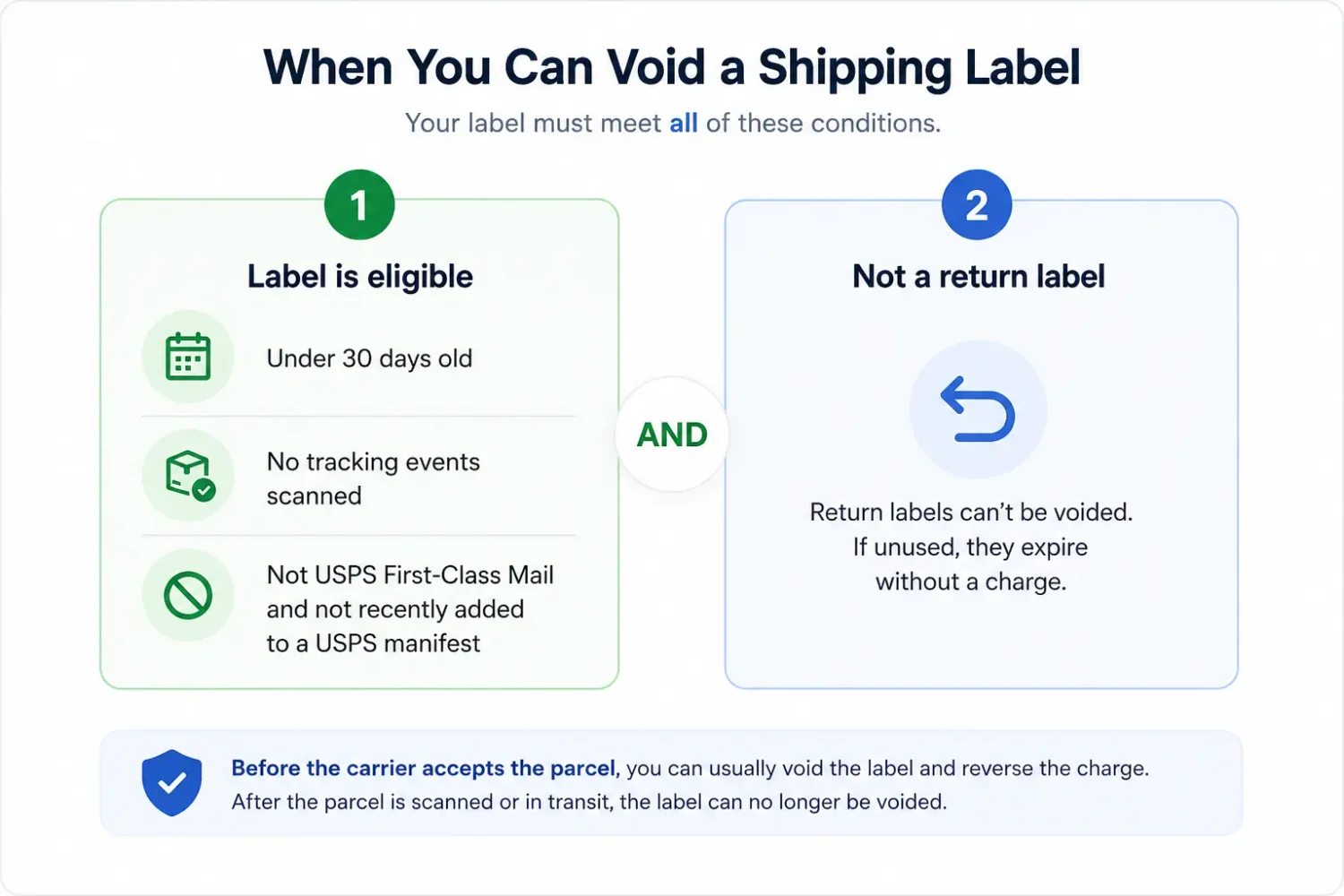
The rule is simple:
Use this quick check before voiding a USPS, UPS, DHL Express, or FedEx label purchased through Shopify. For the specific eligibility conditions, see the table below:
| Condition | What it means | If the condition is not met |
|---|---|---|
| Label is under 30 days old | You bought the label within the last 30 days. | After 30 days, contact the carrier directly about a refund. |
| No tracking events | The carrier has not scanned or accepted the parcel. | Once tracking starts, contact the carrier using the shipment reference number. |
| Not USPS First-Class Mail | The label uses another USPS service. | USPS First-Class Mail labels cannot be voided through Shopify. Contact USPS instead. |
| Not recently added to a USPS manifest | The label was not added to a USPS manifest within the last 15 minutes. | Wait a short time, then try voiding the label again. |
| Not a return label | Standard outbound labels can qualify for voiding. | Shipping return labels cannot be voided. If they are never scanned, they simply expire without a charge, with the expiration period varying by carrier. |
Eligibility is only half the story. The other thing to know is that Shopify does not let you edit a shipping label after purchase.
Once a label is created, its details are fixed by the carrier and shipping service:
That makes it worth checking the address and package weight before buying the label, and for cross-border orders, the customs details too; our guide to international shipping covers those fields. If you often need to update order details first, one of the best Shopify order editing apps can make the process easier.
You can void a shipping label in two places: directly from an order for a single label, or from Orders → Shipping labels for a bulk void, with up to 250 labels per action. Let’s get started with the quickest option — voiding from every single order.
This is the fastest path when one order went wrong.
On mobile, the path is the same. Note that confirming also cancels any Shopify shipping insurance you bought on that label, so you’re clearing the whole thing in one step.
If several labels in a batch were created with the wrong settings, you can void them together from the Shipping labels page. Shopify lets you bulk void up to 250 labels at once.
Use View all when your batch extends beyond a single page. From this section, you can void either one label or an entire batch without opening each order individually.
If the Void label button is missing, greyed out, or throws an error, the label almost always fails one of the four rules, or something on the order is blocking it. Here are the situations merchants hit most and the fix for each:
To move a fulfilled order back to Unfulfilled so you can buy a corrected label on the same order, change the order’s status from Fulfilled to Unfulfilled. Void the existing label first, since Shopify won’t let you cancel the fulfillment while a purchased label is still active. Then:
The order returns to Unfulfilled, and you can buy the corrected label right there.
Voiding has two sides to track: what happens to your money, and what happens for the customer on the other end.
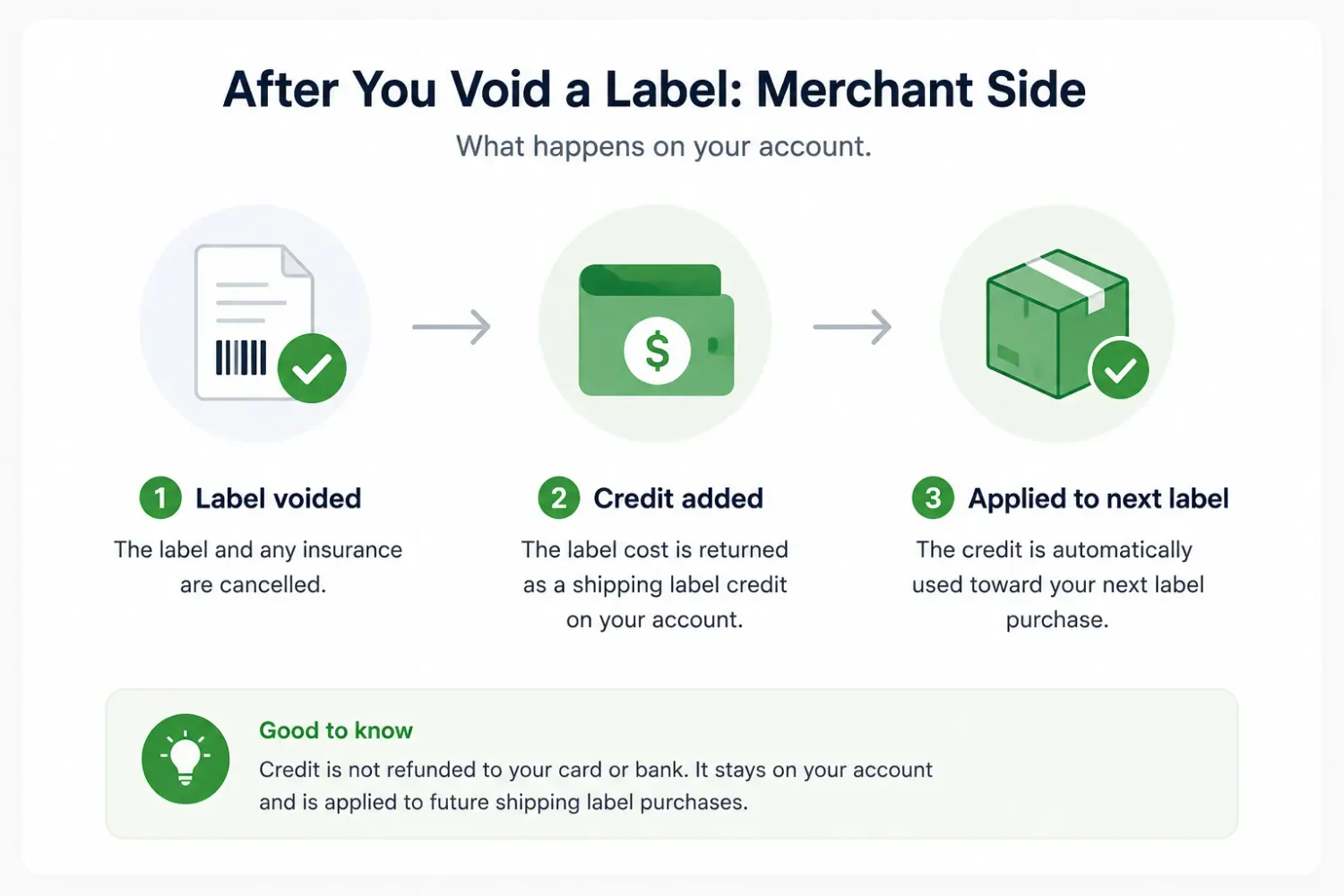
When you void an eligible label, Shopify returns the cost as a shipping label credit. The money does not go back to your card. Instead, Shopify automatically applies the credit to your next shipping label purchase.
You can review these charges under Settings → Billing → Bills, where each label appears in the Shipping breakdown.
Do not confuse a void with a shipping price adjustment. If the carrier finds that the package weight or dimensions were entered incorrectly, it can charge or credit the difference after scanning the parcel. That adjustment appears in the order Timeline and on your next bill, and it is separate from voiding.
The distinction is simple: voiding cancels an unused label and returns its cost as credit. Changing a label is not possible, so you must void the original and buy a corrected one.
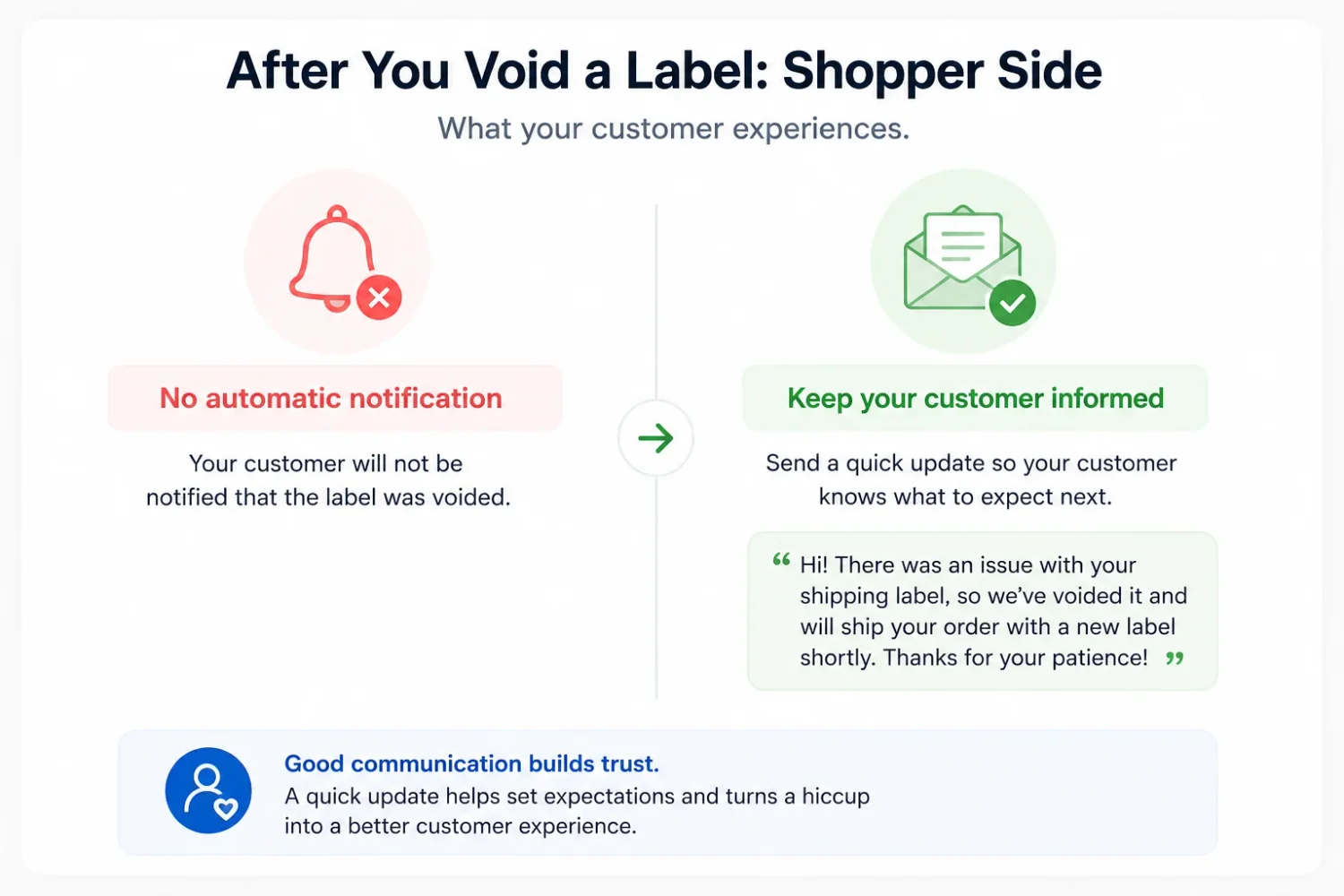
Shopify does not notify customers when you void a shipping label. If the change affects their delivery, send an update yourself.
Also, voiding a label is not the same as refunding a customer. Voiding returns the label cost to your Shopify account, while a customer refund returns money they paid at checkout. If needed, see how to refund a customer’s shipping charge or how to refund an entire Shopify order.
Keeping those two actions separate helps avoid confusion and sets up the next part: how to handle the customer experience when a shipping issue happens.
Voiding fixes the shipping cost on your side, but it does not fix the customer experience. If a shopper faced a delay or e shipping issues, a small gift with their next order can give them a reason to come back.
Keep the recovery offer limited to the customers who were actually affected. In Shopify, tag those shoppers with something like ship-issue, then create a free-gift offer in BOGOS: Free Gift Bundle Upsell and set Customer Tag as the eligibility condition. When a tagged customer logs in and shops again, BOGOS recognizes the tag and automatically adds the gift to their cart.
You can also use a specific link address instead of customer tags. Create the offer in BOGOS, generate a unique offer link, then add that link to an automated recovery email. The free gift becomes available only when the shopper enters your store through that link, so you can run the apology offer without exposing it to your full customer base.
This keeps the apology gift limited to the shoppers who were actually affected, protecting your margin while giving them a better reason to return. Used consistently, this small recovery tactic can help keep customers coming back.
Voiding a shipping label on Shopify comes down to two things: knowing whether the label still qualifies (under 30 days, unscanned, not USPS First Class Mail, not just manifested), and using the right path (the order for one label, the Shipping labels page for up to 250). Keep in mind you’re always voiding and rebuying rather than editing, and that your money returns as an account credit, not a card refund. Handle the void cleanly, then close the loop with the customer. A targeted thank-you gift on their next order is a low-cost way to protect the relationship and keep more shoppers coming back, which is where steady Shopify sales growth actually comes from. Fix the label first, then win the customer back.
The label most likely fails one of the four rules: it’s more than 30 days old, it already has carrier tracking or scan events, it’s USPS First Class Mail, or it was added to a USPS manifest in the last 15 minutes. A return being processed on the order can also remove the Void action. Return labels can’t be voided at all.
Yes, but as a shipping label credit on your Shopify account, not a refund to your card. The credit applies automatically to your next label purchase, and you can see your label charges under Settings > Billing. If the package has already shipped, contact the carrier with the reference number instead.
No. Shopify can’t edit a purchased label because each carrier locks its format. To change the weight, address, or service, void the original label while it’s still within the void window, update the order details, and buy a corrected label.

Shopify smart collections add and remove products for you based on rules, such as a tag, a price, or...
Shopify collections decide how shoppers find your products, yet many guides still describe a setup Shopify is now replacing....
A Shopify announcement bar is the thin strip at the top of your store that tells shoppers about shipping,...