



Charlie Ngo
•
Last updated: 30 October, 2026
Shopify Featured Collections: How To Add & Customize (2026 Guide)
A featured collection is often the first group of products a shopper sees on a Shopify store, yet the...
Shopify Shipping Rates for Multiple Items (2026 Guide)

Marketing Manager
Summarize this post with AI
Setting up shipping rates for multiple items on Shopify is more complicated than it looks. Get the math wrong, and shipping fees inflate, surprising shoppers at checkout and pushing them to drop the order. In this guide, I’ll show you how Shopify actually calculates combined shipping, two native methods to set rates the right way, and when a third-party app is the better call.
I’m Charlie Ngo, an eCommerce expert at BOGOS with 11 years in sales, AOV, and CRO. I’ve set up these profiles for stores shipping single shirts and stores shipping sofas, so the checkout math below comes from real orders, not theory.
If you are new to Shopify and don’t know how Shopify shipping works, our comprehensive guide covers everything you need to know: How To Set Up Shipping On Shopify: A Step-By-Step Guide.
Shopify always shows customers one shipping total at checkout. How that total is calculated depends mainly on whether the products are in the same shipping profile.
A shipping profile is a set of shipping rules assigned to specific products and locations. Every store starts with a General profile, and you can create custom profiles for products that need different rates.
Here is what happens when multiple items are in the cart:
You can handle multi-item shipping in Shopify without an app in two main ways: shipping profiles or total-weight pricing. Use shipping profiles when different product groups need different shipping rules. Use weight-based rates when one set of rules can cover the whole cart, and shipping should simply increase as the cart gets heavier.
Either way, customers still see a single shipping total at checkout.
Use this when you sell mixed products that ship differently, like light apparel alongside bulky gear, and you accept that a mixed cart pays a combined total. A shipping profile is a rule set you attach to specific products.
The trade-off is simple: Shopify still adds rates from separate profiles together. So if one profile charges $6 and another charges $10, the customer pays $16.
Using the same rate name across profiles keeps that total under one clear shipping option instead of showing a generic “Shipping” label. For a deeper look at profiles, zones, and rate setup, see our guide to custom shipping rates on Shopify.
For most multi-item stores, this is the simplest native setup. It scales with what is actually in the cart, requires no app, and keeps checkout to one clear shipping rate.
Use it when your products sit in one shipping profile and heavier carts should cost more than lighter ones. Shopify adds the total product weight, includes your default package weight, then applies the matching weight tier.
It is a straightforward way to make multi-item shipping feel more accurate and predictable.
Because the rates scale with total weight, Shopify automatically adjusts the shipping cost as the cart grows. A two-item cart may stay in a lower tier, while a five-item cart moves into a higher one, all under a single shipping rate.
So the choice is simple: use separate profiles with matching rate names when different products need different shipping rules, and use total-weight tiers under one profile when shipping cost should rise with cart size.
Shopify’s native shipping settings work well for simple stores, but multi-item carts can quickly expose their limits. Three gaps matter most:
When one of these limits starts affecting checkout, a third-party shipping-rate app is usually the better solution.
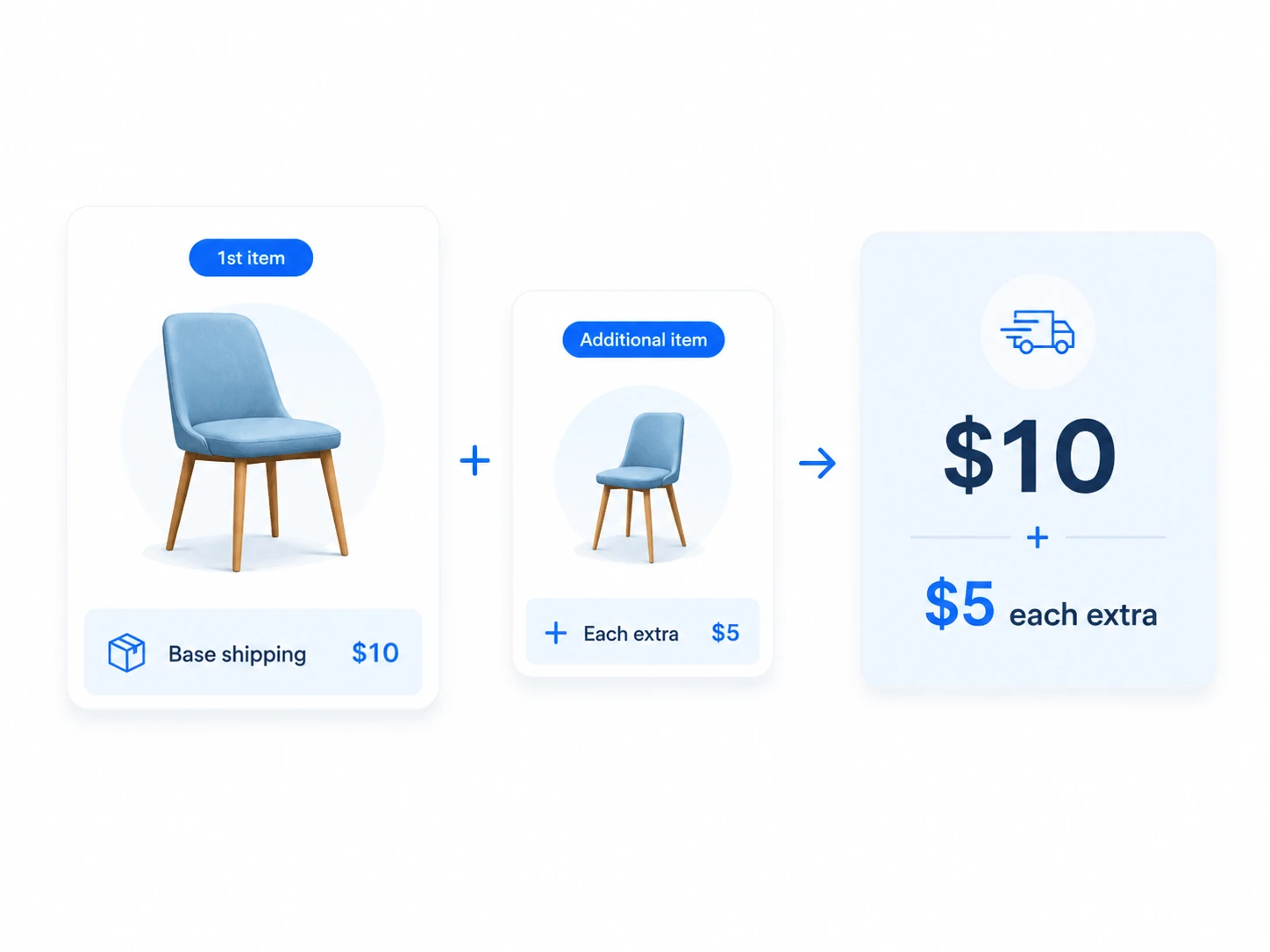
Shopify does not have a native rule for charging a base shipping fee plus an extra amount for each additional item. One workaround is to use product weight as a stand-in for quantity:
This works best when the products have similar shipping characteristics. If your catalog includes items with very different real weights, the setup becomes unreliable.
For true base-plus-increment pricing across a mixed catalog, a shipping-rate app is the better fit. I compare three strong options at the end of this section.
Shopify does not let you choose your own rate-combination method. If your business needs different logic, shipping apps can give you more control:
| Combine method | What it does | Best use case |
|---|---|---|
| Sum | Adds all applicable rates together | Items that genuinely create separate shipping costs |
| Highest | Charges only the highest rate | Mixed carts where the most expensive item covers most of the shipping cost |
| Lowest | Charges only the lowest rate | Promotional or customer-friendly shipping strategies |
| Average | Charges the average of the applicable rates | Mixed catalogs that need a middle-ground rate |
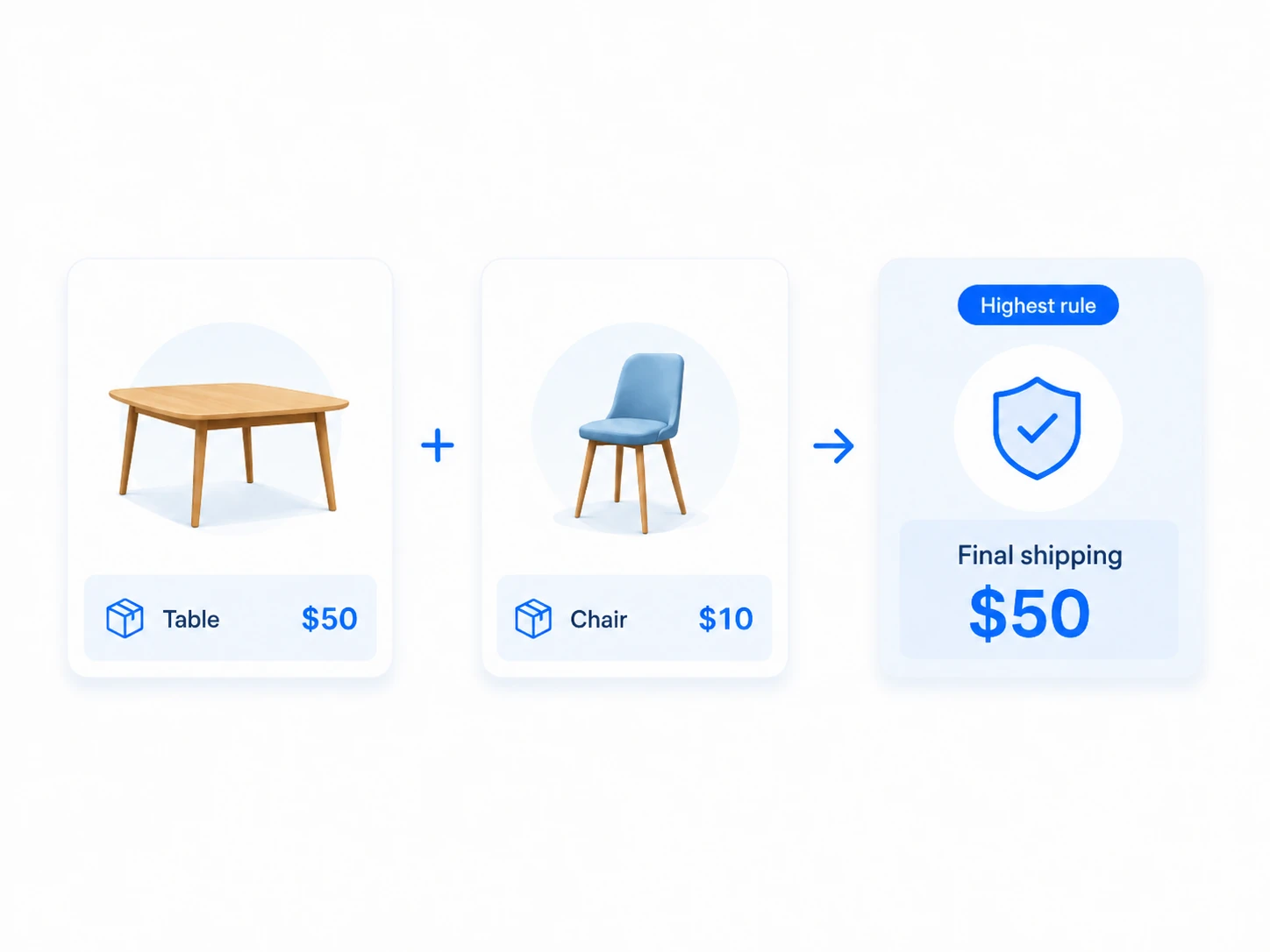
For example, suppose a table has a $50 shipping rate and a chair has a $10 rate. If Shopify combines them, the customer may see $60. With a Highest rule, the checkout rate would be $50 instead.
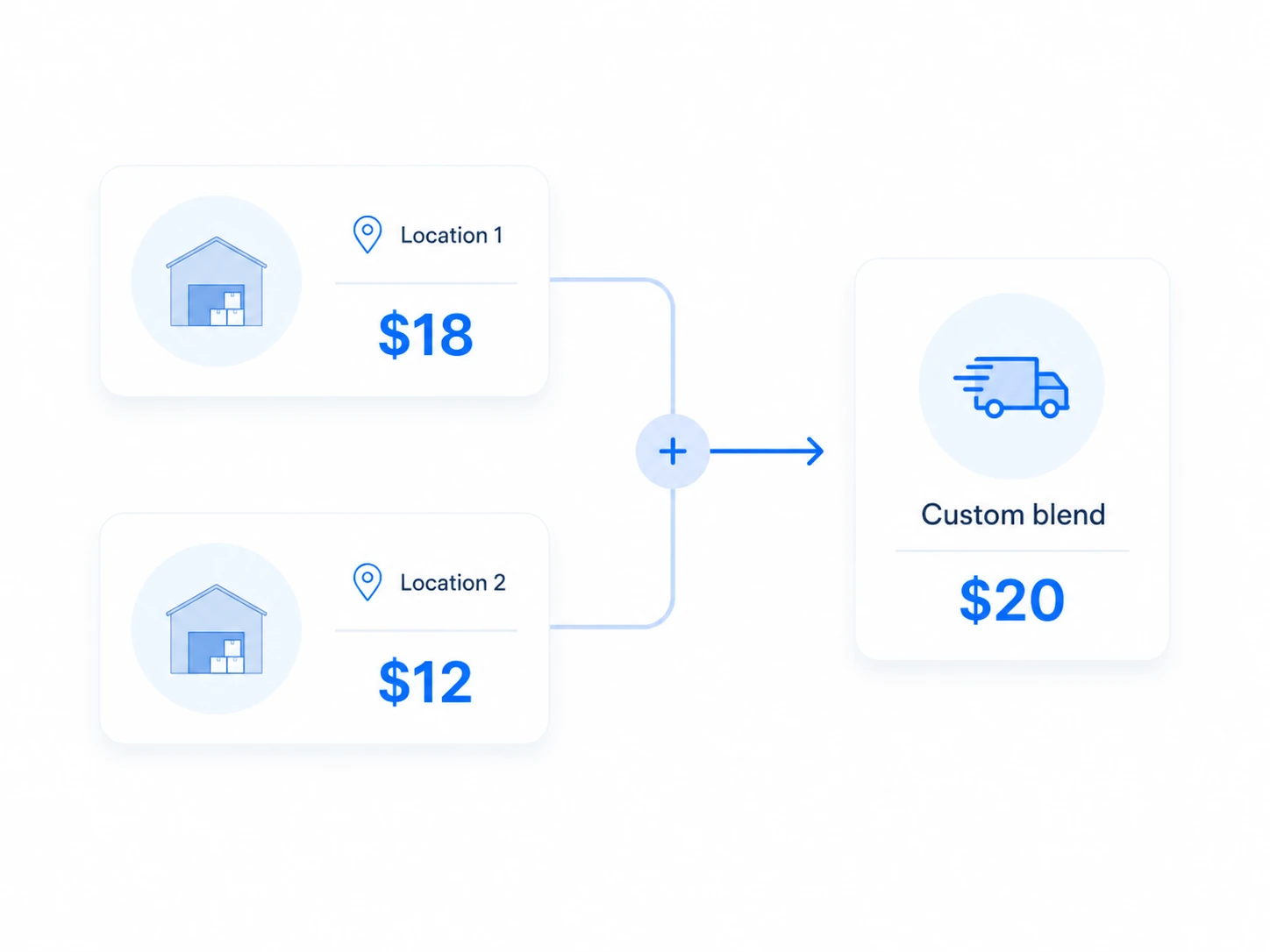
The same problem appears with real-time shipping rates, the carrier-calculated quotes Shopify pulls at checkout. If products ship from different locations, each location can generate its own UPS, FedEx, or USPS quote, and Shopify combines those rates using its native logic. Different locations can also make Shopify break one order into separate packages, which is exactly how Shopify split shipping works and what it costs the customer.
If you need those quotes blended differently, use a shipping-rate app that can pull the rates from each location and apply your preferred combination rule before showing the final price at checkout. For Shopify stores that need real-time rates from multiple carriers, ReachShip can connect carriers such as USPS, UPS, FedEx, DHL, Sendle, and Australia Post, while also providing shipping labels and tracking from one dashboard. Cross-border carts add another layer, since each parcel also needs duties and customs data, which our guide to international shipping covers.
Here are three shipping-rate apps merchants trust most for the cases above, at a glance:
| App | Rating and reviews | Pros | Cons | Pricing |
|---|---|---|---|---|
| Shipping calculator: ShipMagic | 4.9 ★, 100+ reviews | Base-plus-increment and highest-rate logic, 25+ rule parameters, stops double-charging across locations | Live carrier rates need Shopify’s Carrier Calculated Shipping; advanced rules take setup | Free plan; paid from $14/mo |
| ShipX ‑ Shipping Rates & Rules | 5.0 ★, 1160+ reviews | 30+ parameters, strong multi-origin and zip/distance rates, free setup call | Needs Shopify’s Carrier Calculated Shipping API to run; many options can overwhelm | Free plan; paid from $9.99/mo |
| Intuitive Shipping | 5.0 ★, 450+ reviews | 40+ conditions, “Scenarios” system for complex rules and sub-zones, strong support | Premium pricing for full features; most powerful, so more to configure | Free plan; premium tiers (roundups cite $75/mo+) |
For a multi-item catalog, accurate shipping rates are only the first step. Once checkout feels fair and predictable, a free-shipping threshold can give shoppers a clear reason to add more to their cart and help lift AOV.
A practical starting point is to set the threshold around 20% to 30% above your current average order value. The target should be high enough to encourage a larger order, but still close enough that adding one more product feels achievable.
Instead of setting the threshold in Shopify and leaving shoppers to discover it at checkout, you can use BOGOS: Free Gift Bundle Upsell to set up the offer and promote it with a Progress Bar on the product page, cart drawer, or cart page. Shoppers can instantly see how close they are to the reward with messages like “You’re $12 away from free shipping,” giving them a clear reason to add another item before checkout.
You can also pair free shipping with free gifts, bundles, or volume discounts to give shoppers even more reasons to build a larger cart.
This turns shipping from a checkout cost into an AOV lever: set an achievable threshold, make the reward visible, and encourage shoppers to spend a little more. See our free shipping over an amount guide for the full setup, or watch the Shopify progress bar walkthrough to see it in action.
Even with the right shipping setup, a few small configuration mistakes can make multi-item rates look wrong at checkout.
Combined shipping rarely needs an app. In most stores, the fix is to consolidate products into one profile, match your rate names, and set a free-shipping threshold that rewards bigger carts. That alone removes the surprise that drives most checkout abandonment and lifts both conversion rate and order value.
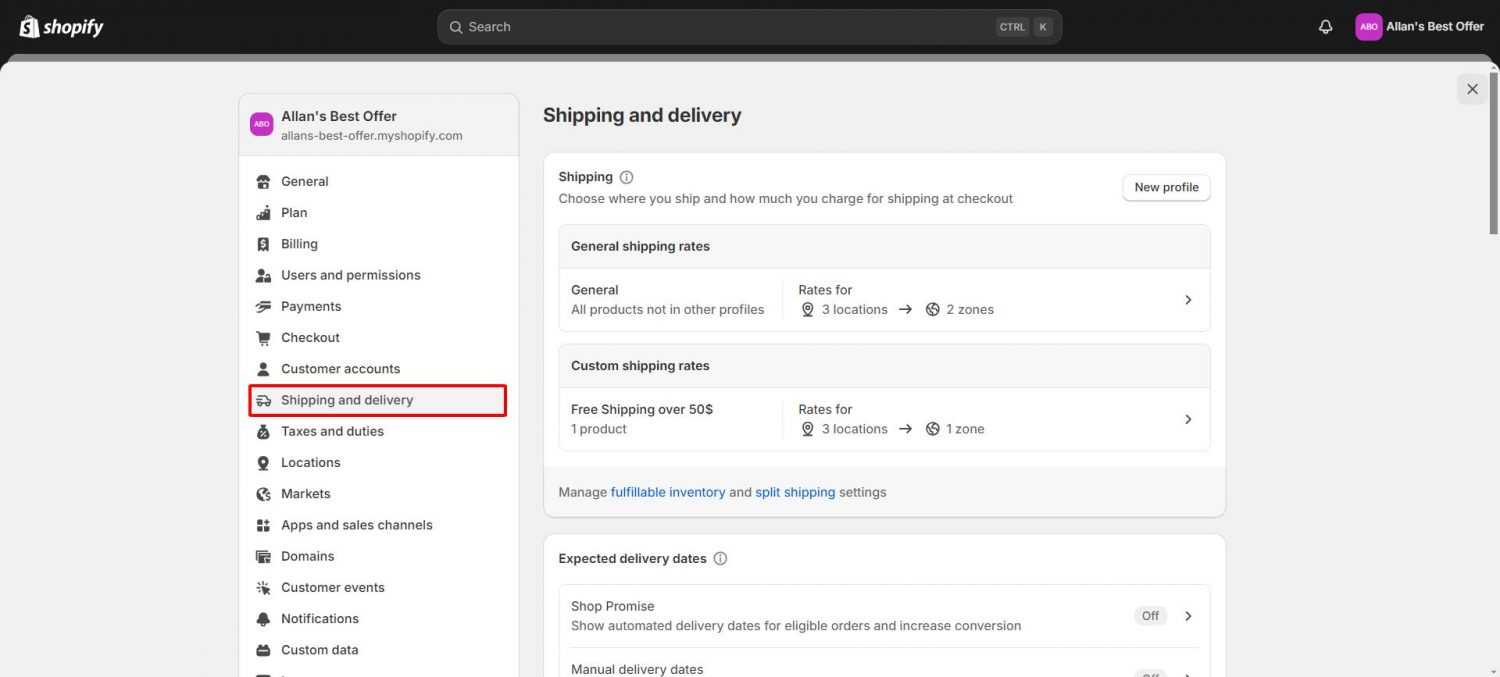
Start with an audit today. Open Settings → Shipping and delivery, count your profiles, and test one real multi-item cart. When you’re ready to turn that clean checkout into higher Shopify sales, a free-shipping threshold with a visible progress bar is the next lever to pull.
It doesn’t. Shopify shows one combined rate, but if your items sit in different shipping profiles, it adds the matching rate from each profile together. That sum is what looks like a per-item charge. Move the products into one profile to fix it
Put the products in the same shipping profile, or give your rates the exact same name across profiles so Shopify merges them into one line. Check Settings → Shipping and delivery for any products stranded in a second profile.
Not natively. Flat rates apply once per order, and conditions only read total weight or price. For a base fee plus a per-unit increment, use a shipping-rate app like ShipMagic, Shipeasy, or Intuitive Shipping.

A featured collection is often the first group of products a shopper sees on a Shopify store, yet the...

Most Shopify stores need a best sellers page, but Shopify can’t build one that updates by itself. In this...

Shopify smart collections add and remove products for you based on rules, such as a tag, a price, or...