



Charlie Ngo
•
Last updated: 23 October, 2026
Shopify Smart Collections: Setup, Conditions & 8 Examples (2026 Updated)
Shopify smart collections add and remove products for you based on rules, such as a tag, a price, or...
How To Set Up Shopify Real-time Shipping Rates? (2026 Guide)

Marketing Manager
Summarize this post with AI
Shopify real-time shipping rates show your customer the exact carrier price at checkout, calculated from the order’s weight, size, and destination. This guide explains what they are, which plan you need, how to turn them on, how to keep them accurate, how to fix the common problems, and when a flat rate or a free-shipping threshold is the smarter choice. I wrote it by testing each step against Shopify’s current documentation and pairing it with checkout research from the Baymard Institute. I’m Charlie Ngo, Marketing Manager at BOGOS, and I work with Shopify merchants on offers and conversion every day.
Real-time shipping rates are live carrier prices shown at checkout, so each customer pays the true cost of shipping their order. Shopify sends the order’s details to a carrier, and the carrier sends back a price. This replaces a fixed fee or a guess with the real number.
The industry also calls this “carrier-calculated shipping.” The two terms mean the same thing.
The value is transparency. The customer sees the actual cost for their cart and their address, not a flat fee that is too high for a small order or too low for a heavy one.
Shopify builds a quote request from five inputs: the order weight, the package size, your ship-from origin, the customer’s destination, and the service level. The carrier reads those inputs and returns a price.
The service level matters as much as the price. A carrier quote also shows delivery speed, so the customer can choose between a slower, cheaper option and a faster, pricier one. This is useful, because slow delivery drives real abandonment. According to the Baymard Institute, 20% of US shoppers who abandon for a fixable reason do so because delivery was too slow.
There are a few types of shipping rates on Shopify, and real-time rates are only one of them. Knowing the other three helps you decide.
| Rate type | How it prices | Best for |
|---|---|---|
| Flat rate | One fixed fee per order, or a fee that changes by cart value or weight | Light, consistent products; simple pricing |
| Weight-based | A fee tied to order weight brackets you set | Products where weight is the main cost driver |
| Price-based | A fee tied to cart value, including free shipping over a set amount | Encouraging larger orders; free-shipping offers |
| Free shipping | A $0 rate applied to all orders, or only above a cart value or weight you set | Lifting average order value and meeting shopper expectations |
| Real-time (carrier-calculated) | The live carrier price for the exact order | Heavy or variable products, and international orders |
👉 If you are new to Shopify and looking for a comprehensive guide on how to set up shipping on Shopify, read our detailed guide: How To Set Up Shipping On Shopify: A Step-By-Step Guide
Shopify has two different paths to real-time carrier rates, and most guides blur them together. Both show live rates at checkout. The difference is which carriers you reach, whose prices you show, and which plan you need.
Built-in carrier rates are live rates, and they work on every plan. In the US that means real-time USPS prices, and in Canada it means real-time Canada Post prices. Shopify pulls these quotes at checkout based on the order, exactly like the second path, so the customer sees a live number rather than a flat guess. As Shopify’s Help Center explains, these built-in integrations are available on all plans without connecting your own account.
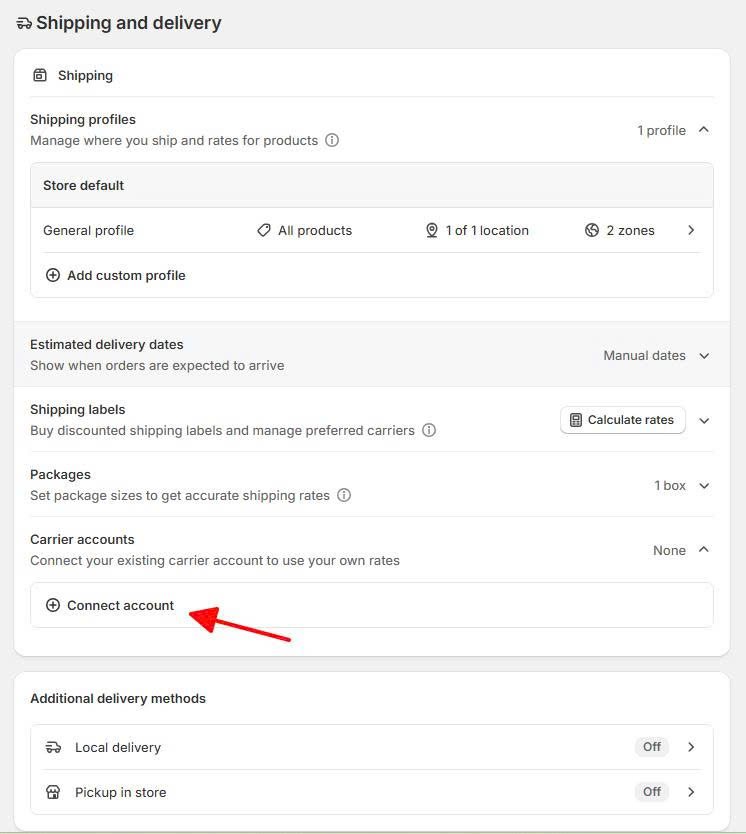
The limit is scope. Built-in rates cover USPS in the US and Canada Post in Canada, and they use Shopify’s own rates rather than a carrier contract you negotiated.
Use only the built-in option when you ship domestically with USPS or Canada Post, you are fine showing Shopify’s rates, and you do not need UPS or FedEx quoted at checkout. This covers most Basic and Grow stores that ship within the US or Canada, and it costs nothing extra.
Third-party carrier-calculated shipping is also live, but it connects your own carrier account and shows your negotiated prices. You link an account you hold with UPS, FedEx, USPS, Canada Post, or Australia Post, and Shopify quotes your contracted rates at checkout. As Shopify’s Help Center describes, Shopify requests those live rates from your connected account based on the order’s weight, dimensions, and destination, so the customer pays the exact amount the carrier will charge you.
Use this path when the built-in option is not enough. That means one of three cases: you need a carrier it does not cover, such as UPS or FedEx; you hold a negotiated carrier contract and want your own discounted rates shown instead of Shopify’s; or you ship internationally with a specific carrier account. In short, built-in answers “show a live USPS or Canada Post price,” and third-party answers “show my own carrier’s live price.”
This path needs a higher plan. It is not available on the Basic or Starter plans at all, and the plan and cost details are covered next.
Third-party carrier-calculated shipping is included on the Advanced and Plus plans, and Grow stores can add it for an extra monthly fee or by switching to annual billing. That is the current rule stated by Shopify’s Help Center. Many older articles still quote a flat “$20 a month or free on Basic with annual billing.” Treat that as outdated and check your own admin for the current price.
Stores on lower plans are not locked out of live rates entirely. You can still use the built-in USPS or Canada Post rates described above. The plan requirement applies only to connecting your own carrier account.
You can connect five carriers to Shopify natively for real-time rates: UPS, FedEx, USPS, Canada Post, and Australia Post. This list comes from Shopify’s Help Center.
Other carriers are still possible, but through an app rather than a native connection. DHL, for example, is added by a third-party shipping app that holds its own carrier integration. If you rely on a carrier outside the native five, plan to use an app.
Setting up real-time rates takes five steps in your Shopify admin. Complete them in order.
Test more than one destination. A near address, a far address, and an international address will each pull a different quote, and testing all three catches gaps before customers do. Once an order comes in, you buy the carrier label at that same rate, which our guide to Shopify shipping labels walks through.
Two things break real-time rate accuracy more than anything else: missing product weights and missing package dimensions. Shopify does not fill either in for you.
Shopify stores a weight for each product, but it does not store each product’s length, width, and height. Carriers like UPS and FedEx price partly on dimensional weight, which is the package size, so an unrealistic box produces a wrong quote. Set real package sizes under Settings, then Shipping and delivery, then Packages.
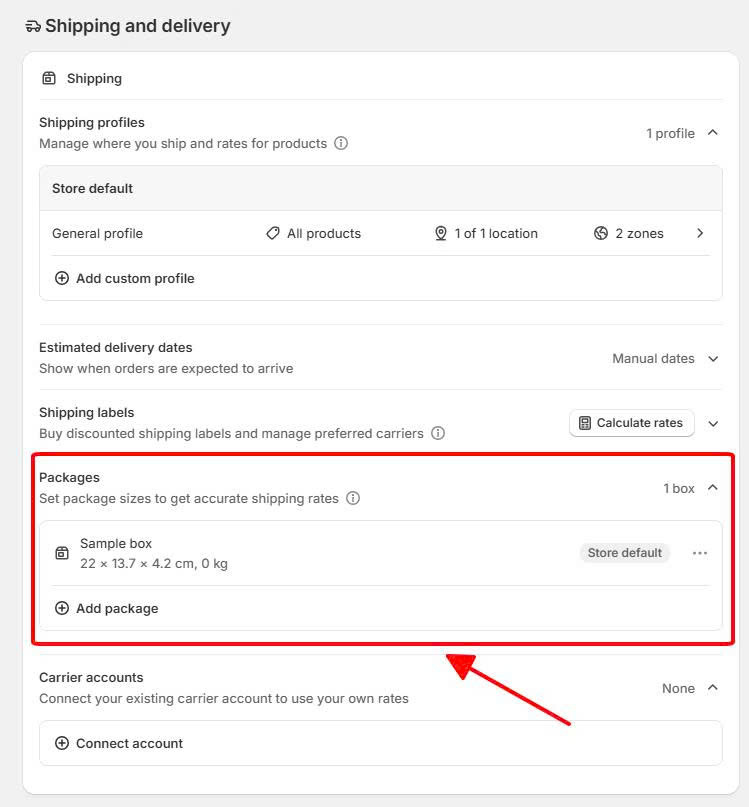
Follow four practices to keep quotes clean. Put a real weight on every product. Set a realistic default package that matches what you actually ship. Keep your ship-from origin accurate, because rates change with the starting point. Add a handling fee if your packing and materials cost money, so the quote covers them.
A shipping app earns its cost when your products vary in size or a single order needs more than one box. When an order is fulfilled from more than one location, Shopify also quotes each shipment on its own through split shipping, so the customer can see more than one live rate at checkout. Native rates work well when your catalog is uniform. Once box sizes differ across products, an app that records dimensions and calculates packing, such as Boxify or Shipping Rates Calculator Plus, returns more accurate quotes than a single default box can. If your quotes drift from what your warehouse actually pays, that is the signal to add one.
Most real-time rate failures come from three causes, and each has a clear fix. Check them in this order.
Real-time rates are the right choice for heavy products, products that vary a lot in size or weight, orders that travel long distances, and international shipping. In those cases a flat fee either loses you money or scares off the customer, and the live quote protects both sides.
They are the wrong choice for light, consistent products. When every order weighs about the same and ships a similar distance, a flat rate is simpler and often converts better. A live quote that adds several dollars at checkout can cost you the sale.
The reason is cost sensitivity at checkout. Extra costs such as shipping, tax, and fees are the top fixable reason shoppers abandon, cited by 40% of US shoppers who leave for a reason other than browsing, according to the Baymard Institute. The same research found that 12% abandon because they could not see or calculate the total cost up front. Real-time rates help the second problem by showing the real number early. They can worsen the first problem if the real number is high.
This is where a free-shipping threshold becomes worth testing. You set a cart value that unlocks free shipping, then show the shopper how close they are to it. A threshold turns shipping from a cost into a goal, and it lifts the average order at the same time, which is why it sits at the center of most average order value strategies. Our guide to setting a free-shipping-over-amount offer walks through choosing the right number.
BOGOS does not calculate carrier rates, so it is not a replacement for your shipping setup. It is an offer engine that helps on the conversion side of this decision.
With BOGOS, you can set up free shipping when a customer adds specific products to the cart or spends a set amount, and a progress bar can track the shopper toward that threshold. You can also run that free shipping for a specific customer segment or through a shareable magic link, which gives you control over who sees the offer.
Set up real-time shipping rates when your products are heavy or variable or you ship internationally; keep your weights and package sizes accurate, and test three destinations before you launch. If your catalog is light and consistent, a flat rate or a free-shipping threshold will often serve you better, because a high number at checkout is the fastest way to lose a sale. Getting shipping right is one lever among several for increasing sales on Shopify.
Once your rates are accurate, the conversion work moves elsewhere. It happens through offers like free-shipping thresholds and gift-with-purchase, and through steady conversion rate testing. A tool like BOGOS fits at that stage, on the offer side, after your shipping is doing its job honestly.
You can show built-in USPS or Canada Post rates on any plan, including Basic and Grow. To connect your own UPS, FedEx, or USPS account for third-party carrier-calculated shipping, you need Advanced or Plus, or you can add the feature to a Grow store for an extra monthly fee or by switching to annual billing.
Three causes cover most cases: the rate is not enabled on your plan, the shipping zone has no carrier rate added, or a product in the cart is missing a weight. Add the missing piece, then test again. If you have a backup flat rate, it can appear in place of the live rate and mask the real issue.
No. Carrier quotes show expected transit time, but they do not include your own processing time, as noted by Shopify’s Help Center. If you want the delivery date a customer sees to reflect both packing and transit, set up delivery dates separately, and add a handling fee if you want the price to cover packing.

Shopify smart collections add and remove products for you based on rules, such as a tag, a price, or...

Shopify collections decide how shoppers find your products, yet many guides still describe a setup Shopify is now replacing....

A Shopify announcement bar is the thin strip at the top of your store that tells shoppers about shipping,...