


Charlie Ngo
•
Last updated: 7 October, 2026
Shopify Product Configurator: 2D vs 3D, Best Apps & Costs (2026)
Shoppers hesitate to buy a $1,200 sofa or a custom ring when they can’t see the exact version they’re...
Shopify Product Video: 4 Ways to Add One (2026 Guide)

Marketing Manager
Summarize this post with AI
A good product video shows what a photo can’t: how your product moves, fits, and works in real life. That is why shoppers ask for it before they buy. In this guide, I’ll walk you through every way to add a product video to Shopify, the specs you need to know, the video types that convert, and the small tweaks that turn a clip into sales. I’m Charlie, a Shopify expert who has spent 11 years helping 83k+ merchants grow their stores, and these are the tactics I’ve seen work.
Shoppers trust what they can see in motion. 85% of people say they’ve been convinced to buy a product after watching a video, and when asked how they’d rather learn about a product, 63% choose a short video over articles, infographics, or manuals.
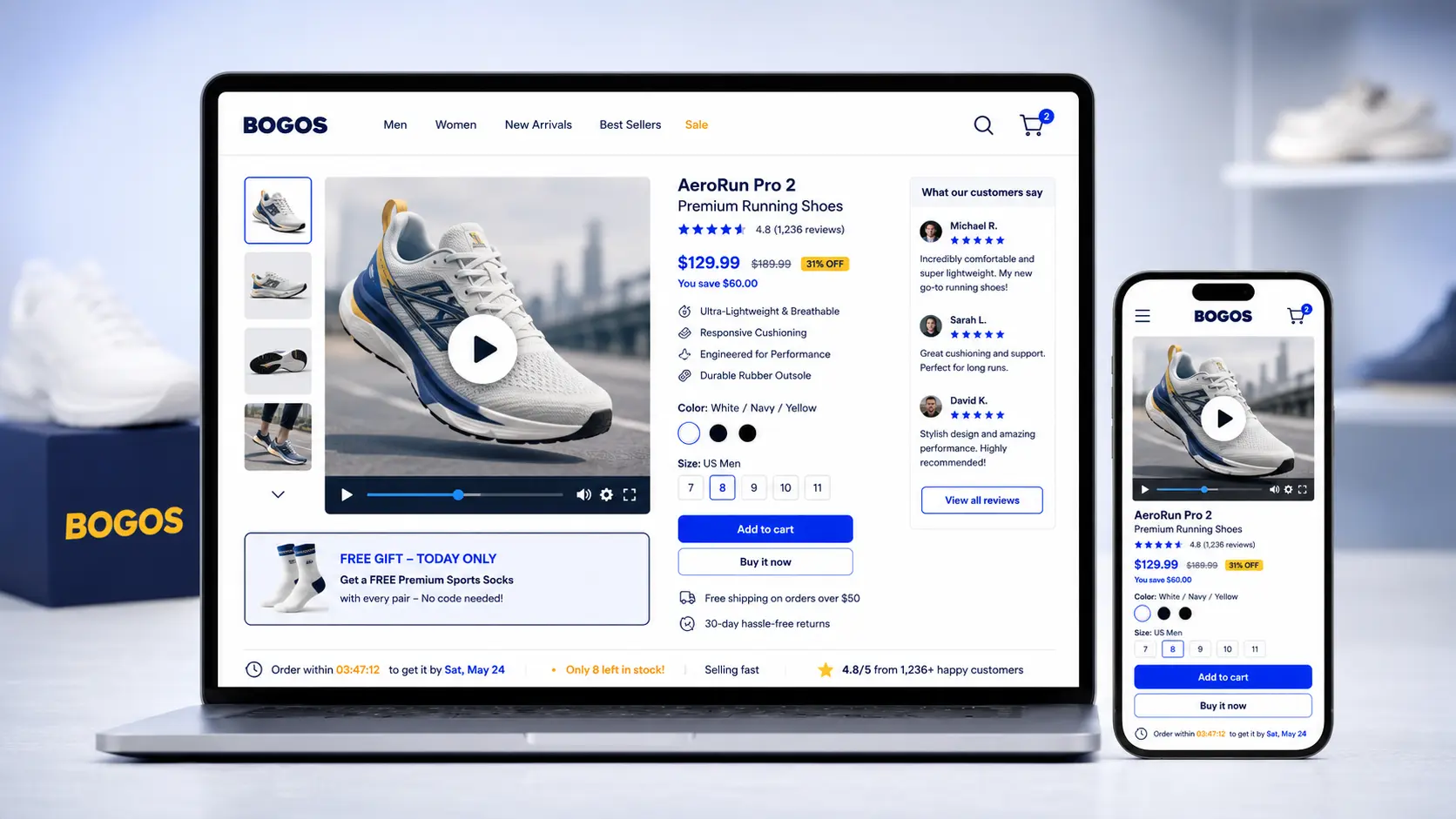
The deeper reason video works comes down to hesitation. Around 70% of online carts are abandoned, and a big part of that is doubt: shoppers can’t touch, try, or fully picture the product, so they leave. A product video answers the quiet question every buyer has: “How does this actually look and work?” That makes it a real conversion rate optimization tool, not just decoration.
There are four ways to add a product video to Shopify, and the right one depends on your catalog size, video length, and how much you care about page speed. Here’s a quick comparison before we dig into each.
| Best for | Cost | Page-speed impact | |
|---|---|---|---|
| Native gallery upload | Short clips, small catalogs | Free | Low |
| YouTube/Vimeo embed | Longer or 4K videos | Free | High |
| Theme video section | Homepage and landing pages | Free | Low to medium |
| Product video app | Shoppable video, UGC, full-funnel analytics | Paid (free plan available with limitations) | Varies by app |
This is the simplest method. You can easily add a Shopify product video by following these steps:
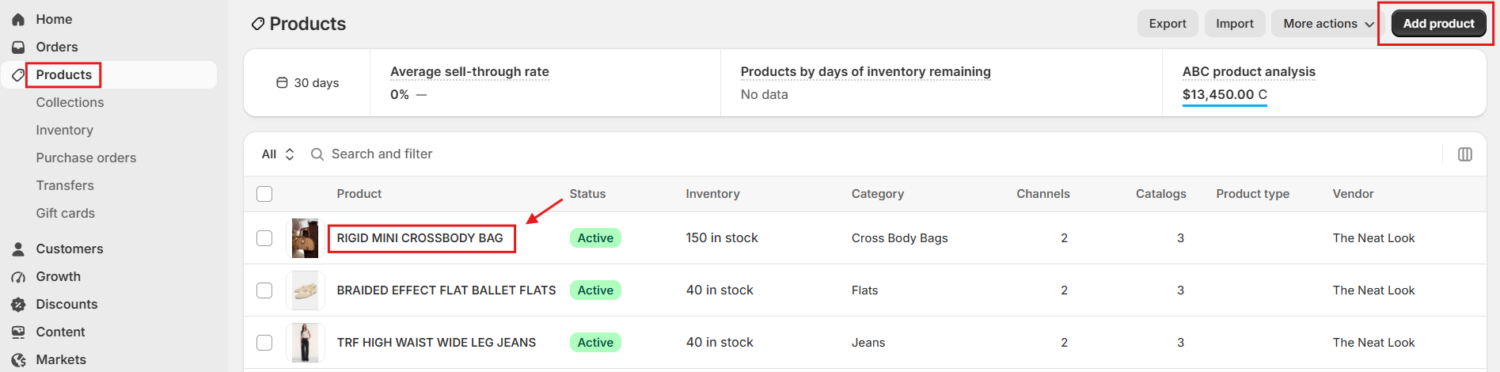
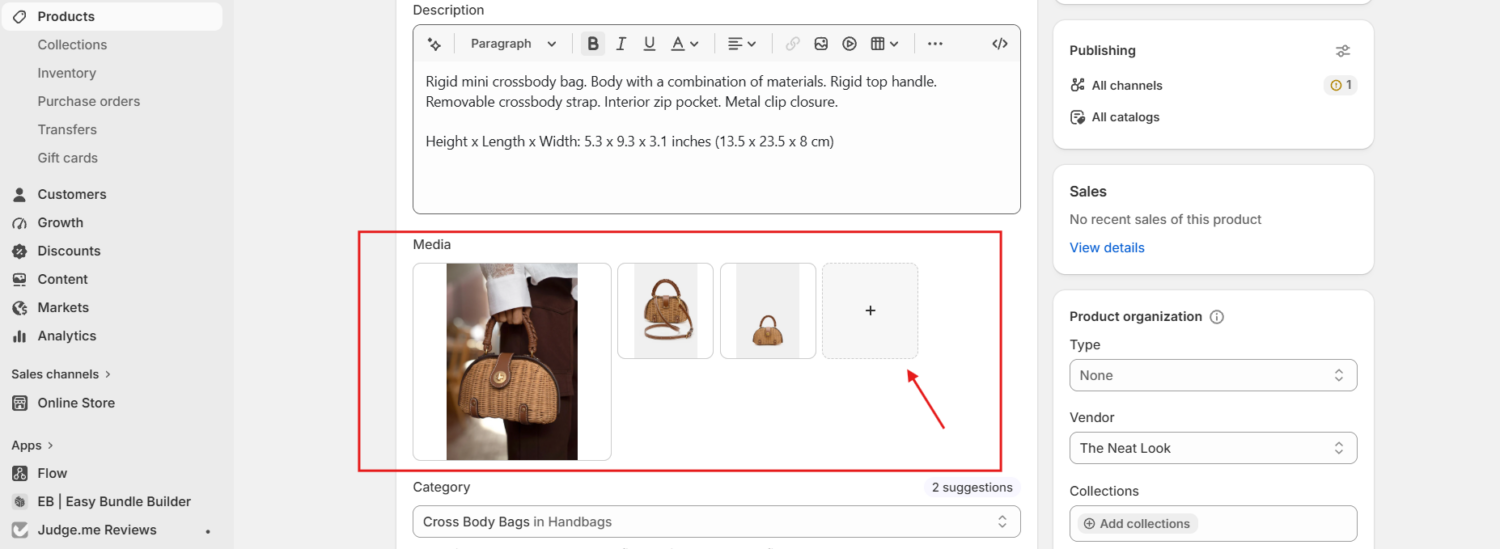
Keep in mind that if you’re uploading a video from your device, it has to meet the following requirements:
There’s also a store-wide limit on how many videos and 3D models Shopify will host, set by your Shopify plan:
| Plan | Limit Per Store | Video Storage Limit |
|---|---|---|
| Starter / Retail / Basic | 250 | 50 GB |
| Shopify (Standard) | 1,000 | 500 GB |
| Advanced | 5,000 | 500 GB |
| Shopify Plus / Enterprise | 50,000 | 1 TB to 2 TB |
Embedding videos from external platforms lets you skip Shopify’s file limits and lean on a platform built for video. Here is the step-by-step guide:
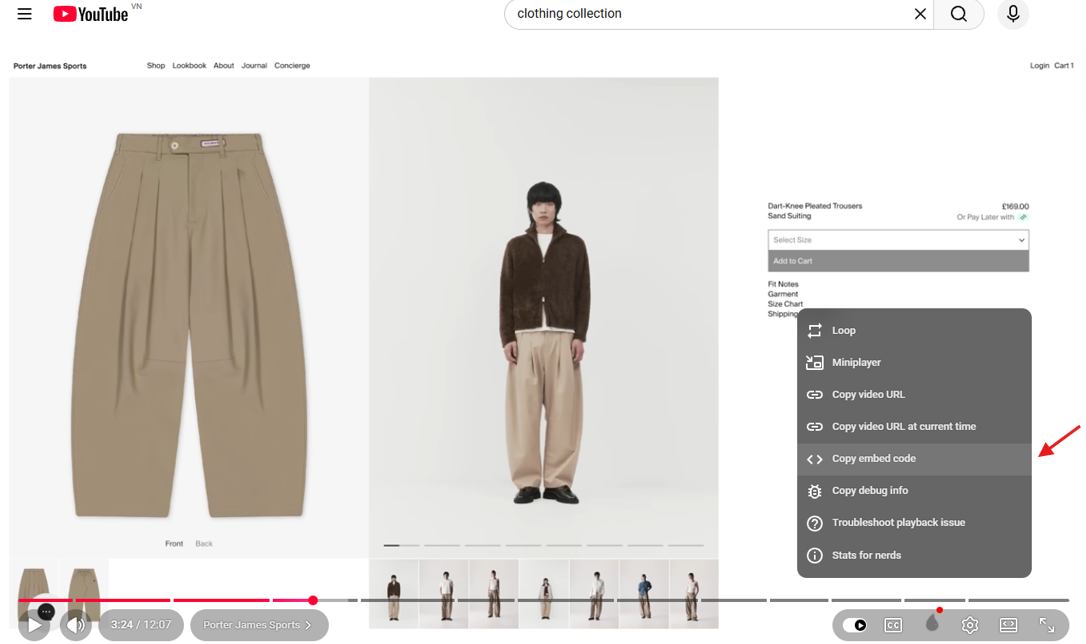
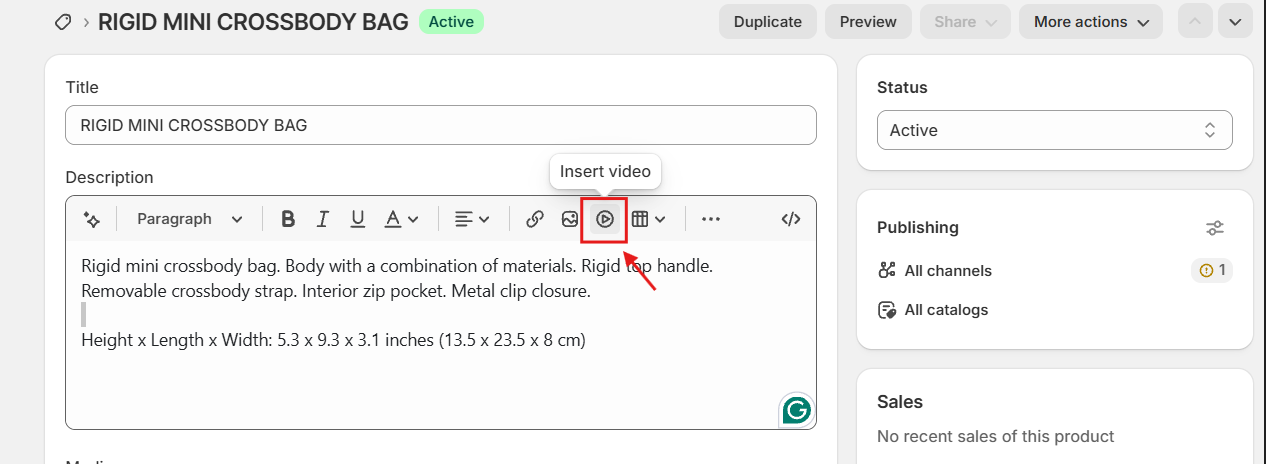
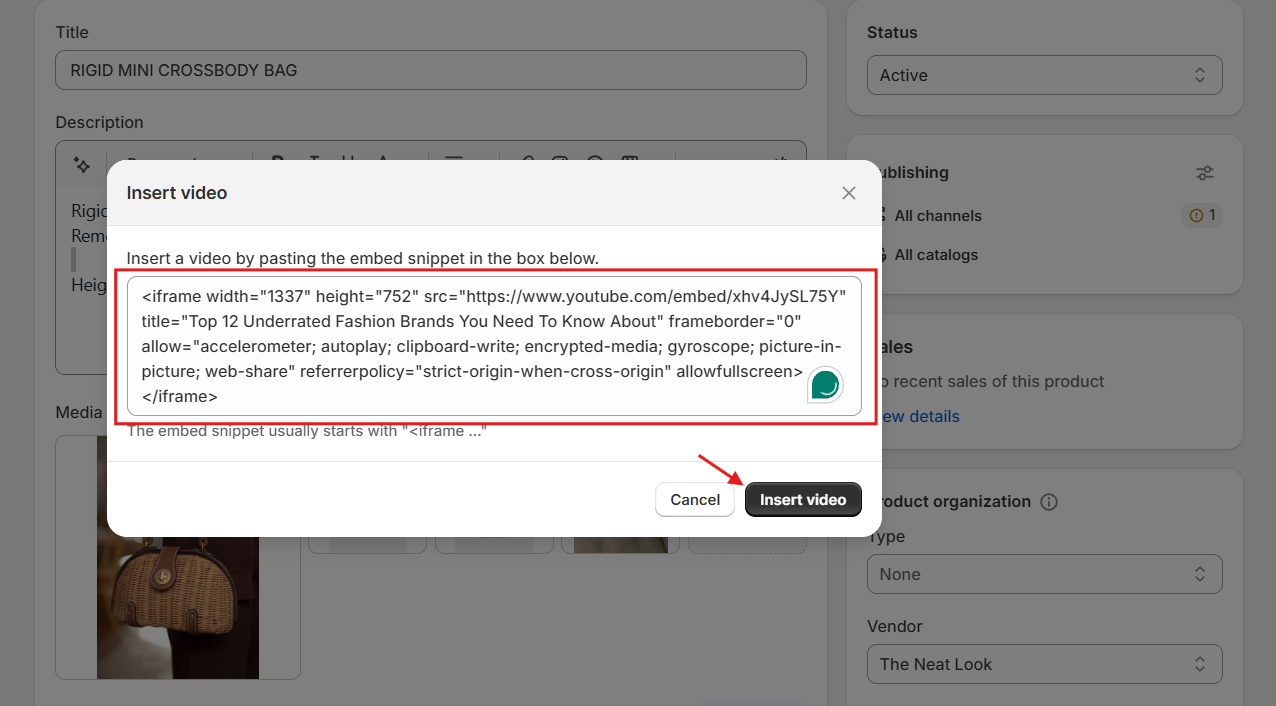
One caution: a YouTube embed pulls in external scripts, and vendors report that a single iframe can load around 1 MB of code and drag down your mobile Core Web Vitals.
For a fast product page, native upload is usually lighter.
Most themes include a built-in video section, so you can place a video almost anywhere without touching code.
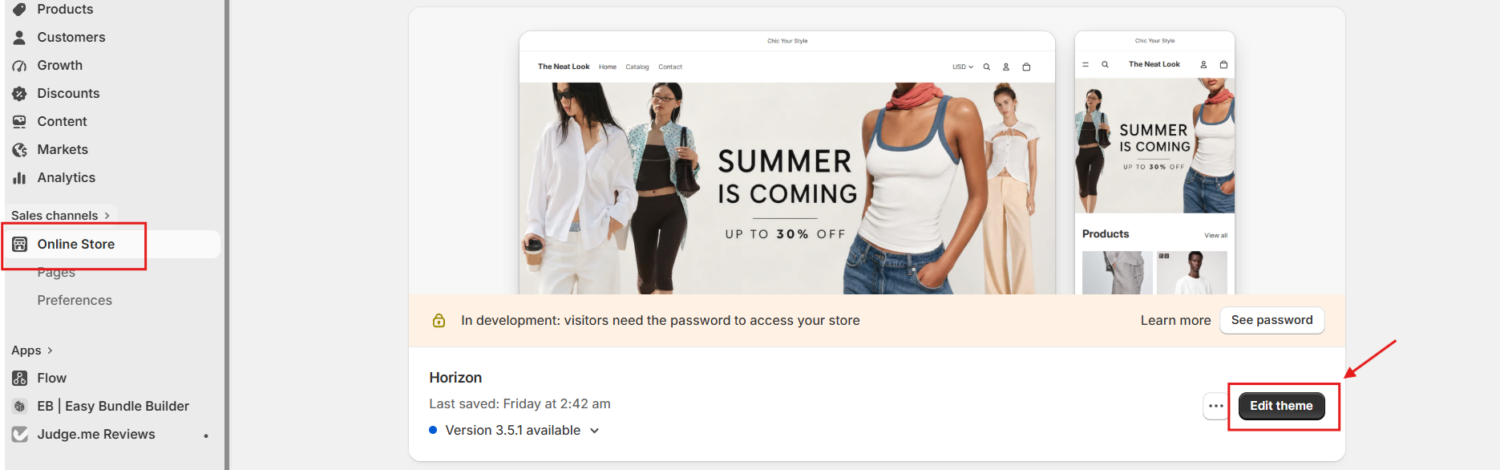
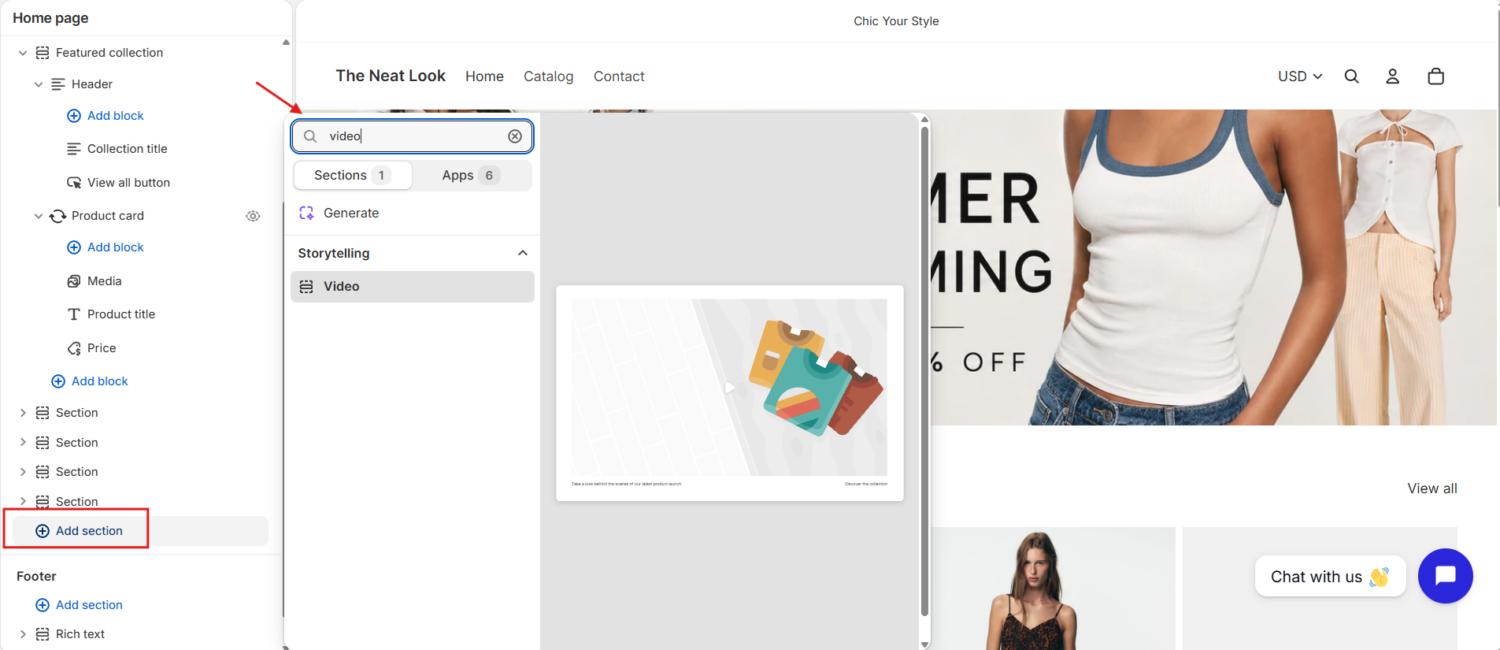
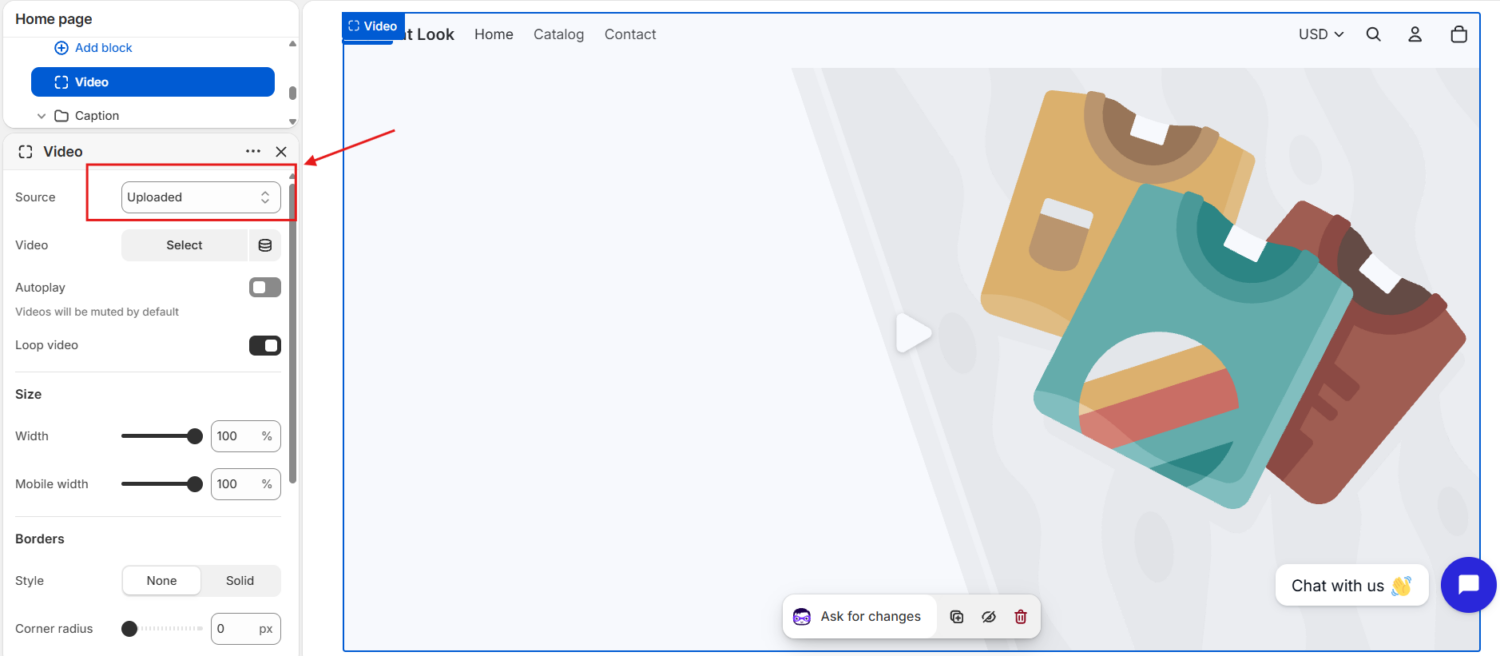
Native Shopify lets you show a video, but that’s it. You can’t tag products inside the clip, automatically import reels from Instagram, or track which video drove a sale. That’s why a third‑party app matters.
If you want shoppers to add to cart directly from a UGC video, or you’re publishing video across multiple pages, the right app does what Shopify’s native tools can’t, and it can meaningfully increase your sales.
I’ve tested the three strongest options, and here’s the comparison table:
| App | Rating & Reviews | Pricing | Best fit |
|---|---|---|---|
| Videowise: Shoppable Video UGC | 4.7 (2542 reviews) | – Free plan available – Paid plans start from $9/month | Data-driven stores scaling UGC |
| ReelUp‑Shoppable Videos+Reels | 5.0 (294 reviews) | – Free plan available- Paid plans start from $29.99/month | Repurposing TikTok and Reels |
| Vidjet Shoppable Videos +Story | 5.0 (103 reviews) | – No free plan available- Paid plans start from $49/month | Maximum format variety |
App #1: Videowise: Shoppable Video UGC
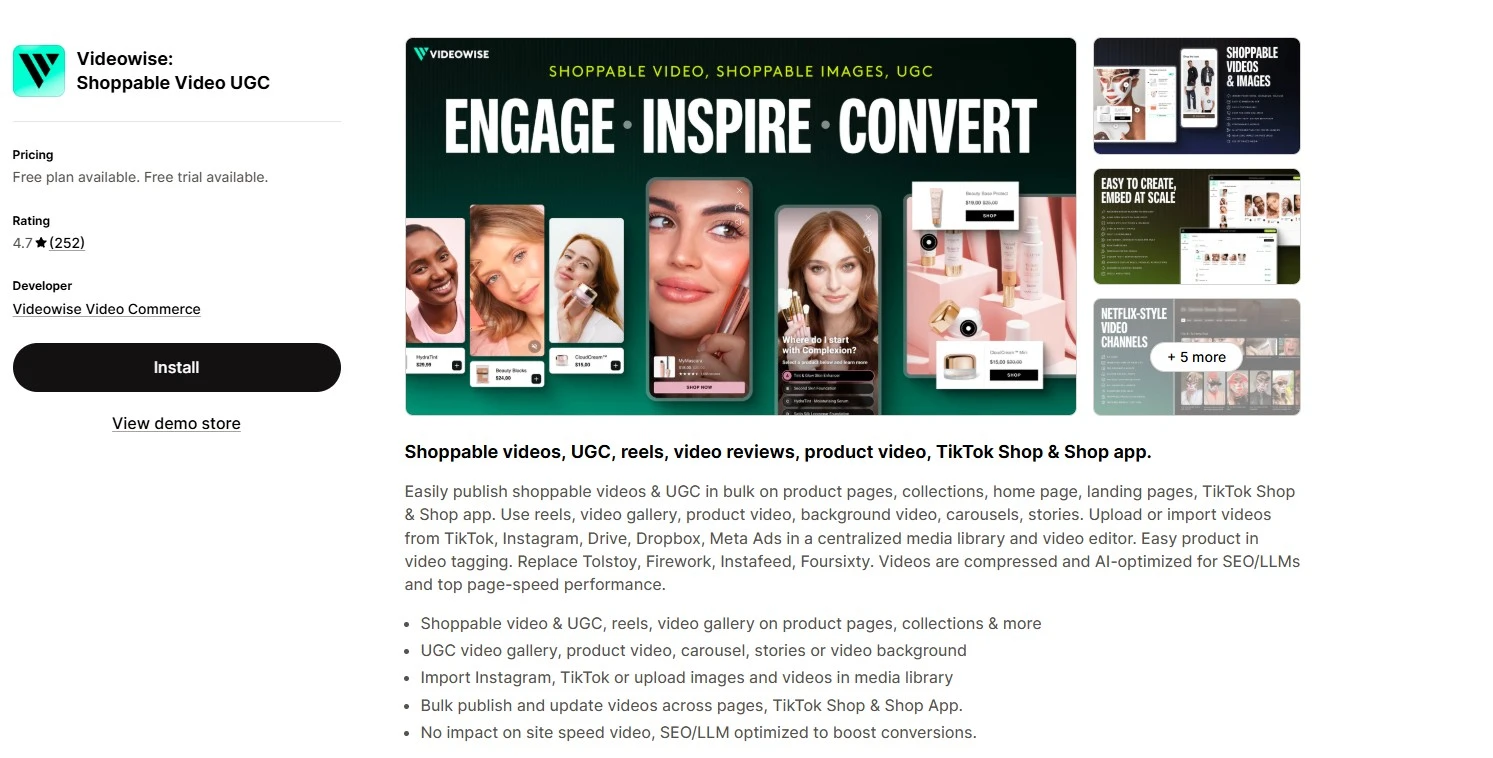
Videowise is the most complete option of the three. It hosts your videos, tags products to make any clip shoppable, imports UGC from TikTok and Instagram, and tracks revenue per video, with integrations for Klaviyo, Yotpo, Judge.me, and Loox so video reviews flow straight onto your pages. It’s the app to pick when you want proof that video moves your numbers, not just a player on the page.
The trade-off: the $9/month entry price is misleading. It covers only 1,000 unique widget impressions, then charges $10 for every additional 1,000, so on a high-traffic store, the cost climbs with your visitors and gets hard to predict.
App #2 ReelUp‑Shoppable Videos+Reels
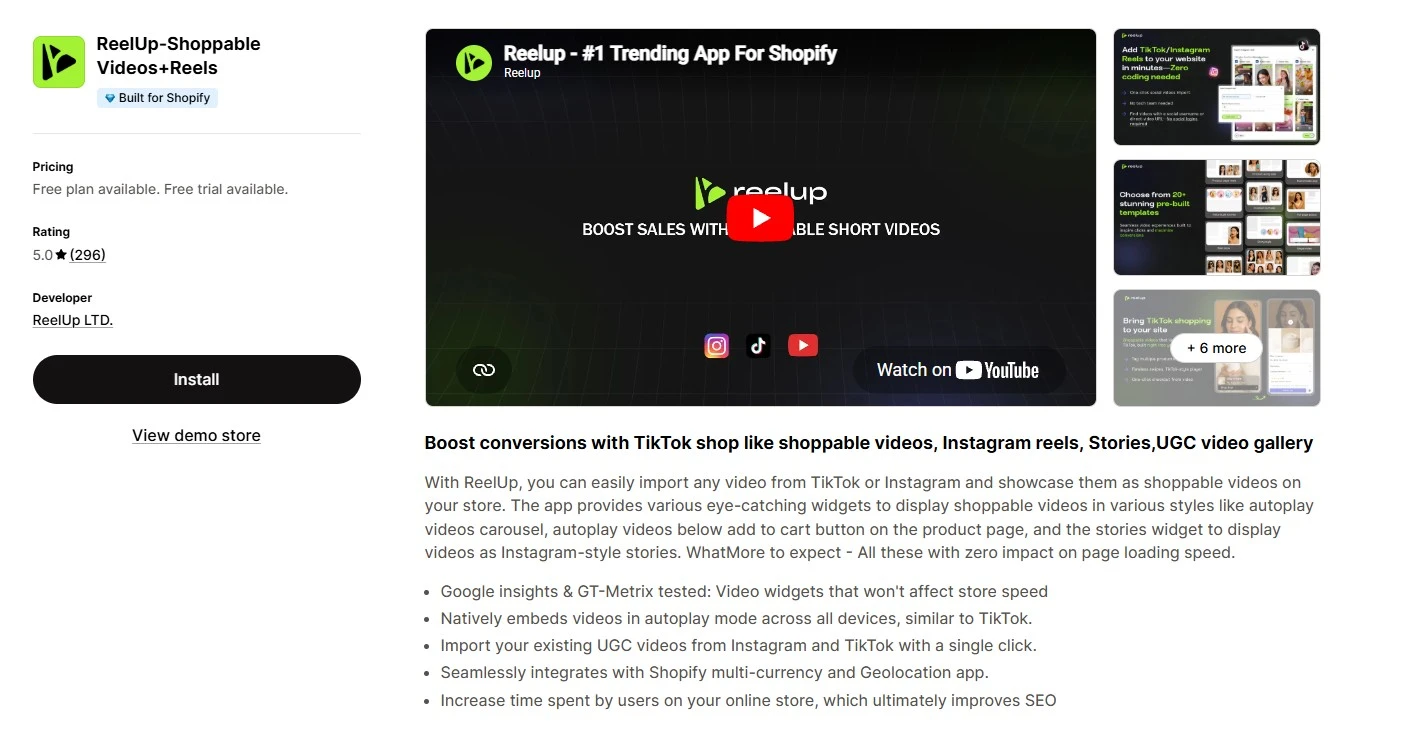
ReelUp turns the social content you already make into shoppable feeds, fast. You paste a TikTok or Instagram Reel, tag your products, and display it as an autoplay carousel, an Instagram-style story, or a video block right below the add-to-cart button, all through the theme editor with no code.
It’s a “Built for Shopify” app with a flawless 5.0 across 294 reviews and publishes GTmetrix tests showing zero page-speed impact, which makes it one of the easiest ways to get social video selling on-site.
The trade-off: its plans are capped by video views, and a view counts after just 4 seconds. The free plan allows only 100 views a month, and Basic ($29.99) covers 3,000, so a popular video burns through your allowance quickly.
App #3 Vidjet Shoppable Videos +Story
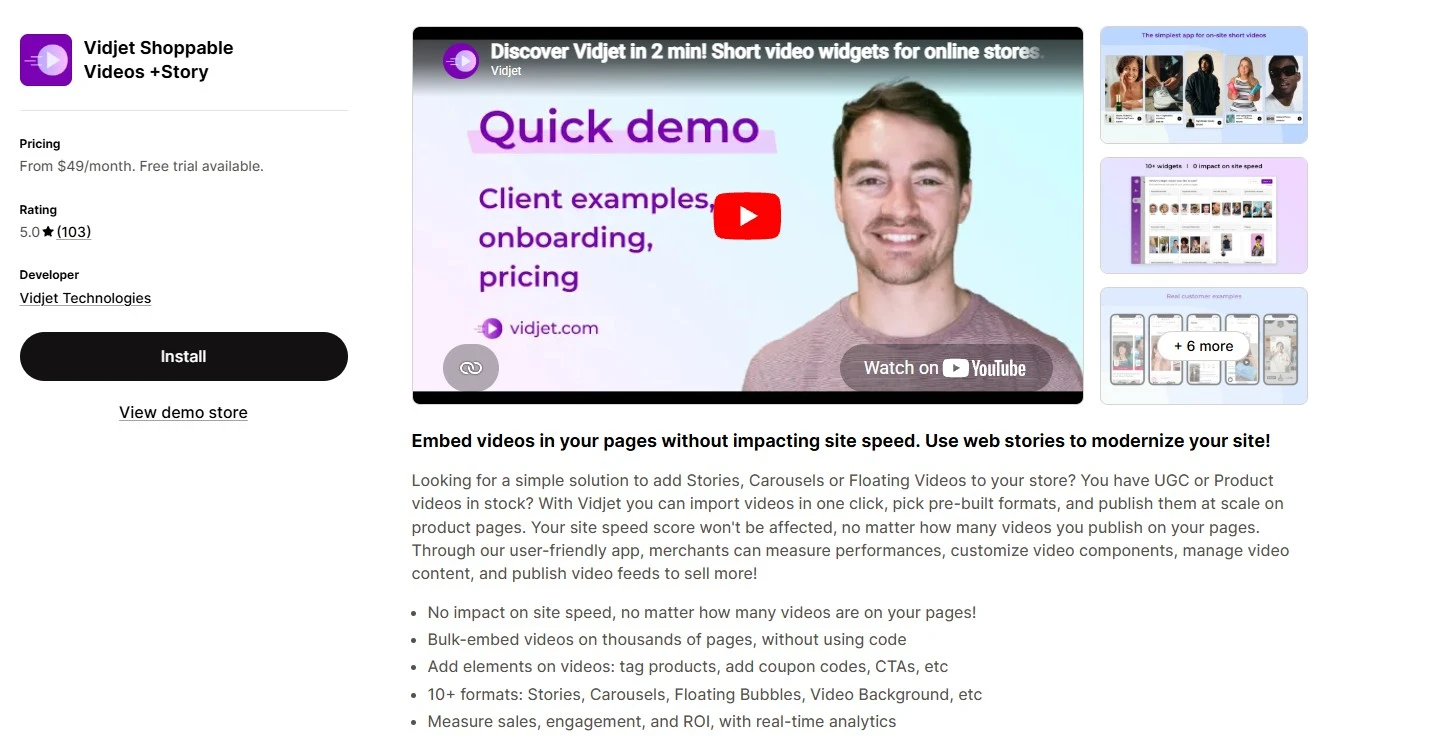
Vidjet gives you more ways to display video than any other app here. It offers 10+ formats, including stories, carousels, floating bubbles that follow the shopper as they scroll, video backgrounds, and pop-ups, all no-code with no speed hit. You can also tag products, add coupon codes and CTAs inside the video, and target clips by language for multilingual stores. It’s the strongest pick when you’ve already proven video converts and want maximum layout flexibility to test.
The trade-off: there’s no free plan, and paid plans start at $49/month, which prices out brand-new stores still testing video.
This is where most stores stop short. They add one generic product clip and call it done. The stores that win match the type of video to the job they need it to do, then place it where it changes the decision. Below are the five types worth your time, with how to make each one and a real store doing it well.
One rule applies to all five: shoot for mobile. Around 75% of e-commerce traffic comes from smartphones, so film vertical or square, caption for sound-off viewing, and keep files light so they load fast.
UGC videos are product videos made by customers or influencers, not the brand itself. They usually come in two forms: free UGC, collected from happy customers through post-purchase emails, and paid UGC, created by hired content creators in exchange for payment or free samples.
Common formats include unboxing videos, tutorials, product reviews, and everyday-use clips like “get ready with me” videos.
This format works because it feels real. Bazaarvoice reports a 74% lift when shoppers engage with customer content. Instead of seeing another polished ad, shoppers see how the product looks, feels, and works in real life. That makes UGC especially powerful for products people hesitate to buy without trying first, such as clothing, beauty products, food, and supplements.
The best place to display UGC videos is on the product page, collection page, or in a gallery, below the product description and near the rating and review section.
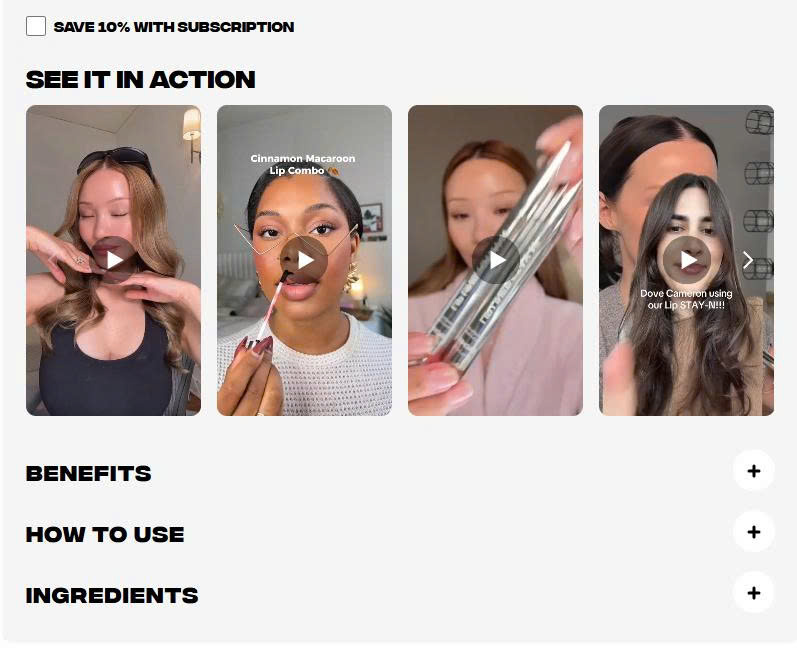
For example, SACHEU adds UGC videos to its best-selling Lip Liner STAY-N page with a “See it in action” row. The section shows vertical clips of real customers applying the product in everyday moments, helping shoppers see how it looks beyond studio photos.
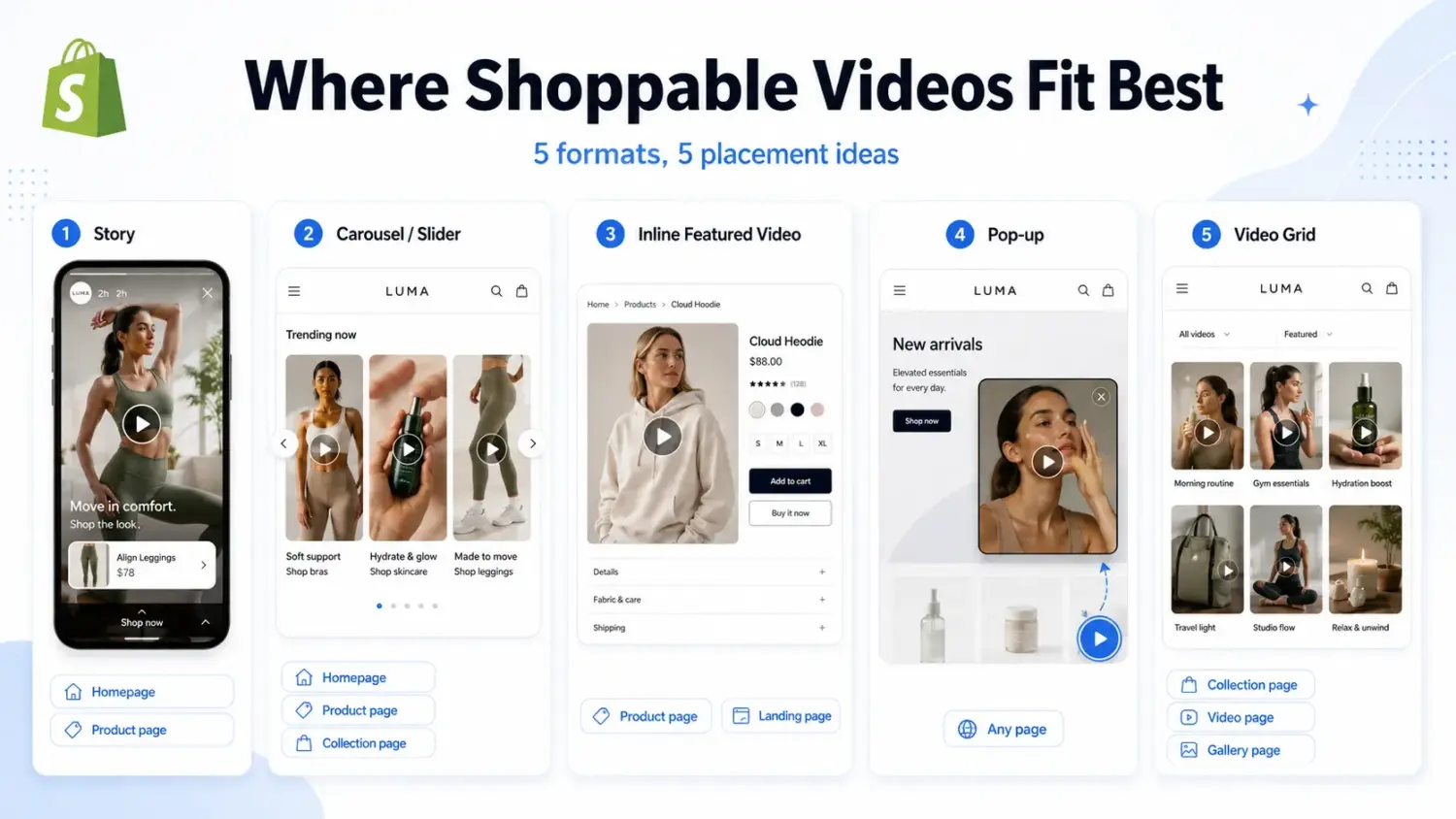
A shoppable video is a product video with clickable product links built in. Shoppers can watch the clip, tap the item they like, and add it to cart without leaving the page. According to Whatmore, shoppable videos can lift sitewide conversion by 17–33%.
You can use different formats depending on where the video appears on your store, such as story-style videos, carousels, sliders, inline featured videos, pop-ups, or video grids.
You can also pair shoppable videos with an incentive to move shoppers from interest to checkout faster. With BOGOS: Free Gift Bundle Upsell, merchants can add a gift-with-purchase offer to the exact product featured in the shoppable video. The gift can appear as a pop-up or be auto-added to the cart once shoppers qualify.
In this setup, the video grabs attention, while the offer gives shoppers one more reason to add to cart. Together, they help increase conversion rate and average order value.
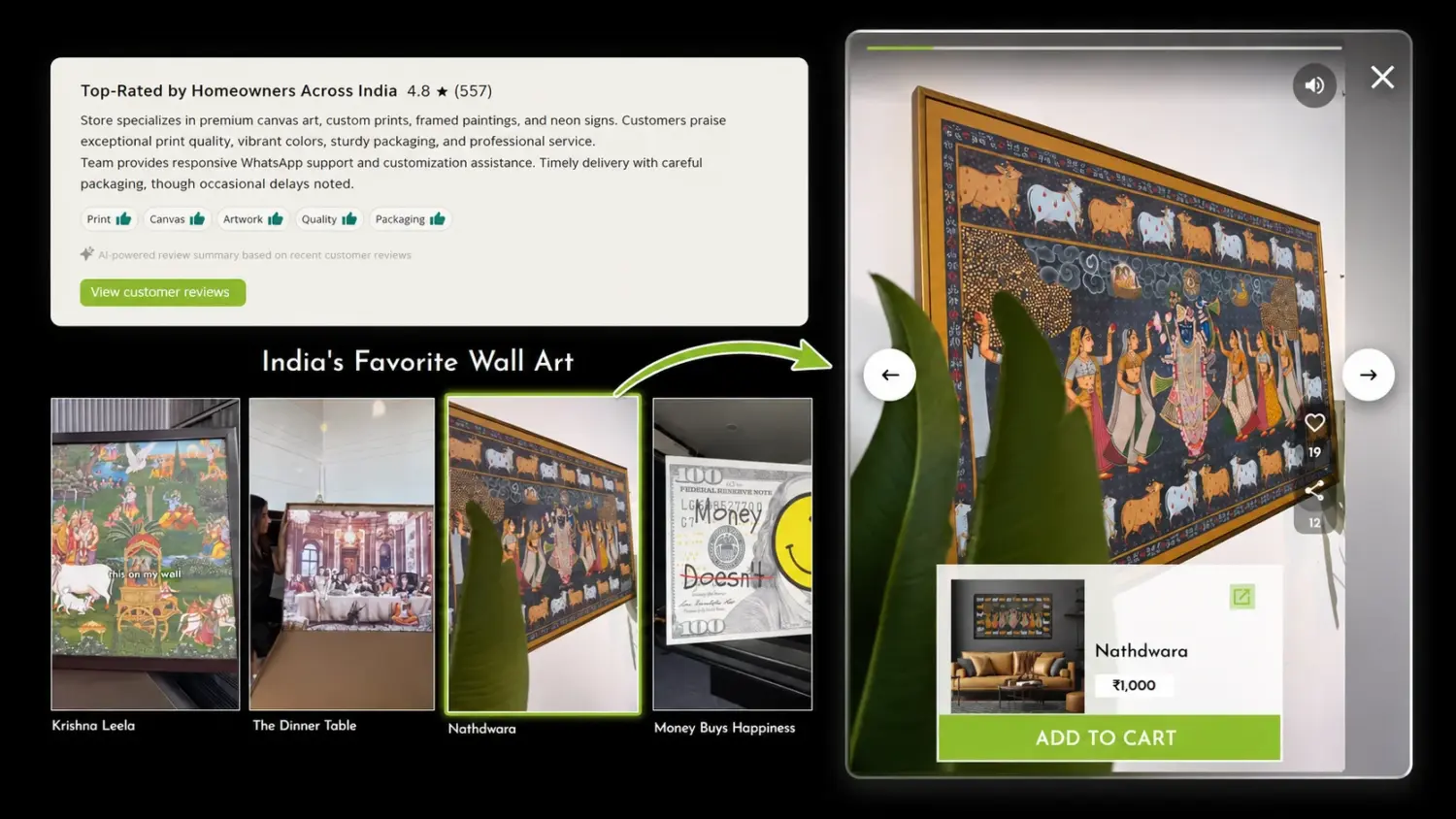
Shoppable videos can work across many product categories, especially when shoppers need to see the product in action before buying. A premium canvas art brand called Aesthesy is a clear example: it replaced static product images on key product pages with shoppable demo videos, helping shoppers explore and buy directly from the video.
Overview and demo videos put the product itself in focus. An overview shows it from different angles, while a demo shows it in action, doing the job it was built for. Together, they answer questions photos cannot: How big is it? How does it move? How does it actually work?
Common formats include unboxing videos, feature walkthroughs, before-and-after demos, and close-ups that show texture, scale, or product details.
This format works because it removes uncertainty at the moment of decision. That makes it especially useful for products shoppers want to understand before buying, such as electronics, tools, kitchen gadgets, or anything with a learning curve.
The best placement is high in the product gallery, ideally as one of the first media items shoppers see. You can also add a small “in action” video row near the Add to Cart button, so the product proof is hard to miss.
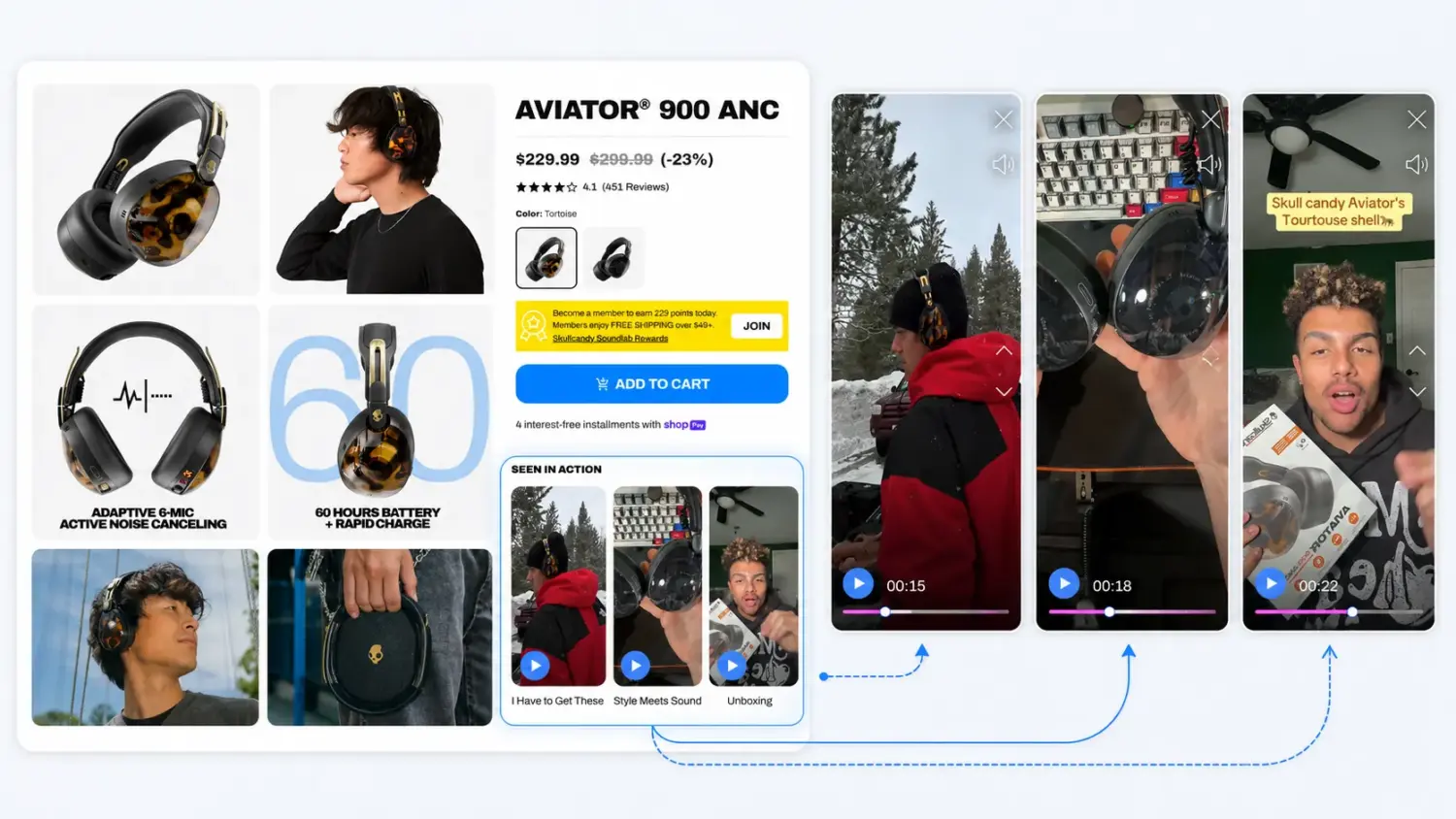
For example, Skullcandy uses a row of demo-style videos to show what its headphones include, how they look in daily life, and how customers use them. The section combines unboxing, review, and everyday-use clips to help shoppers understand the product faster.
Tutorial videos show shoppers how to use the product step by step. A demo proves the product works, but a tutorial proves the shopper can use it successfully. That helps remove one of the biggest hidden doubts before purchase: “Will I actually know how to use this?”
Common formats include setup guides, step-by-step walkthroughs, “how to use” routines, and quick tips that show different ways to get value from the product.
The best placement is on product pages for items that need explanation. You can also add tutorial videos to FAQ or support pages, where they continue helping after purchase by reducing confusion, returns, and support tickets.
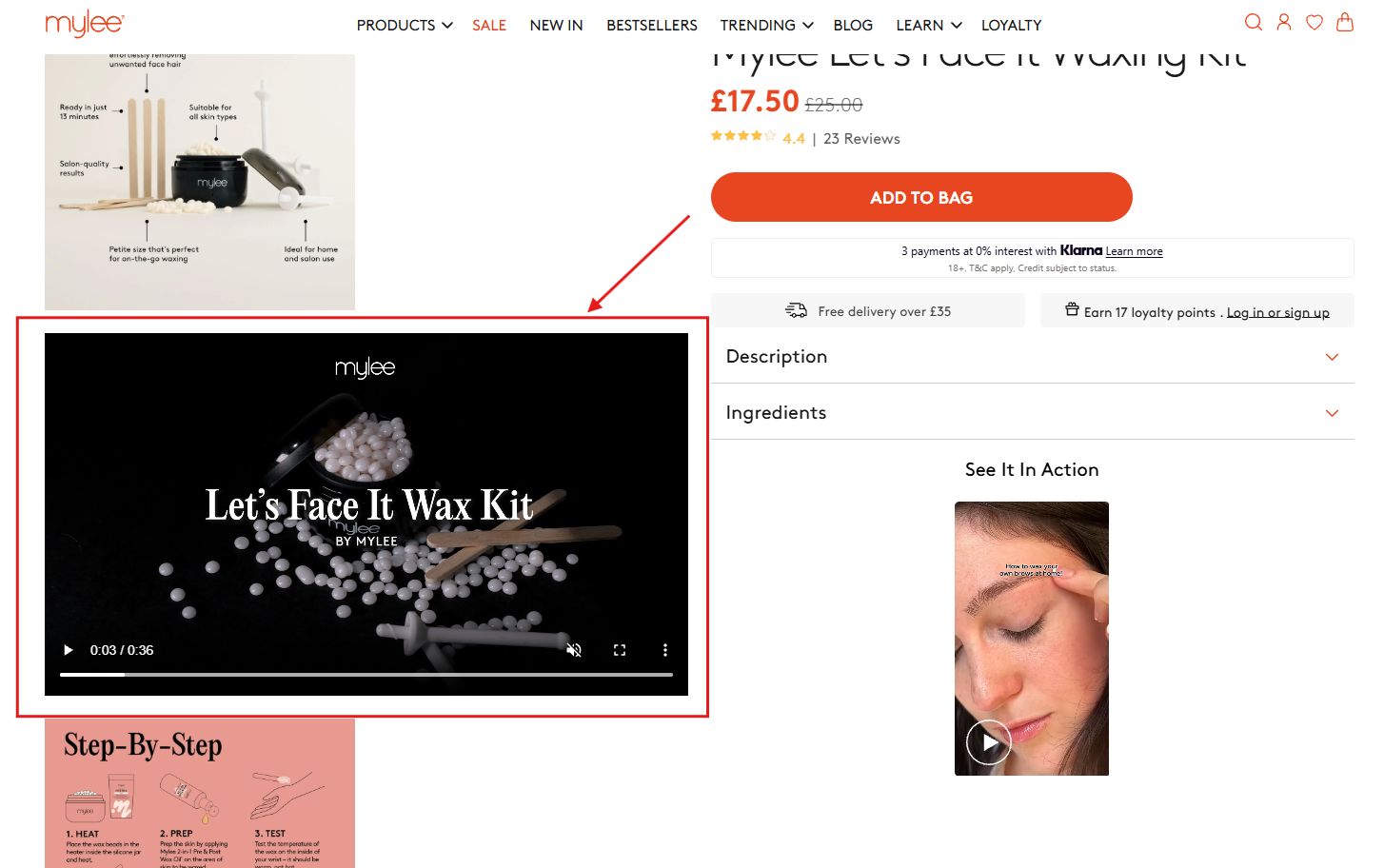
For example, Mylee, the UK’s No.1 at-home gel nail brand, adds a 36-second how-to video to its Let’s Face It Waxing Kit page. The video is followed by a numbered step-by-step guide for heating, prepping, and testing the wax.
Testimonial videos show real customers sharing their story on camera: the problem they had, why they chose the product, and the result they got. While UGC feels casual, testimonials are built for proof. They help shoppers feel more confident when they are close to buying.
This format works because it turns a product claim into a real customer experience. Instead of only reading reviews, shoppers can see the person, hear the story, and connect the result to their own problem.
The best placement is on the product page, just above or beside the reviews section. This lets the video and star ratings work together as two layers of social proof at the decision point. For products that need deeper proof, a dedicated “reviews” or “results” page can also work well.
For example, Irish tanning brand Dripping Gold uses short vertical testimonial videos on its Gradual Tanning Butter page.
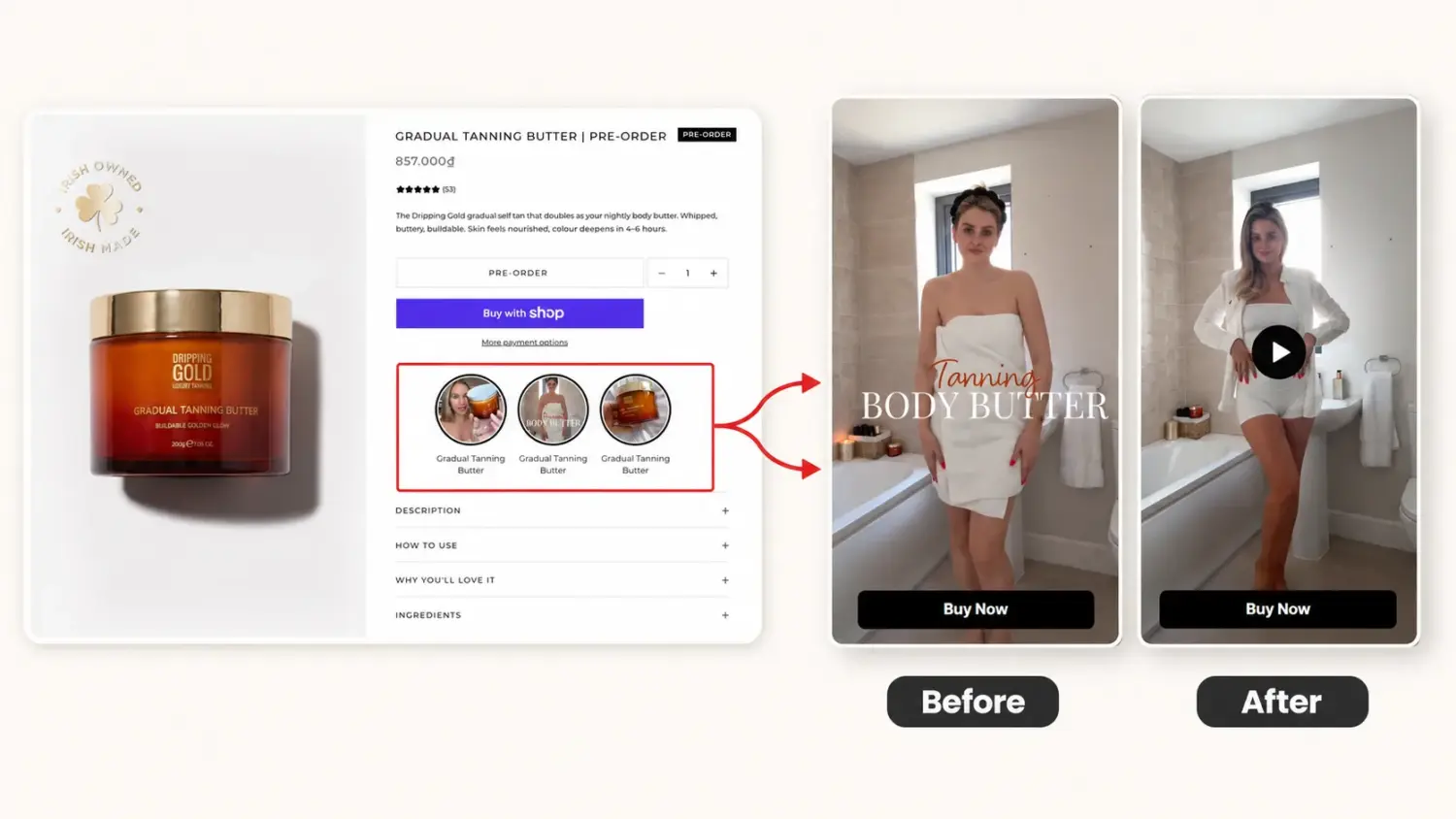
In one clip, a real customer explains her routine, applies the product on camera, and shows the before-and-after result.
A product video is one of the few changes that helps at every step. It pulls shoppers in, answers the doubts that make them hesitate, and gives them the confidence to buy. That is why it works as a real conversion rate optimization tool, not just a nice-to-have.
You don’t need a studio or a big budget to start. Pick your best-selling product and add one short, mobile-friendly clip, whether that’s a quick demo, a customer testimonial, or a piece of UGC you already have. Place it high in the product gallery, caption it for sound-off viewing, and match the type of video to the job you need it to do.
From there, let the video earn its keep. Make it shoppable so people can buy from inside the clip, and pair your hero product with a small incentive to turn attention into checkout and lift your average order value at the same time.
Yes. Three methods allow you to do that:
– Upload a video straight to your product’s media gallery
– Embed a YouTube or Vimeo link
– Add a video section through your theme editor
For product pages, aim for 30 seconds to 2 minutes, long enough to show the product working, short enough to hold attention.
On file size, native gallery videos can be up to 1 GB and 10 minutes, but keep clips well under that so they load fast on mobile.
MP4 is the best choice. It plays cleanly across every browser and device, and it’s what Shopify converts your uploads to anyway. MOV works too, but stick with MP4 (H.264) for the widest compatibility and smallest file size.
Go to Online Store → Themes → Customize, click Add section, and choose Video. Add your clip or paste a link, then enable autoplay in the section settings.

Shoppers hesitate to buy a $1,200 sofa or a custom ring when they can’t see the exact version they’re...
Selling personalized products on Shopify gets hard the moment a shopper needs to type a name or choose a...

The UK is the largest eCommerce market in Europe and the third-largest in the world. For international Shopify stores,...