


Charlie Ngo
•
Last updated: 20 October, 2026
Shopify Collections: How To Create & Organize Them (2026)
Shopify collections decide how shoppers find your products, yet many guides still describe a setup Shopify is now replacing....
Shopify Smart Collections: Setup, Conditions & 8 Examples (2026 Updated)

Marketing Manager
Summarize this post with AI
Shopify smart collections add and remove products for you based on rules, such as a tag, a price, or a vendor. This guide explains how smart collections work in Shopify’s new collections model, how to write conditions, and 8 examples you can copy. I’m Charlie Ngo, Marketing Manager at BOGOS, and I wrote it from the Shopify Help Center (checked in October 2026), merchant questions on Reddit and the Shopify Community, and Baymard Institute research.
A Shopify smart collection is a collection that adds every product matching the conditions you set, such as “Price is less than $50.01.” When you publish a new product that matches, it joins the collection without any extra work.
Smart collections are also called automated collections. The Shopify Help Center states that automated collections are now called smart collections, so both names describe the same feature.
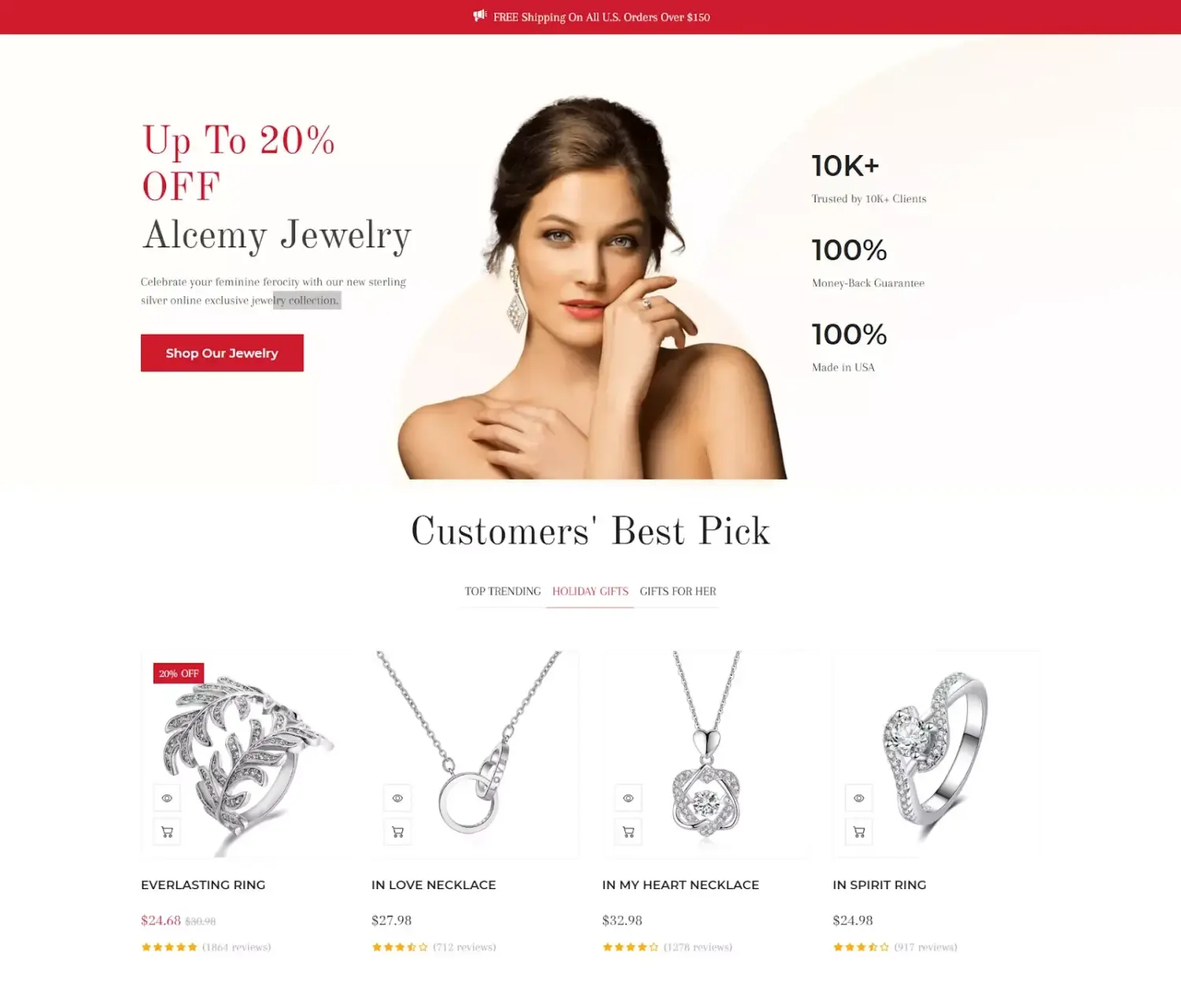
For example, a “Gifts under $50” collection with one price condition picks up every new product priced at $50 or less. If you raise a product’s price to $60, the product leaves the collection on its own.
Shopify is replacing its legacy collections model, where you chose “Smart” or “Manual” for each collection, with a new collections model, according to Shopify’s guide to creating collections. Stores that get the new model have their old collections converted automatically. If your admin still asks you to pick Smart or Manual, your store is on the legacy model, and the conditions in this guide work the same way there.
Smart collections are one of the 5 collection types in our Shopify collections guide, alongside manual, sub, nested, and variant collections.
In the new model, smart and manual are 2 ways to fill a collection, not 2 separate collection types. Conditions add products automatically, hand-picking adds the products you choose, and one collection can use both.
| Conditions (smart) | Hand-picking (manual) | |
|---|---|---|
| How products get in | Products that match your rules join automatically | You select each product |
| When a product changes | It joins or leaves on its own | It stays until you remove it |
| Best for | Large or growing catalogs, sale pages, brand pages | Staff picks, gift guides, small curated lists |
| Upkeep | Keep product data, such as tags, accurate | Add and remove products by hand |
Use a smart collection whenever a group of products shares a clear rule, such as the same tag, vendor, price band, or stock status. This covers most category, brand, sale, and in-stock pages.
Use hand-picking when the group depends on your judgment, such as staff picks or an influencer edit. A list of 12 favorite products has no rule that a condition can describe.
Smart collections also help shoppers find new products faster, because each new item appears on the right pages from the day you publish it. Better product discovery is one of the tactics in our guide on how to increase sales on Shopify.
In the new collections model, a collection gets its products from sources, and you can add 4 source types to one collection, according to Shopify’s guide to creating collections:
Every new collection starts with an empty Products source, which is where most smart collection conditions live. If 2 sources add the same product, Shopify shows it only once.
Sources also let you combine “and” with “or” logic. The conditions inside one source follow one rule, either match all or match any, but Shopify adds the products from separate sources together.
For example, a “Hats from Brand A or Brand B” collection can use 2 Products sources. Source 1 matches “Product type is equal to Hats” and “Vendor is equal to Brand A,” while Source 2 matches the same product type with “Vendor is equal to Brand B.”
You can create a smart collection in 7 steps from Products > Collections in your Shopify admin:
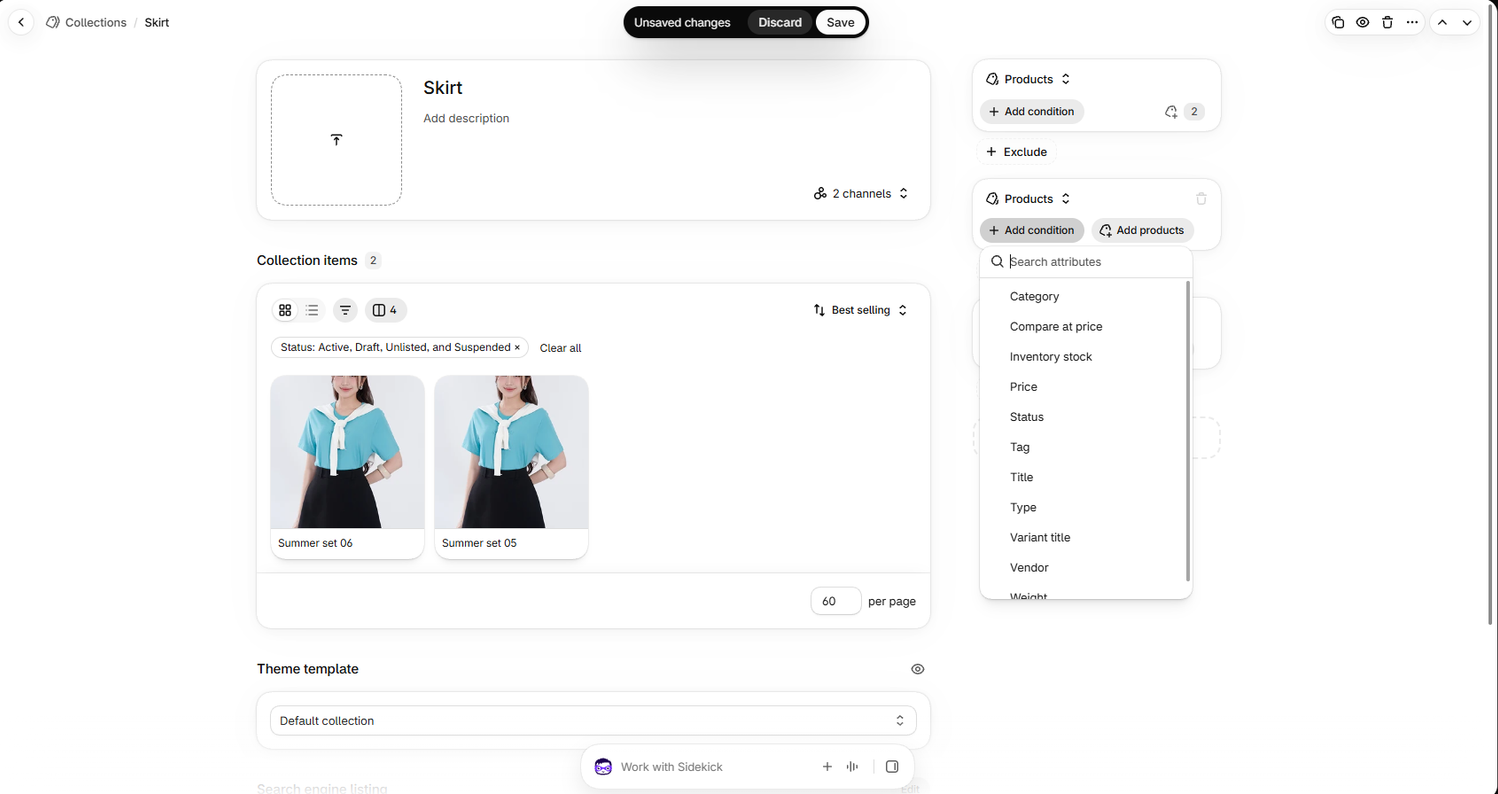
After you save, finish 3 more settings: the sort order, the sales channels, and a menu link. New collections use Most relevant as the default sort order, which Shopify bases on sales performance, according to its collection layout guide.
The admin lists collection items in pages of 60 products. Check every page the first time you save, so you can spot products your conditions pulled in by mistake.
You can turn any existing collection into a smart collection by adding conditions to its Products source. In the new model, every collection is the same type, so you never need to rebuild a collection to make it automatic.
Products you picked by hand stay in the collection after you add conditions. Shopify keeps hand-picked products until you remove them yourself, even when they don’t match the new conditions.
A Shopify smart collection condition has 3 parts: a product attribute, a matching rule, and a value, such as “Tag includes summer.” Shopify supports 13 attribute types for conditions, according to Shopify’s conditions guide.
| Condition type | What it matches | Example |
|---|---|---|
| Product title | Words in the product name | Title contains “candle” |
| Variant title | A variant’s option values, such as “Blue / Large” | Variant title contains “Large” |
| Product type | Your own label for the product | Type is equal to “Hoodie” |
| Vendor | The brand or supplier | Vendor is equal to “Lumen Co.” |
| Product category | A category from Shopify’s Standard Product Taxonomy, with an option to include subcategories | Category is equal to “Toys & Games” |
| Tag | Product tags | Tag includes “summer” |
| Product status | Active, draft, or archived | Status is not equal to “Archived” |
| Price | The product or variant price | Price is less than $50.01 |
| Compare-at price | The original price shown next to a sale price | Compare-at price is set |
| Weight | The product or variant weight | Weight is less than 1 kg |
| Inventory stock | Units in stock | Inventory stock is greater than 0 |
| Metafield | A custom field you’ve turned on for collections, such as a true or false “Vegan” field | Vegan is equal to true |
| Metaobject reference | Structured values, such as standard taxonomy attributes | Material is equal to “Cotton” |
The matching rules are simple. Text attributes use “is equal to,” “contains,” “starts with,” or “ends with,” number attributes use “is greater than” or “is less than,” and tags use “includes” or “does not include.”
Match all conditions includes only products that meet every condition, while match any condition includes products that meet at least one. One condition can also hold several values, such as 2 tags joined by OR.
Watch for 3 details that often cause mistakes:
These 8 smart collections cover the pages most Shopify stores need, and each one needs only 1 or 2 conditions in a Products source.
| Collection | Conditions | Match | Watch out for |
|---|---|---|---|
| Sale | Compare-at price is set | All | Every variant needs a compare-at price, and you should clear compare-at prices when the sale ends |
| Under $50 | Price is less than $50.01 | All | A product joins when any one of its variants is under $50 |
| $50 to $150 | Price is greater than $49.99, and price is less than $150.01 | All | Match any would add almost every product in the store |
| In stock | Inventory stock is greater than 0 | All | One in-stock variant is enough for the whole product to match |
| Brand page | Vendor is equal to [brand name] | All | The vendor name must match exactly, including spelling |
| Accessories | Tag includes “belt” OR “hat” (1 condition) | All | Add new tags, such as “scarf,” to the same condition when you add product lines |
| New arrivals | Tag includes “new,” sorted by Newest | All | Remove the “new” tag when a product is no longer new |
| Active summer products | Tag includes “summer,” and status is not equal to Archived | All | Archived products stay in collections but stay hidden from shoppers, so this keeps your admin list accurate |
Here is how this saves time in practice. Say a candle store builds “Under $50,” “In stock,” and “Sale” as smart collections, then publishes a new $38 candle with a $45 compare-at price on every variant.
The candle appears in all 3 collections without any manual step. When the last unit sells, it leaves the “In stock” page on its own.
You can exclude products from a smart collection in 3 ways: by condition, by hand, or by excluding another collection. Exclusions always override inclusions, according to Shopify’s guide to creating collections.
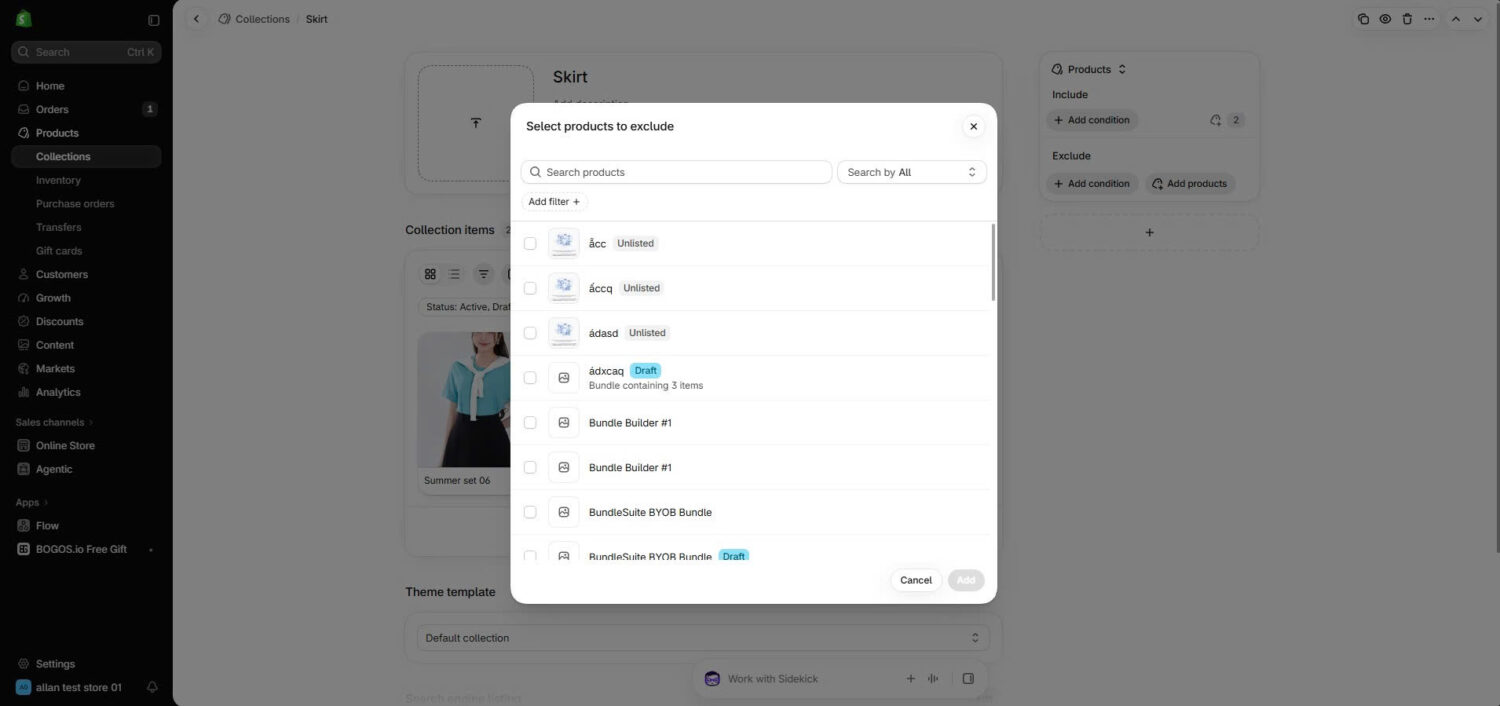
Exclude conditions work with 4 attribute types only: category, tag, type, and vendor. You can exclude individual products or another collection in one source, but you can’t do both in the same source.
For example, a “Clearance” collection can include every product tagged “clearance” and exclude your “Best sellers” collection. This keeps your top products at full price while the rest of the range is on sale.
Use the Exclude section instead of “is not equal to” conditions. Shopify warns that “is not equal to” can let unwanted products in, especially with several exclusions or with match any.
A store can have up to 5 collections that exclude another collection, so save collection exclusions for the pages that need them most. The same logic helps outside collections, too, as our guide on how to exclude products from a discount on Shopify shows.
You can add a single product to any smart collection by hand in the new model. Open the collection, click Add products in the Products source, select the product, and click Save.
Hand-picked products stay in the collection until you remove them, even when they don’t match its conditions. To remove one, hover over it in the Collection items section, click the x, and click Save.
Products that a condition added leave in 2 ways: you change the product’s data so it no longer matches, or you add the product to the Exclude section. For example, removing the “summer” tag takes a product out of every collection that uses “Tag includes summer.”
You can also add a product to collections from its own product page, through the Collections field in the Product organization section. This shortcut works only for collections that contain products you added by hand.
Smart collections are only as accurate as your product data, so set up a clear system for categories, types, and tags before you write conditions:
Before you create a new smart collection, check whether a filter would serve shoppers better. Baymard Institute’s navigation research found that 79% of sites create separate categories where a filter would work better, such as separate “Skinny jeans” and “Slim jeans” pages instead of one jeans page with a Fit filter.
Baymard also recommends at least 10 products in each lowest-level category. If a smart collection holds fewer products, merge it into a broader collection and add filters with the free Shopify Search & Discovery app.
Clear collections shorten the path from your homepage to the right product, which supports a higher Shopify conversion rate.
Shopify sets 7 limits that matter most for smart collections in the new model:
| Limit | Maximum or minimum |
|---|---|
| Conditions in one collection | 60 |
| Collections with conditions in one store | 5,000 |
| Collections that contain another collection | 50 |
| Collections that exclude another collection | 5 |
| Collections that contain variants | 100 |
| Products in a collection before filters stop showing | 5,000 |
| Characters needed for a “contains” condition | 3 (minimum) |
These limits come from Shopify’s guide to creating collections, its conditions guide, and its Search & Discovery filters guide.
Collections aren’t part of the Starter plan, so you need the Basic, Grow, Advanced, or Shopify Plus plan, according to the Shopify Help Center.
Smart collections keep promotions up to date, because every new product that matches the conditions joins the promotion automatically. You set up the offer once on a collection, and the collection decides which products qualify.
Shopify suggests unpublished collections for product groups you need only in the admin, such as a group that shares a discount, according to its guide to creating collections. An unpublished smart collection works well here, because shoppers never see the page, but the discount still follows its conditions.
Shopify’s built-in Buy X Get Y discount also accepts collections as the products customers must buy. With a smart collection behind it, a new product tagged “serum” joins a “Buy 2 serums, get 1 free” offer on the day you publish it, and our walkthrough of Shopify Buy X Get Y discounts covers the setup options.
Promotion apps add more options on top of Shopify’s built-in discounts. In BOGOS, for example, a Mix and Match bundle can pull its product choices from a collection and hide out-of-stock products from those choices automatically, according to its Mix and Match setup guide.
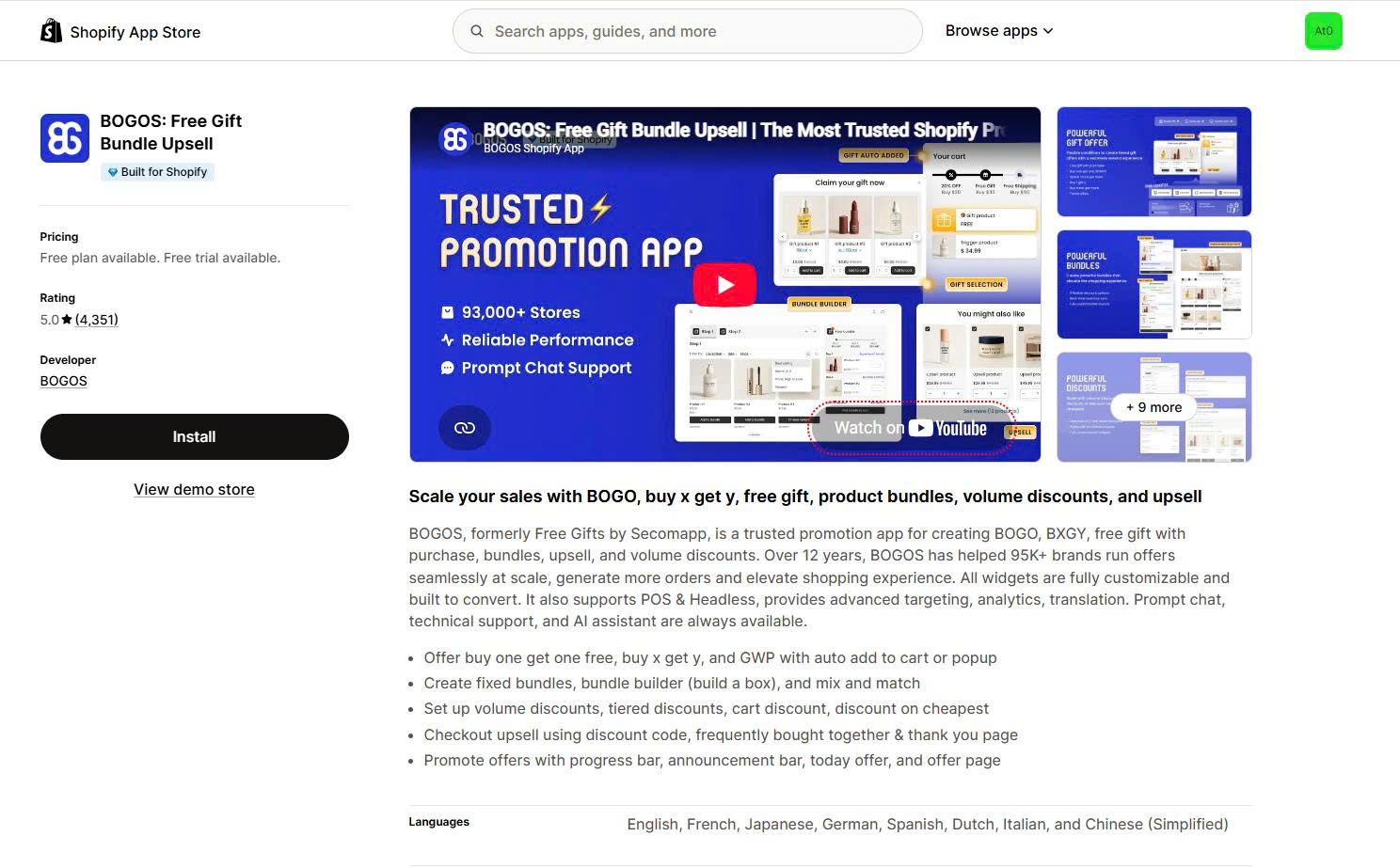
Its gift offers can also count only products from selected collections toward a spend or quantity goal, as the gift offer guide explains. With a smart collection behind either offer, a new matching product becomes a bundle choice or counts toward a gift without any edit to the offer.
Our guides to the Shopify mix and match bundle and Shopify free gift with purchase explain the strategy behind each offer type. Collection-based offers reward shoppers for adding more items from a group, which is a direct way to raise your Shopify average order value.
Shopify smart collections save time because they add and remove products for you as your catalog changes. In the new collections model, one collection can mix conditions, hand-picked products, and exclusions, so you rarely need to rebuild a collection.
Start with 3 steps. Plan a consistent system for categories, types, and tags; build your core smart collections, such as sale, in-stock, and brand pages; and review each collection once a month for products that don’t belong.
Once those collections are in place, use them as the base for your promotions. Shopify’s built-in discounts cover simple collection offers, and apps such as BOGOS add collection-based bundles and free gifts when you need more control.
You can turn any existing collection into a smart collection in the new model by adding conditions to its Products source. Products you picked by hand stay in the collection until you remove them. On the legacy model, you can’t convert a collection, so Shopify suggests tagging its products and building a new smart collection from that tag.
A product can join every smart collection whose conditions it matches. For example, a $38 summer candle can appear in “Under $50,” “Summer,” and “Candles” at the same time, and Shopify shows it only once inside each collection.
Smart collections are available on the Basic, Grow, Advanced, and Shopify Plus plans. The Starter plan doesn’t support collections, according to the Shopify Help Center.
In a Products source, a product matches a condition when any one of its variants matches. A product with 5 variants joins an “Inventory stock is greater than 0” collection even when 4 of those variants are sold out, according to Shopify’s conditions guide.
To include only the variants that match, use a Variants source instead, such as one that adds only the red variants of your products. Shopify then shows only those variants’ price range, swatches, and options in the collection’s filters.

Shopify collections decide how shoppers find your products, yet many guides still describe a setup Shopify is now replacing....
A Shopify announcement bar is the thin strip at the top of your store that tells shoppers about shipping,...

Australia is one of the first markets many Shopify stores expand into. It is large, English-speaking, and home to...