



Charlie Ngo
•
Last updated: 14 October, 2026
How To Add a Shopify Announcement Bar (Free Themes & Apps)
A Shopify announcement bar is the thin strip at the top of your store that tells shoppers about shipping,...
Shopify Collections: How To Create & Organize Them (2026)

Marketing Manager
Summarize this post with AI
Shopify collections decide how shoppers find your products, yet many guides still describe a setup Shopify is now replacing. This guide explains the collection types, setup steps, collection page design, filters, SEO, and how to use collections in promotions. I’m Charlie Ngo, Marketing Manager at BOGOS, and I wrote this guide from the current Shopify Help Center (checked in October 2026) and Baymard Institute research.
A Shopify collection is a group of products that you show together, such as “Women’s boots,” “Gifts under $50,” or “Summer sale.” Each published collection gets its own page on your online store, called a collection page, where shoppers see a grid of the products inside it.
Collections are available on the Basic plan or higher, according to the Shopify Help Center.
One product can sit in many collections at the same time. A pair of linen shorts can appear in “Men’s shorts,” “New arrivals,” and “Summer sale” without being duplicated.
Merchants usually group products in 6 ways:
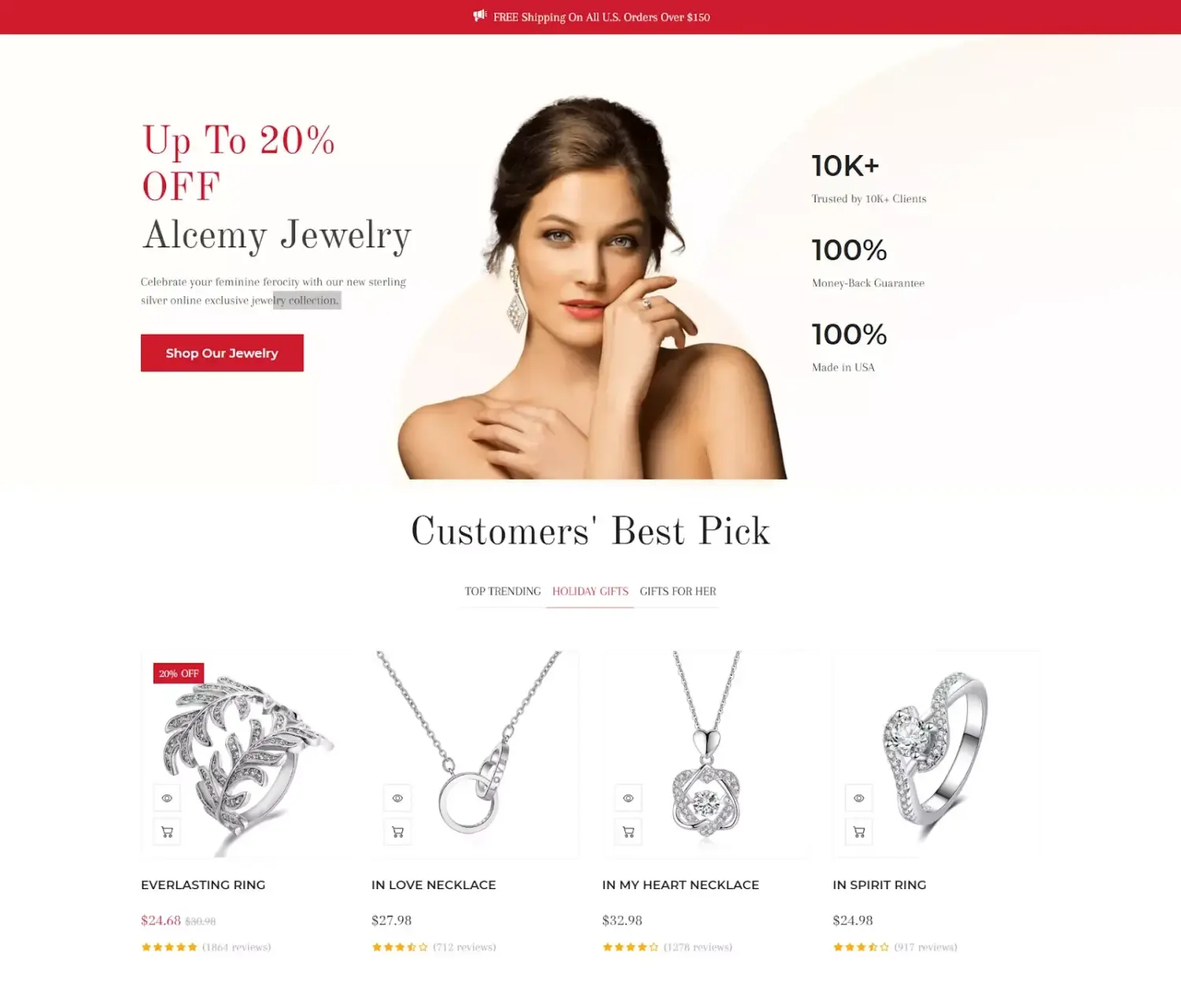
Collections matter because shoppers can only buy the products they find. Baymard Institute’s 2026 navigation benchmark found that 61% of desktop sites and 65% of mobile sites have “mediocre” to “poor” homepage and category navigation.
The benchmark scored more than 180 leading US and European ecommerce sites, and only 1 desktop site reached a “perfect” score. Most stores still leave shoppers working too hard to reach the right product.
A clear collection structure shortens the path from your homepage to a product page. This is why collections are a core part of any plan to lift your Shopify conversion rate.
Merchants use 5 main Shopify collection types: manual collections, automated collections, sub collections, nested collections, and variant collections.
Shopify is replacing its legacy collections model with a new collections model, according to the Shopify Help Center. The legacy model is Shopify’s original collection system, where each collection is either manual or smart, while the new model is Shopify’s updated system that is gradually rolling out to stores and lets one collection mix both methods.
In the new model, you fill a collection with sources that can combine hand-picked products, automatic conditions, specific variants, other collections, and exclusions. If your admin already has the new model, your old collections were converted automatically. If Shopify still asks you to choose “Manual” or “Automated” when you create a collection, your store is on the legacy model.
A manual collection contains only the products you pick by hand. It stays the same until you add or remove products yourself.
Manual collections work best for small, curated groups, such as staff picks, a gift guide, or an influencer collaboration. In the new model, manual collections are hand-picked products inside a collection’s source, and you can add conditions to the same collection later.
A Shopify automated collection, also called a smart collection, adds every product that matches the conditions you set, such as a tag, price, or vendor. New products that match join the collection on their own, so automated collections suit large or growing catalogs.
For example, a “Gifts under $50” collection with a price condition picks up every new product priced under $50 the moment you publish it. In the new model, you can also add hand-picked products and exclusions to an automated collection, so one unwanted product no longer forces you to rewrite your conditions.
Shopify sub collections are smaller collections that sit under a broader parent collection, such as “Joggers” under “Pants.” You build them by creating each collection on its own and then placing the child collections under the parent in your store menu or in a collection list on the parent page.
Sub collections help shoppers move from a broad group to a narrow one in 1 or 2 clicks. Sub collections work the same way in both models, because you build them through menus and collection lists.
A Shopify nested collection combines the products of 2 or more existing collections into 1 new collection. Shopify’s own example is a “Teaware” collection built from the “Teapots,” “Steepers,” and “Infusers” collections.
Nested collections are part of the new collections model, and a store can have up to 50 collections that contain another collection. Sub collections help shoppers move down to a narrower group, while nested collections pull several groups together into one wider page.
Stores on the legacy model can get a similar result by adding one shared tag to every product in the child collections and building an automated collection from that tag.
A Shopify variant collection includes only specific variants instead of whole products, such as only the red versions of your products for Valentine’s Day. When a collection includes only specific variants, its storefront filters show the price range, swatches, and options for those variants only.
Variant collections are part of the new collections model, and a store can have up to 100 collections that contain variants. Stores on the legacy model can only add whole products, so every variant of a product appears in the collection.
| Collection type | How products get in | Best for | Available in |
|---|---|---|---|
| Manual | You pick each product by hand | Small curated groups, such as gift guides | Both models |
| Automated (smart) | Products match conditions you set | Large or growing catalogs | Both models |
| Sub collection | Separate collections placed under a parent in menus or lists | Narrowing a broad category | Both models |
| Nested | Products pulled from other collections | Combining related categories into one page | New model only |
| Variant | Specific variants added by hand or by conditions | Color-specific or size-specific pages | New model only |
A Shopify collection page usually has 7 parts: a title and description, a banner image, breadcrumbs, a sort menu, filters, a product grid, and pagination. The exact layout depends on your theme and the template assigned to the collection.
Every part has the same job, which is helping a shopper reach the right product page in fewer clicks.
You can create a basic collection in 9 steps from Products > Collections in your Shopify admin:
After you save, add the collection to a menu or a homepage section. Shopify notes that publishing a collection to the Online Store doesn’t add it to your menus automatically, according to its collection settings guide.
You can also create collections in the Shopify mobile app with the same fields. If your admin still uses the legacy model, you choose Manual or Automated as the collection type during setup.
You can add products to a Shopify collection in 2 ways: by picking them by hand or by setting conditions that add matching products automatically. You can also exclude products you want to keep out.
To add products manually, open the collection, click Add products in the Products source, select the products, and click Save.
You can also add a product from its own page. On the product details page, use the Collections field in the Product organization section to pick one or more collections. This shortcut works only for collections where products were added by hand.
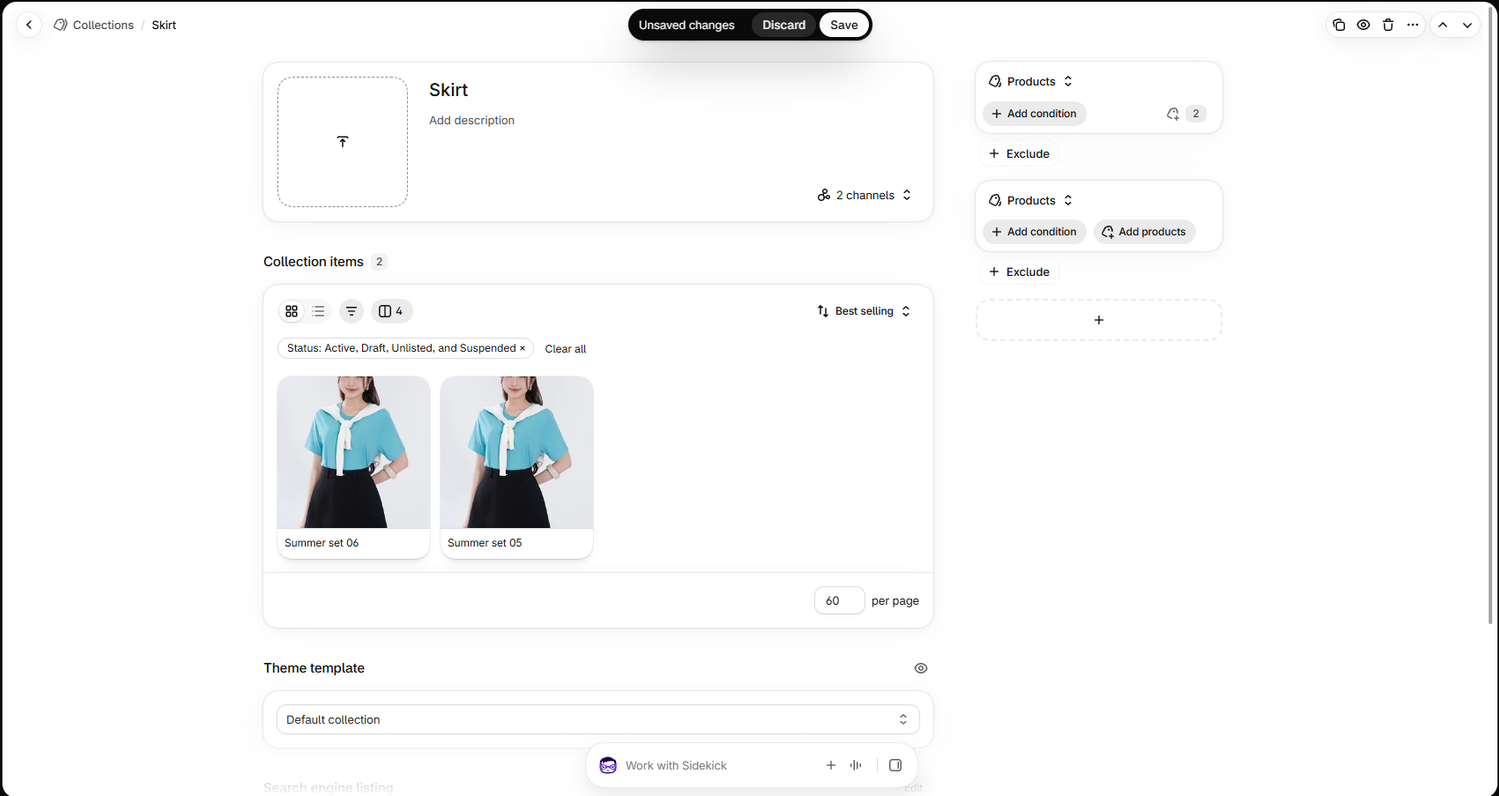
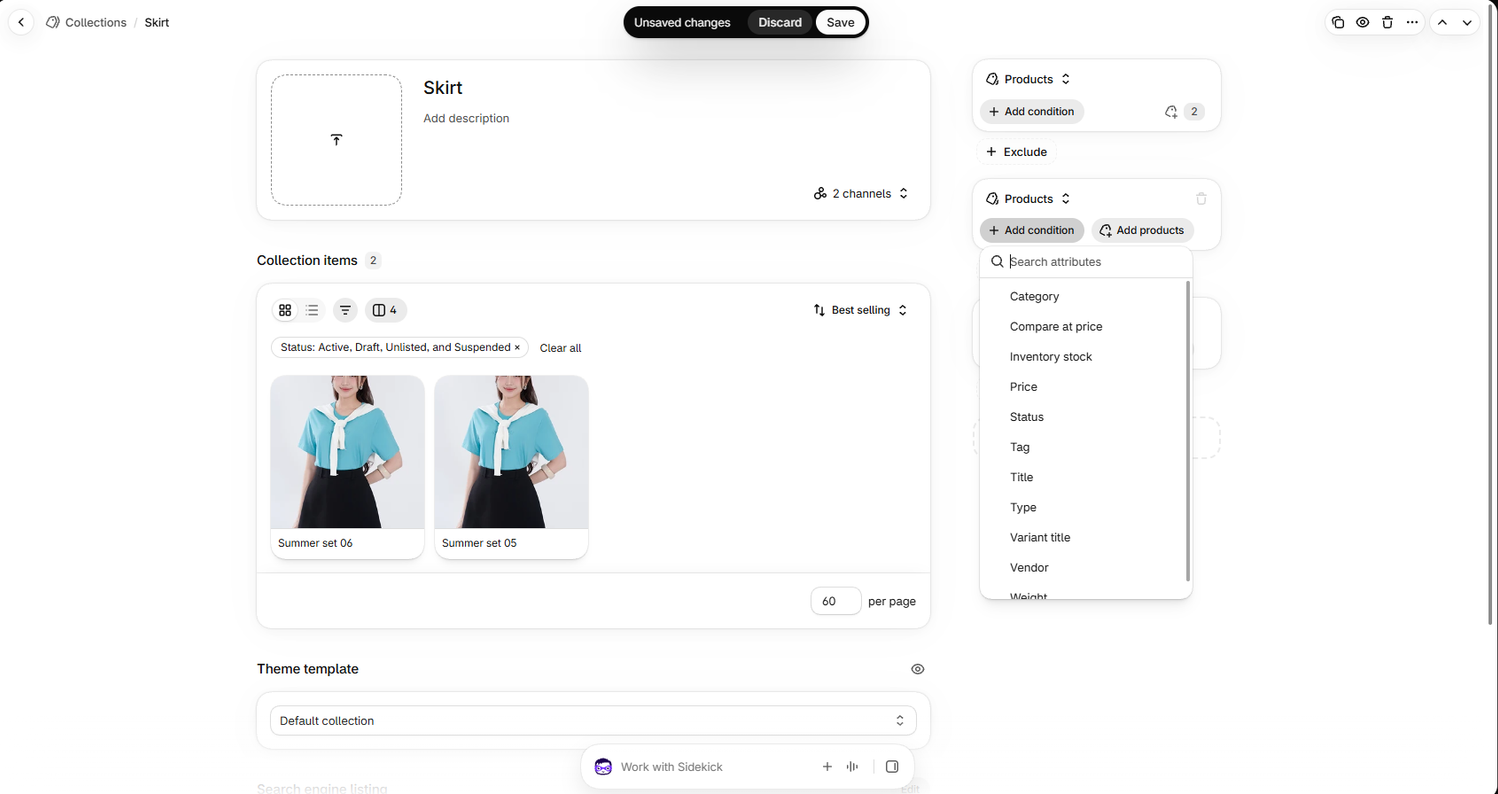
Conditions add every product that matches the rules you set, so new matching products join the collection without extra work. A single collection can have up to 60 conditions, according to Shopify’s collection conditions guide.
The most useful condition types are product tag, product type, vendor, price, product category, and metafields. Shopify also supports conditions for product title, variant title, compare-at price, weight, inventory stock, and product status.
Match all conditions includes only products that meet every rule. Match any condition includes products that meet at least one rule.
Shopify’s own example uses 2 conditions: the tag “shirt” and a price less than $100.01. With match all, the collection shows only shirts priced at $100 or less. With match any, it shows every shirt plus every product priced at $100 or less.
Keep these 4 tips in mind when you write conditions:
Exclusions remove products that would otherwise match, and they always override inclusions. You can exclude products by hand, by condition, or by excluding a whole collection.
Exclusion conditions work with 4 condition types only: category, tag, type, and vendor. A store can have up to 5 collections that exclude another collection.
For example, a “Summer sale” collection can include every product tagged “summer” and exclude your “New arrivals” collection. This keeps full-price launches out of the sale.
You can show a collection to shoppers in 2 main places: your store menus and your homepage sections. A collection that isn’t linked anywhere stays hard to find, even when it is published.
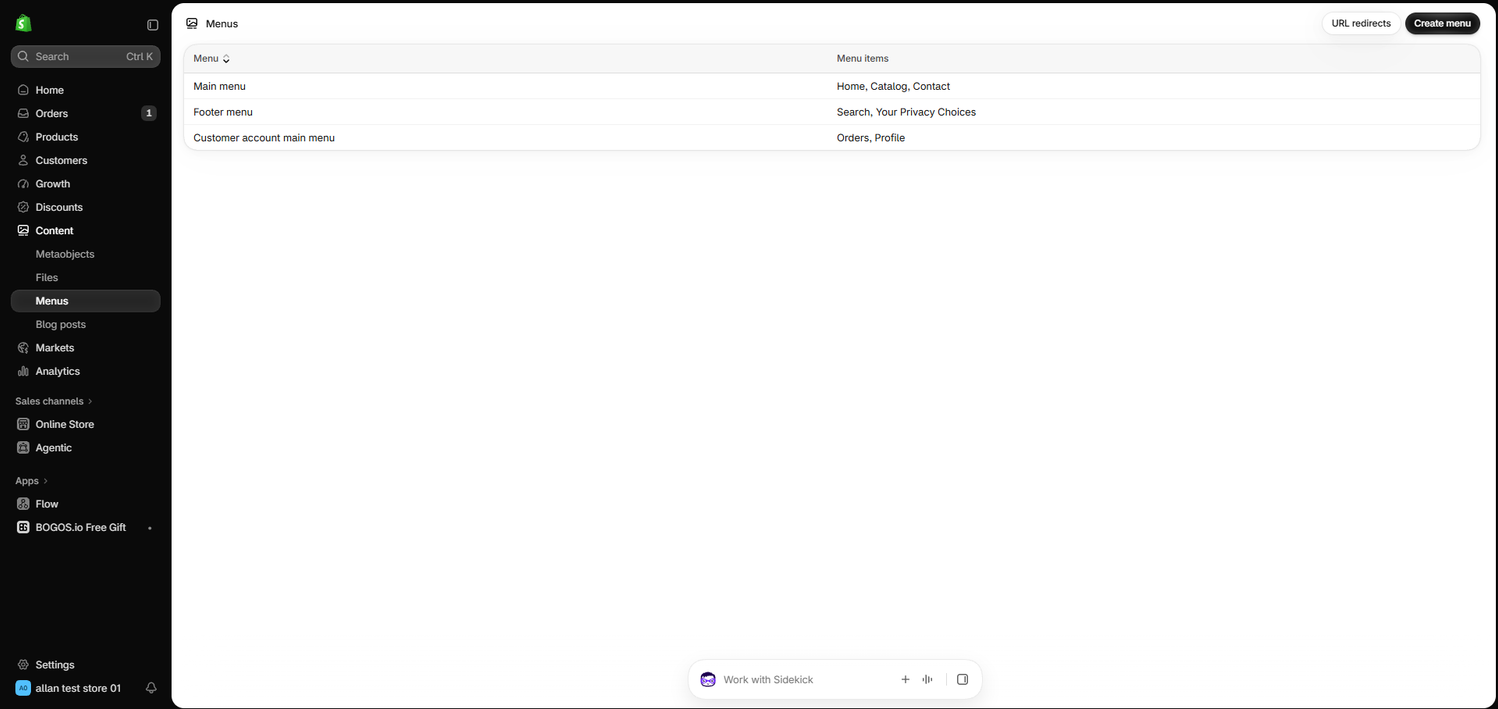
To create sub collections in the menu, drag a menu item under another item. The child collection then appears in a dropdown under the parent.
A collection list shows clickable tiles that link to several collections. A featured collection shows products from one collection directly on the page.
Give each collection a clear featured image for these tiles. Baymard’s navigation research found that 39% of sites have missing or hard-to-read subcategory thumbnails, which makes shoppers hesitate before they click.
The sort order decides which products shoppers see first when they open a collection. New collections use Most relevant by default, which Shopify bases on sales performance.
Shopify offers 6 default sort options: most relevant, best selling, alphabetical, price, product date, and manual. To change it, open the collection, click the Default sort drop-down in the Collection items section, choose an option, and click Save.
If you choose Manually, you can drag products into place or move selected products to the top. You can also ask Shopify Sidekick to reorder products with a prompt such as “Move the linen tote to the end of my Summer Sale collection,” according to Shopify‘s collection layout guide.
Sorting by price uses each product’s base price. Markets and B2B catalog prices don’t change the order, so a price sort can look out of order to shoppers in other markets.
You can give one collection a different page design by creating a new collection template in the theme editor and assigning it to that collection.
A custom template works well for sale, seasonal, or launch collections that need extra content above the product grid.
Shopify collection filters let shoppers narrow a collection by price, size, color, brand, and other attributes. You add them with the free Shopify Search & Discovery app, and your theme must support filters to show them.
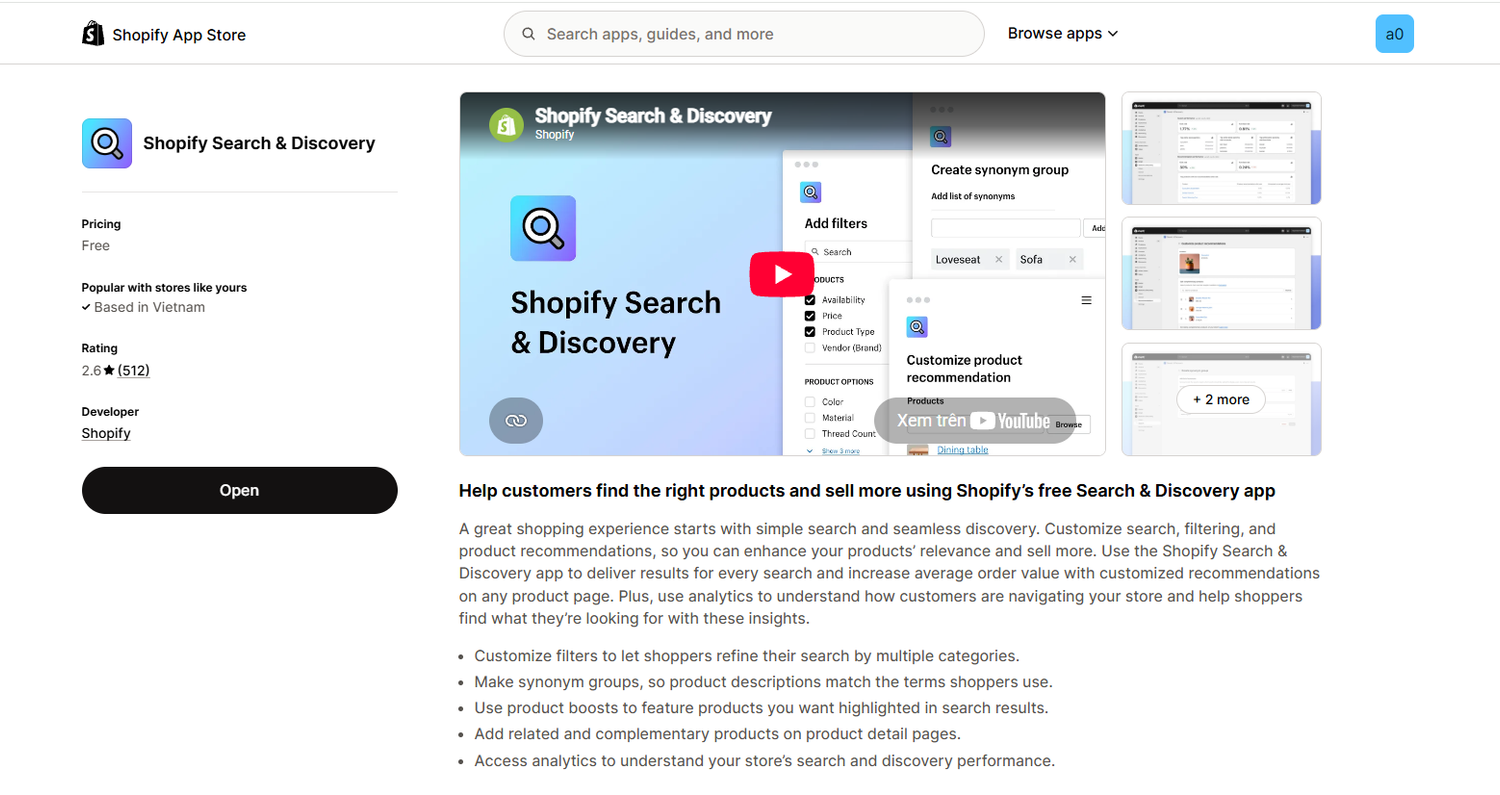
Every store gets 6 standard filters: availability, category, price, product type, tags, and vendor. You can add custom filters from product options and metafields, up to 25 filters in total.
Filters are worth the setup time. Baymard’s product list benchmark found that 51% of sites don’t offer all 5 essential filter types: price, user rating, color, size, and brand.
Filters don’t show on collections with more than 5,000 products, and the price filter only shows in your store’s default currency.
Collections, tags, product types, and product categories all group products, but only collections create a page that shoppers can browse.
| Field | What it is | Who sees it | How it helps collections |
|---|---|---|---|
| Collection | A group of products with its own page | Shoppers | It is the page shoppers browse and filter |
| Tag | A free-text keyword you add to products | Mostly you, and shoppers only if you add a tag filter | Tag conditions fill automated collections |
| Product type | A custom label for what the product is, such as “Sweater” | Mostly you | Type conditions and the product type filter |
| Product category | A category from Shopify’s Standard Product Taxonomy | Mostly you | Category conditions, category filters, and standard attributes such as color |
A simple system works for most stores. Set a product category and type for every product, use tags for campaigns and special groups, and let collections pull from those fields.
Organize collections around how shoppers search: a few broad parent collections, clear sub collections under each, and filters for details like size or color.
Keep each level short. Baymard’s navigation research found that test users felt overwhelmed when they saw more than about 10 subcategory options, and Baymard recommends splitting a level at around 10 categories.
Keep each collection full enough to browse. Baymard recommends at least 10 products in each category at the deepest level.
Use filters instead of near-duplicate collections. Baymard found that 79% of sites create separate categories where filters would work better, such as separate “Skinny jeans” and “Slim jeans” pages instead of one “Jeans” collection with a Fit filter.
Name collections with the words shoppers use. “Winter coats” is clearer than a creative name like “Cold front.”
Use unpublished collections for work behind the scenes. Shopify lets you hide a collection from all sales channels and use it only in the admin, for example to apply a tax override or a discount to a group of products.
A simple 3-level example for a clothing store is Women > Tops > T-shirts, with size, color, and price as filters on the T-shirts page.
Collection pages can rank on Google for broad category searches like “linen shirts,” so each collection needs its own page title, meta description, and URL handle. You edit all 3 in the Search engine listing section of the collection.
The character limits and handle advice come from Shopify’s collection settings guide.
A collection page converts better when shoppers see the right products first and can compare them without opening every product page.
Shopify’s built-in sort menu covers price, best selling, and date, so a rating sort usually needs a reviews app. Baymard found that 68% of desktop sites and 69% of mobile sites don’t offer all 4 essential sort types.
Offer banners on collection pages also encourage shoppers to add more items, which is one of the tactics in our breakdown of Shopify average order value.
Collections let you apply one promotion to a whole group of products. You set up the offer once, and every product in the collection follows it.
Shopify’s built-in discounts can apply to specific collections, so a “20% off Summer sale” discount covers every product in that collection. Shopify suggests an unpublished collection when you need a product group only for a discount.
Collections also help you keep products out of a sale. The collection method is shown step by step in our guide on how to exclude products from a discount on Shopify, and a similar setup lets you block discount codes from applying to sale items.
Collections make gift-with-purchase and Buy X Get Y offers easier to manage, because the offer updates when products join or leave the collection. Shopify’s built-in Buy X Get Y discount lets you choose specific collections as the products customers must buy.
Apps add more options for these offers. In BOGOS, for example, a gift offer can count only products from selected collections toward the spend or quantity goal, or count everything except selected collections, according to its help docs. Its quantity rules also support offers like “buy at least 2 items from Collection A and 1 from Collection B to get a gift.”
If you are planning your first offer, our Shopify free gift with purchase guide covers gift strategy, and the walkthrough on Shopify Buy X Get Y discounts covers the setup options.
A mix and match bundle lets shoppers pick a set number of items from a collection for one bundle price, such as any 3 candles for $45. When your bundle tool pulls choices from a collection, adding a new candle to that collection adds it to the bundle options.
You can see setup methods and app options in our guide to the Shopify mix and match bundle. Other formats, such as fixed bundles and build-your-own boxes, are covered in our overview of Shopify product bundles.
Seasonal and sale collections let you launch a campaign page on a set date and hide it when the campaign ends.
Schedule the publish date in the collection’s sales channel settings, so a Black Friday collection goes live at the exact hour your sale starts. Hide the collection after the sale instead of deleting it, because deleting removes it permanently and also removes its menu links.
For a sale collection that updates on its own, add the condition “Compare-at price is set.” Shopify includes a product only when all its variants have a compare-at price, so check the variants if a sale product is missing.
Shopify sets 8 limits that matter most for collections and collection filters.
| Limit | Maximum |
|---|---|
| Conditions in one collection | 60 |
| Collections with conditions in one store | 5,000 |
| Collections that contain another collection | 50 |
| Collections that exclude another collection | 5 |
| Collections that contain variants | 100 |
| Filters in one store | 25 |
| Products in a collection before filters stop showing | 5,000 |
| Values shown in one filter on your store | 100 |
These limits come from Shopify’s guide to creating collections, its collection conditions guide, and its Search & Discovery filters guide.
Shopify collections turn a long product list into pages that shoppers can browse, filter, and buy from. The right collection type depends on your catalog: manual for curated picks, automated for growing catalogs, and sub, nested, or variant collections for more detailed structures.
Start with a few clear parent collections, fill them with conditions where you can, and add each one to your menu. Then add filters, write a unique title and description for each collection page, and put your best sellers first.
Once your collections are in place, use them to run offers on whole product groups. Shopify’s built-in discounts handle simple cases, and apps such as BOGOS add collection-based free gifts, bundles, and discounts when you need more control. For more ways to grow revenue from the traffic you already have, see our guide on how to increase sales on Shopify.
A product can be in as many collections as you need. If 2 sources inside the same collection add the same product, Shopify shows it only once.
Shopify sets no minimum, but Baymard recommends at least 10 products in each lowest-level category so shoppers have enough to compare. A smaller collection can still work when it matches a clear shopper need, such as a 4-item gift set.
Shopify lists collections as a feature of the Basic plan and higher, so the Starter plan doesn’t include them. Starter stores that need collection pages can upgrade to the Basic plan.

A Shopify announcement bar is the thin strip at the top of your store that tells shoppers about shipping,...

Australia is one of the first markets many Shopify stores expand into. It is large, English-speaking, and home to...
Canada is a promising international market for Shopify merchants, especially those shipping from the US. But reaching Canadian shoppers...