


Charlie Ngo
•
Last updated: 29 October, 2026
Shopify Best Sellers Collection: 4 Ways to Set It Up (2026)
Most Shopify stores need a best sellers page, but Shopify can’t build one that updates by itself. In this...
Shopify Featured Collections: How To Add & Customize (2026 Guide)

Marketing Manager
Summarize this post with AI
A featured collection is often the first group of products a shopper sees on a Shopify store, yet the section looks and works differently from theme to theme. This guide shows you how to add one, which settings Dawn and Horizon give you, what to feature, and how to fix a section that won’t show products. I’m Charlie Ngo, Marketing Manager at BOGOS, and I checked every setting below against Shopify’s current Dawn and Horizon themes and the Shopify Help Center.
A Shopify featured collection is a theme section that displays products from one collection directly on a page, with product images, titles, and prices. Shoppers open a product straight from the section, without visiting the full collection page first.
Most merchants place it on the homepage. You can also add it to product pages, collection pages, and custom pages, because sections work on every page except gift card and checkout pages, according to the Shopify Help Center.
The section only displays a collection. You build the collection itself in Products > Collections, where you choose between manual and automated Shopify collections and add your products.
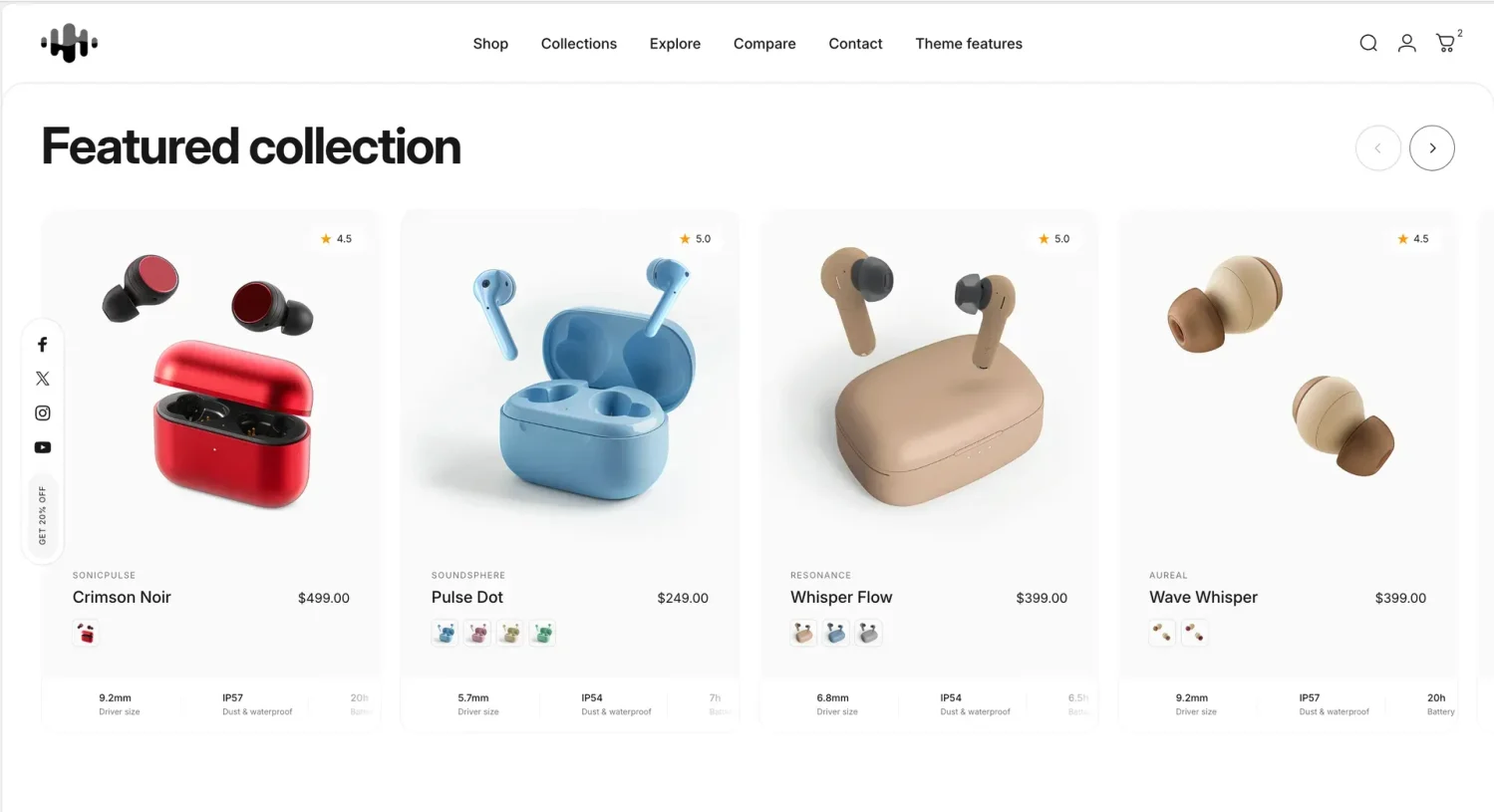
Shopify themes offer 3 sections for showing products on a page: featured collection, collection list, and featured product. Each one sends shoppers to a different place.
| Section | What it shows | What shoppers click | Best for |
| Featured collection | Product cards from 1 collection | A product, or “View all” to open the collection | Pushing a set of products, such as bestsellers or a sale |
| Collection list | Image tiles for several collections | A collection page | Showing the range of categories you sell |
| Featured product | 1 product with its images, price, and buy button | Add to cart, right on the page | Promoting a single hero product or a launch |
Many stores use all 3 on one homepage. One simple layout puts a collection list near the top, a featured collection of bestsellers below it, and a featured product for a new launch further down.
Featured collections help sales in 2 ways: they show shoppers what you sell, and they shorten the path to a product page.
Shoppers judge your product range from the homepage. Baymard Institute recommends showing 40–50% of your product types on the homepage, and its benchmark found that 22% of ecommerce sites show too narrow a range.
A narrow homepage costs sales. In Baymard’s testing, shoppers who didn’t see the product type they wanted assumed the store didn’t carry it.
A featured collection also cuts clicks. A shopper goes from the homepage to a product page in 1 click, instead of opening a menu and then a collection page. Removing steps before the product page is one of the simplest ways to lift your Shopify conversion rate.
Most Shopify themes already include a featured collection section, so you add it in the theme editor without an app or code. Shopify’s free themes, Dawn and Horizon, both include it, and most paid themes on the Shopify Theme Store include one too.
Paid themes often give the section extra layouts or split it into several sections. For example, Stiletto, a $380 theme from Fluorescent, offers a Featured collection grid section and a Featured collection slider section that lets shoppers switch between several collections in one row.
To see which theme you use, go to Online Store > Themes, where Shopify shows your current theme’s name and version. The steps below cover Dawn and Horizon, and most other themes follow the same pattern with their own section names.
Check 2 things before you start:
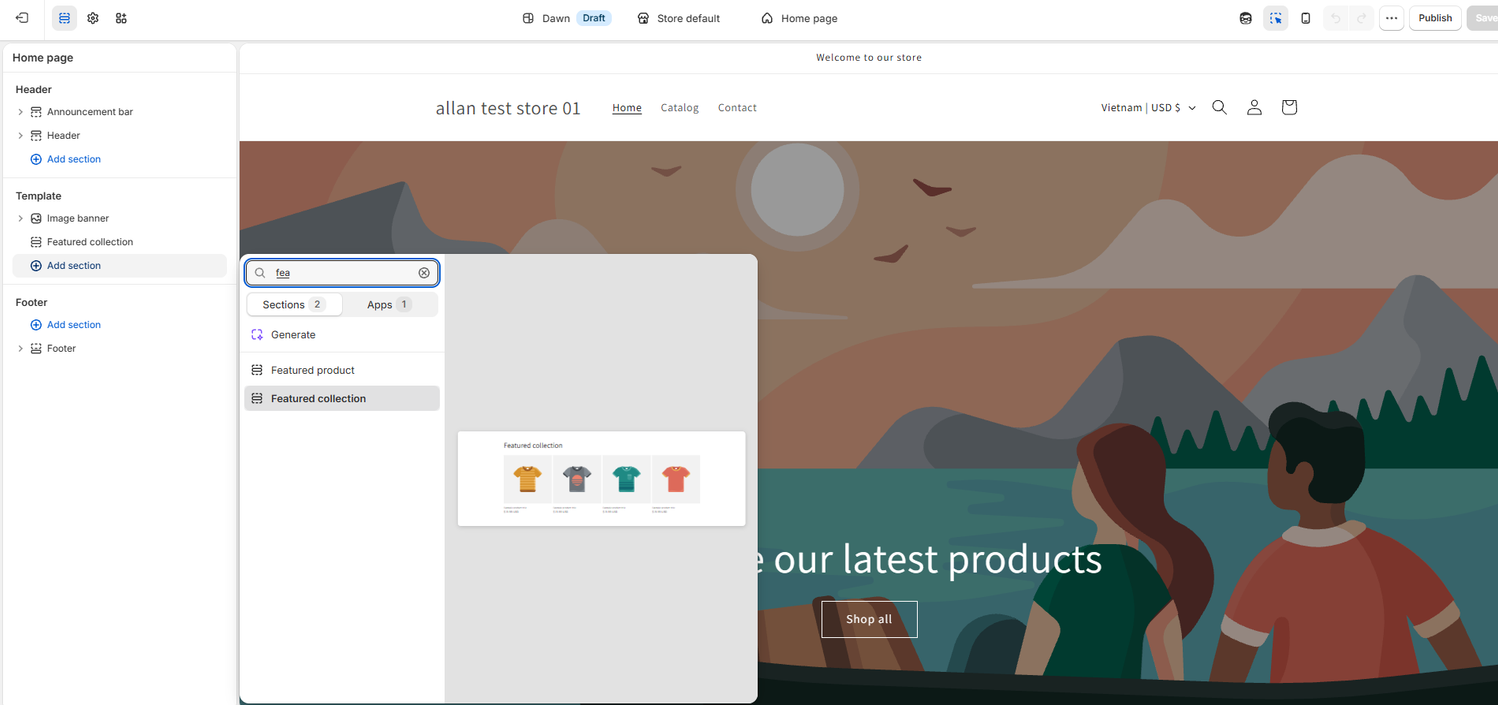
Horizon shows the collection’s own title as the section heading, so a clear collection title saves you an extra edit. Older Horizon versions named this section “Product list,” so look for that name if Featured collection is missing from the Add section menu.
In both themes, drag the section in the left sidebar to move it up or down the page. Placing the first featured collection right below the hero banner lets shoppers see products without scrolling far.
You add a second featured collection by repeating the same steps and picking a different collection. Each page template holds up to 25 sections, so a homepage has room for several featured collections.
Each section shows 1 collection. A homepage with Bestsellers, New arrivals, and Sale collections needs 3 separate featured collection sections.
Dawn and Horizon give you different settings for the same section: Horizon offers more layouts, and Dawn offers more product card checkboxes.
For example, Dawn offers 9 groups of settings for its featured collection. The settings below come from Dawn version 16 – the current versions listed on the Shopify Theme Store in October 2026.
| Setting | Options |
|---|---|
| Product count | 2–25 products (default 4) |
| Heading and description | Your own heading text, heading size, and an optional collection description |
| Columns | 1–6 on desktop (default 4) |
| Carousel | Turns the product row into a slider on desktop |
| “View all” button | Link, outline button, or solid button |
| Image ratio and shape | Adapt to image, portrait, or square, plus shapes such as arch, round, and diamond |
| Product card extras | Second image on hover, vendor name, and product rating |
| Quick add | None, Standard, or Bulk |
| Mobile layout | 1 or 2 columns, plus a mobile carousel |
Quick add lets shoppers add a product to the cart from the homepage. The Bulk option lets shoppers choose quantities for several variants at once, such as 3 sizes of one shirt.
Horizon offers 3 layouts for the same section, and each layout fits a different goal.
You change the collection in the theme editor, and you change the product order in the collection itself.
Swapping the section only changes which collection appears. To rename the collection or add products, edit it in Products > Collections.
A featured collection shows products in the same sort order as the collection. Shopify’s collection layout guide confirms that featured collections follow the sort order you set, and new collections use Most relevant by default.
Shopify offers 6 sort options: most relevant (based on sales performance), best selling, alphabetical, price, product date, and manual. On a new store with no orders, Best selling sorts products from newest to oldest.
To change the order, open the collection in Products > Collections, click the Default sort drop-down in the Collection items section, choose an option, and click Save. With Manually, you drag products into place, so the 4 products your section shows are the exact 4 you choose.
You can also ask Shopify Sidekick to reorder products, with a prompt such as “Move the linen tote to the end of my Summer Sale collection.”
An automated collection keeps a featured collection current without manual edits. For example, a New arrivals collection with the condition “Tag is equal to new” adds a product the moment you tag it, and sorting by product date puts the newest items first.
Use Shopify smart collections for any featured collection you change often, such as new arrivals, sale items, or a seasonal edit.
The 5 strongest collections to feature are bestsellers, new arrivals, seasonal campaign collections, gift-with-purchase or bundle collections, and high-margin products.
Mix product types across your featured collections. Baymard’s 40–50% guideline applies to the homepage as a whole, so 3 featured collections from 3 different categories show more of your range than 3 collections from 1 category.
6 habits help a featured collection drive more clicks and orders: high placement, the right product count, a mobile-first layout, consistent images, quick add, and a visible next reward.
Most featured collection problems come from 6 causes: product availability, an empty section, collection size, sort order, the section’s product limit, and unsaved changes.
A featured collection is one of the simplest ways to put the right products in front of shoppers on your homepage. Pick a collection with a clear goal, check that its products are on the Online Store sales channel, and set the sort order in the collection itself.
Match the setup to your theme. Dawn shows up to 25 products with detailed product card options, and Horizon shows up to 16 products in Grid, Carousel, or Editorial layouts.
Swap in seasonal, gift, and bundle collections before each campaign. Your homepage will keep pointing shoppers to the products that help you increase sales on your Shopify store.
You can add a featured collection to a product page, because Shopify sections work on every page except gift card and checkout pages. A featured collection of matching items below the main product is a simple form of Shopify cross-selling.
A featured collection shows up to 25 products in Dawn and up to 16 products in Horizon. Both themes show 4 products by default.
A featured collection updates itself when you feature an automated collection. Products that match the collection’s conditions, such as a tag or product type, appear in the section without any theme edits.

Most Shopify stores need a best sellers page, but Shopify can’t build one that updates by itself. In this...

Shopify smart collections add and remove products for you based on rules, such as a tag, a price, or...
Shopify collections decide how shoppers find your products, yet many guides still describe a setup Shopify is now replacing....