


Charlie Ngo
•
Last updated: 23 October, 2026
Shopify Smart Collections: Setup, Conditions & 8 Examples (2026 Updated)
Shopify smart collections add and remove products for you based on rules, such as a tag, a price, or...
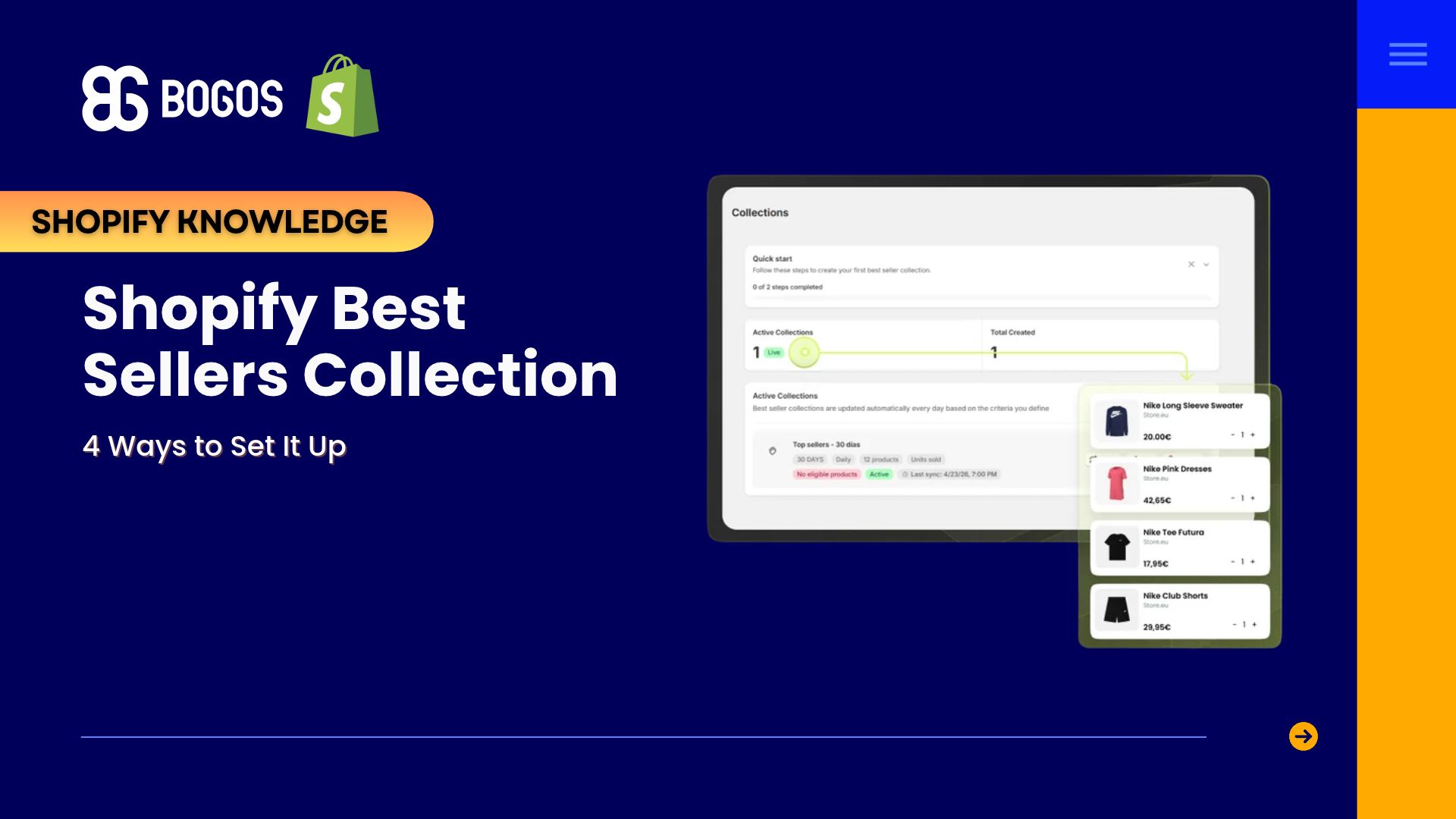
Shopify Best Sellers Collection: 4 Ways to Set It Up (2026)

Marketing Manager
Summarize this post with AI
Most Shopify stores need a best sellers page, but Shopify can’t build one that updates by itself. In this guide, I explain how Shopify ranks best sellers, 4 ways to create the collection, where to show it, and how to use best sellers to sell newer products. I’m Charlie Ngo, Marketing Manager at BOGOS. I checked every step against Shopify’s current Help Center and backed each claim with published research.
A Shopify best sellers collection is a collection page that shows the products your customers buy most, ranked from most popular down. Shoppers usually reach it through a “Best sellers” link in the main menu or a section on the homepage.
A best sellers collection is different from sorting a collection by best selling. Sorting only changes the order of products on an existing page, such as “Skincare.” A best sellers collection is its own page, with its own name, link, and place in your menu.
Here is a simple example. A candle store with 60 products creates a “Best sellers” page that shows its 8 most-ordered scents. A first-time visitor clicks “Best sellers” and sees the scents other customers chose most.
If you are new to collections, my guide to Shopify collections explains how they work and which types Shopify offers.
A best sellers collection helps your store in 3 ways: it gives new shoppers a starting point, it raises demand for the products it lists, and it helps niche products get noticed. All 3 effects serve the same goal of turning more visitors into buyers, which is the core of Shopify conversion rate optimization.
New visitors often look for popular products first when they land on an unfamiliar store. The Baymard Institute recommends a “Best sellers” category for this reason. In its usability testing, a promoted best sellers category gave shoppers a clear path to relevant products and a good starting point for exploring the store.
Baymard found this matters most for younger brands and direct-to-consumer stores. These are exactly the stores where visitors know the least about the product range.
Shoppers also treat “best selling” as a quality signal. In Baymard’s sorting research, users chose the “Best-Selling” sort when they were unfamiliar with a product type. Some users who doubted star ratings used “Best-Selling” as the more trustworthy option.
Labeling products as popular increases how often people buy them. In a randomized field experiment published in the American Economic Review, researchers Hongbin Cai, Yuyu Chen, and Hanming Fang showed restaurant diners the 5 most popular dishes. Demand for those 5 dishes rose by 13–20%.
The popularity label made the difference. When the researchers listed dishes only as “sample dishes,” demand stayed about the same. A “Best sellers” heading does the same job on your store: it tells shoppers that other customers already chose these products.
Best sellers are one of the easiest forms of social proof on Shopify to set up, because Shopify already tracks the sales data for you.
Popularity information helps niche products the most. A field experiment published in Management Science by Catherine Tucker and Juanjuan Zhang found that niche vendors gained more visits than equally popular mainstream vendors once a website started showing popularity information.
The researchers explain the reason. When a niche product reaches the same popularity as a mainstream product, shoppers read it as a sign of higher quality. This is good news for small Shopify stores that sell specialized products.
Shopify ranks best sellers with one rule: the “Best selling” sort orders products by the total number of orders that included each product. Four details of this rule shape every method in this guide.
Shopify’s collection sort documentation states that the Best selling sort uses the all-time number of orders that include each product. A product that sold well 3 years ago can still rank above a product that sells well today.
If your store has no sales yet, the Best selling sort lists products from newest to oldest.
The Best selling sort counts each order once, no matter how many units the order contained.
T-shirt A appears in 5 orders with 1 unit each, so it sells 5 units. T-shirt B appears in 3 orders with 2 units each, so it sells 6 units. Shopify still ranks t-shirt A higher because it appears in more orders.
New collections start with the “Most relevant” sort, which Shopify describes as sorting by sales performance. To rank a collection by orders, you need to change the sort to “Best selling” yourself.
Shopify collection conditions match products by title, type, vendor, category, tags, status, price, compare-at price, weight, inventory, and metafields, according to Shopify’s conditions guide. None of these conditions uses sales.
This means Shopify can sort products by sales, but it can’t choose which products enter a collection based on sales. Each method below solves this gap in a different way.
You can find your best sellers in Shopify’s “Total sales by product” report, which lists every product with its sales for the dates you choose. Shopify renamed this report from “Sales by product” in its updated analytics, and sales reports are included from the Basic plan up.
Follow these 5 steps:
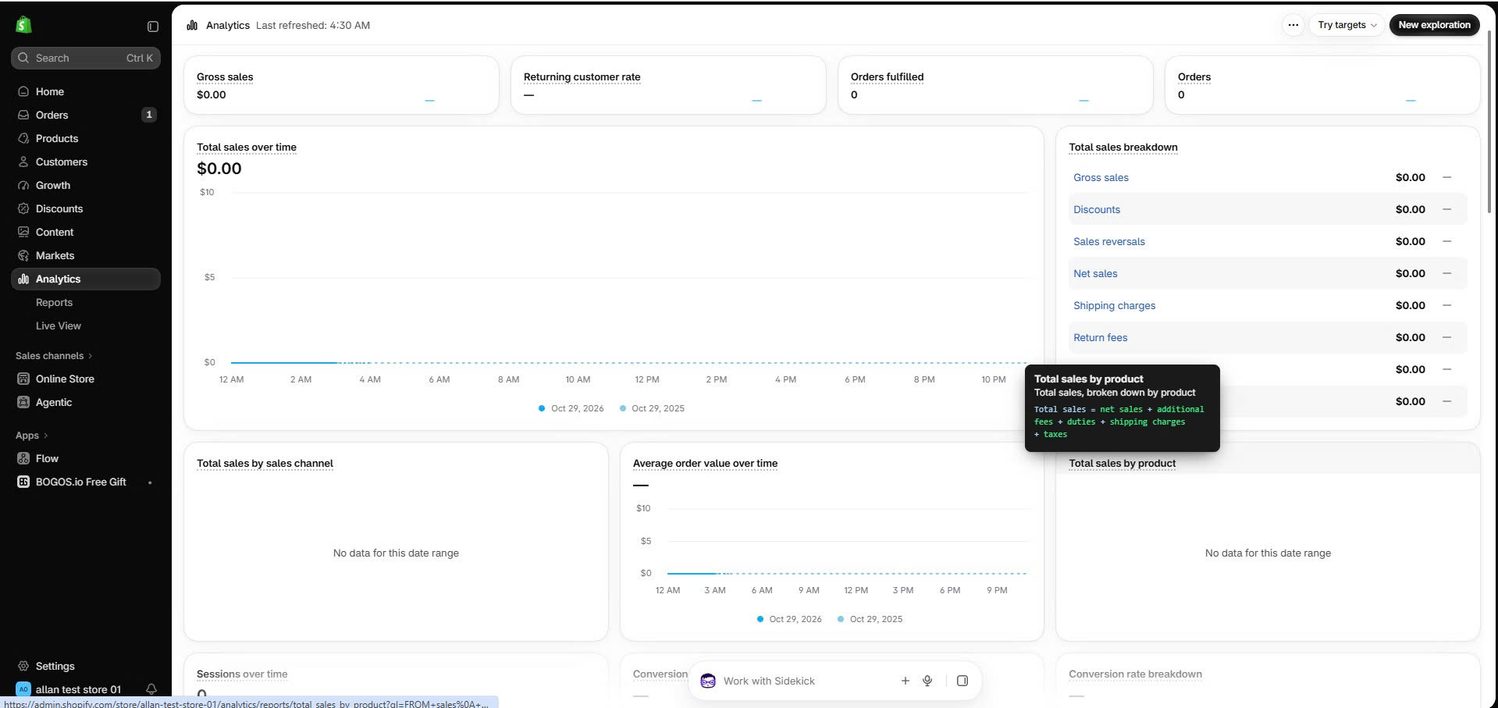
Net items sold counts the units customers kept after returns. This number answers the question the Best selling sort ignores: how many units of each product actually sold in a recent period.
There are 4 ways to create a best sellers collection on Shopify: sort a collection by best selling, build a manual collection from your sales report, automate the collection with Shopify Flow, or use a best sellers app. The table below compares them.
| Method | Setup effort | Updates on its own | Ranks by recent sales | Cost |
|---|---|---|---|---|
| Sort a collection by best selling | Low | Yes | No, it uses all-time orders | Free |
| Manual collection from your sales report | Low, plus a monthly refresh | No | Yes, you choose the report dates | Free |
| Shopify Flow | High | Yes, once the workflow is built | Yes, if the workflow is built for it | Free on Basic and above |
| Best sellers app | Low | Yes | Yes | Free plan to paid monthly plans |
Sorting a collection by best selling is the fastest way to create a best sellers page, and it needs no app. The collection includes your whole active catalog, and Shopify places the most-ordered products at the top.
Follow these 7 steps in the new collections model:
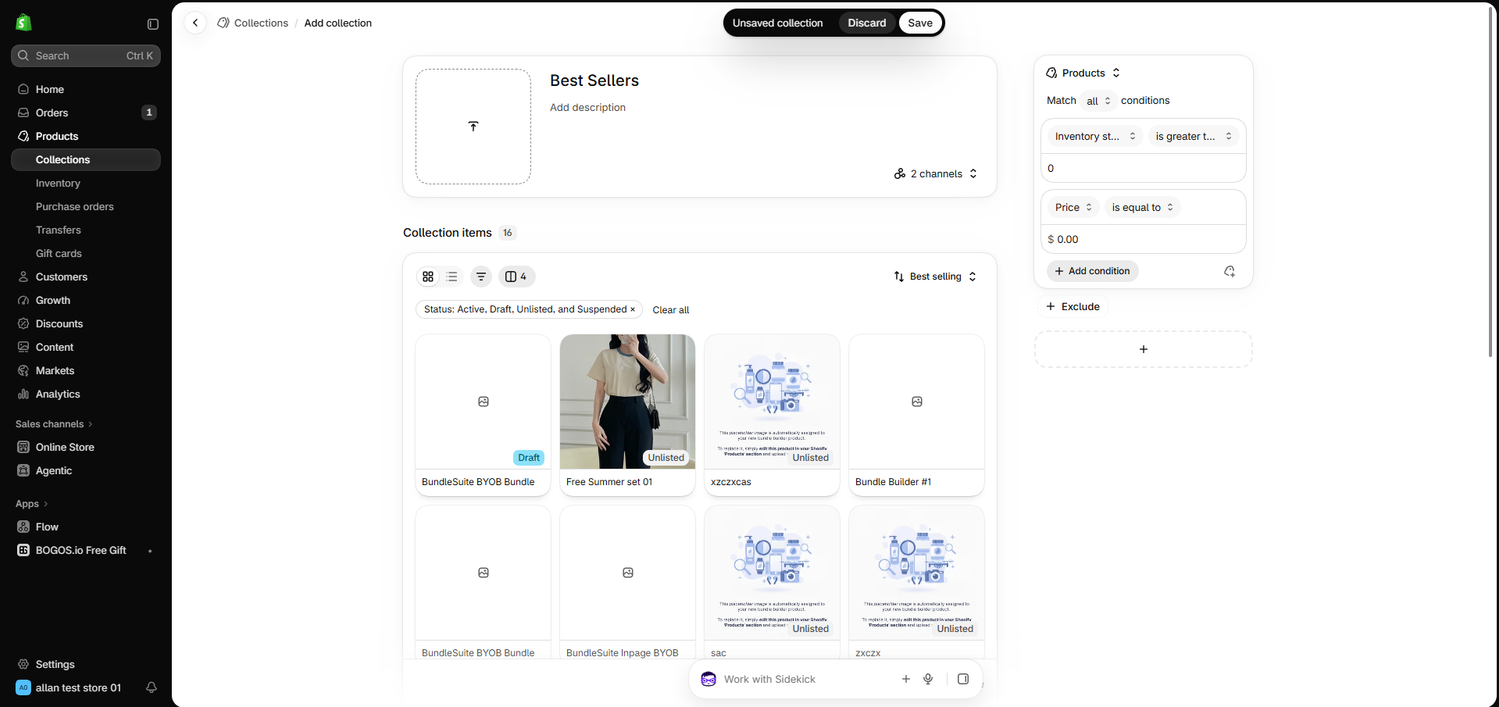
Step 3 keeps sold-out products off the page. Shopify counts a product as in stock when any one of its variants has stock, so a shirt with only one size left still appears.
Step 4 keeps $0 items, such as free samples, out of the list. Step 5 removes gift cards, which can rank high because many customers buy them.
This method has one limit: the ranking uses all-time orders, so older products tend to stay at the top. It works best for stores whose top products stay steady from year to year. If your admin still uses the legacy model, my guide to Shopify smart collections shows how to set the same conditions there.
A manual collection lets you choose exactly which products appear, based on your sales report for a recent period. This method suits small catalogs and stores that want a curated list.
Follow these 6 steps:
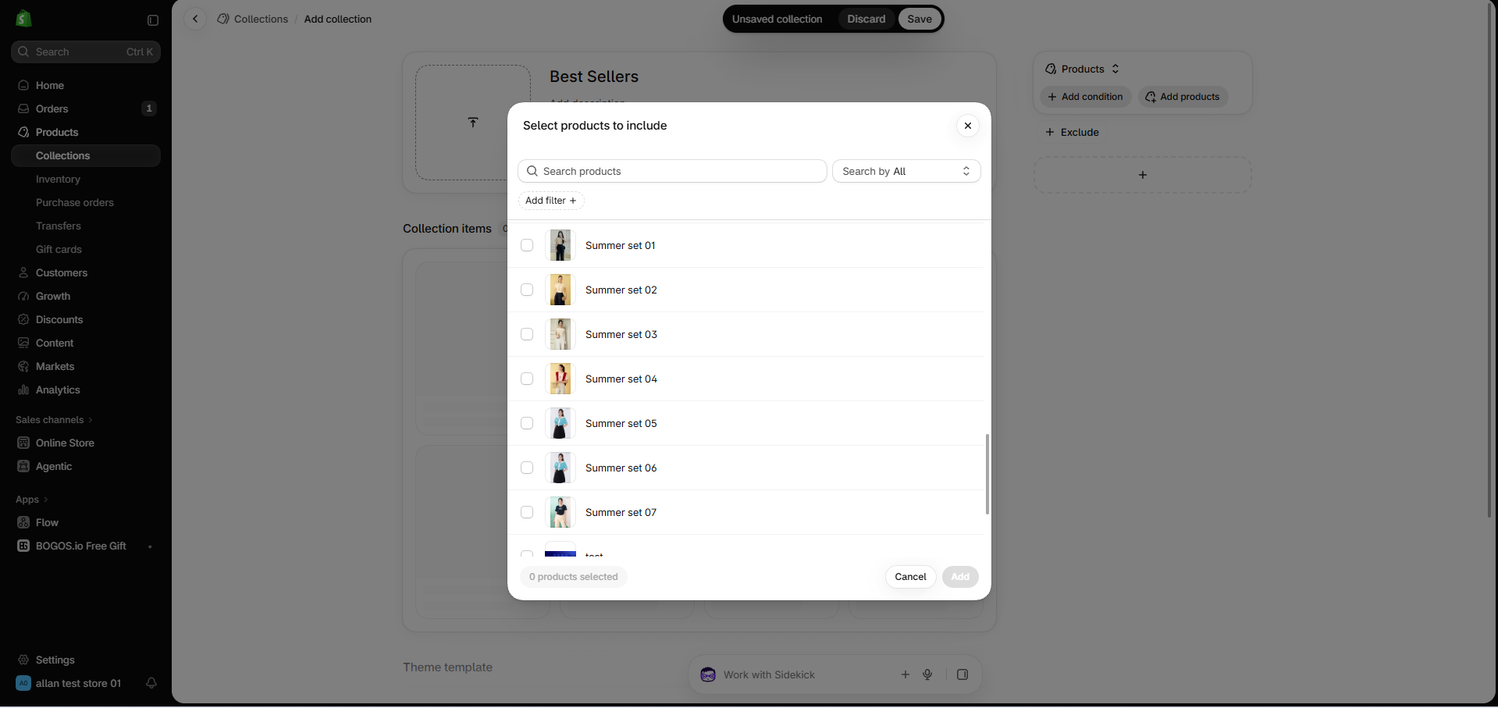
This method shows your recent best sellers, but it depends on you remembering the monthly update. A calendar reminder on the first day of each month keeps the list current.
Shopify Flow can keep a best sellers collection up to date by itself, but you need to build the workflow yourself because Shopify offers no ready-made best sellers template. Flow is a free Shopify app on the Basic, Grow, Advanced, and Plus plans.
A Flow setup for best sellers usually works in 3 parts:
This method suits stores with a developer or a Shopify Partner on hand. Stores without technical help get the same result with far less setup by using an app.
A best sellers app is the easiest way to get a collection that updates itself and ranks products by recent sales. Both apps below can rank products by a recent period, such as the last 30 days, instead of all-time orders.
| App | Price (checked October 2026) | Rating | What it does |
|---|---|---|---|
| Beast Best Sellers | $9.99/month, 30-day free trial | 5.0 (3 reviews) | Builds best sellers collections by units sold or sales total, over the last X days or a fixed date range |
| Bestsellers reSort Collections | Free for up to 49 products; paid plans from $9.99/month | 5.0 (85 reviews) | Sorts collections by sales, revenue, stock, or margin, pushes sold-out items down, and auto-tags best sellers |
Beast Best Sellers ranks by units sold, which solves the “orders, not units” issue. It has only 3 reviews, so test it fully during the free trial.
Bestsellers reSort suits larger catalogs and stores that want every collection sorted by sales, not only the best sellers page. Its listing states that it re-sorts collections 1 to 4 times a day.
You can show your best sellers collection in 4 places: your homepage, your main menu, your product cards, and your product and cart pages. Each placement helps a different type of shopper find it.
Add a homepage section that displays your best sellers collection with 4–8 products. Most Shopify themes include a section for this, often named “Featured collection” or “Product list.”
Follow these 5 steps:
Pick best sellers from different product types when you can. Baymard found that a narrow selection of product types on the homepage led test participants to misunderstand the store or underestimate its range.
A main menu link lets shoppers reach your best sellers from any page. Shopify‘s menu guide explains the steps:
I suggest placing the link near the start of the menu. First-time visitors look there first when they want a quick overview.
Review counts make a best sellers label more convincing. The Medill Spiegel Research Center found that a product with 5 reviews is 270% more likely to be purchased than a product with no reviews.
Baymard also recommends showing both the average rating and the number of ratings in product lists. Test users trusted a rating more when it came from many reviews.
A “Best seller” badge on product cards carries the same message across your whole store. Many themes and badge apps can add this label. Keep the badge for products that truly rank in your top list, so the label stays trustworthy.
Product and cart pages can show best sellers to shoppers who are already close to buying. Shopify themes include a recommended products section, and placing a best seller next to a related item is a simple form of cross-selling on Shopify.
For example, a coffee store can show its best-selling grinder on the page for a new bean blend. The shopper sees a proven product that fits what they already chose.
4 types of best sellers collections cover most stores’ needs: overall, by category, recent, and seasonal.
Best-selling products are the easiest place to raise your average order value (AOV), because they already appear in more orders than any other product. Each tactic below turns a single best seller purchase into a bigger order.
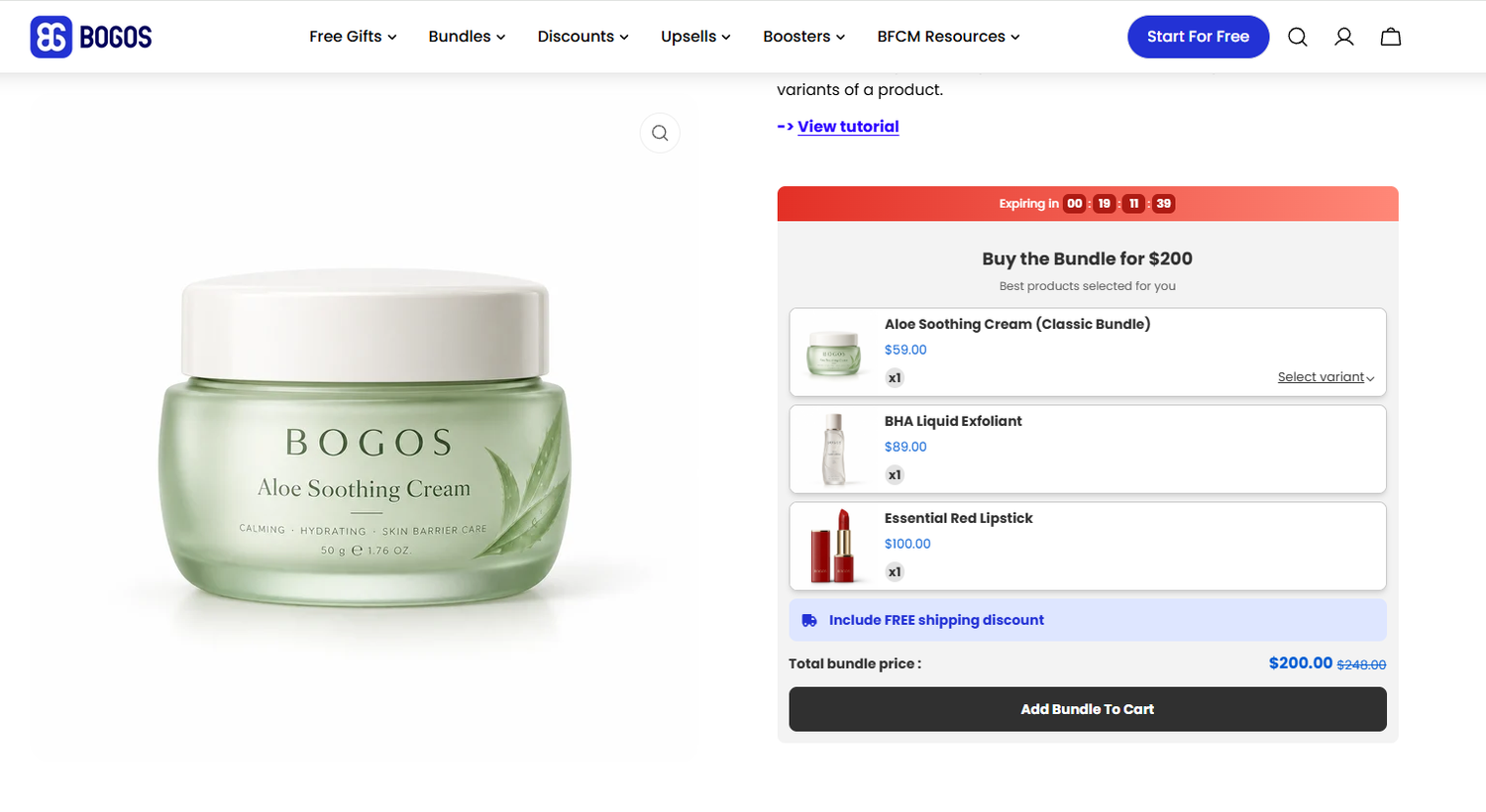
A bundle raises AOV because every bundle sale contains at least 2 items. The best partner for your best seller is a product you want to sell more of, such as a new arrival or a slow-moving item.
For example, a skincare store can pair its top-selling cleanser with a new toner and take 10% off the pair. Each bundle order is bigger than a cleanser-only order, and the toner starts building its own sales history. My guide to Shopify product bundles compares fixed and mix-and-match bundles for this setup.
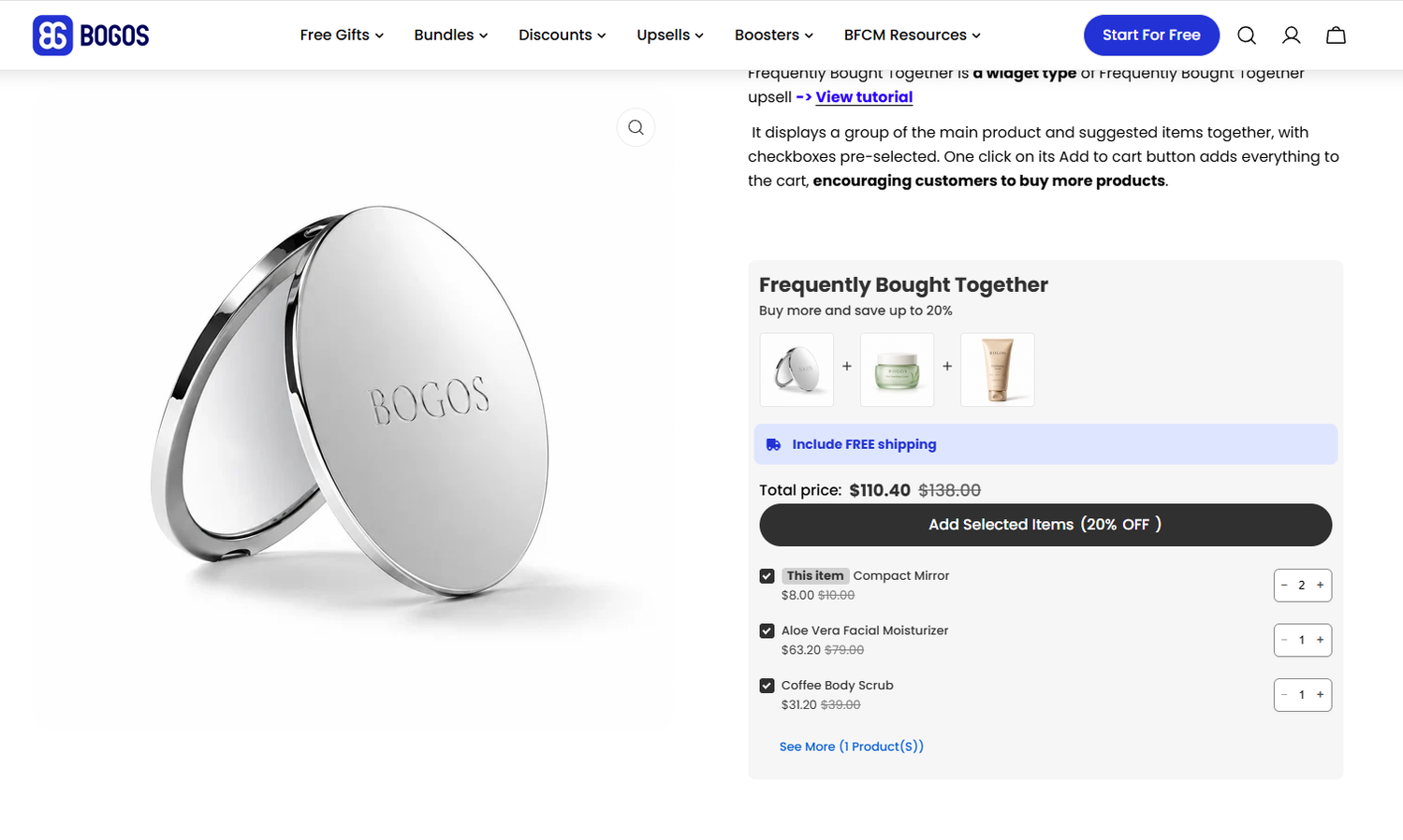
A frequently bought together offer shows 1 or 2 related products next to the best seller. Your best sellers receive the most orders, so the offer gets more chances to add a second item here than on any other product page.
Choose add-ons that complete the best seller, such as a refill, a case, or a matching accessory. My guide to Shopify frequently bought together covers how to pick these pairings.
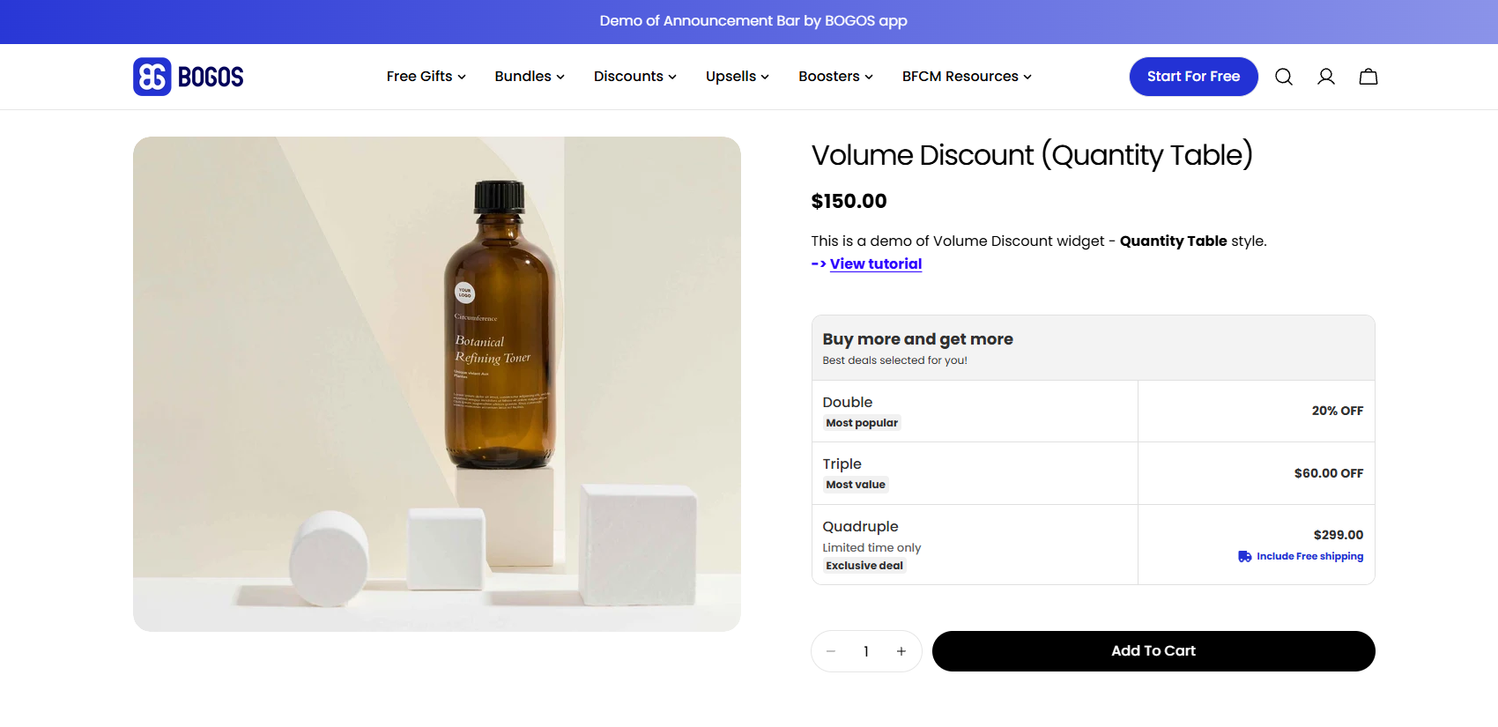
A quantity discount raises AOV by rewarding shoppers who buy more units of a product they already want. It works best for products customers use up and buy again, such as coffee, candles, supplements, or skincare.
For example, a supplement store can offer “Buy 2 tubs, save 10%; buy 3 tubs, save 15%” on its best-selling protein powder. Show the tiers close to the add-to-cart button, and set each tier so the larger order still earns you more profit.
A free gift with a spending threshold raises AOV when you set the threshold just above your best seller’s price. Shoppers who add the best seller to their cart then need one more item to reach the gift.
For example, if your best-selling candle costs $45, a free gift at $60 encourages shoppers to add a second candle or an accessory. My guide to free gift with purchase on Shopify covers this offer type in more depth, and a buy X get Y offer such as “Buy 2, get a third at 50% off” works in a similar way.
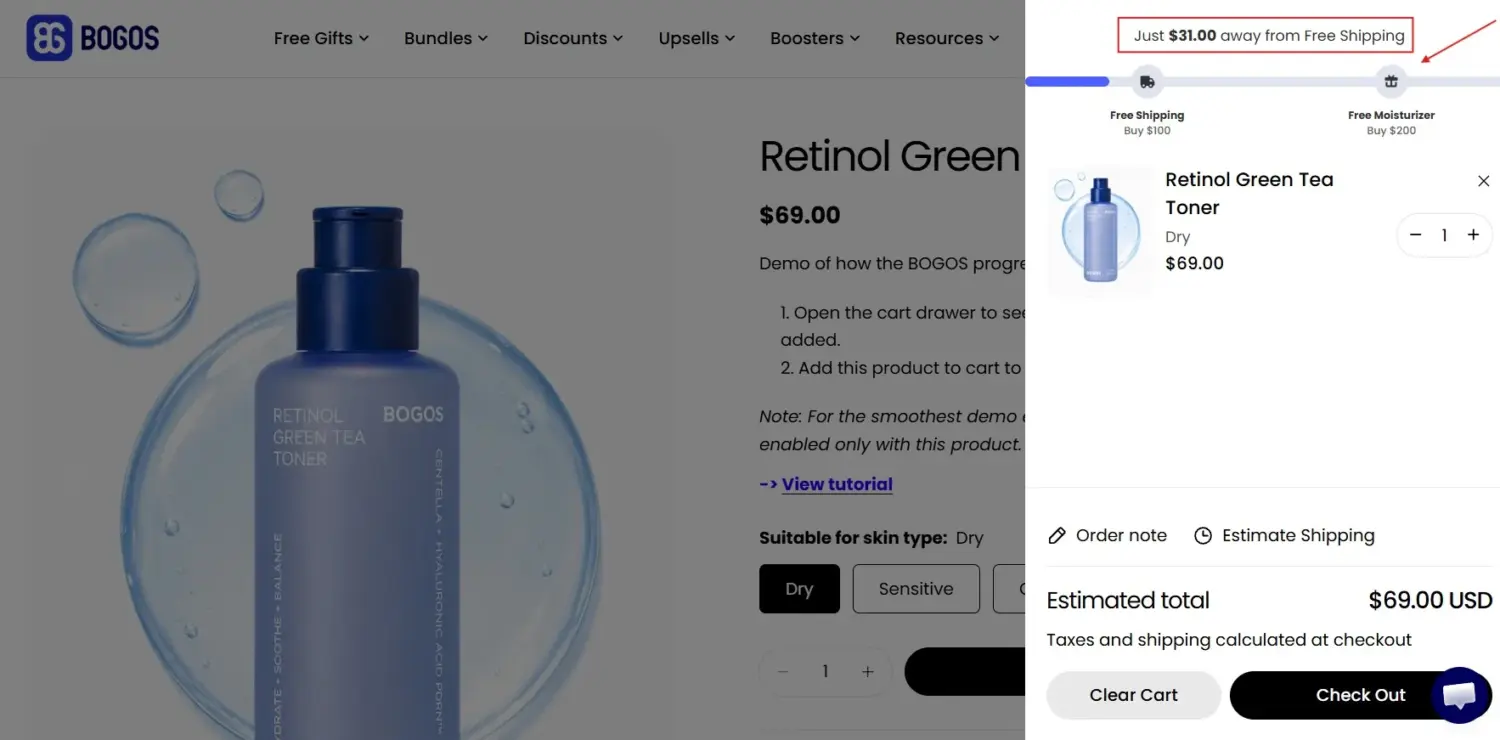
BOGOS, the Shopify app my team builds, runs all 4 of these offers from one place: bundles, frequently bought together offers, volume discounts, free gifts, and BXGY offers. Its progress bar shows shoppers how close they are to a gift threshold, and its Offers by AI feature suggests bundle pairings from your recent orders.
BOGOS has a 5.0 rating from 4,564 reviews on the Shopify App Store (checked October 2026). The free plan includes all 4 offer types for 30 BOGOS orders in total, and paid plans start at $29.99/month. Other promotion apps cover some of these offers too, so compare a few if you need a specific feature.
Five mistakes make a best sellers collection less useful: an outdated list, sold-out products, a single product type, too many products, and missing reviews.
A Shopify best sellers collection gives new shoppers a clear starting point and turns your sales data into social proof. Start with the free method: a collection that includes your in-stock products and sorts them by best selling. Move to a manual list, Shopify Flow, or an app when you need rankings based on recent sales.
Show the collection on your homepage and in your main menu, add review counts to every product card, and check the list against your sales report each month.
Then use your best sellers to sell more. Bundles, frequently bought together offers, and gift offers all help new products borrow attention from proven ones. BOGOS is one option that runs all 3 offer types in a single app. Building offers around products customers already want is a practical way to increase sales on Shopify without relying on sitewide discounts.
You should update a manual best sellers collection once a month. A collection sorted by Best selling updates its order automatically, and apps such as Bestsellers reSort re-sort collections 1 to 4 times a day, depending on the plan.
An old product stays at the top because Shopify’s Best selling sort counts all-time orders. A product with 3 years of sales can outrank a newer product that sells faster today. To fix this, rank by a recent period with the manual method, Shopify Flow, or an app.
You can see the best-selling order of most Shopify stores by adding /collections/all?sort_by=best-selling to the store’s web address. The page shows that store’s products sorted by all-time orders, so it reflects long-term popularity rather than recent sales. This works on most stores, but stores with custom setups may hide the page.

Shopify smart collections add and remove products for you based on rules, such as a tag, a price, or...
Shopify collections decide how shoppers find your products, yet many guides still describe a setup Shopify is now replacing....

A Shopify announcement bar is the thin strip at the top of your store that tells shoppers about shipping,...