

Charlie Ngo
•
Last updated: 7 October, 2026
Shopify Product Configurator: 2D vs 3D, Best Apps & Costs (2026)
Shoppers hesitate to buy a $1,200 sofa or a custom ring when they can’t see the exact version they’re...
Shopify Search & Discovery App: How to Set Up Filters, Search, and Product Recommendations

Digital Marketing Specialist
Summarize this post with AI
In a physical store, a salesperson guides customers to the right shelf. In your Shopify store, search and product discovery fill that role. When shoppers can quickly find what they’re looking for, they buy more. When they can’t, they leave.
Shopify’s Search & Discovery app is a free, built-by-Shopify tool that gives you control over four things: how customers filter products, what search results return, which products get recommended on product pages, and how you track all of it through analytics. It’s available to every Shopify merchant at no cost.
This guide walks you through how to set up each feature, practical optimization tips, where the app falls short, and when it makes sense to upgrade to a third-party alternative.
The Shopify Search & Discovery app is a free storefront tool that enhances how customers search, browse, and discover products in your online store. It doesn’t replace Shopify’s built-in search engine. Instead, it adds a layer of controls on top of it, so you can fine-tune what customers see when they search, filter, or land on a product page.
The app is divided into four sections:
The app works with any Online Store 2.0 compatible theme. Older (vintage) themes may not support filters or recommendation blocks. Custom storefronts can use the Storefront API or Liquid filter API to integrate filter functionality.
One important distinction: the app enhances search, it doesn’t rebuild it. Shopify’s core search still relies on full-text matching against product titles, descriptions, and tags. The app gives you tools to improve relevance on top of that foundation. It works on top of your existing search bar, so if you have not added one yet, start with our guide to the Shopify search bar.
Product filters are the most-used feature of the Search & Discovery app. They let customers narrow down products on collection pages and search result pages by attributes like price, size, color, brand, and availability. For stores with more than a handful of products, filters are the difference between customers finding what they want and leaving because they can’t browse efficiently.
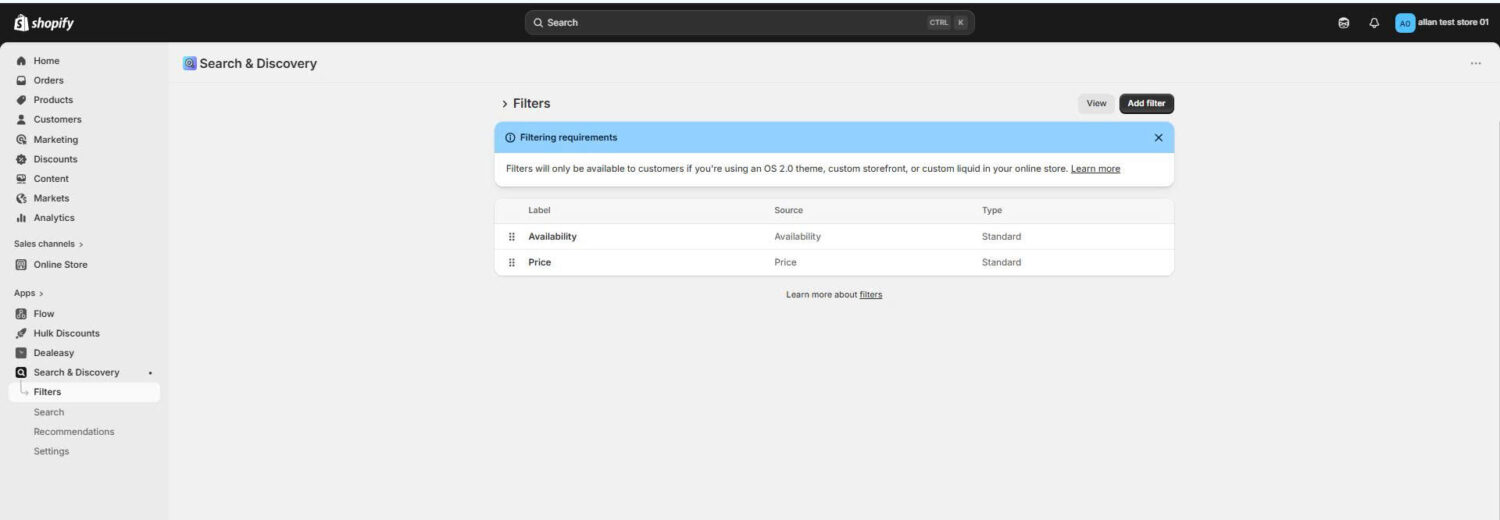
The app lets you create filters from several data sources. Each source pulls from a different part of your product data:
Metafield-based filters are where the real flexibility lives. If you’ve created a custom metafield for “fabric type” or “scent” or “compatibility,” you can turn it into a customer-facing filter. That means you’re not limited to Shopify’s default attributes.
Repeat for each filter you want to add. Shopify includes Availability and Price as preset filters. You can keep, remove, or reorder them alongside your custom filters.
Important: Filters only display on themes that support filtering. To confirm your theme is compatible, go to Content → Menus in your Shopify admin. If your theme doesn’t support filters, a message will appear in the “Collection and search filters” section.
Before you plan your filter setup, be aware of these hard limits:
Shopify’s default search matches customer queries against product titles, descriptions, and tags using full-text matching. It works, but it’s blunt. The Search & Discovery app gives you two tools to sharpen results: synonym groups and product boosts.
A synonym group is a set of words that Shopify treats as interchangeable in search. When a customer searches for any term in the group, results for all terms in that group appear.
This matters because customers don’t always use the same words you do. You might call a product a “sling bag,” but your customers search for “belt bag,” “fanny pack,” or “crossbody.” Without synonyms, those searches miss your product entirely.
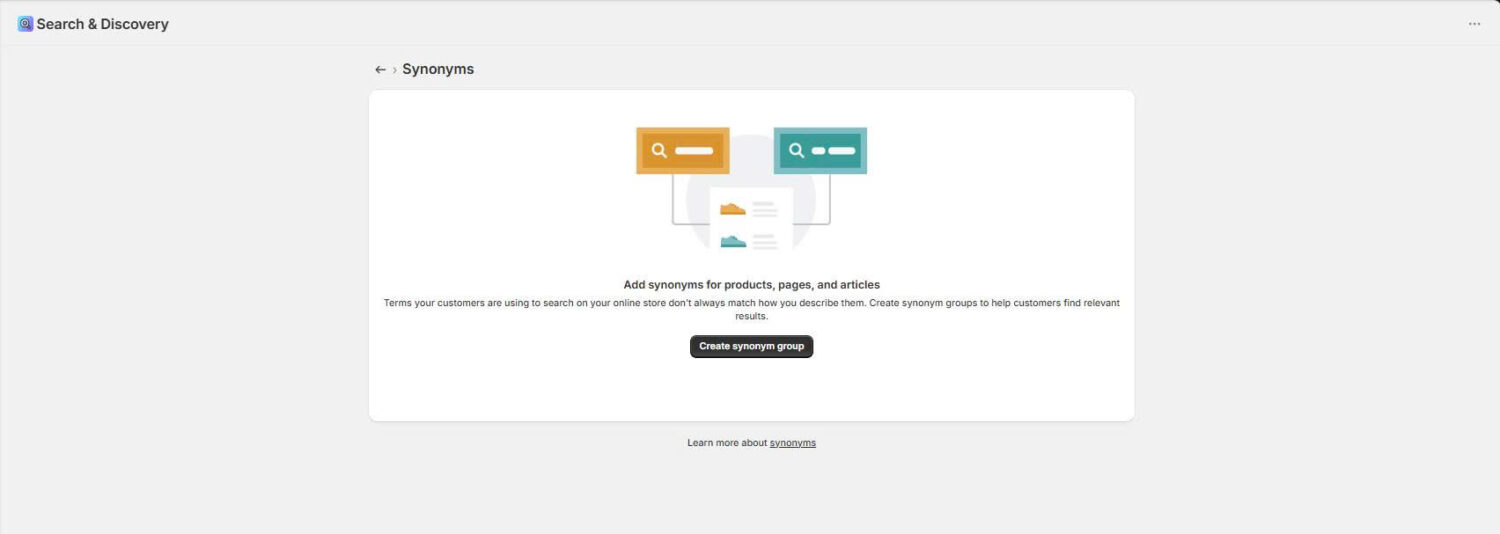
How to set up synonyms:
Where to find the right synonyms: Go to Analytics → Reports → Top online store searches in your Shopify admin. Shopify offers three search reports here. Look for search terms with low click-through or high “no results” rates. Those are your synonym candidates. If customers are searching “trousers” but your products are tagged “pants,” create a synonym group linking both.
Limits and considerations:
Product boosts let you manually push specific products higher in search results for chosen search terms. When a customer searches a boosted term, your promoted products appear near the top.
This is useful for seasonal promotions, new arrivals, or high-margin items you want more visibility for, without changing your product titles or descriptions.
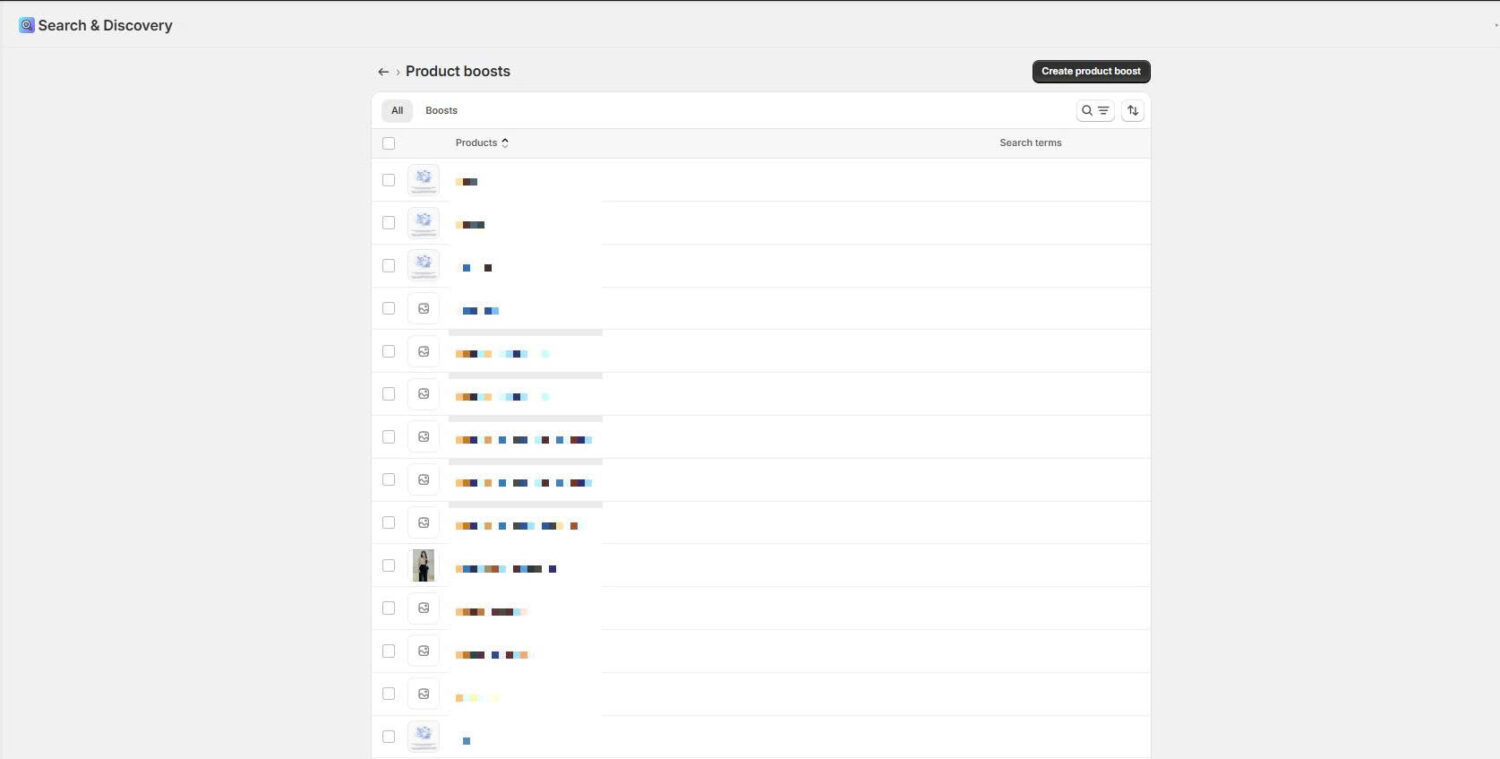
How to set up product boosts:
Important distinction: Boosts increase a product’s ranking in results, but they don’t guarantee position #1. They work alongside Shopify’s relevance algorithm. If the boosted product is only loosely related to the search term, it may still appear below more relevant results.
Tip: Use boosts temporarily for seasonal pushes or new launches, then remove them when the promotion ends. Permanently boosting everything defeats the purpose and clutters your results. If you find yourself creating boosts to compensate for poor search relevance, synonyms are usually the better fix.
If your search needs go beyond synonyms and boosts (AI-powered intent matching, automated merchandising rules, scheduled promotions in search), the Limitations section below covers when to consider an upgrade.
The Recommendations section of the Search & Discovery app controls which products appear in the “Recommended products” and “Frequently bought together” sections on your product pages. Before this app, those sections were entirely algorithm-driven. Now you can manually assign two types of recommendations per product, and your selections override the algorithm.
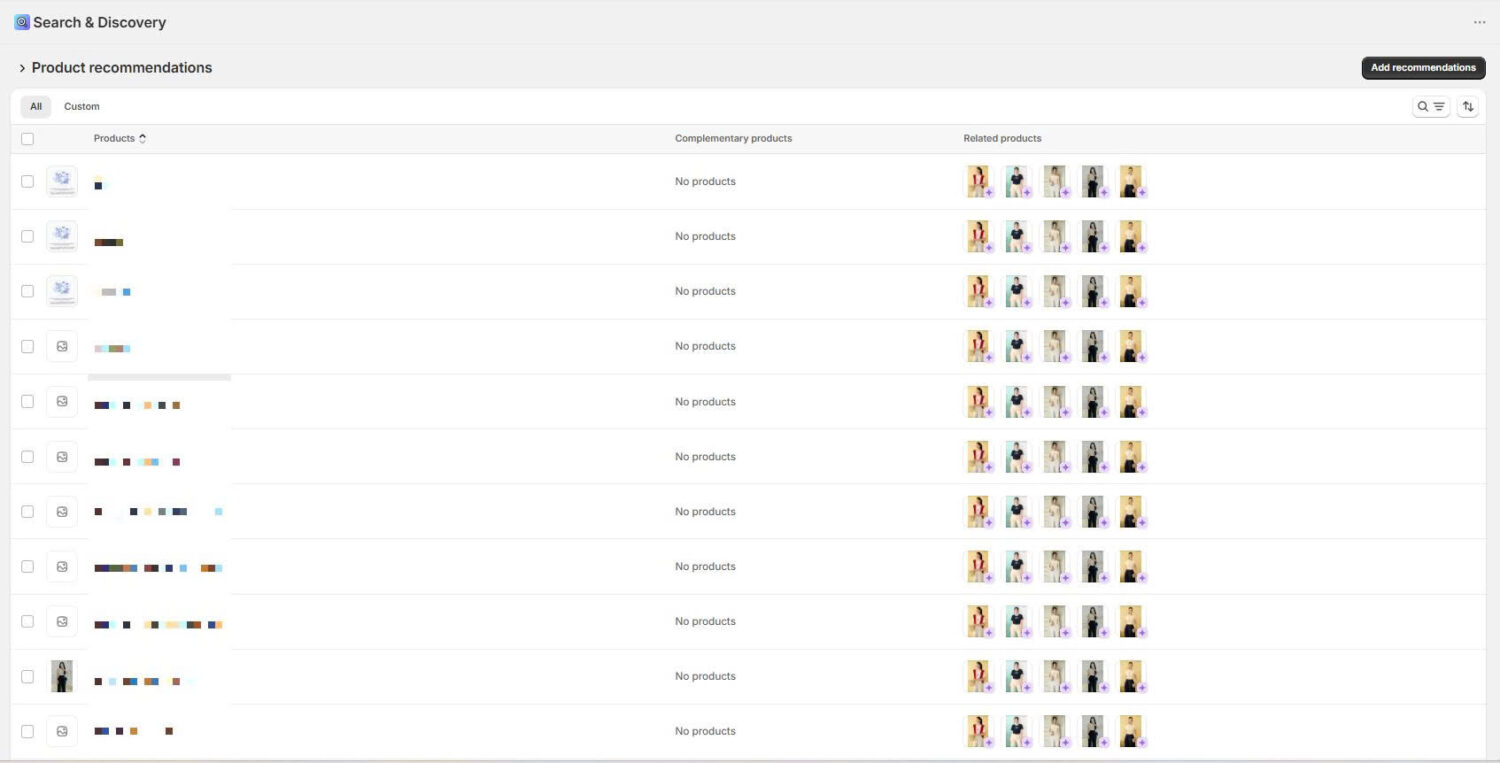
If you don’t manually assign either type, Shopify’s algorithm selects recommendations automatically based on purchase history, product descriptions, and shared collections. The algorithm is decent for stores with enough sales data, but it can’t account for strategic decisions like pushing a new product alongside your bestseller or pairing items that haven’t been purchased together yet.
Theme dependency: Your theme needs a “Related products” or “Complementary products” block for recommendations to display. Most Online Store 2.0 themes support related products. Complementary product blocks are available in many premium themes, but not all. Check your product page template before configuring recommendations that won’t show up.
The setup itself is straightforward: select a product in the app, assign related or complementary products, reorder them, and save. Prioritize manual curation for your bestsellers and highest-traffic pages, and let the algorithm handle the rest. For a full walkthrough on setup and FBT strategies, see our guide on “How to Do Frequently Bought Together on Shopify“.
If these limits are holding back your cross-sell strategy, a dedicated FBT app removes them with AI-powered suggestions, bundle discounts, per-widget analytics, and A/B testing. See our roundup of the “Best Shopify FBT Apps” for detailed comparisons.
The Analytics section of the Search & Discovery app shows you how customers are actually using search in your store. This data is where you find the gaps between what customers want and what your store delivers.
The app tracks three key reports:
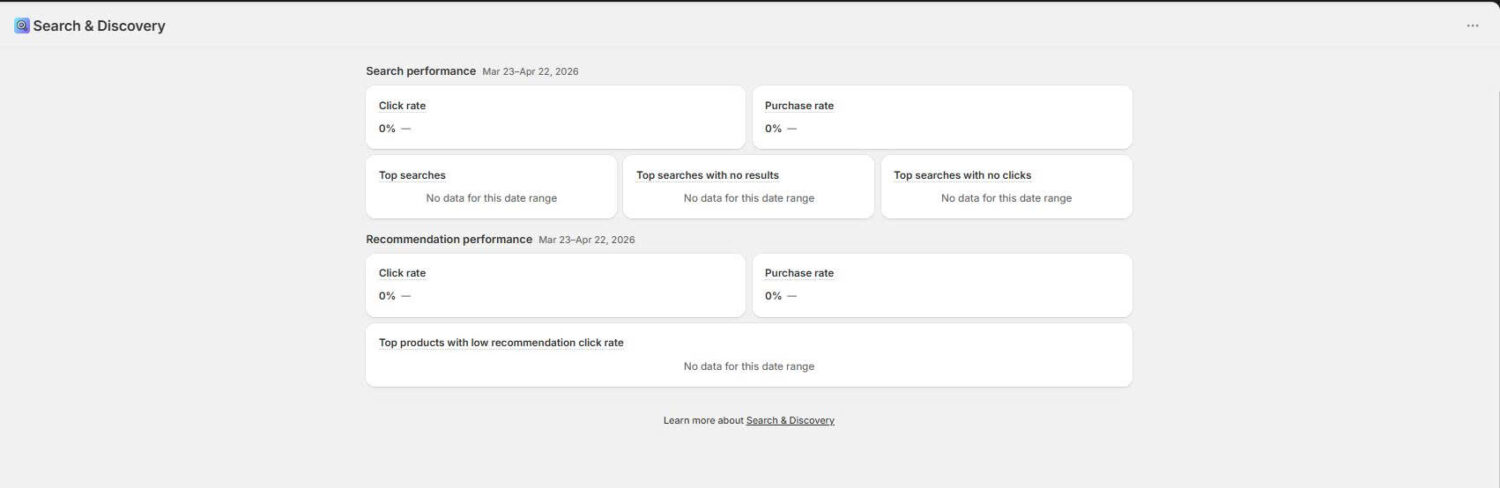
When a search term returns nothing, one of two things is happening: either you don’t carry what the customer wants (a merchandising signal), or your product titles, descriptions, and tags don’t match the language customers use (a search optimization problem).
For the optimization problem, the fix is straightforward. Create synonym groups that map “no results” search terms to your actual product names. If customers search “tee” but your products are titled “t-shirt,” a synonym group solves it instantly.
You can also add product tags that contain common search terms. Shopify’s search indexes tags, so adding “tee” as a tag on your t-shirt products makes them findable without synonyms.
If a high-volume search term returns irrelevant or poorly ordered results, use product boosts to push the right products to the top. If customers consistently search for a product category you don’t carry, that’s a signal worth passing to your merchandising team.
Tip: Check search analytics at least once a month. Seasonal shifts change what customers search for, and “no results” terms pile up over time if you’re not maintaining your synonyms. A 10-minute monthly review prevents search quality from degrading.
Limitation to know: The analytics are surface-level. There’s no conversion tracking per search term, no click-through rate data, no revenue attribution, and no A/B testing for search result layouts. If you need to tie search behavior to revenue, third-party search apps provide that level of granularity.
The Search & Discovery app covers the basics well, but it has clear ceilings that become real problems as your store grows. Here’s where the app falls short and what those limits mean for your store.
Stay with Search & Discovery if:
Consider a third-party app if:
A few strong options worth evaluating:
Each removes the core limitations above, so the choice depends on your catalog size, budget, and which features matter most.
For most small to mid-size Shopify stores, the Search & Discovery app covers the essentials at zero cost. Filters, synonyms, product boosts, and manual recommendations give you real control over how customers find products, without installing a paid app or touching code.
The practical workflow is straightforward: install the app, set up filters for your most important product attributes, create synonym groups based on your search analytics, curate recommendations for your top-traffic product pages, and check your analytics monthly to catch new “no results” terms and shifting search patterns.
That said, the app’s limitations are real. The 5,000 product filter cap, lack of AI search, no personalization, and basic analytics become friction points as your catalog and traffic grow. When your search analytics show consistent problems that synonyms and boosts can’t fix, or your largest collections exceed the filter threshold, that’s your signal to evaluate a third-party upgrade.
Start with Search & Discovery to understand your customers’ actual search behavior. The analytics alone will show you what’s working and what’s broken. That data makes the upgrade decision clear when the time comes.
Yes. It’s built and maintained by Shopify and available to all merchants at no cost. There are no paid tiers. The only limits are technical caps on filters (25 max), synonym groups (1,000 max), and collection size (5,000 products for filter support).
It works best with Online Store 2.0 themes. Older (vintage) themes may not support filters or recommendation blocks. You can check compatibility by going to Content → Menus in your Shopify admin. If your theme doesn’t support filtering, a message will appear in the collection and search filters section.
In most cases, yes, but conflicts can happen. If both apps try to control the search bar or filter display, they may interfere with each other. Most third-party search apps recommend disabling Search & Discovery’s search and filter features if you’re using theirs instead. Product recommendations can typically run side by side without issues.
No. The filters you configure apply globally across all collection pages and search results. You can’t customize which filters appear on specific collections. This is one of the most common reasons merchants upgrade to a third-party filter app.
Yes. The same filters that appear on collection pages also apply to search result pages. The configuration and limits are identical for both.

Shoppers hesitate to buy a $1,200 sofa or a custom ring when they can’t see the exact version they’re...
Selling personalized products on Shopify gets hard the moment a shopper needs to type a name or choose a...

The UK is the largest eCommerce market in Europe and the third-largest in the world. For international Shopify stores,...