


Charlie Ngo
•
Last updated: 23 October, 2026
Shopify Smart Collections: Setup, Conditions & 8 Examples (2026 Updated)
Shopify smart collections add and remove products for you based on rules, such as a tag, a price, or...

Shopify Add To Cart Popup: Setup Guide & Best Apps (2026)

Marketing Manager
Summarize this post with AI
A Shopify add to cart popup is the small window that appears the moment a shopper clicks “Add to Cart.” It confirms the item is in the cart and shows what to do next. This guide explains what the popup is, how to turn on Shopify’s built-in version, when a popup app is worth the cost, and how to use the popup to sell more without annoying shoppers. I’m Charlie Ngo, Marketing Manager at BOGOS, and I’ve spent years helping Shopify merchants set up on-store offers.
A Shopify add to cart popup is a small window that appears when a shopper adds a product to the cart. It confirms the item was added, shows a short summary of the cart, and gives the shopper clear next steps.
The popup keeps the shopper on the same page. It does not send them to a separate cart page or reload the screen. This lets them keep browsing or move to checkout in one click.
The popup answers one question for the shopper: did my item get added, and what do I do now?

Shopify shows the cart in one of three ways, and you choose which in the theme editor. According to the Shopify Help Center, the Cart type setting gives three options:
The popup notification and the drawer both keep the shopper in place. The cart page sends them away from the product. For most stores, keeping the shopper on the page is the better choice, because it lets them keep shopping.
An add to cart popup is not the same as an exit intent popup or an email popup. It is one of several Shopify popup types, and each fires at a different moment and does a different job.
Some articles mix these together. They are separate tools. This guide covers the popup that confirms the add and shows the cart.
An add to cart popup helps your store in three ways: it confirms the add, it keeps the shopper moving, and it can show a relevant add-on.
First, it removes doubt. When nothing happens after a click, some shoppers wonder if the item was added. A clear confirmation removes that doubt.
Second, it keeps the shopper on the page. The shopper can keep browsing or go to checkout without a page reload. This matters because the cart is where shoppers review items and check the total. Research from the Baymard Institute shows shoppers use the cart to review their items and get an order estimate.
Third, it can raise the order value. A popup can show one or two related products at the moment the shopper is ready to act.
Cart abandonment is common across ecommerce. Baymard puts the average cart abandonment rate at 70.22%, based on 50 studies. A single popup will not fix that number. A clear, useful cart step is one part of a smoother checkout, and the add to cart popup is one small piece of conversion rate optimization on Shopify, not a fix on its own.
Shopify’s free themes already include an add to cart popup. You turn it on in the theme editor, with no app and no code. This is the fastest and cheapest option, and it works well for most stores.
Follow these steps to turn on the popup notification in a free theme like Dawn:
The exact options depend on your theme. Dawn offers Popup notification, Drawer, and Page. Some newer themes offer fewer options. If your theme has no Cart type setting, you will need an app or custom code.
After you turn on the popup, check the buttons and labels. The popup should make the next step obvious.
Baymard’s research on the “Added to Cart” confirmation found that unclear or ambiguous paths inside the confirmation made shoppers struggle to find the right next step, which wasted their time. Clear labels prevent this.
Keep the buttons simple and specific:
Use plain words. Avoid vague labels that leave the shopper guessing.
Use a popup app when you want more than the built-in popup gives you. The native popup confirms the add and shows the cart. An app adds features on top of that.
An app is worth the cost when you want to:
Two kinds of apps fit this job. Cart drawer apps replace the popup with a slide-in cart that shows the cart, recommendations, and offers the moment a shopper adds an item. Popup builder apps let you design a standalone popup and control when it fires. Here are a few established, well-rated options on the Shopify App Store.
Cart drawer and cart upsell apps show the cart on add and add upsells, free gifts, and a progress bar inside it:
Popup builder apps fire a standalone popup on add to cart, with targeting and design control:
Most of these apps have a free plan or a free trial. Prices change often, so check the current App Store listing before you choose. If you only need a confirmation, the native popup is enough, and many stores start there and add an app later.
Turn the add to cart popup into a larger order by showing one or two relevant items, or one clear offer, at the moment the shopper adds a product. Relevance decides whether this helps or hurts.
Baymard found that 52% of desktop sites show cross-sells in the cart or “Added to Cart” confirmation that are irrelevant or based only on what other people bought. That is a problem, because Baymard also found that a single irrelevant suggestion made shoppers lose trust in all the suggestions and ignore them. Relevant suggestions do the opposite. Baymard describes relevant recommendations at this point as a win for both sides: they match what shoppers expect and can raise the average order value.
So the rule is simple: only show items that clearly go with what the shopper just added. A case for a phone. A filter for a coffee maker.
This is where upselling and cross-selling come in. An upsell offers a better or larger version of the item. A cross-sell offers a related item. Both work well in the add to cart popup when the suggestion is relevant, and grouping items that people buy together, or frequently bought together sets, keeps the suggestions logical.
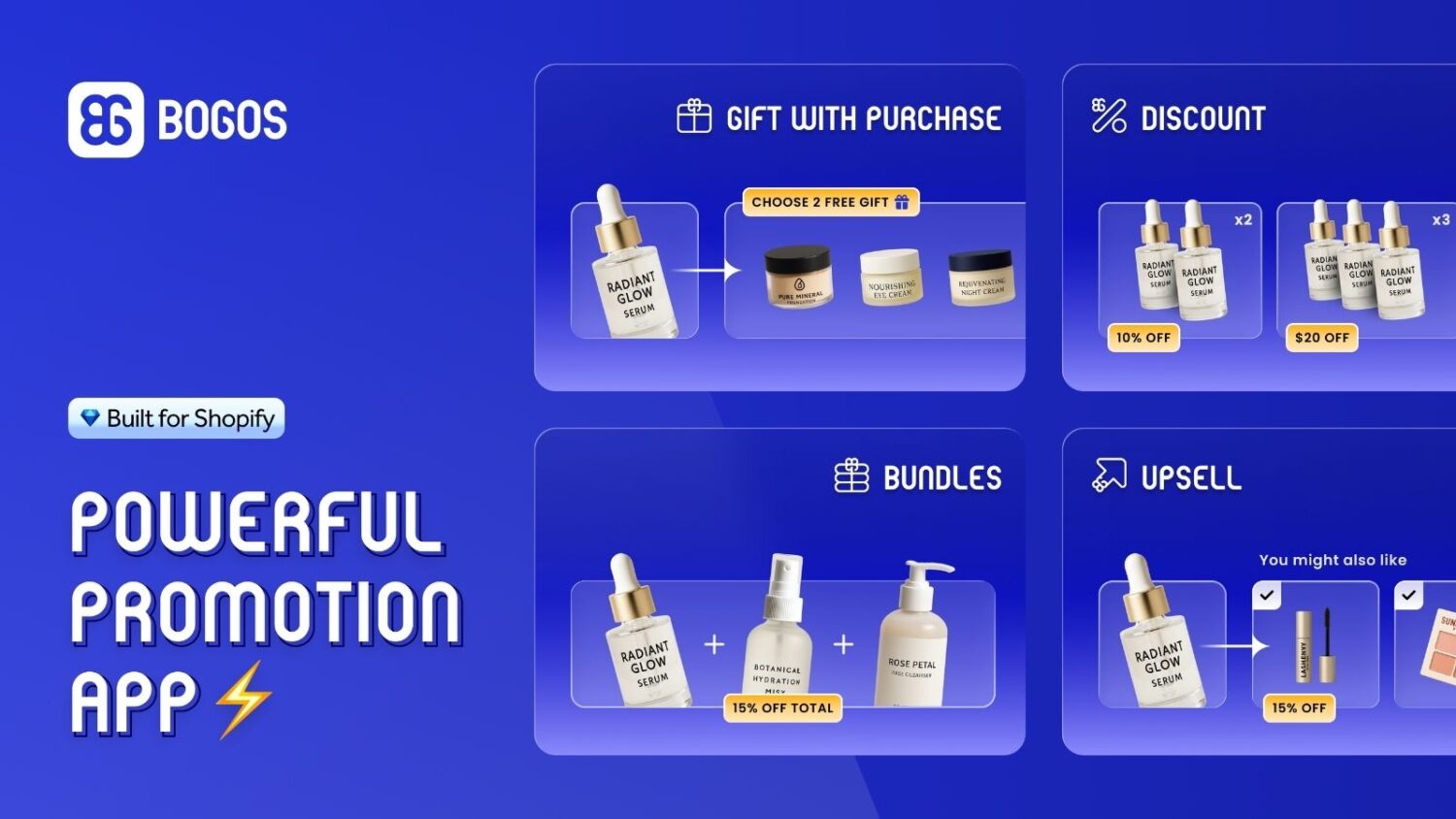
Some merchants want the popup to show an offer, not just a product. For that, an offer engine can help. BOGOS, a Shopify promotion app, can auto-add a free gift with a purchase and surface it to the shopper through a gift slider once they qualify. BOGOS is one option among several. It sets up the offer, while your theme or popup app shows it. Used this way, a free gift gives shoppers a reason to add more.
Follow these best practices to make the add to cart popup help, not annoy:
For that last point, a cart progress bar helps. BOGOS can show a progress bar tied to a spend threshold, so the popup or cart displays a message such as “Add $20 more to unlock a free gift.” This gives shoppers a clear, specific goal. Set the threshold at a level that fits your average order.
If your add to cart popup does not show, check these three things first:
If the popup still does not show, your theme may not support it. Switch to a free theme like Dawn, or add a popup app.
A Shopify add to cart popup confirms the add, keeps the shopper on the page, and can show a relevant offer. Start with Shopify’s built-in popup notification, which is free and works for most stores. Add a popup app only when you want recommendations, offers, or advanced design. Above all, keep every suggestion relevant, because relevance decides whether the popup helps or hurts. Set up this way, the add to cart popup becomes one dependable step before checkout and a practical way to increase sales on Shopify.
Yes. Shopify’s free themes include a Cart type setting with three options: Popup notification, Drawer, and Page. Set it to Popup notification to show a popup when a shopper adds an item. You do not need an app for the basic version.
Use whichever keeps the shopper on the page and fits your store. The popup notification is small and quick, and confirms the add near the cart icon. The cart drawer slides in and shows the full cart, which suits stores that want shoppers to review the cart often. Both avoid sending the shopper to a separate page. Test both and keep the one that converts better.
They annoy customers only when they are unclear, slow, or full of irrelevant offers. A clear popup that confirms the add and shows useful next steps helps the shopper. Keep it short, keep any suggestions relevant, and let the shopper close it easily.

Shopify smart collections add and remove products for you based on rules, such as a tag, a price, or...
Shopify collections decide how shoppers find your products, yet many guides still describe a setup Shopify is now replacing....
A Shopify announcement bar is the thin strip at the top of your store that tells shoppers about shipping,...