


Charlie Ngo
•
Last updated: 20 October, 2026
Shopify Collections: How To Create & Organize Them (2026)
Shopify collections decide how shoppers find your products, yet many guides still describe a setup Shopify is now replacing....

Shopify Search Bar: How To Add & Customize It (2026 Guide)

Marketing Manager
Summarize this post with AI
A Shopify search bar lets customers type what they want and go straight to it, instead of clicking through menus. This guide covers how to add a search bar, customize where it sits and how it looks, fix it when it breaks, and upgrade the search engine behind it. I’m Charlie Ngo, Marketing Manager at BOGOS, and I’ve spent years helping Shopify merchants tighten the path from landing page to checkout.
Shoppers who use your search bar are ready to buy. They type a product name or a need, which means they already know what they want.
Research from the Baymard Institute found that roughly half of shoppers reach for search as their main way to find products. The other half browse the menu, moving through your Shopify collections instead.
A hidden or slow search bar pushes those buyers away. Baymard’s 2026 benchmark found that 56% of ecommerce sites deliver a “mediocre or worse” search experience, which leaves clear room to stand out by getting it right.
The revenue at stake is large. Constructor’s Beyond Relevance report, based on its own platform data from 609 million searches, found that searchers make up about 24% of visitors but drive about 44% of revenue.
The same dataset found that search users convert at about 2.5 times the rate of shoppers who only browse. Constructor sells search software, so treat these as vendor figures, but the direction matches wider research.
This is why the search bar belongs in any serious Shopify conversion rate optimization effort, not just your store’s design checklist. A prominent, working search bar protects your highest-intent traffic.
Shopify gives every store a built-in search bar. It runs from the header and returns results across your products, pages, and blog posts.
The built-in search matches the shopper’s words against your product titles, descriptions, and tags. When someone types “blue shirt,” Shopify looks for those words in your product data and returns matches.
This built-in search is enough for many small stores. It starts to feel limited as your catalog grows, which I cover later in this guide.
There are three ways to add a search bar to your Shopify store: the theme editor, theme code, or a search app. Most merchants only need the first one.
You can add a search bar in the theme editor in five steps:
Shopify’s free Dawn theme includes a header search that opens a predictive search overlay. If you cannot find a search setting in your theme, your theme may not support it, so use one of the next two methods.

Editing theme code can break your store, so duplicate your live theme first as a backup.
Add the search bar in code with these steps:
<form action="/search" method="get" role="search">

  <input type="search" name="q" placeholder="Search products" value="{{ search.terms | escape }}">

  <button type="submit">Search</button>

</form>The action=”/search” part sends the query to Shopify’s search results page. The name=”q“ part holds the shopper’s search term.

A search app adds the bar for themes that lack the option, and it upgrades the results at the same time. I cover the best free and paid apps in the app section below.
The most common customizations merchants ask for are making the bar always visible, changing the placeholder text, styling it, and adding search to collection pages.
Many themes hide search behind a magnifying-glass icon, and you can set it to show as an open field instead.
The trade-off depends on the device. On desktop, an always-visible field gets used more often. On mobile, an icon that expands cleanly saves space on a small screen.
To change it, open Customize > Header and look for a search style or search layout option. Some themes offer a choice between a search field and a search icon. If your theme has no such option, this change needs theme code or a search app.
You can replace the generic “Search” text with something specific to your store.
Some themes let you edit the placeholder in the Search or Header settings. If yours does not, go to Online Store > Themes, open the three-dot menu, select Edit default theme content, find the search text, and replace it.
Specific placeholder text works better than a blank prompt. “Search 4,000+ products” or “What are you looking for?” tells shoppers the bar is there to use.
You can change the bar’s shape, colors, and size in the theme editor. Common controls include:
Keep the bar clearly recognizable as an input field. A bar that blends into the header gets missed.
You can let shoppers search inside a single collection, not just across the whole store.
Most Shopify themes do not include in-collection search by default. Add it with a search app that offers an in-collection search feature, or with custom code. This helps shoppers narrow long collection lists without leaving the page they are on.
You can remove the search bar two ways: hide it in the header settings, or remove it in the theme code.
Turn the bar off safely in three steps:
Duplicate your theme first, since code edits can break your store.
Then go to Edit code, open your header section file, and remove or comment out the search block. If you are not comfortable with code, hire a Shopify expert to do this safely.
Shopify’s built-in search has three main limits: no typo tolerance, limited synonym control, and thin search analytics.
No typo tolerance means a shopper who types “jaket” instead of “jacket” may see no results at all. Limited synonym control means “sneakers” and “trainers” may return different products unless you set synonyms yourself. Thin analytics means you get little insight into what shoppers search for or which searches return nothing.
These gaps cost sales because shoppers search in many ways. Baymard’s testing shows how often sites fail specific query types:
Your first upgrade should be free. Shopify’s own Search & Discovery app adds custom filters, synonym groups, and product boosts on top of built-in search. I walk through the full setup in our guide to the Shopify Search & Discovery app.
When you need more than that, four apps cover the range from free to premium:
| App | Best for | Standout strength | Pricing |
|---|---|---|---|
| Shopify Search & Discovery | Any store starting out | Free filters, synonyms, and product boosts on native search | Free |
| Searchanise Search & Filter | Small to mid catalogs | Always-visible AI search bar with typo tolerance and filters | Free plan, paid tiers above |
| Boost AI Search & Filter | Growing and larger stores | AI search plus advanced filters and merchandising | Paid, scales with store size |
| Algolia | Large catalogs | Fast, highly relevance-tuned results and deep analytics | Premium |
Start with Search & Discovery, since it is free and solves the most common gaps. Move to a free-plan app like Searchanise when you need typo tolerance and richer filters. Reach for a paid or premium tool only when your catalog size or relevance needs outgrow the cheaper options.
Four problems cause most broken search bars: the bar not showing on mobile, theme-update conflicts, app conflicts, and irrelevant results.
The bar does not show on mobile when the mobile header layout hides it. Check your theme’s mobile header settings in the editor and enable the search icon.
The bar disappears after a theme update when the new theme does not carry over your old settings. Re-enable search in the new theme’s header settings, or re-add your search app’s embed.
You see two search bars or broken results when two apps both try to control search. Audit your installed apps and remove the duplicate.
Results feel irrelevant when the search engine, not the bar, is the problem. Add synonyms, or upgrade the engine. Remember that shoppers also search for non-product content, since Baymard found 34% type queries like “return policy,” so make sure your search returns pages and policies, not only products.
Finding the product is only the first step. The visit is worth more when your store also nudges the shopper toward a bigger cart.
Search brings a high-intent shopper to the right product. The next job is raising the value of that visit, and offers do this well.
A free gift above a spend threshold gives shoppers a reason to add one more item. A cart progress bar shows how close they are to that reward, which encourages them to keep shopping.
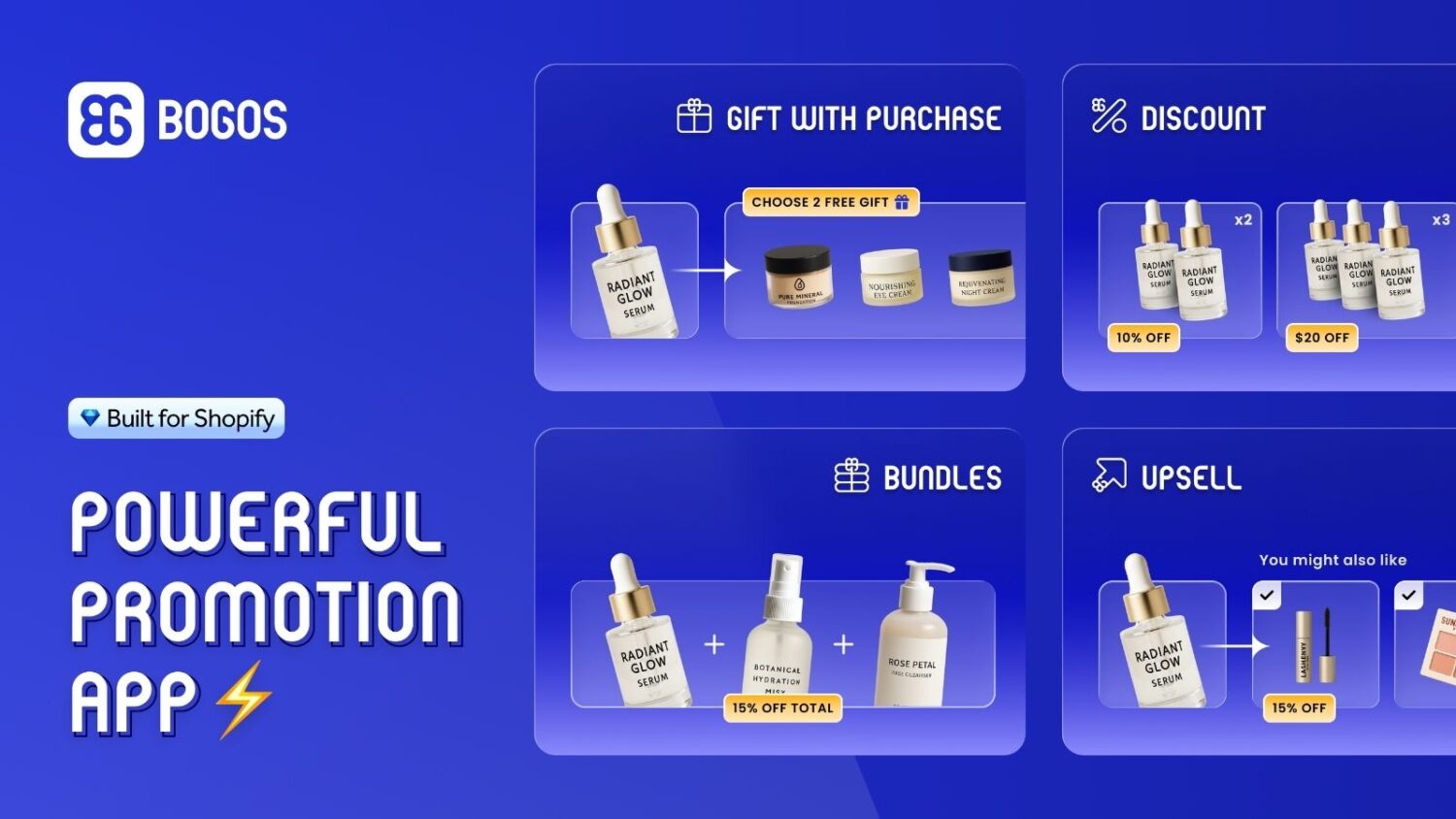
This is where an offer engine like BOGOS fits. BOGOS is not a search or filter tool. It runs gift-with-purchase offers and cart progress bars tied to spend thresholds, which lift the value of the visits your search bar already earned.
Search and offers pull in the same direction. Both feed your store’s average order value, so it makes sense to improve them together.
The pairing is simple in practice. A shopper searches for a serum, lands on it fast, and then sees that spending 20 dollars more unlocks a free gift with purchase. The found product becomes a fuller cart.
A search bar is one of the fastest wins on Shopify. Add it in the theme editor, make it prominent instead of hidden, fix it when it breaks, and upgrade the engine only when your catalog outgrows built-in search.
The goal is bigger than faster finding. A search bar earns its keep when it feeds a store built to convert and grow order value. Pair it with offers from a tool like BOGOS, and fold both into your wider plan to increase sales on Shopify.
No, a native search bar does not noticeably slow your store. Heavy third-party search apps can add some load, so test your store speed after installing one.
Yes. If your theme has no built-in search setting, you can add the bar with theme code or with a search app.
Shopify’s built-in search is good enough for small catalogs. Add an app when you need typo tolerance, filters, synonyms, or search analytics. Start with the free Search & Discovery app before paying for anything.

Shopify collections decide how shoppers find your products, yet many guides still describe a setup Shopify is now replacing....
A Shopify announcement bar is the thin strip at the top of your store that tells shoppers about shipping,...
Australia is one of the first markets many Shopify stores expand into. It is large, English-speaking, and home to...