


Allan Vu
•
Last updated: 3 November, 2026
5 Best Shopify Virtual Try-on Apps in 2026 (compared)
Online shoppers can’t try anything on, so many guess and send items back. The NRF and Happy Returns estimate...
How to Create Bundles on Shopify? (4 Methods – Free, No App)

Digital Marketing Specialist
Summarize this post with AI
Product bundling is one of the most reliable ways to increase average order value and move more inventory from your Shopify store. Instead of waiting for customers to discover complementary products on their own, bundles package them together at a better price — giving shoppers a reason to buy more in a single transaction.
This guide walks you through four free methods to create bundles using Shopify’s built-in tools, plus a shortlist of third-party apps for when you need more flexibility. If you’re new to bundling or want a deeper look at strategy, pricing, and best practices, start with our “Shopify Product Bundle Complete Guide“.
Already know what you want to build? Pick your bundle type below, then follow the step-by-step method that fits.
Before you pick a setup method, decide which bundle format fits your products and customers. Shopify supports several bundle types — each works best for different store categories and goals.
| Bundle Type | Best For | Example |
|---|---|---|
| Fixed bundle | Natural product pairings, gift sets, starter kits | “Skincare Starter Kit” |
| Mix-and-match | Variety within one category (scents, flavors, styles) | “Pick Any 3 Candles for $50” |
| Bundle builder page | Multi-step customization (meal kits, gift boxes) | “Build Your Weekly Meal Box” |
| Volume bundle | Consumables, replenishables, basics | “Buy 3 Protein Bags, Save 20%” |
| Frequently Bought Together | Complementary product pairings | “Complete the Look” widget |
| Discount on the cheapest/most expensive | Fashion, multi-item promotions, clearance | “Buy 3, Cheapest Is Free” |
For a deeper breakdown of each type – including pricing strategies and real merchant examples – read our “Shopify Product Bundle Complete Guide“.
Once you’ve identified your bundle type, use the comparison below to choose the right setup method.
Shopify gives you four free ways to create bundles using built-in tools. Each method supports different bundle types, with different trade-offs on flexibility, inventory handling, and setup effort. Use this comparison to find your match, then follow the step-by-step guide below.
| Method | Best For | Bundle Types Supported | Inventory Sync | Cost | Complexity |
|---|---|---|---|---|---|
| Manual product listing | 1–3 fixed bundles, components not sold individually | Fixed only | No | Free | Low |
| Product variants | Tiered fixed bundles under one listing | Fixed (tiered) | Per-variant only | Free | Low |
| Automatic discounts + collection | Volume/quantity deals on a collection | Volume, collection-based | No (individual products) | Free | Medium |
| Shopify Bundles app | Fixed bundles needing inventory sync | Fixed, multipack | Yes (auto) | Free | Low |
Quick decision rules:
The simplest approach to bundling on Shopify is creating a new product that represents the bundle itself. You set the price, upload a combined image, and write a description listing what’s included. No apps, no discount rules — just a standalone product listing.
This method works because Shopify treats the bundle like any other product. Customers add it to cart, pay the bundle price, and you fulfill the order by shipping the individual components. The setup takes about five minutes per bundle.
How to set it up:
| Pros | Cons |
|---|---|
| Free — no app or subscription needed | No automatic inventory sync with component products |
| Full control over the product page layout and SEO | Doesn’t scale past a handful of bundles |
| Works on any Shopify plan | No customization for customers (fixed items only) |
| Simple to set up (under 5 minutes) | Manual inventory tracking required |
🏆 Best for: Stores with 1–3 simple fixed bundles where the component products aren’t also sold individually, or where you’re comfortable tracking inventory manually.
⚠️️ Watch out: If you sell the same products as standalone listings and in a bundle, this method creates an inventory mismatch. Selling one “Starter Kit” bundle doesn’t deduct stock from the individual cleanser, toner, or moisturizer listings. At higher volumes, you risk overselling components.
Example: A coffee brand creates a “Brewing Starter Kit” — pour-over dripper + 250g beans + paper filters for $45 (vs. $55 if bought separately). They only sell this combination as a bundle, so inventory tracking stays simple.
If you only need a few curated bundles and want zero dependencies, this is your fastest path. For anything more complex — or if you sell components individually — consider Method 4 (Shopify Bundles app) for automatic inventory sync.
Instead of creating a separate product listing for every bundle configuration, you can use Shopify’s variant system to offer multiple bundle tiers under a single product page. Each variant represents a different bundle size or composition — with its own price, SKU, and inventory count.
This keeps your product catalog cleaner, because one URL houses all your bundle options. Customers select their preferred tier from a dropdown or swatch, similar to choosing a size or color.
How to set it up:
| Pros | Cons |
|---|---|
| Free — uses native Shopify functionality | Shopify limits you to 3 options and 100 variants per product |
| Keeps multiple bundle tiers on one clean product page | Customers can’t see or choose individual items in the bundle |
| Supports tiered pricing on a single URL | Not suitable for mix-and-match or build-your-own |
| Works on any Shopify plan | Variant names can get confusing for complex bundles |
🏆 Best for: Tiered fixed bundles (Small / Medium / Large) or size-based packages where the components in each tier are predefined and don’t change.
⚠️️ Watch out: Shopify caps variants at 100 per product and limits you to 3 option types. If your bundles have many possible combinations, you’ll hit this ceiling quickly. This approach also doesn’t show the individual items visually within each variant — customers rely on your description and images to understand what’s included.
Example: A tea shop offers a “Tea Sampler” product with three variants: “4-Pack Sampler — $20,” “8-Pack Sampler — $36,” “12-Pack Sampler — $48.” Each variant has its own image showing the included teas.
If you want a single, organized product page with tiered pricing, variants keep things tidy. For bundles where customers need to pick their own items, skip ahead to the apps section.
This method uses two native Shopify features together: a product collection to group your bundled items, and an automatic discount to apply the bundle pricing. Unlike Methods 1 and 2, you don’t create a new bundle product. Instead, customers add individual products from the collection to their cart, and the discount triggers automatically at checkout.
This approach is particularly effective for volume-based or collection-wide promotions — “Buy any 3 from this collection, save 15%” — where you want to encourage multi-product purchases without restricting customers to pre-set combinations.
How to set it up:
| Step 1 | Cons |
|---|---|
| Free — uses native Shopify discount engine | Only one product discount applies per line item (largest wins) |
| Discount applies automatically (no code for customers to enter) | Less visual — customers may not see the deal until checkout |
| Works well for volume and collection-based offers | Doesn’t create a dedicated bundle product page |
| Flexible — customers choose their own items | Limited to Shopify’s native discount types |
🏆 Best for: Volume bundles and collection-based promotions where you want to let customers pick their own combination — “Buy any 3 items from this collection and save.”
⚠️️ Watch out: Shopify allows up to 25 automatic discounts running at the same time, but only one product discount can apply to the same line item. If two automatic discounts both target the same product, Shopify applies the larger one and ignores the other. So if you’re running a sitewide “10% off everything” automatic discount alongside a “Buy 3 candles, get 20% off” bundle discount, a customer buying 3 candles will only get the 20% bundle discount on those items — the 10% doesn’t stack on top. Plan your discount tiers accordingly. Also, because there’s no dedicated bundle product page, the offer’s visibility depends on your collection page and any banners or callouts you add.
Tip: Add a banner to the collection page explaining the deal (e.g., “Add any 3 to your cart — 15% off applies automatically at checkout”). Without this, customers may not realize the discount exists until they reach checkout, and by then you’ve lost the motivational pull.
Example: A candle store creates a “Mix & Match Candles” collection with 12 scents and sets an automatic discount: “Buy any 3, get 20% off.” Customers browse the collection, pick their favorites, and the discount applies automatically when 3+ candles are in the cart.
This method gives customers the most flexibility, but keep in mind that only one product discount applies per line item — if multiple automatic discounts qualify, Shopify picks the largest. If you need layered discount logic or bundle-specific rules that don’t conflict with your other promotions, a third-party app gives you more control.
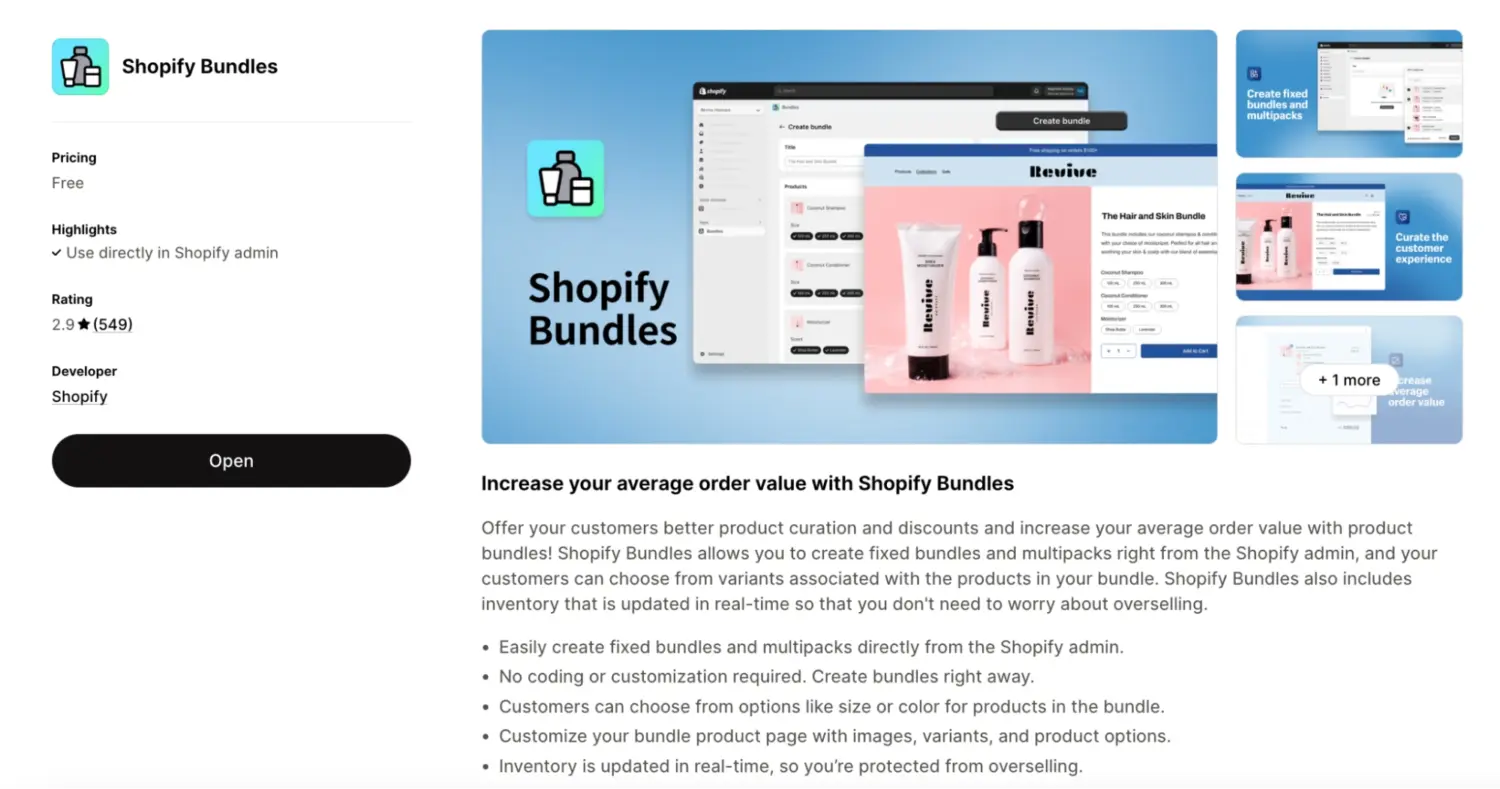
Shopify offers its own free bundling app – simply called “Bundles” – available in the Shopify App Store. It’s designed for fixed bundles and multipacks, and its main advantage over the manual methods above is automatic component inventory syncing. When a bundle sells, the app deducts stock from each individual component product.
If inventory accuracy is your concern but your bundles are straightforward, this is the simplest solution with the lowest risk of overselling.
How to set it up:
| Pros | Cons |
|---|---|
| Free — built and maintained by Shopify | Limited to fixed bundles and multipacks only |
| Automatic inventory sync for all component products | No mix-and-match, build-your-own, or bundle builder UI |
| Creates a real product listing in your catalog | Limited customization for the bundle display widget |
| No third-party app dependency | No advanced analytics or conditional rules |
🏆 Best for: Merchants who want simple fixed bundles with reliable inventory sync and don’t need customer-facing customization or a bundle builder experience.
⚠️️ Watch out: The Shopify Bundles app does not support mix-and-match, build-your-own, or any bundle type where the customer selects items. It also lacks advanced features like conditional pricing rules, progress bars, or bundle analytics. If you need any of those, you’ll need a third-party app.
Example: A supplement brand creates a “Daily Essentials Bundle” — multivitamin + fish oil + probiotic at $55 (vs. $70 separately). When a customer buys the bundle, the app automatically deducts one unit of each supplement from inventory — no manual tracking needed.
For straightforward fixed bundles, Shopify’s own app covers the basics well. If your bundling needs go beyond fixed sets — or you want to run multiple bundle types from one dashboard — the next section covers apps that fill those gaps.
👉 For a detailed review of Shopify official bundles app, read this guide: Shopify Official Bundles App Review: What it does, Limitations, and When You Need More
The four methods above use Shopify’s built-in tools — free and functional, but limited to simple fixed bundles, multipacks, and basic volume discounts. If you need mix-and-match bundles, build-your-own builder pages, advanced trigger rules, or storefront widgets like progress bars and upsell popups, a dedicated bundle app fills those gaps.
Third-party apps also consolidate inventory sync, bundle analytics, and promotional display into one tool — so you’re not stitching together workarounds as your bundle strategy grows. Here’s how four strong options compare:
| Feature | BOGOS | Fast Bundle | Bundler | Bundle Builder |
|---|---|---|---|---|
| Rating & reviews | 5.0★ (3,300+) | 5.0★ (2,200+) | 4.9★ (1,900+) | 4.9★ (800+) |
| Pricing | Free → $109.99/mo | $19 → $139/mo | Free → $19.99/mo | Free → $399/mo |
| Fixed bundles | ✅ | ✅ | ✅ | ✅ |
| Mix-and-match | ✅ | ✅ | ❌ | ✅ |
| Build-your-own (multi-step) | ✅ | ✅ | ❌ | ✅ |
| Volume bundles | ✅ | ✅ | ✅ | ❌ |
| Inventory sync | ✅ | ✅ | ✅ | ✅ |
| Bundle analytics | Advanced | Advanced | Basic | Basic |
| Storefront widgets (progress bar, offer page) | ✅ | ✅ | ❌ | ❌ |
| Other promo types (GWP, BOGO, upsells) | ✅ | ❌ | ❌ | ❌ |
| Best for | All-in-one promotions + bundles | Clean bundle-first setup | Simple fixed + volume bundles | Build-your-own box experiences |
#1 BOGOS: Free Gift & Bundle Upsell — Best all-in-one solution.
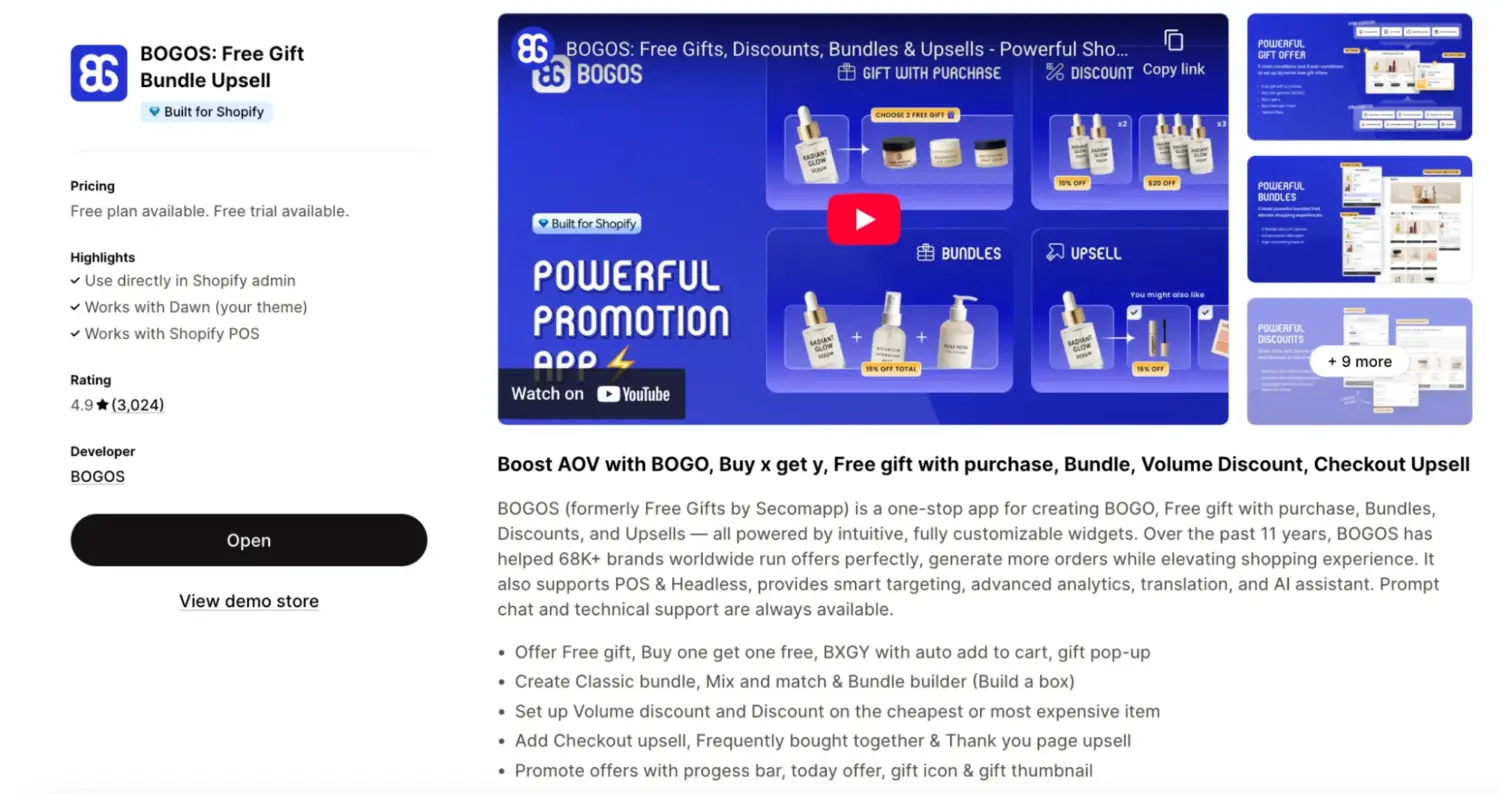
BOGOS doesn’t just handle bundles — it covers free gifts, BOGO, upsells, and volume discounts from one dashboard, so you don’t need multiple apps as your promotion strategy grows. What sets BOGOS apart from other bundle apps is its advanced targeting conditions, letting you create exclusive bundle deals for specific audiences. The 5.0★ rating across 3,300+ reviews reflects consistently strong support and reliability.
Key features:
#2 Fast Bundle — Best for diverse bundle formats.
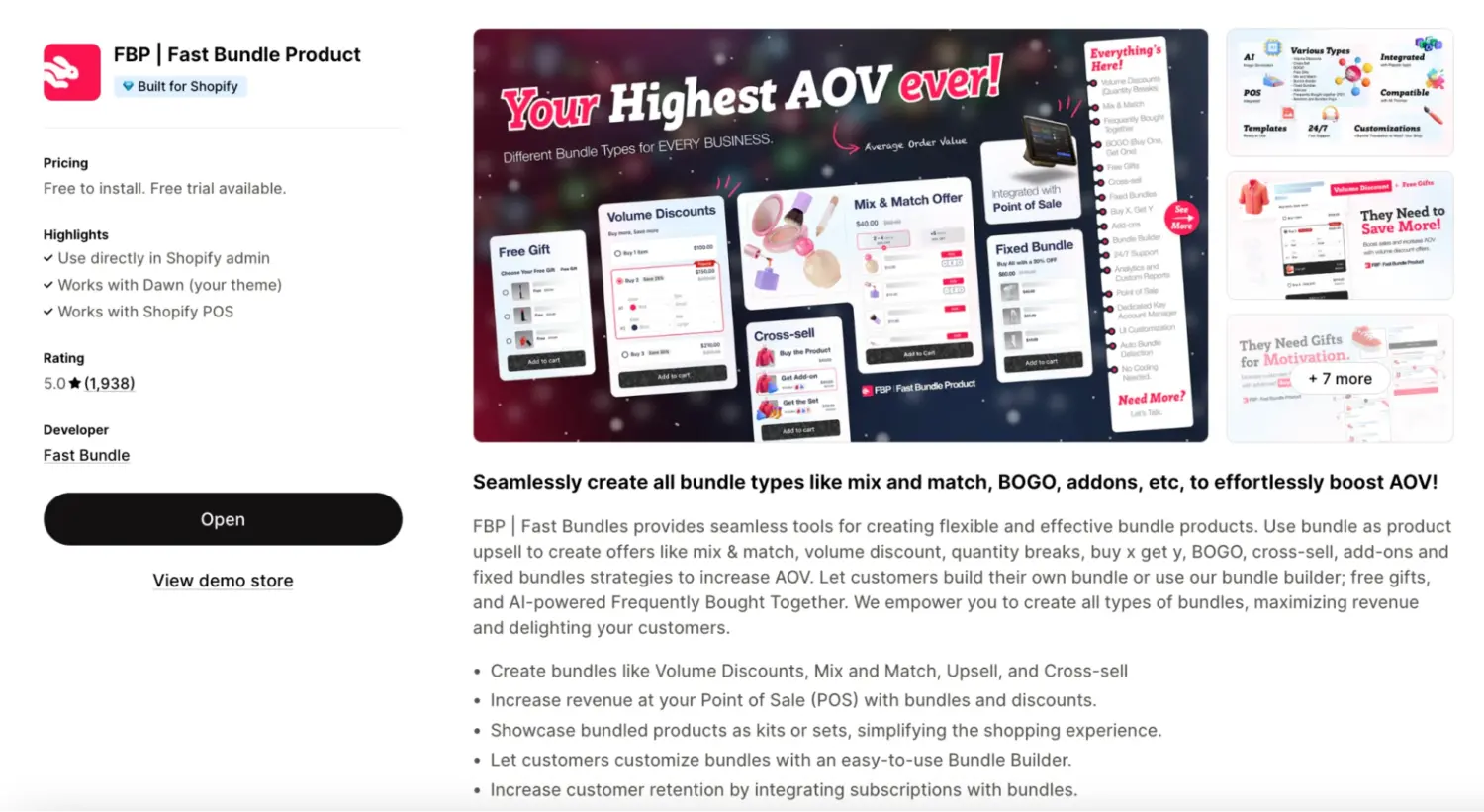
A comprehensive bundle-focused app that covers the widest range of bundle types in a single tool. The bundle widget embeds directly on existing product pages rather than requiring a separate listing, so bundles feel native to your theme. Bundles are created as standalone products, which is good for SEO. If bundling is your primary strategy, Fast Bundle is purpose-built for that.
Key features:
#3 Bundler — Best for basic bundles on a tight budget.
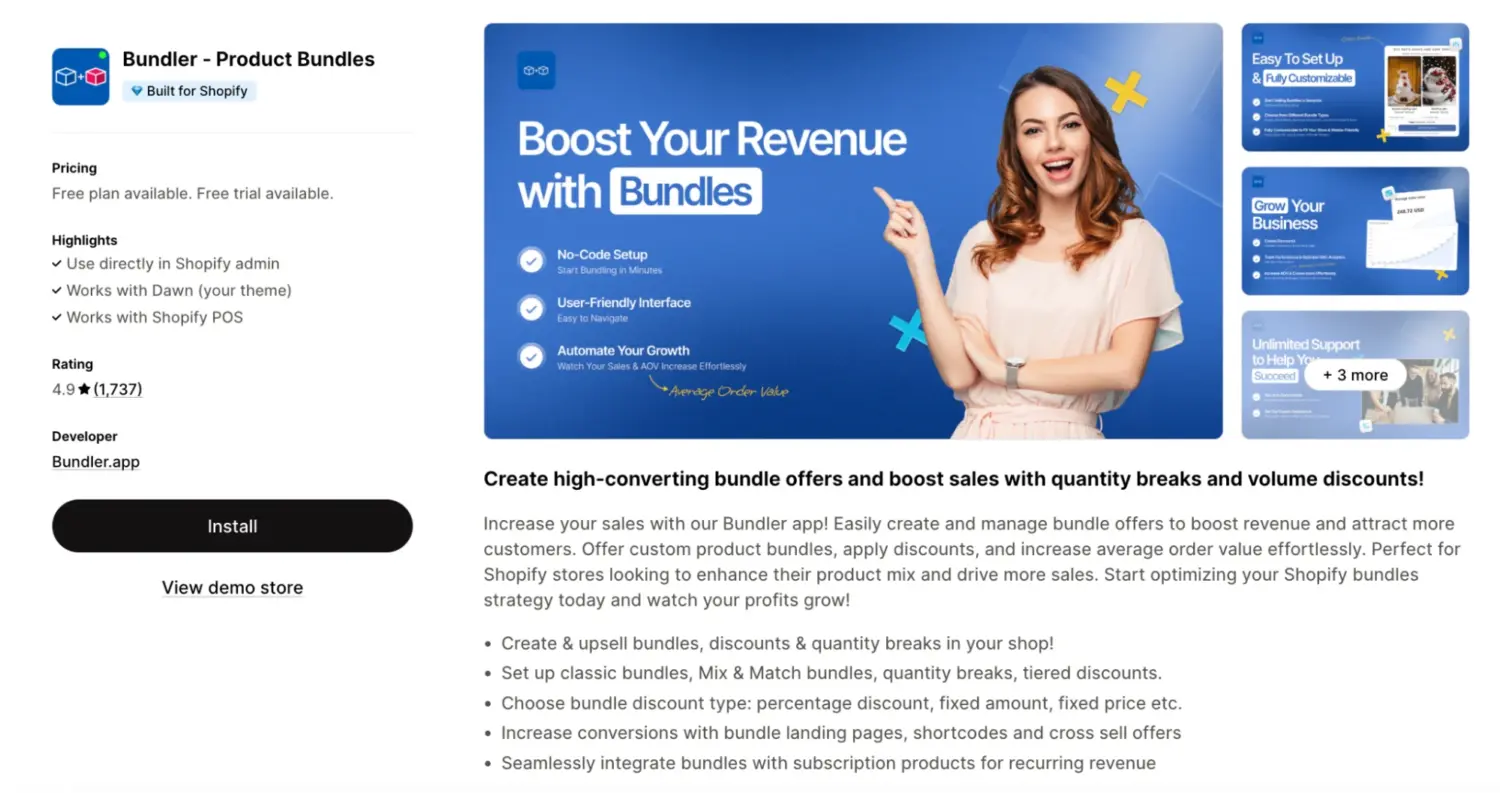
A straightforward bundle app for merchants who want core bundling functionality without a high monthly cost. Bundler offers fewer rules and conditions for setting up offers compared to advanced apps like BOGOS or Fast Bundle, but it’s the most affordable way to start bundling beyond Shopify’s native tools.
Key features:
#4 Bundle Builder — Best for build-your-own box experiences.
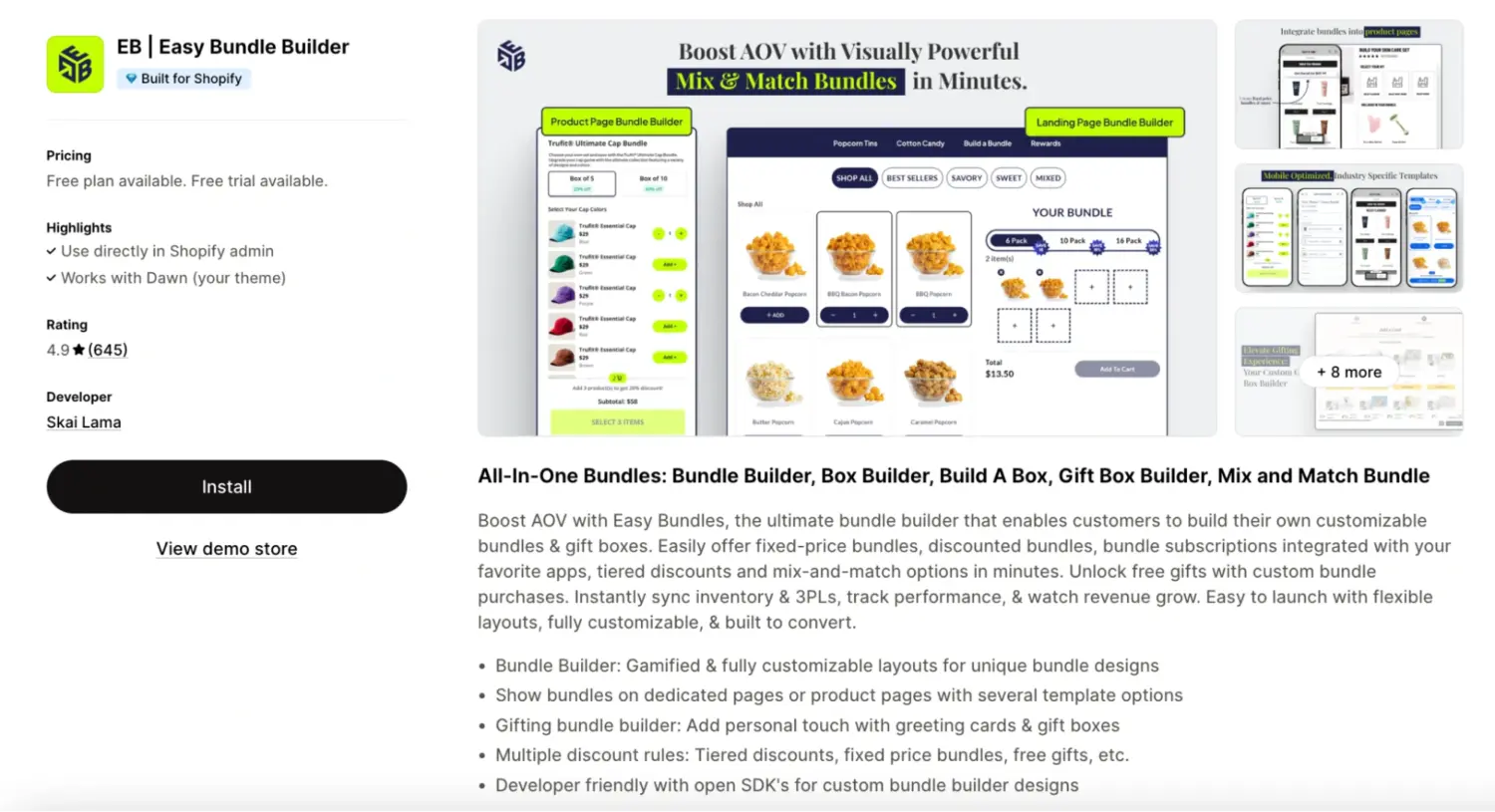
Designed specifically for multi-step bundle experiences where customers walk through steps to assemble a custom box — choose a base, pick add-ons, select extras. If your core offering is a customizable box (meal kits, gift hampers, subscription boxes) and that’s your primary need, Bundle Builder provides a focused builder experience. Note that both BOGOS and Fast Bundle now support build-your-own bundles with stronger overall feature sets and higher ratings (5.0★ vs. 4.9★), so Bundle Builder is best suited for stores that only need the BYOB format.
Key features:
For more detailed reviews, feature comparisons, and pricing breakdowns, read our “Best Shopify Bundle Apps” article.
Bundles aren’t the only way to increase order value on Shopify. Here’s how they compare to other common promotion types — and when each one makes more sense.
Bundles vs. BOGO (Buy One Get One): BOGO applies to the same product: buy one pair of socks, get another pair free (or at a discount). Bundles combine different products into a package. Use BOGO when you want to clear excess stock of a single SKU. Use bundles when you want to cross-sell complementary items and increase the number of distinct products per order.
Bundles vs. Gift With Purchase (GWP): GWP adds a free item when the customer hits a spending threshold (“Spend $75, get a free tote bag”). The gift incentivizes a higher cart value. Bundles, by contrast, package products together at a combined discount — the customer buys the set intentionally. Use GWP when you want to reward spending behavior. Use bundles when you want to move specific product combinations.
Bundles vs. Volume Discounts: Volume discounts reward buying multiples of the same product (buy 3 of this item, save 20%). Bundles combine different products. The overlap is “volume bundles,” which apply quantity-based pricing to a single product — making them both a bundle type and a volume discount. If your goal is increasing units of one product, volume discounts work. If your goal is getting customers to try multiple products, cross-product bundles are more effective.
Bundles vs. Discount Codes — Discount codes reduce the price of individual products or the whole cart. They’re broad and flexible but don’t create a new perceived product. Bundles create a distinct offer with its own product page, image, and value proposition — which gives you more merchandising control and makes the deal feel curated rather than generic.
Yes. You can create fixed bundles manually by adding a new product listing with a combined price (Method 1), using product variants for tiered bundles (Method 2), or using automatic discounts with a bundle collection (Method 3). These methods are all free and use native Shopify features. The main limitation is no automatic inventory sync — for that, you’ll need the Shopify Bundles app or a third-party app.
Yes, Shopify’s own “Bundles” app is free and available in the Shopify App Store. It supports fixed bundles and multipacks with automatic component inventory syncing. It doesn’t support mix-and-match, build-your-own, or advanced bundle types — for those, you’ll need a third-party app.
It depends on your method. If you create a manual bundle product listing, Shopify tracks only the bundle’s own inventory — not the individual components. That means selling a bundle doesn’t deduct stock from the component products. The Shopify Bundles app and most third-party bundle apps solve this with automatic component inventory sync: when a bundle sells, each component’s stock is decremented automatically.
Not with Shopify’s native tools. The built-in methods only support fixed bundles where you pre-select the items. For mix-and-match bundles (customer picks from a set) or build-your-own bundles (multi-step selection), you’ll need a third-party app like BOGOS, Fast Bundle, or Bundle Builder that provides a customer-facing bundle builder widget.

Online shoppers can’t try anything on, so many guess and send items back. The NRF and Happy Returns estimate...
A featured collection is often the first group of products a shopper sees on a Shopify store, yet the...
Most Shopify stores need a best sellers page, but Shopify can’t build one that updates by itself. In this...