



Charlie Ngo
•
Last updated: 23 October, 2026
Shopify Smart Collections: Setup, Conditions & 8 Examples (2026 Updated)
Shopify smart collections add and remove products for you based on rules, such as a tag, a price, or...
How to Add a Shopify Size Chart in 2026 (5 Easy Ways)

Marketing Manager
Summarize this post with AI
A Shopify size chart is a table that matches your product sizes to body or garment measurements, and adding one to your product pages reduces returns and wins hesitant shoppers. This guide covers what a size chart is, why it matters, the five ways to add one in Shopify, how to build a chart that actually cuts returns, and real examples to copy. I’m Charlie Ngo, Marketing Manager at BOGOS, and I’ve spent years helping Shopify merchants turn clear product-page detail into more sales.
A Shopify size chart is a table that lists your product’s sizes next to the measurements each size is built to fit. Shoppers compare their own numbers to the chart and choose the right size before they buy.
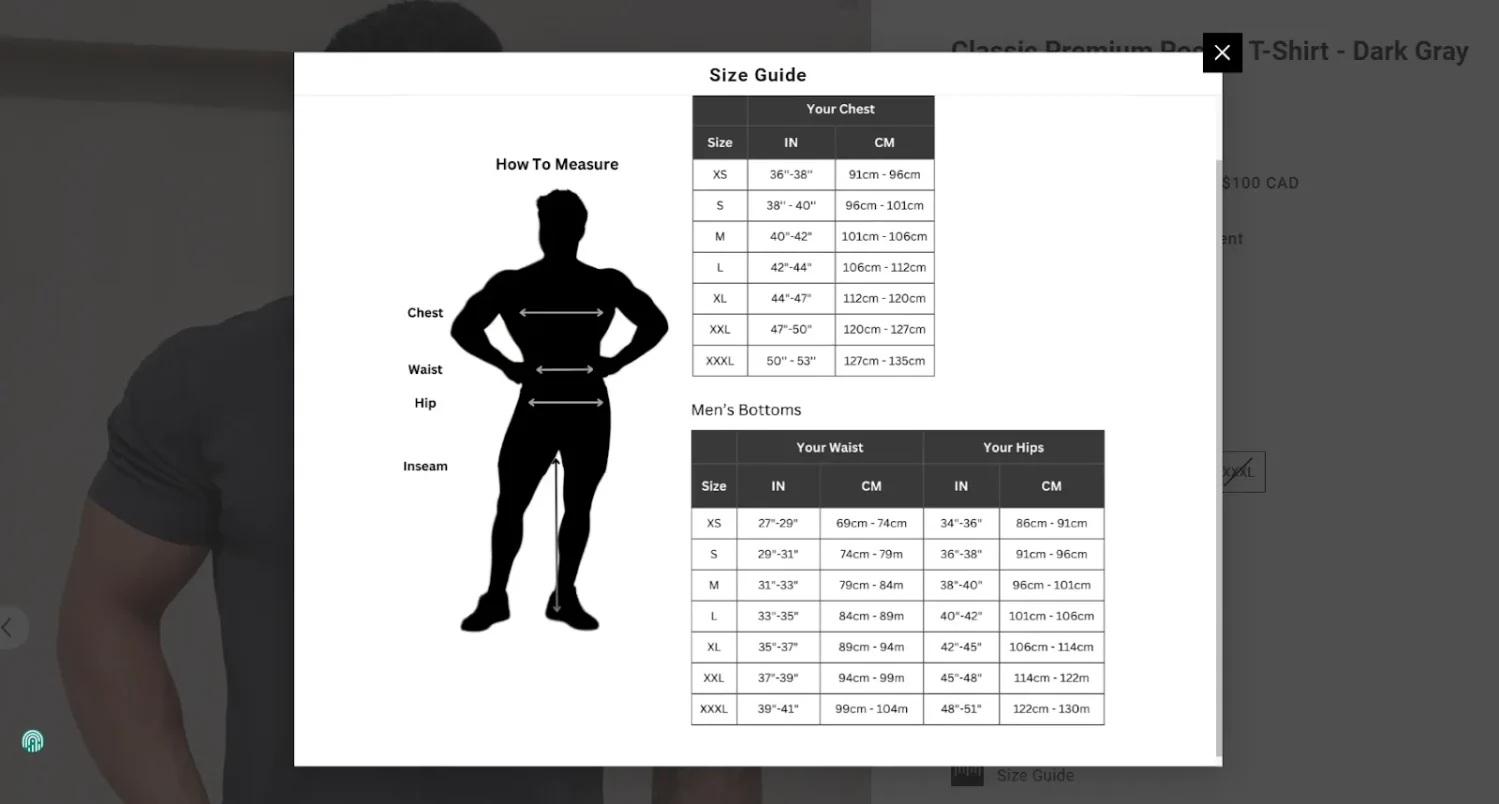
Size charts come in two types, and many brands show both.
Body measurement charts match each size to body dimensions like bust, waist, hip, and shoulder. This type helps first-time buyers who want to compare the numbers to their own body.
Garment measurement charts list the finished dimensions of the item itself, such as chest width flat, inseam, and leg opening. This type helps for styles where drape or ease matters, like oversized sweaters or denim, because shoppers can decide how much room they want.
A size chart matters because sizing problems cost your store twice: through returns and through lost sales. Fixing sizing information solves both at once.
Returns are expensive and widespread. Total U.S. retail returns reached $890 billion in 2024, and retailers estimated 16.9% of annual sales would be returned, according to the National Retail Federation. The rate eases slightly in 2025, with NRF projecting 15.8%, but the cost stays high.
Apparel runs hotter than the average. Coresight Research put the online apparel return rate at 24.4%, and estimated $38 billion in apparel returns with $25 billion in processing costs. Every one of those returns is margin you already paid to acquire, which is why cutting returns sits at the center of any plan to increase sales on Shopify.
Size and fit drive most apparel returns. McKinsey surveyed apparel companies and found 70% of returns were caused by poor fit or style. Note the exact wording: fit or style, not sizing alone.
Coresight adds a second data point from the merchant side. Size and fit were named the top reason for 53% of returns in its survey of U.S. apparel decision-makers. Consumer surveys agree, with a 2025 study of 6,000 shoppers reporting 61% had returned apparel because it did not fit, per Rithum.
Unclear sizing does not only cause returns. It stops the sale before it happens. Baymard Institute found that 82% of apparel sites fail to provide sufficient sizing information, and 90% fail to let shoppers properly assess appearance, size, or fit. Baymard’s testing shows uncertain shoppers hesitate, and some leave the product page entirely to find sizing details, risking that they never come back.
This is where a size chart connects to your wider conversion rate work. A shopper who is confident in the size both buys and keeps the order. Once that confidence is in place, you can raise the value of the same cart with offer mechanics, such as the free gift with purchase automation and the spend-threshold cart progress bar in BOGOS, which reward shoppers for adding a little more.
There are five ways to add a size chart in Shopify: a page plus a metafield, a pop-up, a theme with built-in support, a size chart app, and custom code. Each has clear trade-offs, and the right one depends on your theme, your budget, and how many different charts you need.
The page-plus-metafield method needs no app and works on Dawn and most Shopify 2.0 themes. It is the best free option for most stores.
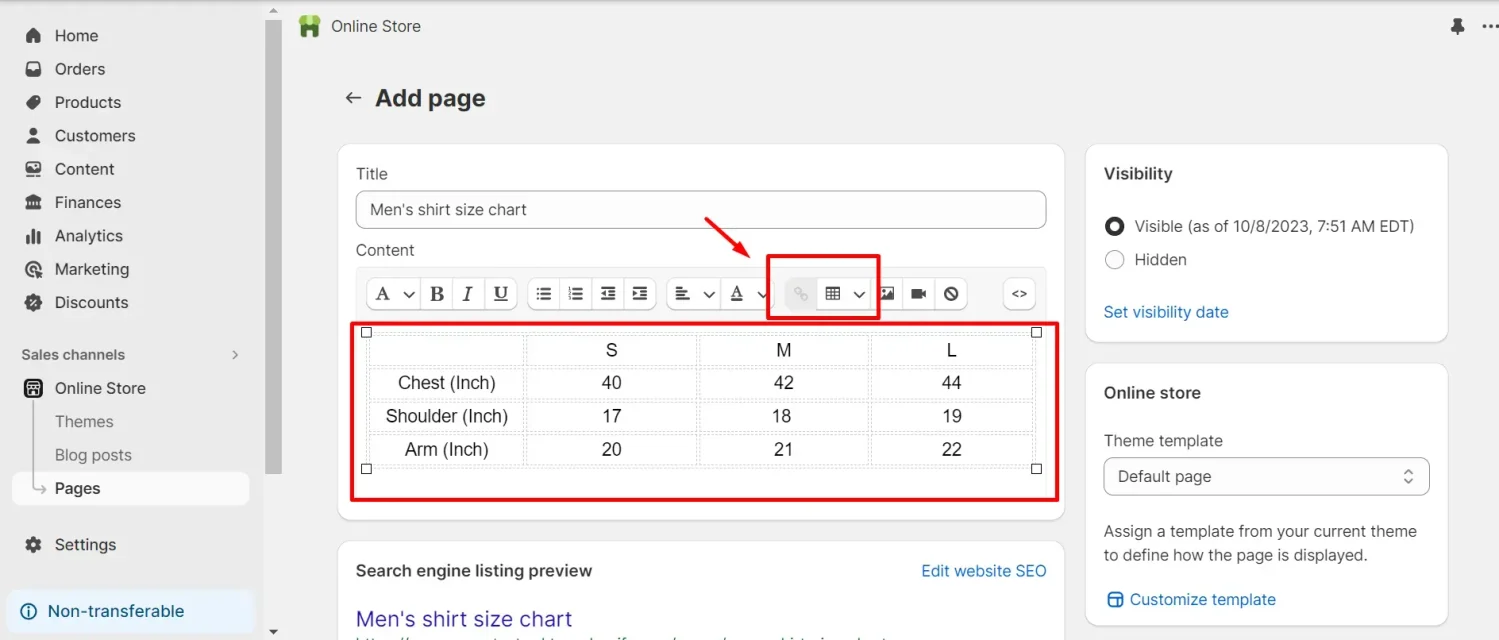
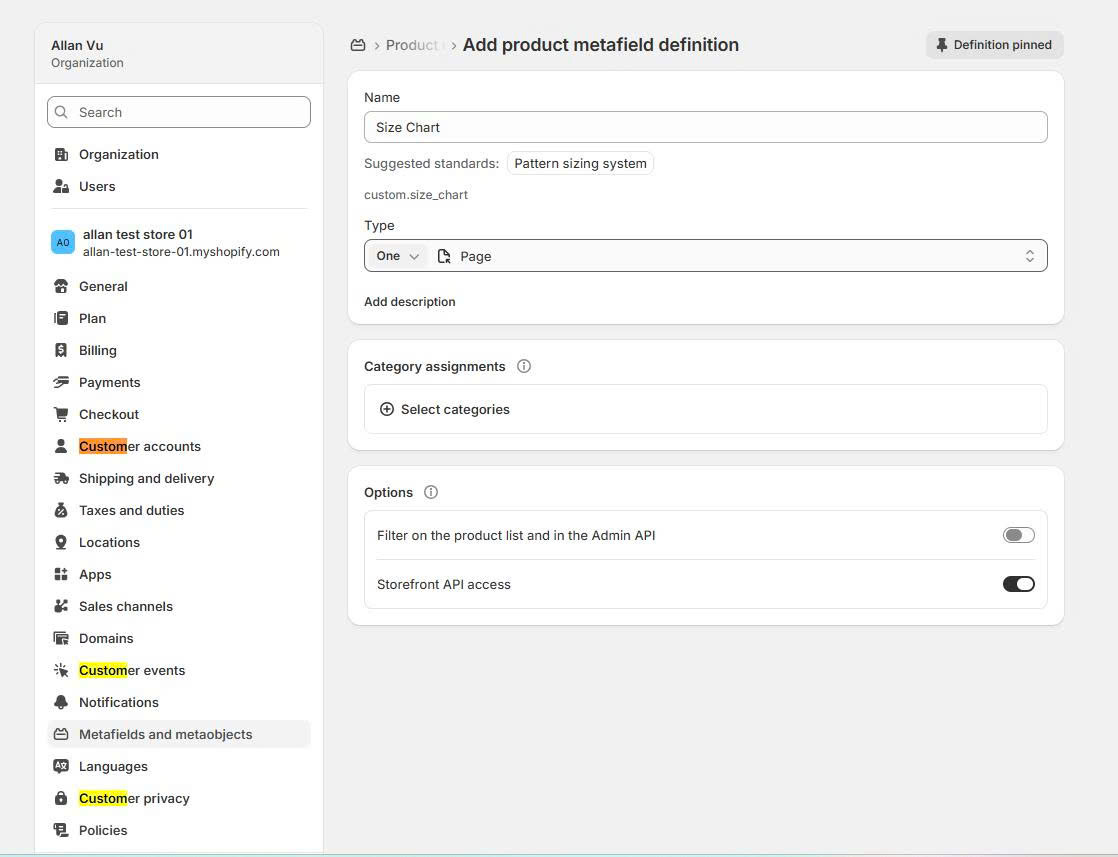
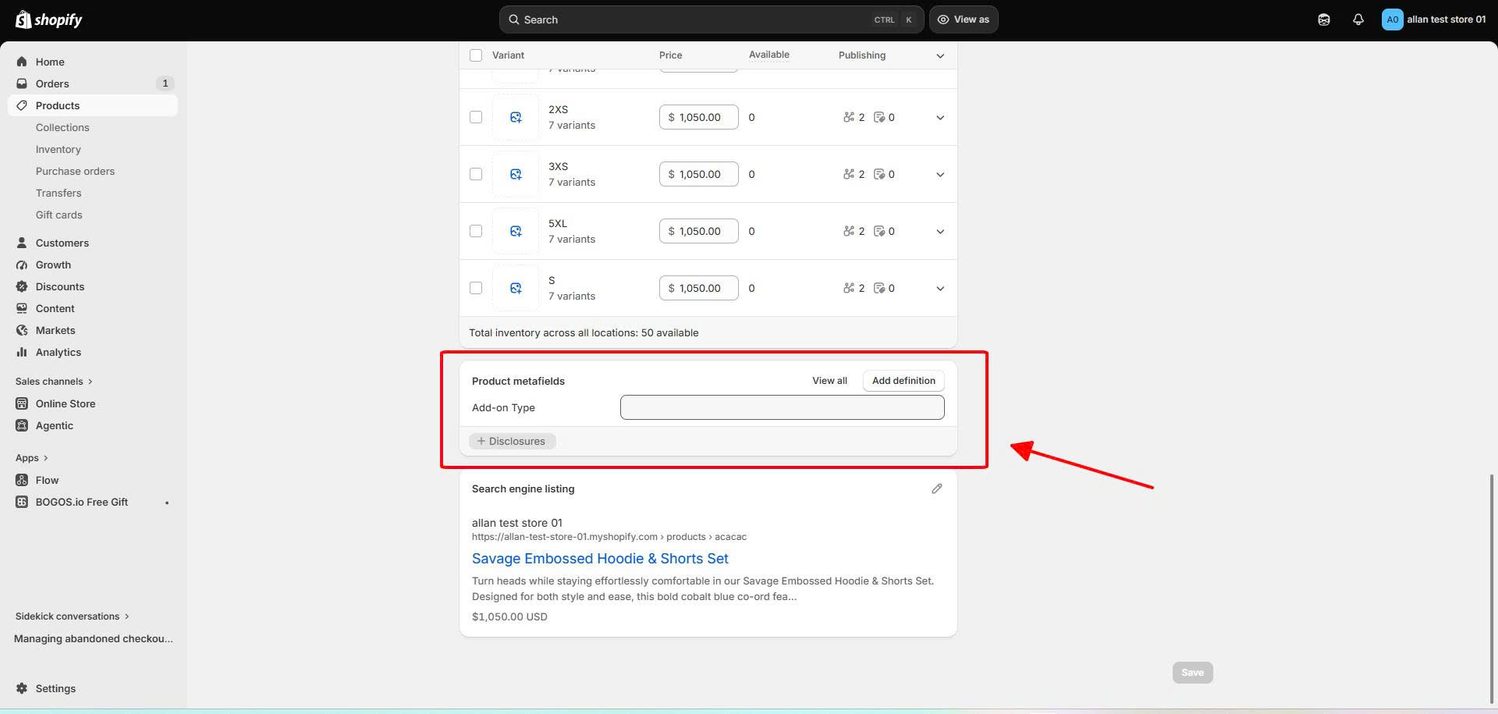
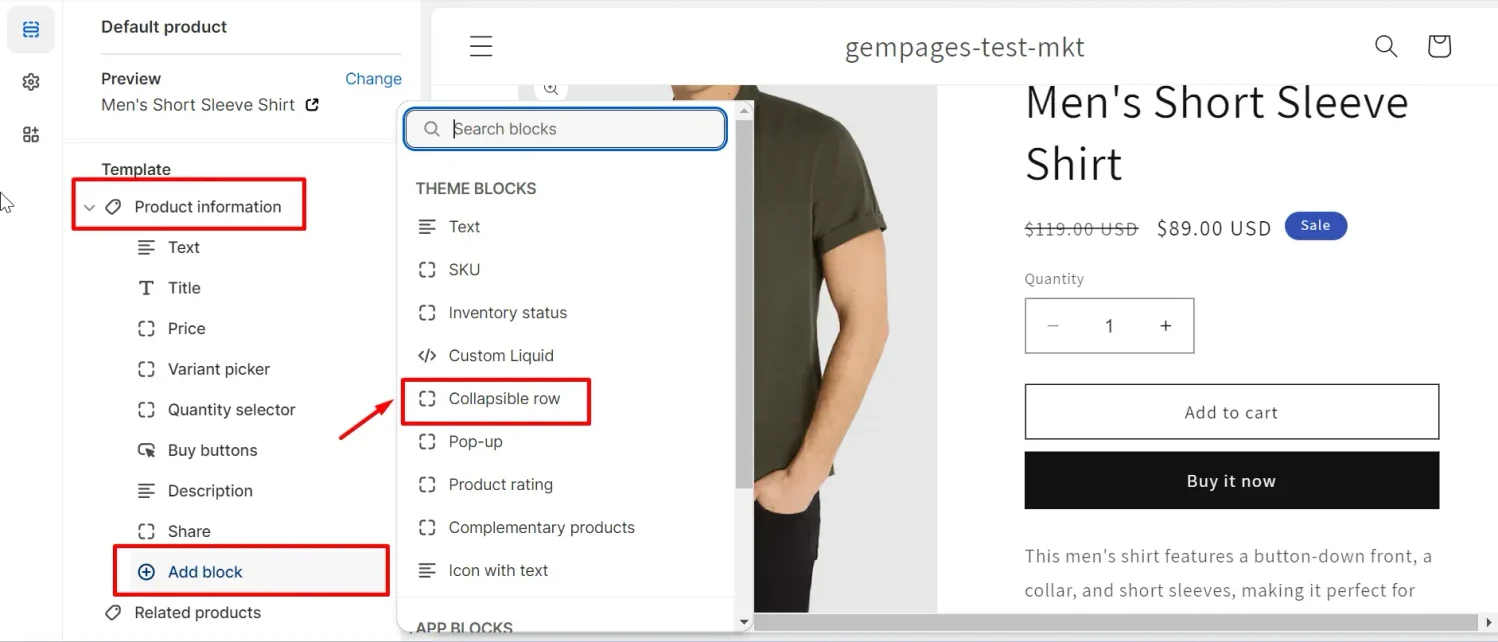
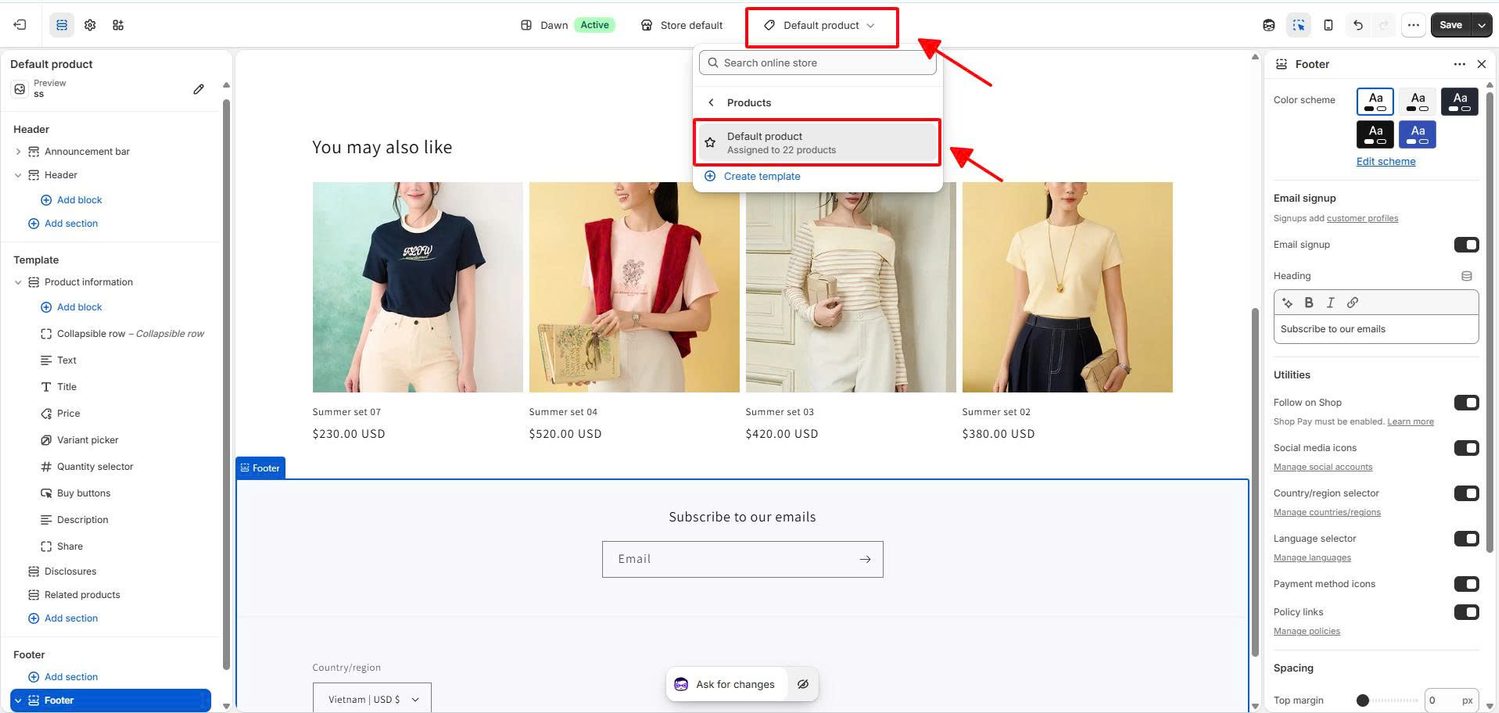
This method lets you assign a different chart to each product, which matters when your sizes vary across product types.
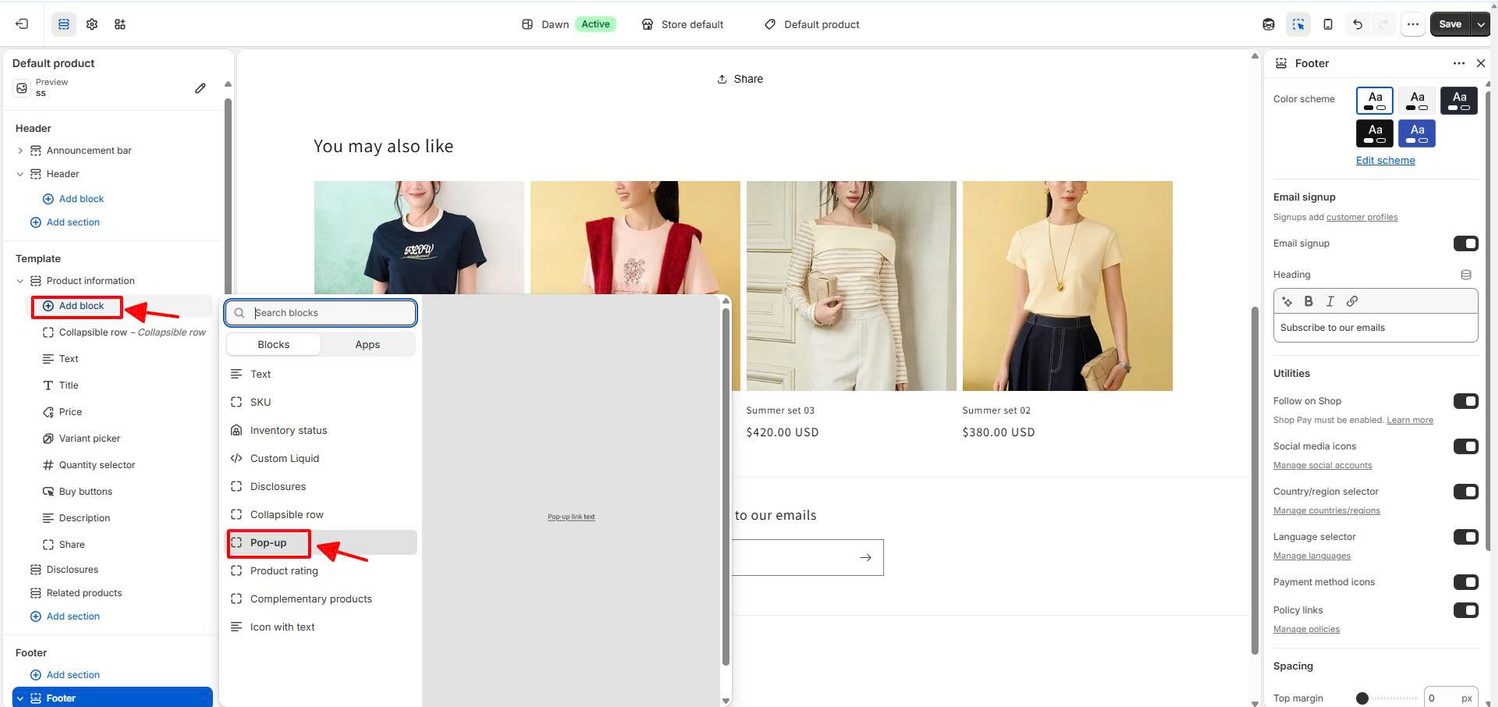
A pop-up shows the chart in an overlay when a shopper clicks a link, so they never leave the product page. Dawn and many Shopify 2.0 themes include a pop-up block for this. You still need a size chart page and metafield behind it, so complete steps 1 to 3 of Method 1 first.
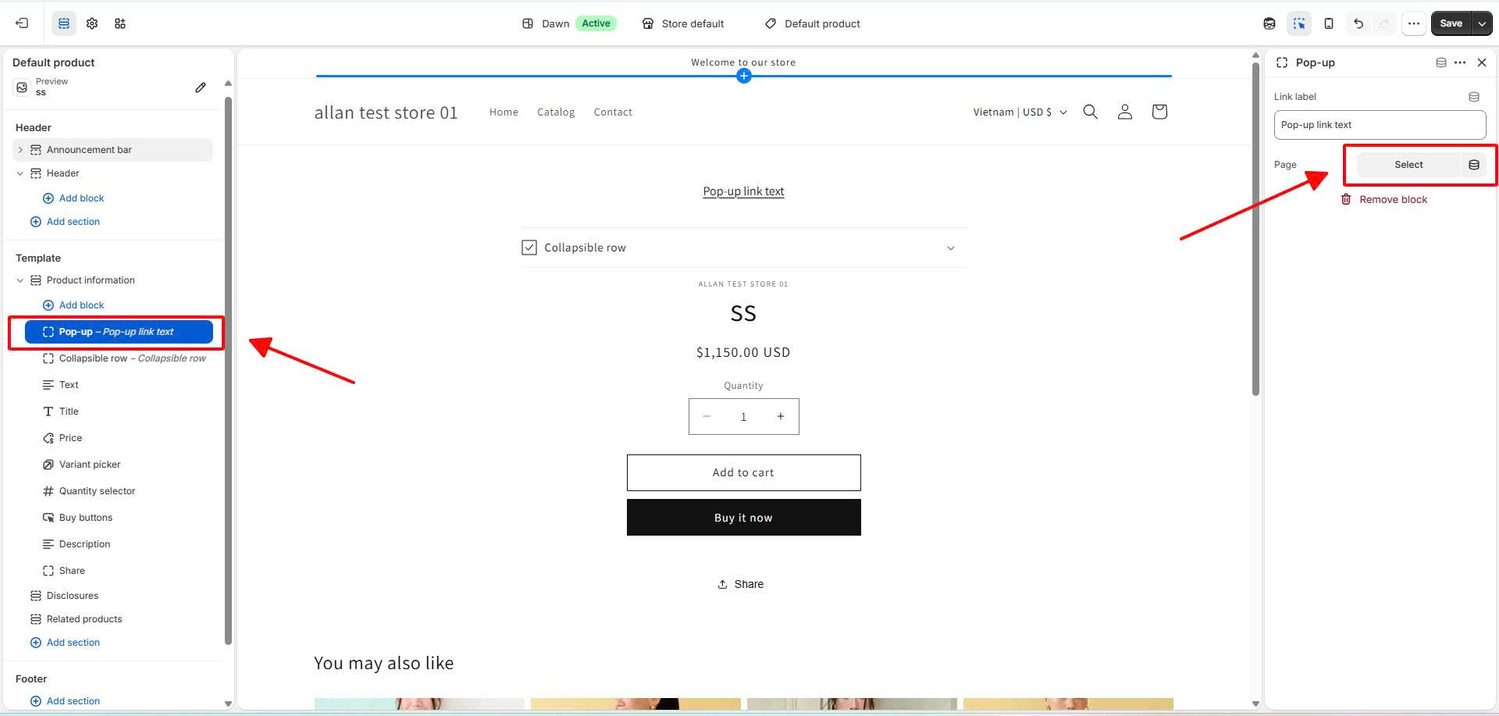
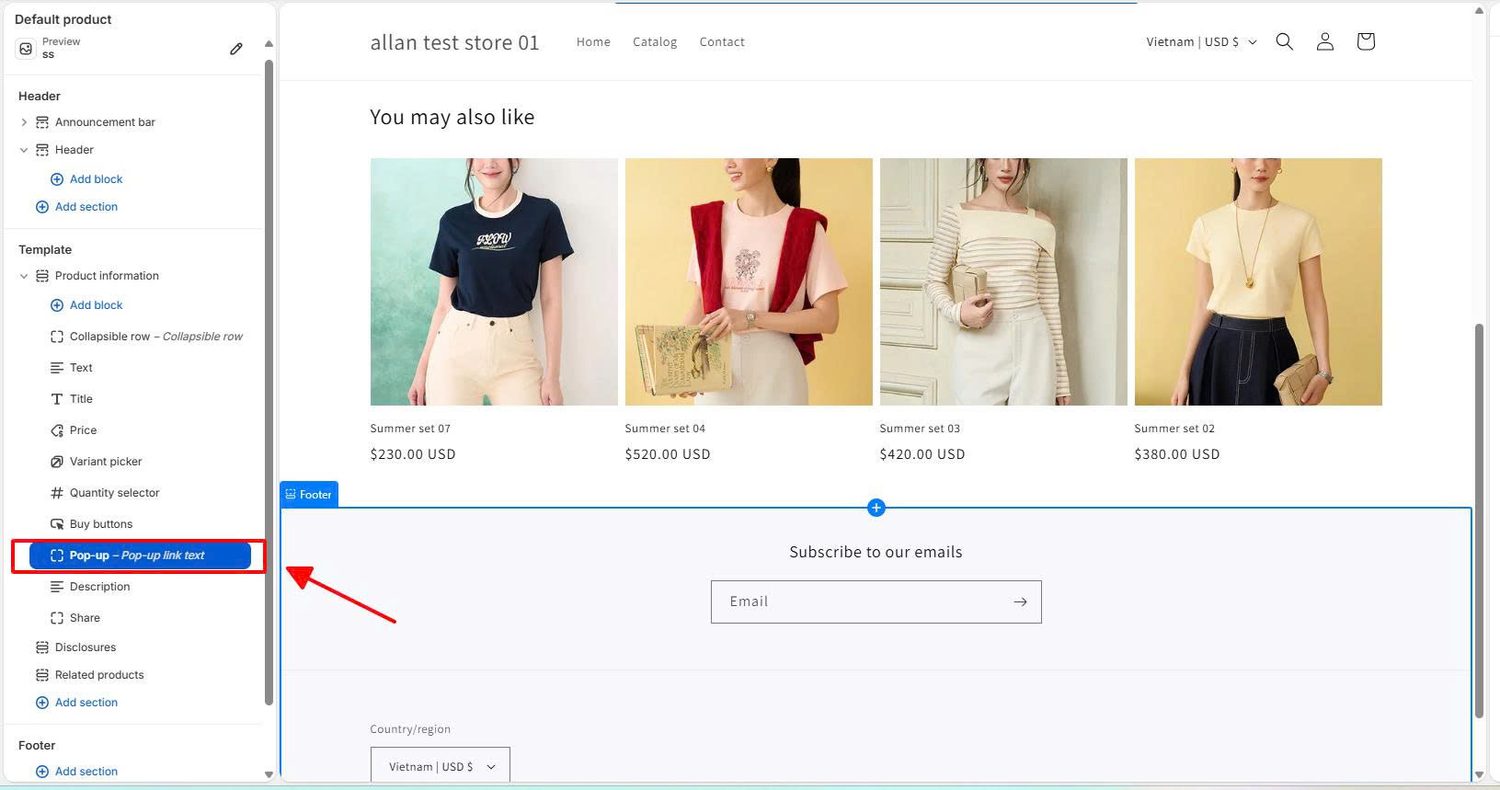
Some themes include a size chart feature you can set up from the theme editor with no code and no separate app. This keeps your product page fast and reduces the number of apps you run. Choose this route if your theme already supports it, or if you are picking a new theme anyway.
The table below compares a free option against paid themes that include a built-in size chart. Paid themes are one-time purchases with no monthly fee, and each lets you set a global chart plus a different chart per product from the theme editor.
| Theme | One-time price | Built-in size chart | Best for |
|---|---|---|---|
| Dawn | Free | No; uses the Method 1 metafield approach | Stores that want to spend nothing |
| Eurus | ~$350 | Yes; global and per-product | Conversion-focused beauty and DTC stores |
| Expanse | ~$360 | Yes; global and per-product | Large catalogs with many product types |
| Prestige | ~$400 | Yes; global and per-product | Premium, high-end brands |
| Impulse | ~$400 | Yes; global and per-product | Fashion stores that run frequent promotions |
Prices are set by each theme developer and can change, so confirm the current figure on the Theme Store listing. Note that “Try theme” in the Theme Store is a free preview, not a free plan, so a paid theme is a one-time purchase before you publish.
A size chart app is the fastest route when you have many products with different charts, or when you want extra features like AI fit recommendations. Apps handle the placement, styling, and per-product assignment for you.
Several strong apps cover this, and each offers a free plan. The table below compares the popular options.
| App | Developer | Free plan | Standout feature | Best for |
|---|---|---|---|---|
| Kiwi Size Chart & Recommender | Staytuned | Yes | AI size recommender with automatic unit conversion | Stores wanting a fit recommender, not just a chart |
| Smart Size Chart & Size Guide | SmartSize | Yes | Modular editor plus fit quizzes built in minutes | Quick setup with an interactive fit finder |
| Size Charts & Size Guide (ESC) | Eastside Co | Yes | Charts that auto-match your store theme | Clean charts that look native with little effort |
| MP Size Chart & Size Guide | Mageplaza | Yes | 30+ templates with images, videos, and CSV import | Template variety and bulk-creating many charts |
Paid tiers scale up from each free plan as you add more charts or features, and prices change often and differ across sources. Confirm the current price on each app’s Shopify App Store listing before you choose.
Custom code gives you full control over how the chart looks and where it sits, with no monthly fee. It suits stores with development skills and a specific design in mind.
The trade-off is risk and time. Editing theme code can break other parts of your store, so hire a developer if you are not confident, and always test on a duplicate theme first.
The right method depends on your budget, your technical comfort, and how many charts you need. The table below compares all five.
| Method | Best for | Pros | Cons |
|---|---|---|---|
| Page + metafield | Most stores wanting a free, flexible option | No app, per-product charts, editable from admin | Some setup steps to learn |
| Pop-up | Stores that want the chart over the page | Keeps shoppers on the product page | Still needs a page + metafield behind it |
| Built-in theme | Stores on a theme that supports it | No code, no extra app, fast pages | Only if your theme has it; many themes are paid |
| Size chart app | Large catalogs and fit-recommender needs | Quick setup, advanced features, bulk import | Recurring cost, another dependency, possible speed hit |
| Custom code | Developers wanting full control | Total design freedom, no monthly fee | Technical, time-consuming, risk of breakage |
An accurate size chart starts with the right measurements, presented clearly. A chart is only as good as the numbers behind it and the guidance you give shoppers to use it.
List every body point that affects how the item fits. The key points differ by garment.
If you make the products, you already hold these numbers. If you stock other brands, ask them for their charts so your figures are correct.
Most shoppers do not know their measurements and do not own a tape measure. Add a short guide that shows how to measure each point, and include fit notes like “runs small, size up if between sizes” so shoppers can decide without measuring.
Shoppers buy from many countries, so map your core sizes to global standards. Cover the US, UK, EU, Australia, and Japan at minimum, and give a toggle between inches and centimeters. Match the default unit to your main market.
A size chart only reduces returns when shoppers can find it, read it, and trust it. These practices turn a plain chart into one that cuts returns and lifts conversions.
Strong size charts share the same habits, and three brands show them well across different categories.
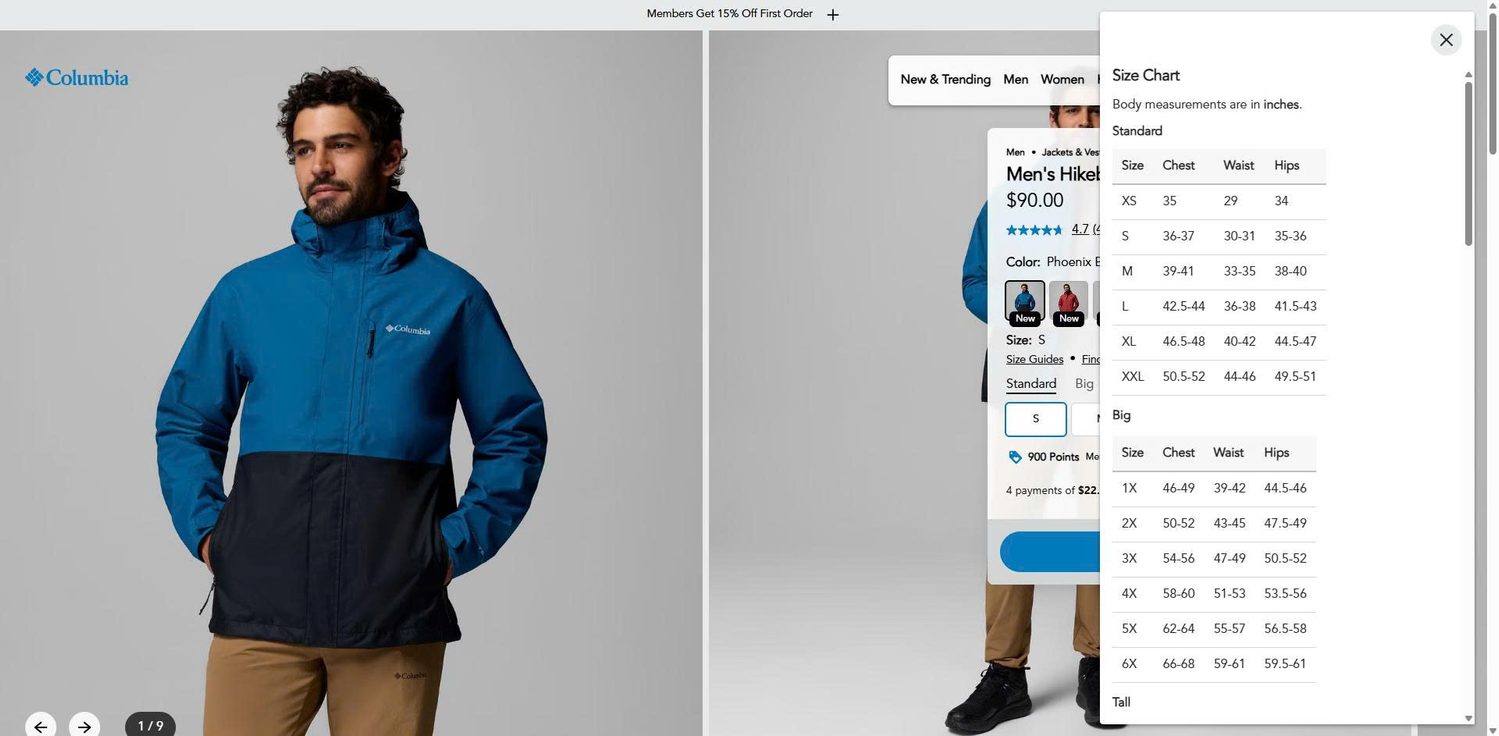
Columbia embeds a step-by-step measuring guide inside its fit pop-up. Shoppers see how to measure chest, waist, and hip without leaving the product page, which removes the guesswork before they choose a size.
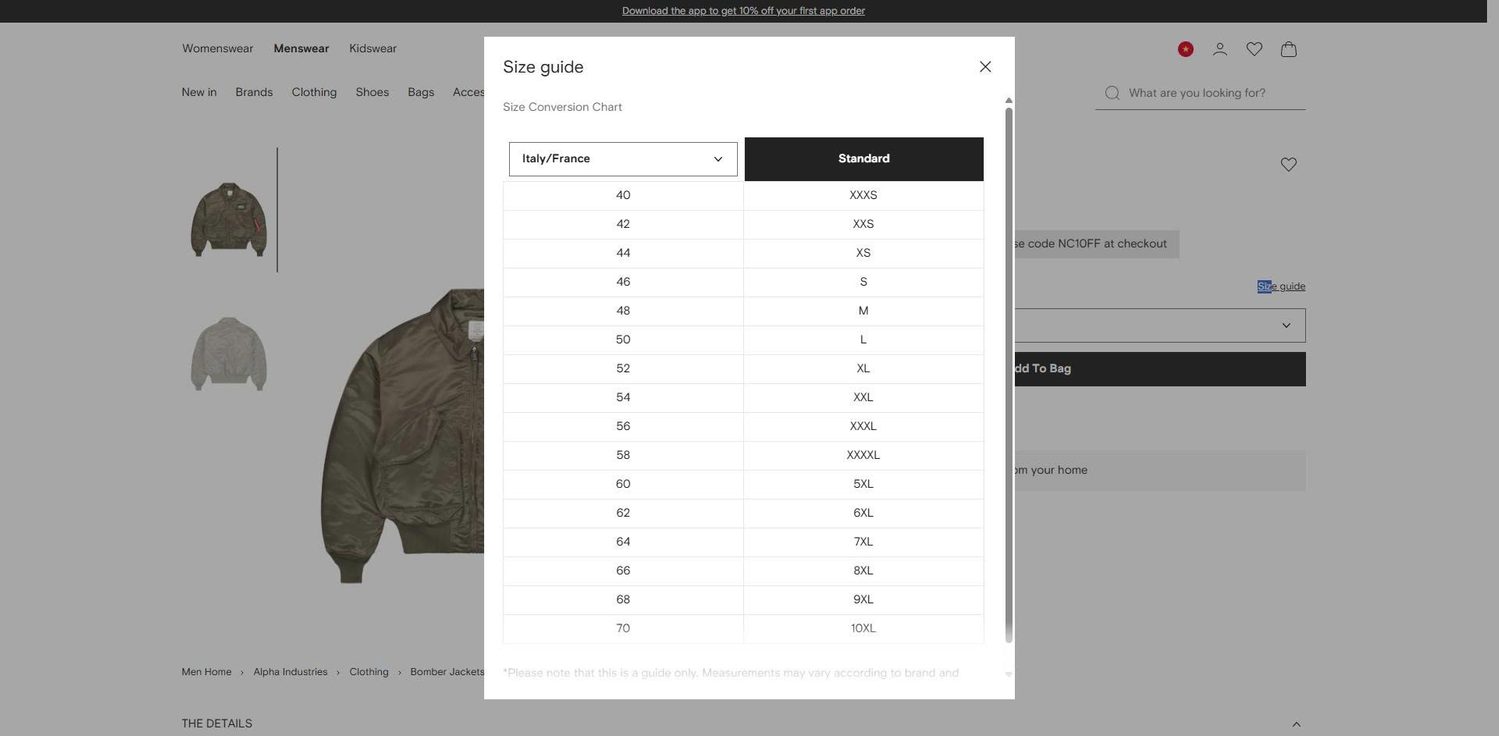
Farfetch uses a conversion pop-up that defaults to UK and US sizing, then lets shoppers switch to Italy, France, Japan, and more from one dropdown. This handles international buyers in a single click, so no one has to convert their size by hand.
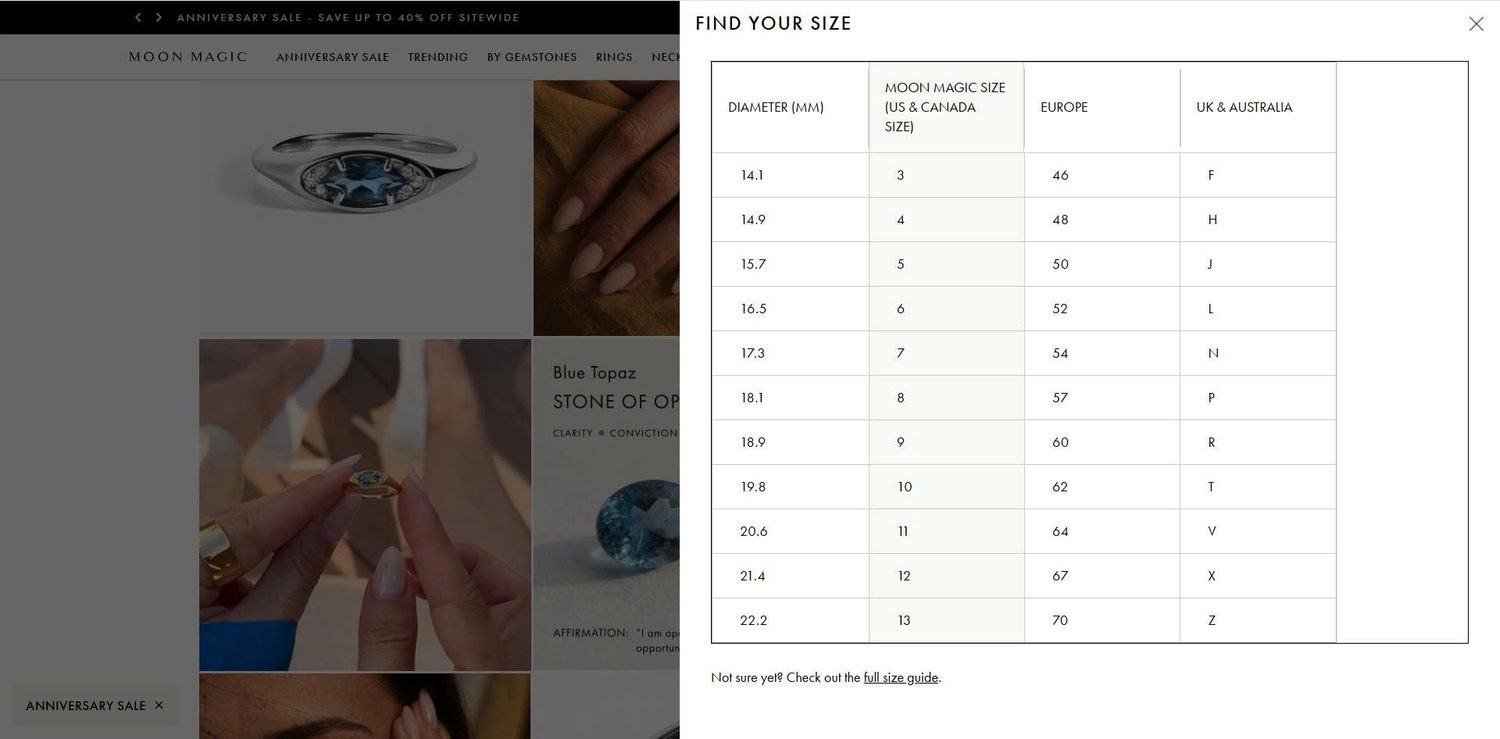
Moon Magic shows that sizing is not only an apparel problem. The jewelry brand gives a ring size chart with circumference, diameter, and regional conversions, plus a guide to measure ring size at home. The lesson holds across categories: give exact numbers, show how to measure, and offer conversions.
A clear, accurate, well-placed size chart reduces returns and wins the hesitant shopper. Start with the free page-plus-metafield method, build the chart from real measurements, add a how-to-measure guide and international conversions, and place it next to the size selector. Once sizing confidence is handled, a spend-threshold cart progress bar like the one in BOGOS can lift average order value on those same confident carts. The goal is simple: help shoppers buy the right size the first time, so you sell more and refund less.
No, you do not need an app. The page-plus-metafield method adds a size chart for free on Dawn and most Shopify 2.0 themes. Apps become worth it when you have many products with different charts, or when you want AI fit recommendations.
Place the size chart next to the size selector and the Add to cart button. Use a collapsible row or a pop-up link so it is easy to tap on mobile, and so shoppers never leave the page to find sizing.
You can, but a product-specific chart works better. Generic charts force shoppers to scroll for the numbers that apply to them, which lowers trust and costs sales. Assign a chart per product type whenever your sizes differ.

Shopify smart collections add and remove products for you based on rules, such as a tag, a price, or...
Shopify collections decide how shoppers find your products, yet many guides still describe a setup Shopify is now replacing....

A Shopify announcement bar is the thin strip at the top of your store that tells shoppers about shipping,...