Allan Vu is a Digital Marketing expert and the driving force behind BOGOS’s blog content. With a deep understanding of eCommerce and Shopify promotions, he is passionate about helping merchants unlock the full potential of their stores.
At BOGOS, Allan creates valuable, practical content focused on strategies like Free Gifts, Buy X Get Y, product bundles, and upsell offers to empower Shopify sellers to grow their businesses effectively.
Known for his clear, insightful writing, Allan is dedicated to delivering actionable advice that makes a real difference for BOGOS’s readers.
Free gift promotions are one of the most effective ways to increase average order value (AOV) and conversion rate on Shopify. But offering a gift alone is not enough. How you present the gift to the customer matters just as much as the gift itself.
When a customer meets the conditions of your gift-with-purchase (GWP) promotion, there are two ways to deliver the gift: auto-add it to the cart silently, or use a gift popup to show the customer what they’ve earned and let them engage with the offer.
This article covers how a Shopify gift popup works, four practical use cases, and how to set one up step by step using the BOGOS app.
A gift popup is a popup that appears on your Shopify storefront when a customer qualifies for a free gift offer. Instead of silently adding the gift to the cart, the popup makes the offer visible, notifying the customer that they’ve qualified for a gift, showing them what they’ll receive, and in some cases, letting them choose from multiple options.
“Gift popup” is not a single feature inside Shopify. It describes a category of popup interactions tied to GWP promotions. The popup is the presentation layer. The underlying promotion logic (what triggers the gift, which products qualify, what the gift is) runs behind it.
Shopify does not offer a native gift popup feature. You cannot create one using Shopify’s built-in discount tools alone. To display a gift popup on your storefront, you need a third-party app like BOGOS that handles both the promotion rules and the popup display.
Gift popup
How the Trigger Conditions Work
A gift popup is condition-based. You define the rules inside a gift app, and when a customer’s cart meets those rules, the popup triggers automatically on the storefront.
Most Shopify gift apps support three main trigger conditions:
Cart value: the popup triggers when the cart total reaches a minimum dollar amount. For example, “Spend $75 to get a free gift.” You can set both a minimum and maximum value to create tiered offers, such as spend $50–$99 for Gift A and $100+ for Gift B.
Cart quantity: the popup triggers when the customer adds a certain number of items. For example, “Buy 3 items to unlock a free gift.” This condition can apply to all products or be scoped to a specific collection or vendor.
Specific product or collection: the popup triggers when the customer adds a particular product (or any product from a specific collection) to the cart. For example, “Buy this skincare kit and get a free sample set.” This condition is commonly used to promote hero products, move paired inventory, or run product-specific BOGO offers.
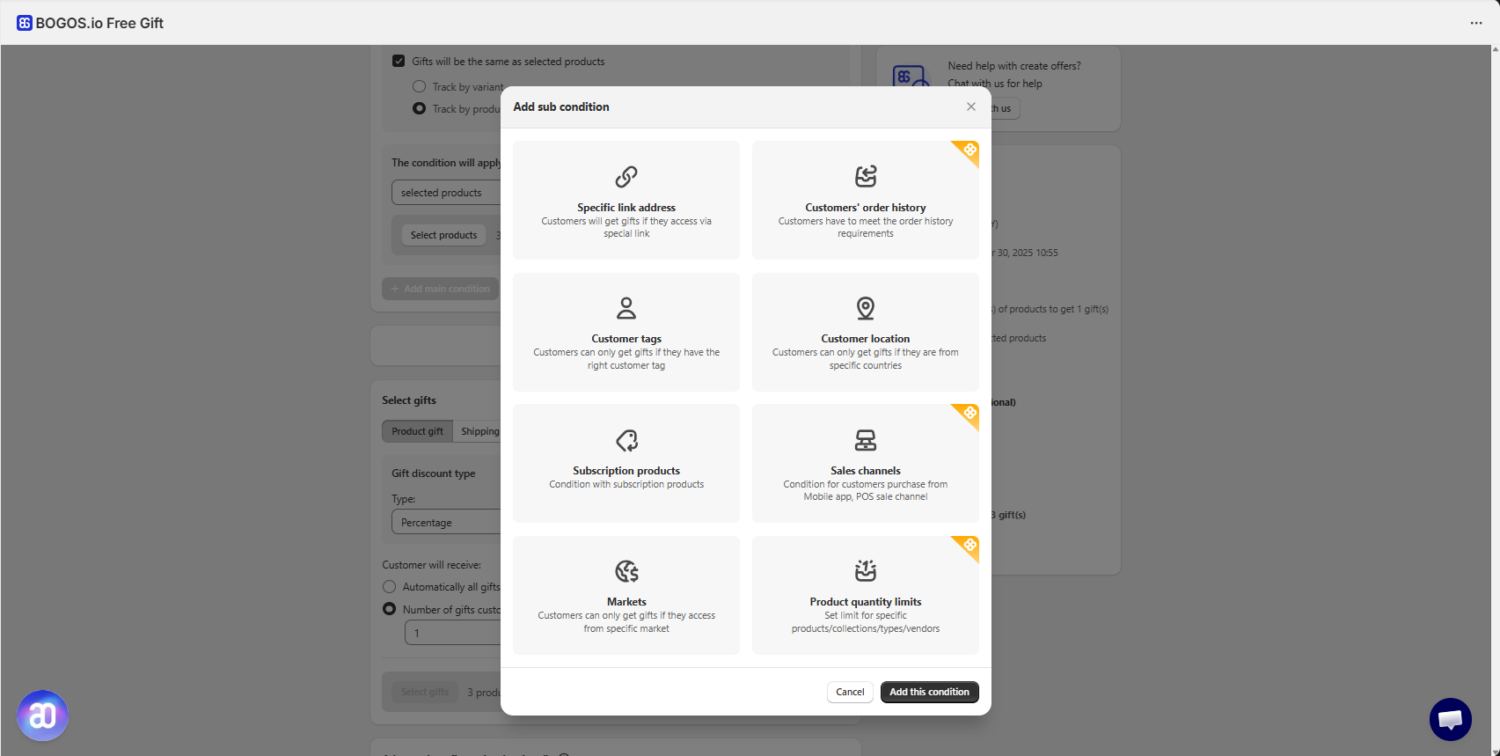
On top of these main triggers, most apps also let you layer sub-conditions to target the offer more precisely. Common sub-conditions include customer location or geo-targeting, customer tags or segments (such as VIP customers or first-time buyers), order history (for example, customers with 3+ past orders), specific URL or traffic source, and scheduled date ranges for seasonal campaigns.
Combining main conditions with sub-conditions lets you run targeted gift promotions instead of blanket offers. For example, you could set up a gift popup that only appears for customers in the United States who spend $100+ during your Black Friday campaign window.
2. Common Use Cases for Gift Popups
Gift popups are flexible enough to support several different promotional goals. Below are four practical use cases for Shopify merchants.
#1 Notify Customers That They Qualified for a Free Gift
The most straightforward use case for a gift popup is notification. When a customer’s cart meets your gift condition, the popup appears and tells them they’ve qualified for a free gift — showing the product image, name, and a clear message confirming what they’re receiving.
This matters because many customers won’t notice a gift that’s silently added to the cart. They may overlook it entirely, confuse it with a product they didn’t add, or not realize it’s free. A popup removes that ambiguity. The customer sees exactly what they’re getting and understands it’s a reward tied to their purchase.
Notify customers about the free gift they will receive
💡 Tip: Include the specific reason the customer qualified in the popup message. “You qualify for a free travel pouch with your $75+ order” is more effective than a generic “Free gift unlocked!” because it reinforces the connection between their spending and the reward.
#2 Let Customers Choose Their Gift
Instead of auto-adding a single predetermined gift, you can configure the popup to display multiple gift options and let the customer pick the one they want.
This approach works because choice increases perceived value. When customers select their own reward, they feel more in control and more satisfied with the outcome. A customer who picks a lip balm over a travel pouch is more likely to see the gift as personally relevant and more likely to complete the purchase.
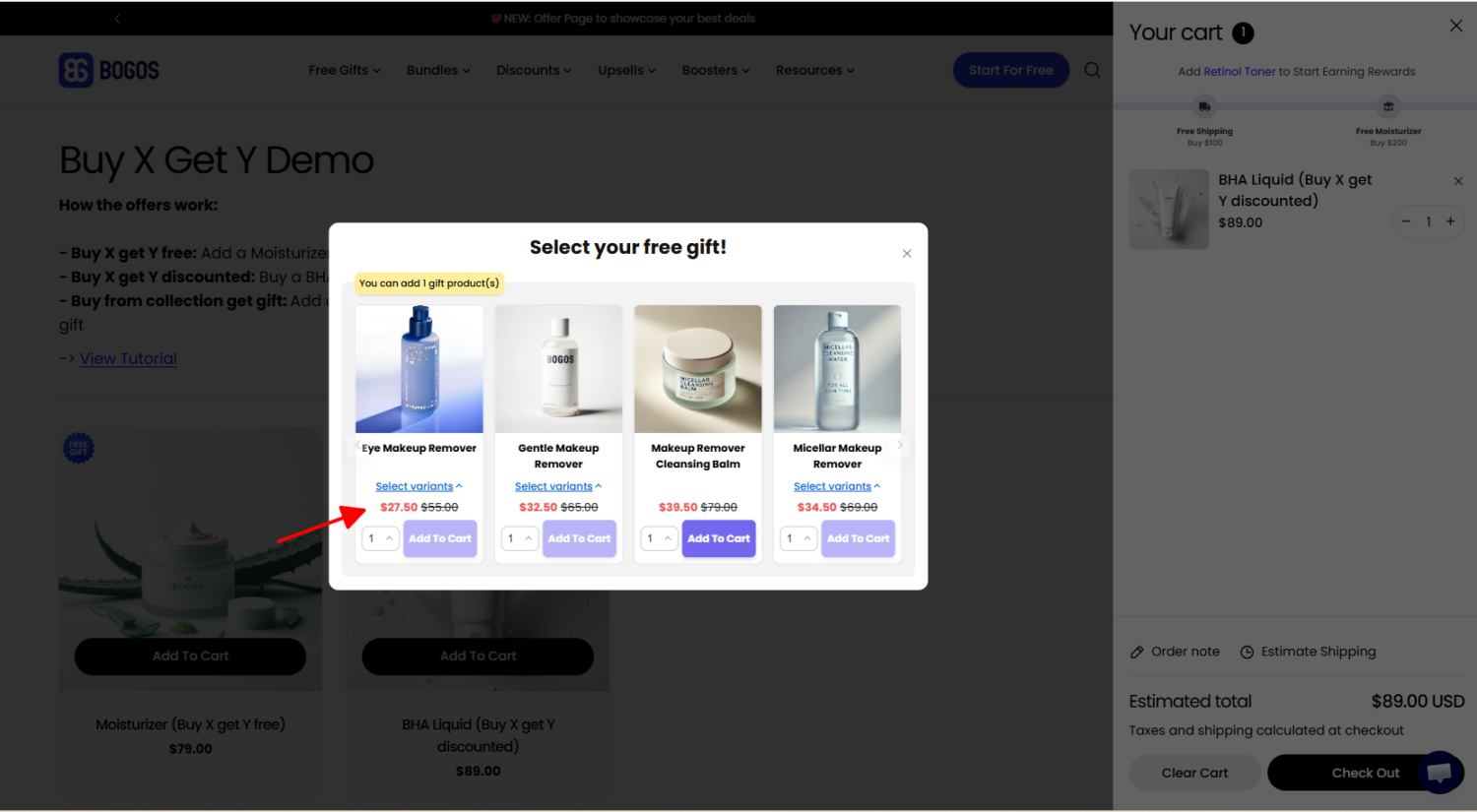
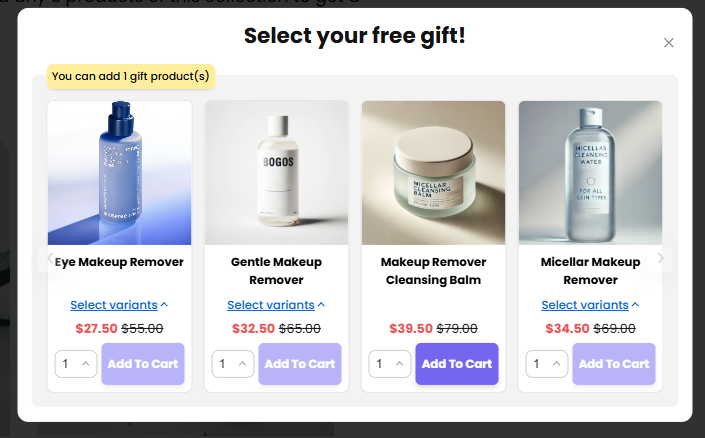
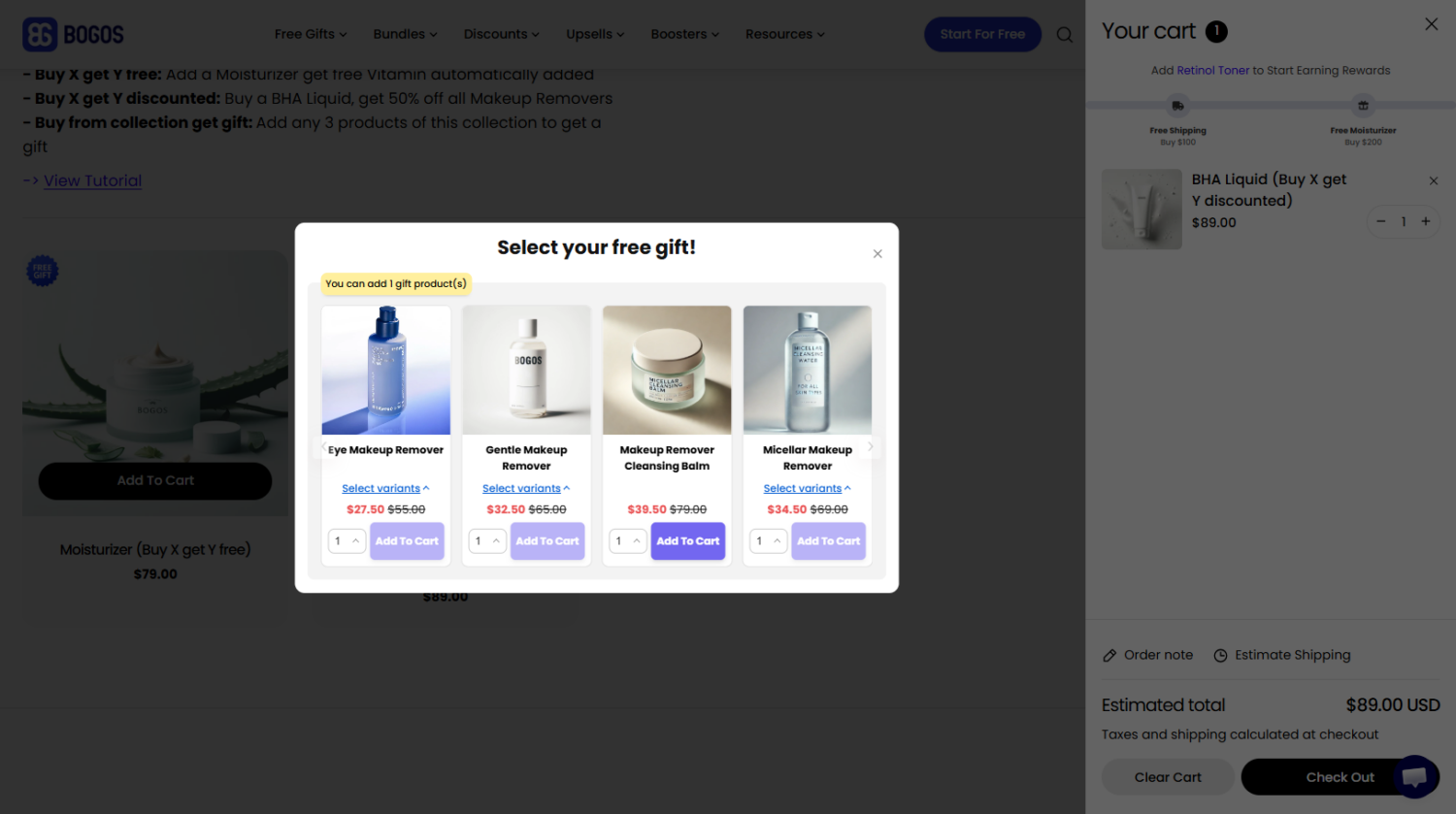
Here’s how it works: when the customer meets the trigger condition, a gift selection popup (often called a “gift slider“) appears with product images and names. The customer clicks their preferred gift, and it’s added to the cart automatically.
This use case works best for stores that have multiple low-cost products that can serve as gifts — beauty samples, accessories, consumable add-ons, or branded merchandise.
Allow customers to choose their free gift from a list
💡Tip: Limit your gift options to 2–4 products. More than that creates decision fatigue, slows down the checkout flow, and can actually lower conversion instead of increasing it.
#3 Upsell and Cross-Sell Relevant Products
Gift popups aren’t limited to 100% free gifts. You can also use them to offer complementary products at a discounted price. When a customer meets a trigger condition, the popup shows a related product at a reduced price — not free, but discounted enough to feel like a deal. A customer buying a coffee maker sees a popup offering premium coffee beans at half price. A customer adding running shoes gets a discounted offer on performance socks.
To increase the acceptance rate, you can layer a spending incentive on top. For example, the popup shows a discounted product and adds a message like “Spend another $10 to earn a free gift.” The customer gets two reasons to act: a discounted product now, and progress toward a free gift.
This use case works best when you pair products that naturally go together and when the discount is meaningful enough to feel like a bonus — especially for items the customer would need anyway (a phone case, coffee filters, skincare refills).
One important caution: unlike a free gift popup (which feels like a reward), an upsell popup asks the customer to spend more money. The customer hasn’t committed to a purchase yet — they’re still deciding. If the popup feels pushy or appears too often, it creates friction and can lower your conversion rate. Use this approach selectively, target it to specific products or customer segments, and make sure the offer is relevant to what’s already in the cart.
💡 Tip: Show both the original and discounted price in the popup so the customer sees the value immediately. “Add premium coffee beans — $24 $40” communicates the deal faster than “Get 40% off coffee beans.”
3. How to Create a Gift Popup on Shopify Using the BOGOS App
Shopify doesn’t have a built-in gift popup feature, so the most reliable way to create one is through a dedicated Shopify app. In this section, we’ll walk through the setup using BOGOS.
About BOGOS
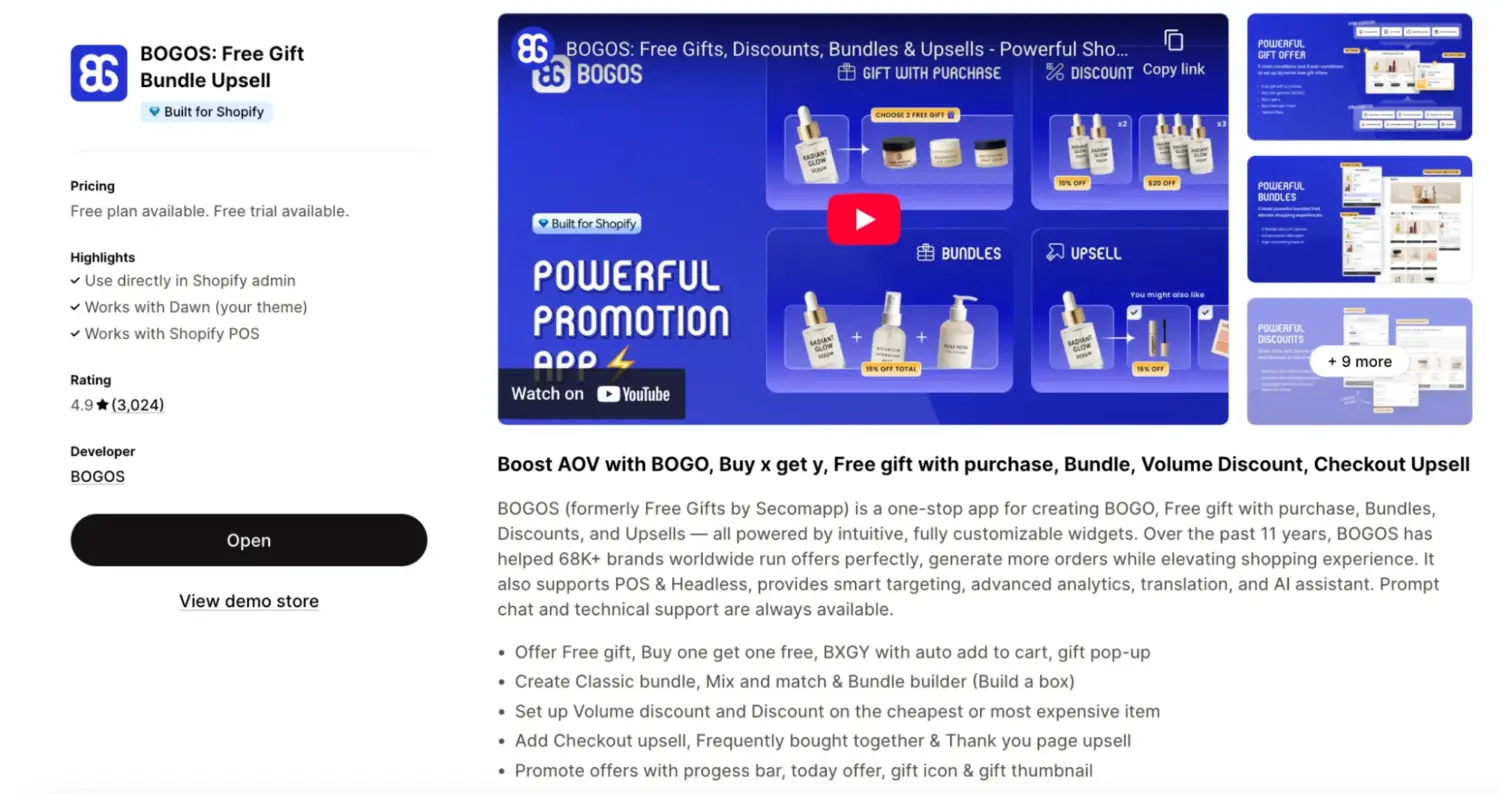
BOGOS (formerly Free Gifts by Secomapp)is an all-in-one Shopify app for creating free gift, BOGO, bundle, volume discount, and upsell offers. It has supported over 76,000 Shopify stores over the past 11 years.
Bogos Free Gift Bundle Upsell App
For gift with purchase promotion specifically, BOGOS offers two delivery methods: auto-add to cart (the gift is added silently) and an interactive gift slider popup where the customer selects their gift. The app supports all three main trigger conditions — cart value, cart quantity, specific product, buy bundle to get gift, and cart multiplier condition — along with sub-conditions like customer location, customer tags, order history, and scheduled date ranges.
Other relevant features include customizable popup design (colors, text, layout), gift icons and thumbnails on product pages, tiered gift offers, support for Shopify POS and Headless/Hydrogen storefronts, and built-in analytics to track offer performance.
Step-by-Step Setup
Step 1: Install BOGOS
Go to the Shopify App Store, search for “BOGOS,” and click Install. Authorize the app from your Shopify admin. BOGOS offers a 7-day free trial, so you can test the full feature set before committing to a paid plan.
Step 2: Create a New Gift Offer
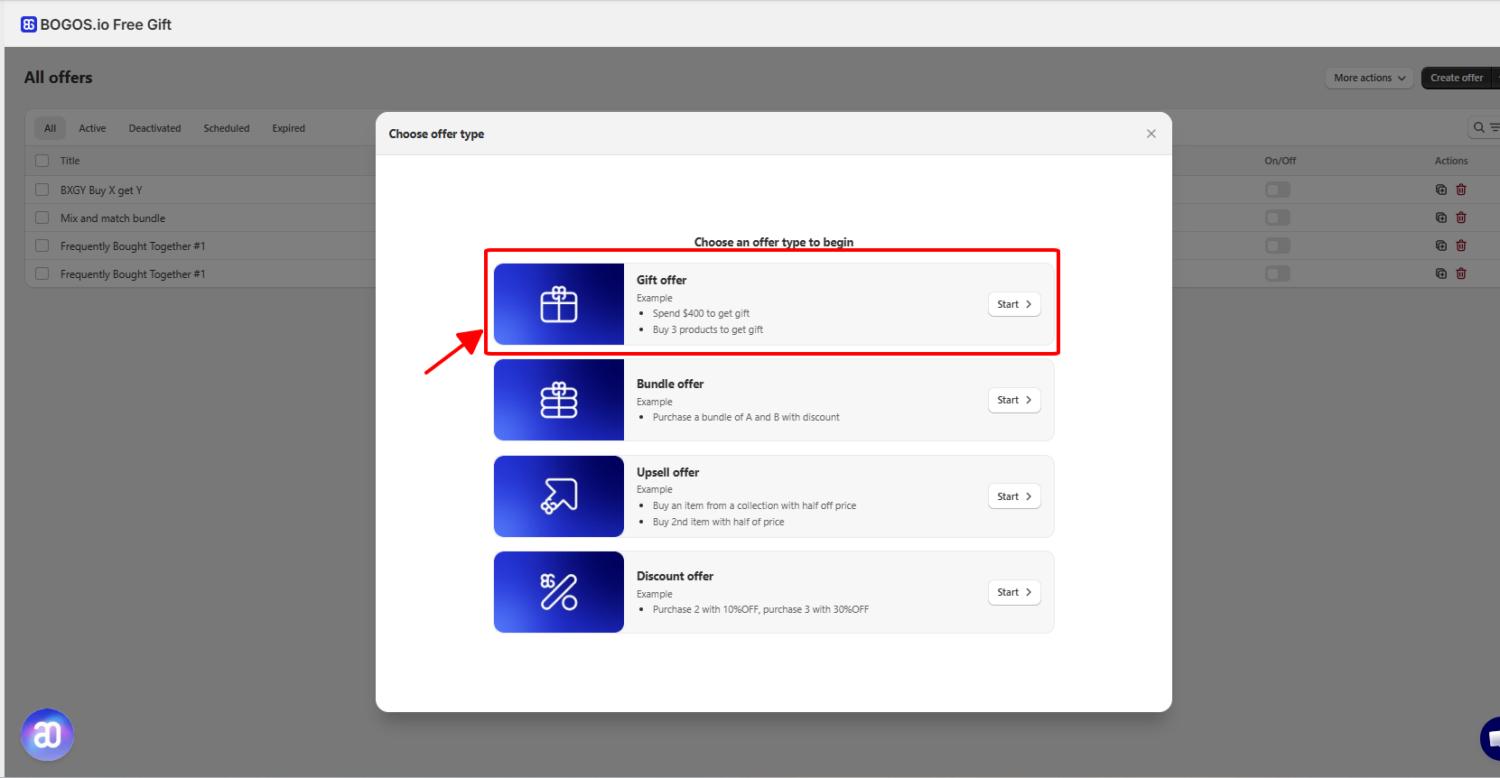
In the BOGOS dashboard, click “Create Offer” and select “Gift Offer.” If you’re setting up a common promotion type (like spend-based gifts or product-specific BOGO), you can start from one of the pre-made templates to save time.
Step 3: Set Your Trigger Condition
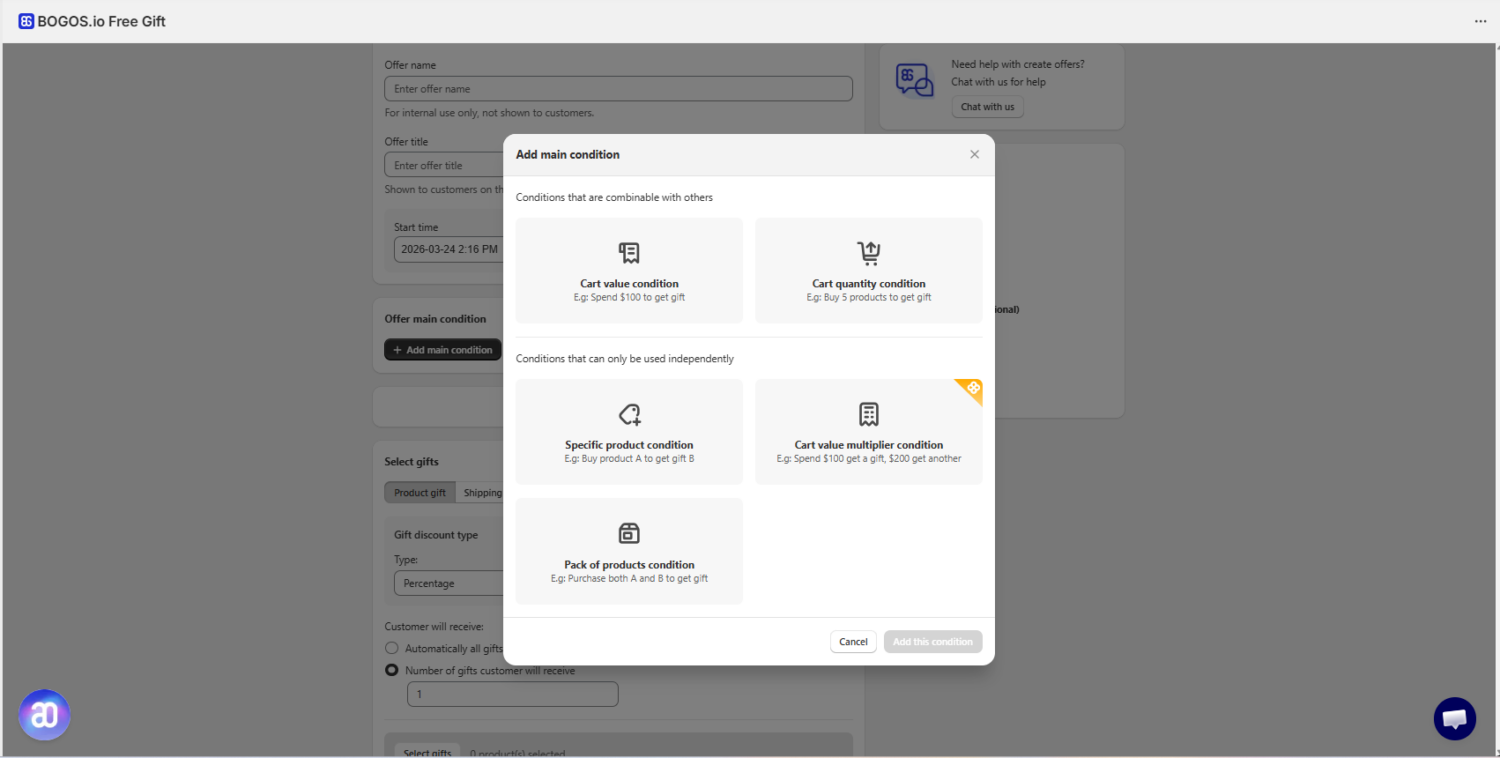
Under “Offer main condition,” click “Add main condition” and choose the trigger type that matches your promotion goal:
Cart value: Set the minimum (and optional maximum) cart value. For example, set a $75 minimum to unlock the gift. To create tiered offers, set up multiple offers with different cart value ranges — such as $50–$99 for Gift A and $100+ for Gift B.
Cart quantity: Set the number of items the customer must add. You can scope this to all products or limit it to a specific collection or vendor.
Specific product: Select the product(s) or collection the customer must purchase to qualify. You can also enable “Multiply gifts with the number of products” if you want the gift quantity to scale with purchases (e.g., buy 2 qualifying items, get 2 gifts).
Pack of products condition: Buy a group of products (bundle) to get a gift, you can also decide exactly number of each product that the customer must buy to qualify for the gift.
Cart value multiplier: Customers receive more gifts as they spend more
You can combine conditions within a single offer for more targeted setups. For example, buy from Collection A and spend $50+ to unlock the gift.
Step 4: Select the Gift Product(s)
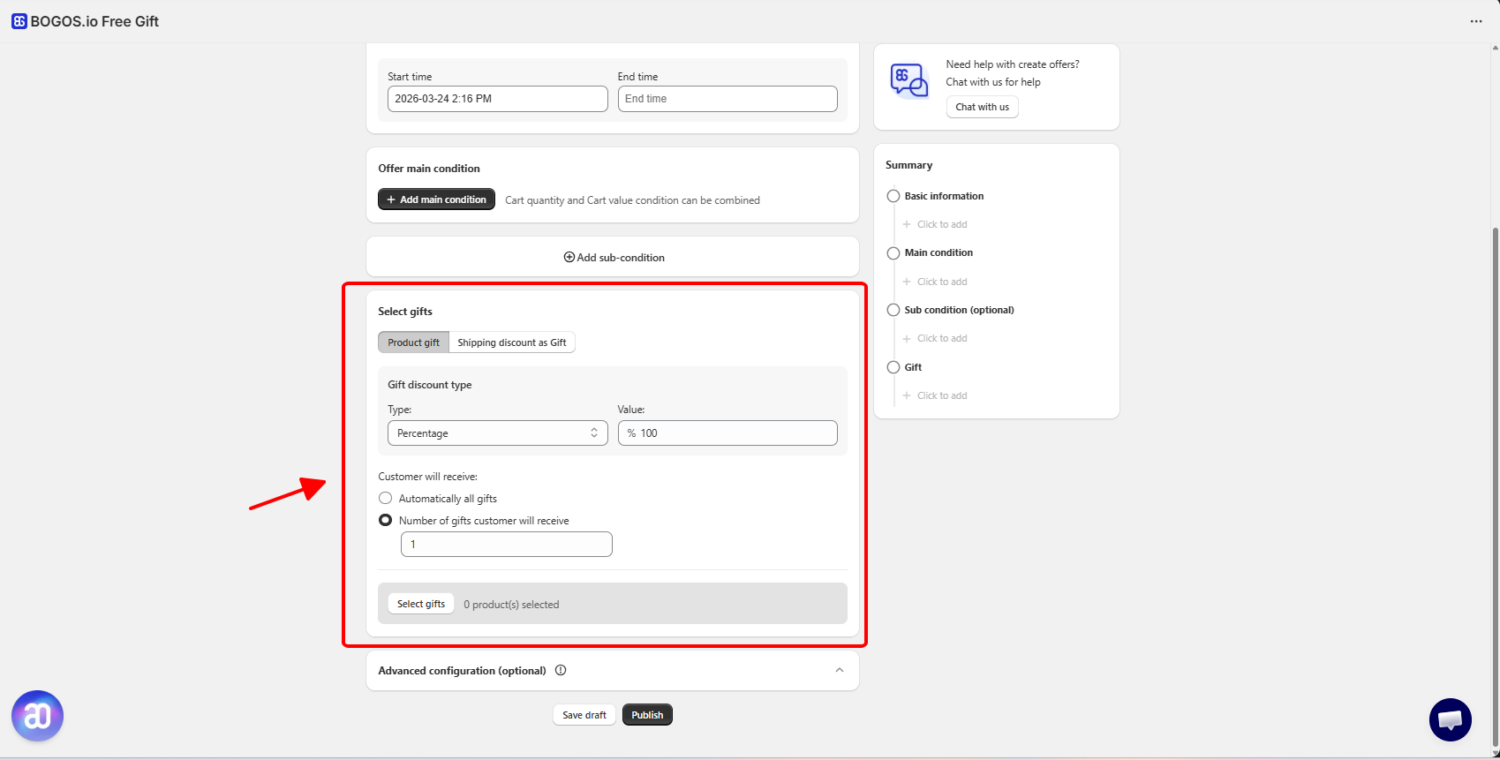
Click “Select Gifts” and choose the product(s) you want to offer. If you want customers to choose from multiple gift options, set the “Number of gifts customers will receive” to the number of selections allowed (e.g., “Pick 1 of 3”).
Then choose the delivery method. Select “automatically all gifts” if you want the gift added silently, or set the number of gifts a customer can receive if you want a popup to appear where the customer selects their gift. For the purposes of this guide, set “the number of free gifts customers can receive” to create a gift popup.
Step 5: Configure the Popup Display
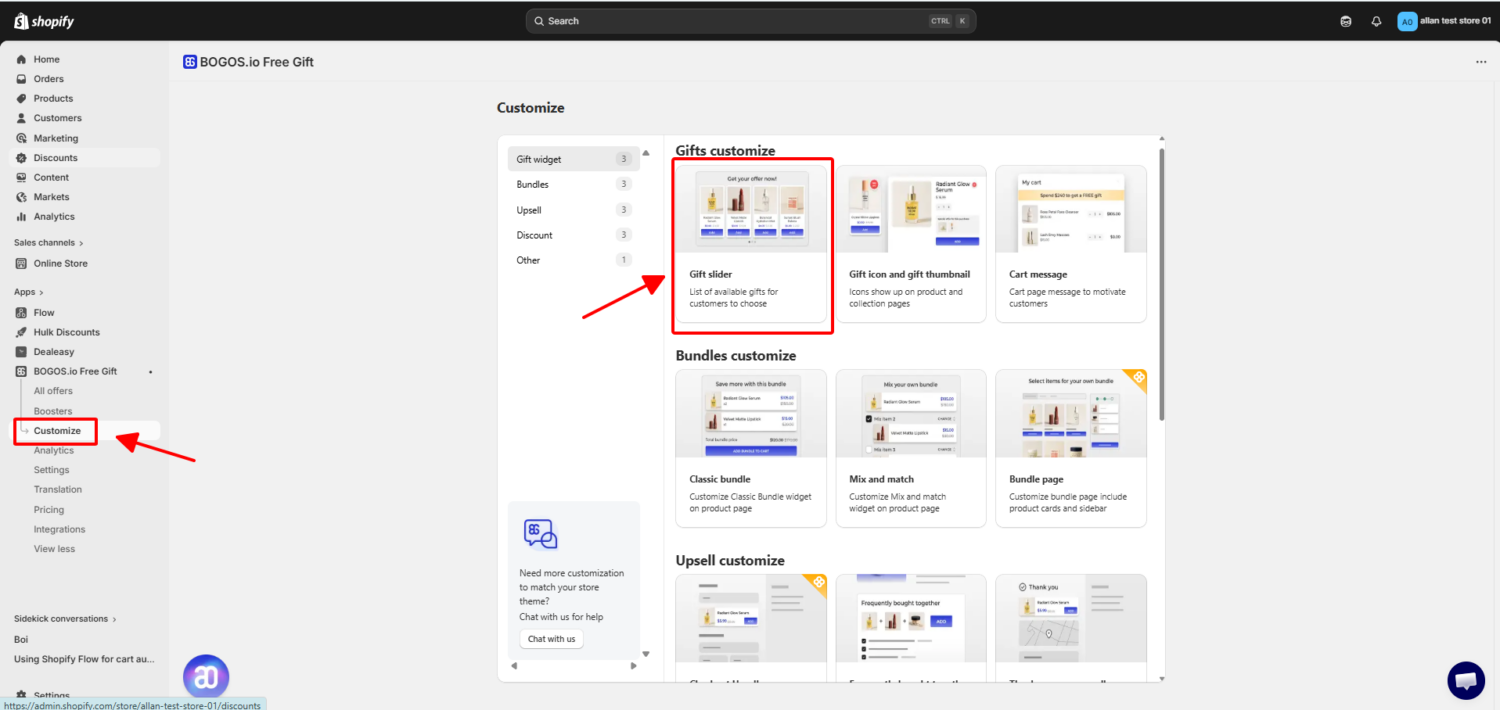
Navigate to the Customization page in the BOGOS dashboard. Here you can adjust the gift slider’s appearance to match your store’s branding — including colors, text, product image layout, and popup behavior.
You can also enable supporting widgets to increase the promotion’s visibility across your store:
Gift icon — displays on product pages and collection pages to signal that a gift is available.
Gift thumbnail — shows a small preview image of the gift product on eligible items.
Step 6: Set Additional Rules (Optional)
If you want to narrow the audience or time-limit the promotion, BOGOS provides several optional settings:
Schedule start and end dates for seasonal or event-based campaigns.
Add customer-based targeting: location, customer tags, order history, or subscription status.
Restrict the offer to specific sales channels (online store, POS, mobile app).
Set offer priority if you’re running multiple gift promotions at the same time.
Step 7: Publish and Test
Click “Publish” to make the offer live on your store. If you want to review it first, click “Save Draft” instead.
Before promoting the offer to customers, test it yourself. Add products to the cart, meet the trigger condition, and verify that the popup appears correctly on both desktop and mobile. Check that the gift is added to the cart at the correct price ($0 or your configured discount), that the popup displays the right product images and text, and that the popup is easy to close and doesn’t block the checkout flow.
4. Tips for Making Your Gift Popup Effective
A gift popup that’s poorly timed or poorly designed can hurt conversion instead of helping it. These tips will help you get the execution right.
Trigger on action, not on page load. The popup should appear when the customer does something relevant — adds a qualifying product or reaches the cart threshold. A popup that fires the moment someone lands on your homepage feels random and intrusive.
Be specific in your messaging. Tell the customer exactly what they can receive and why. “You qualify for a free travel pouch with your $75+ order” works. “You’ve earned a reward!” does not. Vague messaging creates confusion instead of excitement.
Show the product image. Customers respond to visuals, not just text. A popup that includes a clear product photo of the gift converts better than a text-only notification. This also helps customers immediately understand what they’re getting.
Test on mobile. The majority of Shopify traffic comes from mobile devices. Make sure the popup doesn’t cover the entire screen, loads quickly, and has an easy-to-tap close button. A popup that’s hard to dismiss on mobile will push customers away instead of toward checkout.
Limit options in selection popups. If you let customers choose their gift, stick to 2–4 options. More than that creates decision fatigue. Customers who can’t decide quickly are more likely to close the popup without selecting anything.
Don’t stack popups. If your store already runs an email capture popup, a discount popup, or a cookie consent banner, be intentional about which popup shows when. Hitting customers with three overlapping popups in one session damages trust and increases bounce rate. Prioritize the most relevant popup based on where the customer is in their journey.
5. Conclusion
A gift popup is the visibility layer that makes your Shopify free gift promotion actually work. Instead of silently adding a gift to the cart and hoping the customer notices, the popup makes the offer visible, engaging, and actionable.
The mechanics are straightforward. You set trigger conditions — cart value, cart quantity, or specific product — and layer sub-conditions like customer segments or date ranges to target the right audience. The popup fires automatically when customers qualify.
Whether you’re using the gift popup to notify customers about their reward, let them choose their gift, clear slow-moving inventory, or introduce a new product, the key is making the offer visible, relevant, and easy to act on.
To get started, decide which use case and trigger condition fit your store. Then install the BOGOS app, create your first gift offer, and test the popup experience on both desktop and mobile before going live.